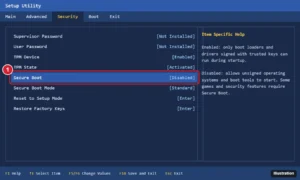
How to Turn Off Secure Boot on Windows 11
Turn off Secure Boot on Windows 11 from the UEFI firmware settings, what to check first (BitLocker, games), and how to turn it back on. Continue Reading How to Turn Off Secure Boot on Windows 11
 Kermit Matthews
Turn off Secure Boot on Windows 11 from the UEFI firmware settings, what to check first (BitLocker, games), and how to turn it back on. Continue Reading How to Turn Off Secure Boot on Windows 11
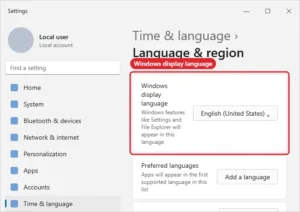
Change the Windows 11 display language: Settings, Time and language, Language and region, add the language pack, select it, and sign out. Continue Reading How to Change the Display Language in Windows 11 and 10
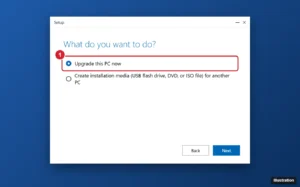
Windows 8.1 and 10 are out of support. Back up first, then use Microsoft’s Windows 10 tool with a license, or clean install Windows 11 if the PC qualifies. Continue Reading How to Upgrade a Windows 8 PC to Windows 10 or 11

Make a bootable Windows 11 USB installer with the Media Creation Tool on an 8 GB or larger drive, then boot from it to install or reinstall Windows. Continue Reading How to Put Windows 11 on a USB Drive (Bootable Installer)
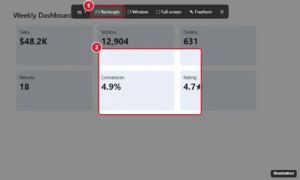
Take a partial screenshot on Windows with Windows + Shift + S, then drag around the area. Plus Snipping Tool tips, save locations, and fixes. Continue Reading How to Take a Partial Screenshot on Windows
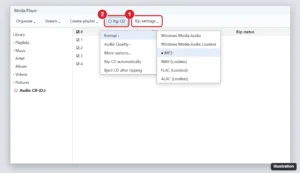
Rip a CD on Windows 10 with Windows Media Player: choose MP3 or FLAC, set quality, change where files save, fix track names, and solve ripping errors. Continue Reading How to Rip a CD on Windows 10: A Step-by-Step Guide for Beginners

See saved Wi-Fi passwords on Windows 11 in Manage known networks, Wireless Properties with Show characters, or netsh with key=clear. Continue Reading How to See Your Wi-Fi Password on Windows 11
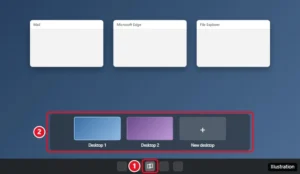
Switch between desktops in Windows 11 with Windows + Ctrl + Arrow keys, Task View, or four-finger swipes. Create, rename, and move windows between desktops. Continue Reading How to Switch Between Virtual Desktops in Windows 11
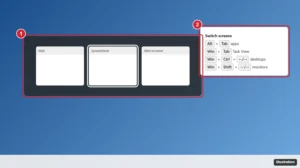
Press Alt + Tab to switch apps, Windows key + Ctrl + arrow for desktops, and Windows key + Shift + arrow to move windows between monitors. Full guide. Continue Reading How to Switch Between Screens on Windows
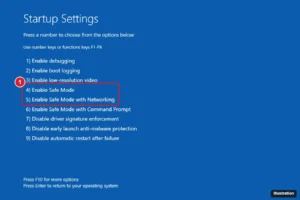
Boot Windows 11 into Safe Mode: hold Shift and click Restart, then Troubleshoot > Advanced options > Startup Settings. Plus fixes when Windows won’t start. Continue Reading How to Boot Into Safe Mode on Windows 11
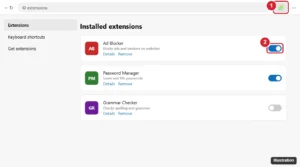
Turn off an ad blocker on Windows 10 in Edge, Chrome, or Firefox, allow ads on one site, and disable built-in tracking protection or other blockers. Continue Reading How to Turn Off an Ad Blocker on Windows 10 (Edge, Chrome, Firefox)

Download Windows 11 onto a USB drive with the Media Creation Tool or the ISO and Rufus, then boot from it to install, plus fixes for common errors. Continue Reading How to Download Windows 11 Onto a USB Drive
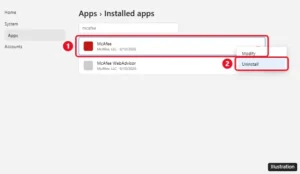
Remove McAfee from Windows through Settings or Control Panel, use McAfee’s MCPR tool only if that fails, keep leftover folders, and confirm Defender is on. Continue Reading How to Remove McAfee From a Windows PC

Hold Alt and type 0151 on the number pad, or press Windows key + period and pick the em dash from Symbols. Word shortcuts and the en dash explained. Continue Reading How to Type an Em Dash on Windows
Microsoft lets you download Windows installation media without paying for the download itself, but that does not mean every PC receives a free Windows license.… Continue Reading How to Get Windows for Free: Legitimate Methods and Tips

Stop apps from opening at startup in Windows 11 with Settings > Apps > Startup, Task Manager, the Startup folder or the app’s own settings. Continue Reading How to Stop Apps From Opening on Startup in Windows 11
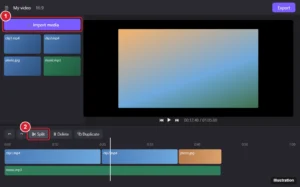
Edit a video on Windows for free with Clipchamp: import clips, trim and split, add music, text, and captions, and export in 1080p. Plus alternatives. Continue Reading How to Edit a Video on Windows: Free Beginner Guide (2026)

Stop Windows locking itself: set Sign-in options > If you have been away to Never, sleep to Never, and turn off Dynamic lock and screen saver lock. Continue Reading How to Turn Off Windows Auto Lock (Windows 11 and 10)

Get Fallout 3 working on Windows 10 and 11: fix new-game crashes with an INI edit, run as admin, handle Games for Windows Live, and more fixes. Continue Reading How to Get Fallout 3 to Work on Windows 10 and 11

Show file extensions in Windows 11 from the File Explorer View menu, Settings, or Folder Options, change an extension safely, and spot disguised malware. Continue Reading How to Show File Extensions in Windows 11 (3 Easy Ways)

Clear the DNS cache in Windows 10 with ipconfig /flushdns or PowerShell, clear your browser DNS cache, and fix DNS errors that remain. Continue Reading How to Clear the DNS Cache in Windows 10 (Flush DNS)
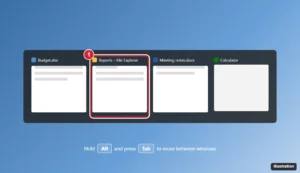
Switch windows on Windows 11 and 10 with Alt+Tab, Task View, the taskbar, touchpad gestures, virtual desktops, and Snap, plus settings that speed it up. Continue Reading How to Switch Between Open Windows in Windows 11 and 10
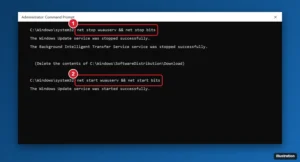
Stop wuauserv and bits, delete the files in C:\Windows\SoftwareDistribution\Download, then restart the services. Plus Disk Cleanup and more fixes. Continue Reading How to Clear the Windows Update Cache
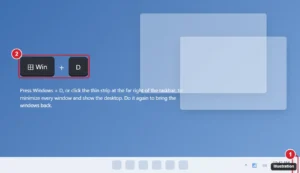
Minimize all windows at once in Windows 11 or 10 with Windows+D, Windows+M, the Show desktop button, or window shake, and restore them just as fast. Continue Reading How to Minimize All Windows at Once (Windows 11 and 10 Shortcuts)
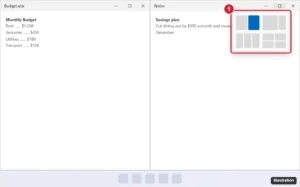
Put two windows side by side in Windows: press Windows + Left or Right arrow, or drag to the screen edge. Plus Snap Layouts and fixes. Continue Reading How to Open Two Windows Side by Side in Windows 11 and 10

Close windows on iPad with the red Close button in iPadOS 26 and later, quit apps from the App Switcher, and close extra windows of the same app. Continue Reading How to Close Windows and Apps on iPad

Remove leftover Windows 10 setup files safely with Disk Cleanup, Clean up system files, or Storage, Temporary files. Continue Reading How to Delete Windows Setup Files in Windows 10
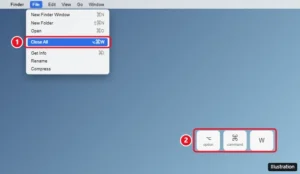
Close all windows on a Mac with Option + Command + W, Option-click the red button, quit several apps at once, and stop windows reopening after restart. Continue Reading How to Close All Windows on a Mac
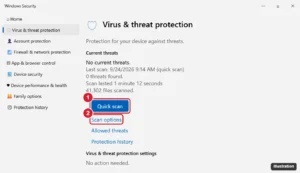
Run a virus scan on Windows 11 with Windows Security: quick, full, custom, and offline scans, plus scanning files from File Explorer and PowerShell. Continue Reading How to Run a Virus Scan on Windows 11 (Quick, Full, and Offline)
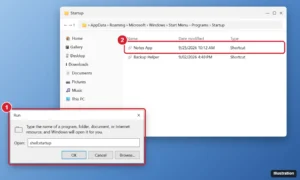
Add programs to startup in Windows 11 with Settings, the shell:startup folder, or Task Scheduler, and disable startup apps that slow down sign-in. Continue Reading How to Add Programs to Startup in Windows 11 (3 Ways)

Open UEFI Firmware Settings from Advanced startup, find Secure Boot on the Boot or Security tab, set it to Disabled, and press F10. What to know first. Continue Reading How to Disable Secure Boot in Windows 10

Downgrade from Windows 11 to Windows 10 with Go back within 10 days or a clean install after, plus what Windows 10 end of support means for you. Continue Reading How to Downgrade from Windows 11 to Windows 10

Password-protect a folder in Windows 10 or 11 with a 7-Zip AES-256 archive, a BitLocker virtual drive, VeraCrypt, or EFS, and avoid folder lock scripts. Continue Reading How to Password Protect a Folder in Windows

Take a scrolling screenshot on Windows with Edge’s Capture full page, Chrome’s developer tools, Firefox, or a free tool for other apps. Continue Reading How to Take a Scrolling Screenshot on Windows
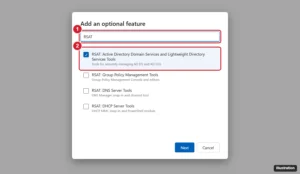
Windows 11 cannot be a domain controller, but you can add AD tools: Settings > System > Optional features > View features > RSAT: Active Directory. Continue Reading How to Install Active Directory Tools on Windows 11
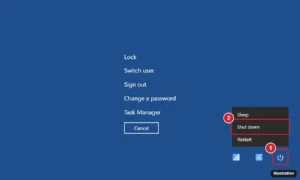
Force shut down a frozen Windows PC by holding the power button 5 to 10 seconds, or use Ctrl + Alt + Delete or shutdown /s /f /t 0. Plus freeze fixes. Continue Reading How to Force Shut Down Windows
Windows Media Player can’t rotate a video. Neither the classic Windows Media Player nor the newer Media Player app in Windows 10 and 11 has… Continue Reading How to Rotate a Video for Windows Media Player (3 Free Ways)

Upload it to Pages on iCloud.com with a free Apple Account, then download it as Word or PDF. Or rename .pages to .zip for a quick preview. Continue Reading How to Open a Pages Document on a Windows PC
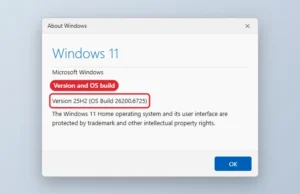
Check your Windows version with winver or Settings > System > About, match an OS build to its version, and see when Microsoft stops servicing each release. Continue Reading How to Check Your Windows Version
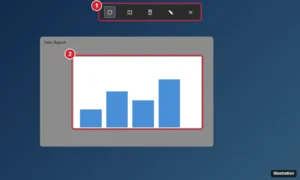
Take a snapshot on Windows with Windows + Shift + S, PrtScn, Windows + PrtScn or Game Bar, find saved screenshots and capture full pages. Continue Reading How to Take a Snapshot (Screenshot) on Windows 11 and 10
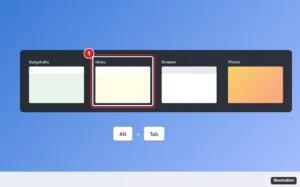
Switch screens on Windows with the keyboard: Alt + Tab for windows, Windows + Tab for Task View, and shortcuts for desktops and monitors. Continue Reading How to Switch Screens on Windows Using the Keyboard
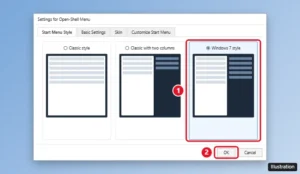
Make Windows 11 look like Windows 7 with a free Open-Shell Start menu, a left-aligned taskbar, the classic right-click menu, and Windows 7-style colors. Continue Reading How to Make Windows 11 Look Like Windows 7

Update Zoom on Windows 10 from the profile menu with Check for Updates, turn on automatic updates, or reinstall from the official site. Continue Reading How to Update Zoom on Windows 10
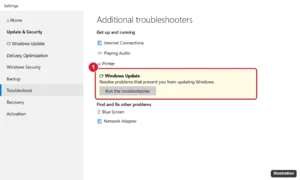
Fix Windows Update errors in Windows 10 and 11: troubleshooter, disk space, DISM and SFC, resetting update components, manual installs and error codes. Continue Reading How to Fix Windows Update: Step-by-Step Troubleshooting
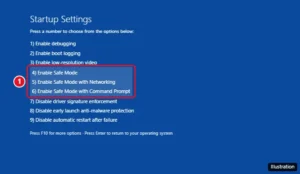
Boot Windows 10 into Safe Mode from the desktop, the sign-in screen or a PC that won’t start, pick the right Startup Settings option, and get back to normal. Continue Reading How to Boot Into Safe Mode on Windows 10

Windows 11 has no renumber setting, but you can swap ports, set a main display, rearrange screens, and clear old monitors to fix wrong monitor numbers. Continue Reading Monitor Numbers in Windows 11: Why They Can’t Be Changed
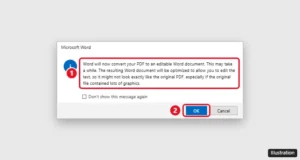
Convert a PDF to an editable Word file with Microsoft Word, Adobe Acrobat’s own export or Google Docs, handle scanned PDFs, and fix tables and pages afterward. Continue Reading How to Convert a PDF to Word
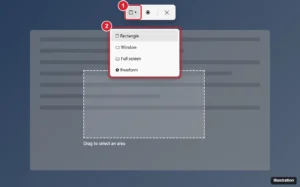
Take a snippet on Windows with Windows + Shift + S, the Snipping Tool, Print Screen, or Game Bar, plus delays, screen recording, and where snips save. Continue Reading How to Take a Snippet on Windows 11 and 10

Restart Windows from Start > Power > Restart, or use Alt + F4 or Ctrl + Alt + Delete from the keyboard. Plus the shutdown command and frozen-PC fixes. Continue Reading How to Restart Windows 11 and 10 (Mouse, Keyboard, Command, and More)
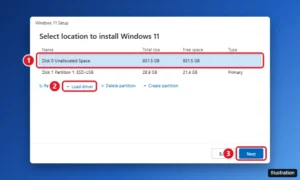
Install Windows 11 on a new PC: make a USB installer, boot from it, pick the empty drive, fix missing drives, then install drivers and activate Windows. Continue Reading How to Install Windows on a New PC