McAfee’s own instructions remove it from the Start menu: find McAfee, press and hold (or right-click) it, select Uninstall and restart. Before you do, know two things McAfee stresses: uninstalling doesn’t cancel a paid subscription, and leftover McAfee folders must not be deleted by hand. McAfee’s removal tool is only for when that standard removal fails, and Windows Security should show Microsoft Defender Antivirus on afterward. This walk-through follows Microsoft’s uninstall instructions and McAfee’s own support articles.
Which McAfee is on your PC?
“McAfee” is often several separate entries, and each one is removed on its own. Before you start, open the Start menu, select All apps and scroll to M, or type McAfee in the search box, to see what you have. You may find:
- The main McAfee security app. This is the antivirus itself; its exact name depends on the plan that came with your PC or that you bought.
- McAfee WebAdvisor. A browser safety add-on. Removing McAfee WebAdvisor covers the browser side.
- McAfee Security Scan Plus. A free McAfee tool, removed separately. It has its own steps in uninstalling McAfee Security Scan Plus.
- McAfee PC Optimizer. Worth noting now, because McAfee says its removal tool does not remove PC Optimizer. It has to come off through the normal uninstall.
Write the list down. It’s your checklist for the uninstall and for confirming nothing was missed at the end.
Before you uninstall: the subscription keeps running
McAfee states plainly that uninstalling the McAfee app does not automatically cancel your paid McAfee subscription. If you’re leaving McAfee for good and pay for it, deal with billing first, while you still remember which account it’s on.
- In a web browser, go to your McAfee account (McAfee’s renewal article points to myaccount.mcafee.com) and sign in.
- Select Subscriptions.
- Select Cancel next to the subscription.
- Scroll down and select Cancel Auto-Renewal.
McAfee’s article advises turning off auto-renewal more than 30 days before your subscription term expires. If you pay through another company, such as a retailer or your internet provider, McAfee says to manage it with that provider instead.
McAfee that came with a new PC: McAfee notes that if you remove the preinstalled app and haven’t activated the included McAfee subscription, you might need to purchase a subscription if you reinstall McAfee later. If there’s any chance you’ll want it back, activate the included subscription before you uninstall.
Uninstall McAfee from Windows
Use the first route below that shows McAfee, and remove each McAfee entry from your list one at a time. Close your open apps first, because McAfee’s steps end with a restart.
From the Start menu (McAfee’s own route)
- On Windows 11, select Start > All apps, then find McAfee in the list. On Windows 10, select Start, then find or search for McAfee.
- Press and hold (or right-click) the McAfee app, then select Uninstall.
- Follow the prompts to remove the McAfee app.
- Restart your PC to complete the removal.
From Settings
- Select Start > Settings > Apps > Installed apps.
- Find McAfee in the list. Typing McAfee in the search box above the list narrows it down.
- Select More next to the entry you want to remove, then Uninstall, and confirm.
- Follow the McAfee prompts, then repeat for the next entry on your list.
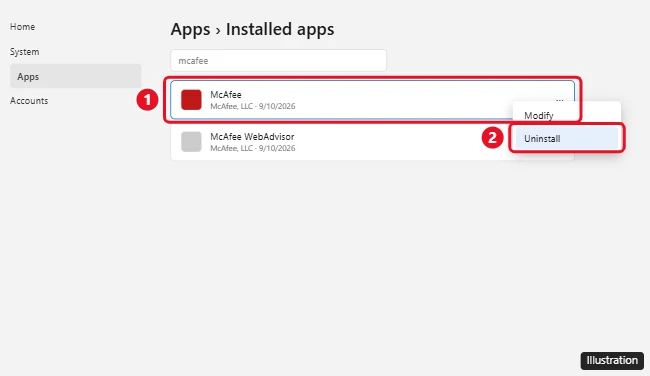
Microsoft notes that some apps can’t be uninstalled from the Settings app right now. If McAfee can’t be removed from Settings, use Control Panel instead.
From Control Panel
- Type Control Panel in the search box on the taskbar and open it.
- Select Programs > Programs and Features.
- Press and hold (or right-click) the McAfee program and select Uninstall or Uninstall/Change, then follow the on-screen directions.
These steps are the same on Windows 11 and Windows 10. If you’re still on Windows 10, note that Windows 10 has reached the end of support on October 14, 2025, according to Microsoft.
Restart, then check what McAfee left behind
After the restart, McAfee’s article asks you to look for three folders. In File Explorer, select View > Show > Hidden items first so you can see them:
- C:\Program Files\McAfee
- C:\ProgramData\McAfee
- C:\Users\<name>\AppData\Local\McAfee (where <name> is your Windows user folder)
If none of them exist, the removal worked. If you do find McAfee folders there, McAfee’s instruction is clear: do not delete, move, rename, or modify them. Note which folders remain and contact McAfee Customer Service for the next steps.
Also look through Start > All apps again and tick off each entry on your list. Anything still there gets the normal uninstall before you go further.
When the standard removal doesn’t finish
If the uninstaller stops with an error or McAfee still appears after a restart, McAfee’s answer is its Consumer Product Removal tool, usually called MCPR. McAfee says the MCPR steps should be used only if you are not able to uninstall McAfee using the standard removal method. Get it from McAfee’s own article, Uninstall McAfee from a Windows PC using the MCPR tool, and nowhere else; McAfee also says to download the latest version of MCPR before each use, so don’t reuse an old copy.
As McAfee’s article describes the run:
- Download MCPR from that article, then double-click MCPR.exe.
- If Windows shows a security warning, select Yes, Continue or Run.
- On the McAfee Software Removal screen, select Next, then Agree to the license agreement.
- On the Security Validation screen, type the characters exactly as shown (validation is case-sensitive) and select Next. McAfee explains this step prevents accidental use of the tool.
- Wait. McAfee says this might take 20 minutes or more.
- When you see Removal Complete, the tool has finished. Restart your PC.
After that restart, check the same three folders again. The same rule applies: if any remain, leave them alone and contact McAfee Customer Service. And because MCPR skips PC Optimizer, uninstall that one through Start, Settings or Control Panel if it’s still listed.
If the standard uninstall failed with a Windows error rather than a McAfee message, Microsoft’s uninstall page also points to its Program Install and Uninstall Troubleshooter.
Make sure Windows is protecting the PC
McAfee states that McAfee protection is removed when you uninstall the app, so the last job is to confirm something has taken over. Microsoft’s antivirus FAQ says that if you don’t have another security product, or it is expired, Microsoft Defender Antivirus will automatically turn on. Check rather than assume:
- Open Windows Security from the Start menu.
- Select Virus & threat protection.
- Look at the protection status. Under Virus & threat protection settings, select Manage settings and make sure Real-time protection is on.
If Real-time protection isn’t on, go back to the checklist above and make sure every McAfee entry is gone. Turning on Windows Defender in Windows 11 covers Defender settings that won’t switch on, and finding out which antivirus you have helps when you aren’t sure what Windows is using.
Browser warnings and pop-ups after McAfee is gone
McAfee has a separate support article for when WebAdvisor wasn’t removed after uninstalling McAfee software, which is what the WebAdvisor link above deals with. A “McAfee” warning in the browser can also come from a website’s notifications; stopping McAfee pop-ups shows how to tell the two apart.
Changed your mind, or removed McAfee only to fix a damaged copy? Install McAfee again from your McAfee account, keeping in mind McAfee’s note about activating a preinstalled subscription first. If you’re replacing a different security suite as well, uninstalling Norton on Windows 11 follows the same pattern of standard removal first and the maker’s own tool only if needed. Whichever way you go, keep one real-time antivirus running and check Windows Security once more after your next restart.
Leftover McAfee questions
Can I install another antivirus right after removing McAfee?
Yes, once the McAfee removal and restart are finished. Microsoft’s Defender compatibility page explains that when a non-Microsoft antivirus is installed, Microsoft Defender Antivirus moves into a disabled mode automatically, and it can be re-enabled automatically if that product expires, is uninstalled, or stops providing real-time protection. Installing one product at a time keeps that handover clean.
McAfee isn’t in Installed apps, but I still see its icon. What now?
Try Start > All apps and Control Panel’s Programs and Features, since Microsoft notes some apps can’t be uninstalled from Settings. If McAfee still won’t come off, use MCPR from McAfee’s article.

Kermit Matthews runs Live2Tech from just outside Philadelphia. He is an IT specialist with over 20 years of experience, from a university help desk to small-business IT, IT management and his own consulting practice, and has written tech guides full time since 2020. Steps are checked against the current software on a real device or the maker’s official documentation. More about Kermit.