McAfee software installs from your McAfee account on McAfee’s own website, never from a download site or a pop-up offer. Once McAfee is running, Microsoft says Windows moves Microsoft Defender Antivirus into a disabled mode on its own, so there is nothing to remove or switch off first.
The exact first step depends on how you got McAfee, so start by matching your situation below.
Which starting point do you have?
McAfee reaches people in four common ways, and each one begins in a slightly different place. All four end with the same installer.
| How you got McAfee | Where to start |
|---|---|
| Bought it from McAfee online | Sign in at protection.mcafee.com and download from your account |
| A retail card from a store, or an eCard by email | Redeem the product key at mcafee.com/activate first |
| It came installed on a new PC | Open the McAfee app that is already there and activate it |
| A partner such as your PC maker or internet provider supplied it | Use the start page McAfee lists for that company on its install article |
If you are not sure, check the email you used when you paid. A receipt from McAfee itself means the first row; a card or code in a box means the second.
Check the PC before you download
A few minutes here prevents most failed installs. McAfee lists these requirements on its McAfee system requirements article:
- Windows version: Windows 11, or Windows 10 version 1809 or later with limited support. ARM-based PCs need Windows 11.
- Hardware: a 1 GHz processor, 2 GB of RAM and 1.3 GB of free storage, plus a fast internet connection.
- S mode: McAfee says Windows S Mode is not supported, so a PC in S mode can’t run it.
About Windows 10: Microsoft states that “Windows 10 has reached the end of support on October 14, 2025,” as its Windows 10 end of support page explains, and McAfee says its own support on Windows 10 is limited for that reason.
Then get the PC ready:
- Install any waiting updates from Windows Update in Settings and restart if Windows asks.
- Uninstall any other security app you added yourself, as McAfee’s preparation checklist for Windows advises.
- Leave Microsoft Defender alone. The same McAfee checklist says you don’t need to remove Microsoft Defender or other built-in Windows security features.
- If an older McAfee app is still installed, McAfee says to remove it first; removing McAfee from Windows 10 and 11 covers that, and then you can come back here.
Not sure what security software is on the PC right now? Finding out which antivirus you have walks through the places Windows lists it.
Download and install from your McAfee account
This is McAfee’s documented route for Windows 11 and Windows 10, from its Download and install McAfee products article. Type the address yourself rather than following a link in an email you didn’t expect.
- Go to protection.mcafee.com and click Get started.
- Sign in with one of the five methods McAfee offers: Continue with Apple, Continue with Google, Continue with Microsoft, Email & Password or Sign in with one-time passcode. Use the same email address you bought McAfee with.
- Scroll down to the Device section and click Download to more devices.
- Click Download on this device.
- Wait for the download to start. If it doesn’t, click the download it manually link.
- Open the downloaded McAfee.exe file from your browser’s download list (Ctrl + J opens it in most browsers) or from the Downloads folder.
- When the User Account Control box appears, click Yes.
- When the McAfee installer opens, click Install.
- Wait for the installation to finish, then click Close. McAfee says this usually takes about 2 minutes, not counting the download.
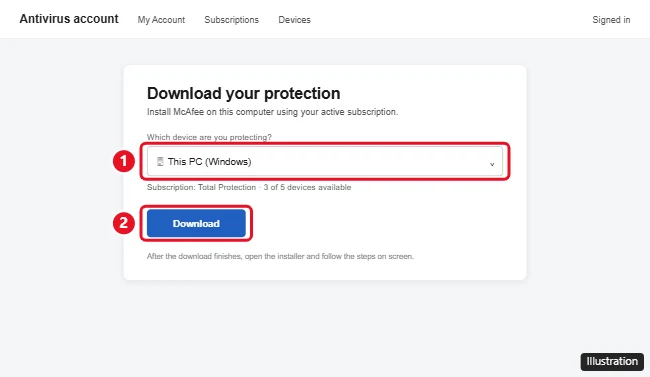
The illustration is a drawing, not McAfee’s current page; on the current page the choice is labeled Download on this device, inside Download to more devices.
If a partner supplied your subscription, McAfee’s install article lists separate start pages for companies such as Dell, AT&T, MSN and AOL. Begin from the one for your provider and follow its prompts.
Redeem a retail card or eCard
A product key from a store card or an eCard has to be attached to a McAfee account before anything downloads. McAfee’s retail card activation article gives these steps:
- Go to McAfee’s official activation site, mcafee.com/activate. Type it into the address bar; McAfee warns that scam sites imitate activation pages.
- Enter the 25-digit product key (activation code) from your card or eCard, along with your email address.
- Follow the prompts on screen; McAfee’s activation article explains what the sign-up asks for.
- When the account is ready, download and install with the steps in the previous section.
Keep the card until the subscription shows in your account. McAfee notes that a key can be redeemed only once, so a later reinstall comes from signing in to My Account, not from typing the key again.
When McAfee came with the PC
Many new PCs ship with McAfee already installed, and it only needs activating. McAfee’s preinstalled McAfee activation article describes it this way:
- Open the McAfee app and select Account > My Subscription.
- Select Go to My Account. The McAfee website opens.
- Sign in with your email and password, a social login or a one-time passcode.
To check that it worked, click Show hidden icons on the taskbar, right-click the McAfee icon and choose Verify subscription. A notification confirms that the software and subscription are in sync. If that fails, McAfee asks you to contact its Customer Service with the PC’s purchase receipt.
One caution before you uninstall a preinstalled copy you haven’t activated: McAfee says you might need to buy a subscription if you reinstall it later.
Add McAfee to another device
From your account, Download to more devices also lets you send the installer elsewhere. McAfee offers a QR code to scan, or a link sent by email or text with Send link. Open that link on the other device and install from there.
Each device uses one place in your subscription. If you’ve reached the limit, McAfee’s options are to buy more licenses or to deactivate the license on a device you no longer use.
What happens to Microsoft Defender
Microsoft’s Defender compatibility table says that on Windows 11 and Windows 10, when a non-Microsoft antivirus is installed, Microsoft Defender Antivirus goes into disabled mode automatically. On Windows 11 with Smart App Control turned on, Microsoft notes it may use passive mode instead.
Microsoft also says Defender can turn itself back on automatically if the other product expires, is uninstalled or stops providing real-time protection. So if a McAfee subscription lapses, Defender can take over again; check Windows Security to confirm which product is on.
To see which product Windows is using, open Windows Security > Virus & threat protection, and under Who’s protecting me? select Manage providers. If McAfee is later removed and you want to make sure Defender is back on, see turning on Windows Defender in Windows 10.
If the installer stops or the app says expired
- The app opens but says your subscription has expired or isn’t activated. McAfee’s install article says to sign in with the same email you used to buy or activate it, open the McAfee app and confirm the subscription appears under your account, then restart the PC.
- An “Installation Incomplete” message. McAfee’s Installation Incomplete fix article starts with the McAfee Pre-Install Tool, downloaded from that McAfee page only. Its later fixes involve administrator-account and command-line changes; if the first fix doesn’t help, contacting McAfee support is the safer next step.
- The download never starts. Use the download it manually link on the account page, and check that you’re signed in with the purchase email.
- The PC is in S mode or doesn’t meet the requirements. The installer won’t help here; check the requirements list above.
Fake McAfee download offers
Pop-ups, texts and emails that claim your McAfee subscription has expired, or that your PC is infected, are a common scam. They often push a phone number, a payment or a “renewal” download. Close the message, type mcafee.com into your browser yourself and check your account there. For help telling real McAfee alerts from fake ones, see stopping McAfee pop-ups on Windows, and if a browser add-on came along with McAfee, removing McAfee WebAdvisor covers that piece separately.
McAfee setup questions
Can one retail card key go on a second PC?
No; once redeemed, the subscription sits in your McAfee account, and more PCs are added from Download to more devices while the subscription has room.
Do I need administrator rights?
The installer triggers a User Account Control prompt, so you need to be able to approve it with an administrator account on that PC.
Once McAfee shows your subscription and Windows Security lists it under Manage providers, the setup is complete, and the account page is the place to come back to for every future reinstall.

Kermit Matthews runs Live2Tech from just outside Philadelphia. He is an IT specialist with over 20 years of experience, from a university help desk to small-business IT, IT management and his own consulting practice, and has written tech guides full time since 2020. Steps are checked against the current software on a real device or the maker’s official documentation. More about Kermit.