To see which antivirus protects your Windows 10 PC, open Windows Security (search for it in Start) and click Virus & threat protection. If Microsoft Defender is active, you’ll see its settings and scan options. If another antivirus is in charge, this page names it, for example “[App name] is turned on,” with an Open app button. It might be the built-in Microsoft Defender Antivirus, a trial that came with the computer, or a suite whose subscription quietly expired.
Method 1: Windows Security
- Click Start, type Windows Security, and open it.
- Click Virus & threat protection.
- Read the page:
- If you see Current threats, Quick scan, and Virus & threat protection settings, Microsoft Defender Antivirus is your active antivirus.
- If you see another product’s name and an Open app button, that product is your active antivirus, and Defender is standing by.
For a full list, go to Settings (the gear at the bottom-left of Windows Security) and click Manage providers. It lists every registered antivirus, firewall, and web protection provider and shows which is on.
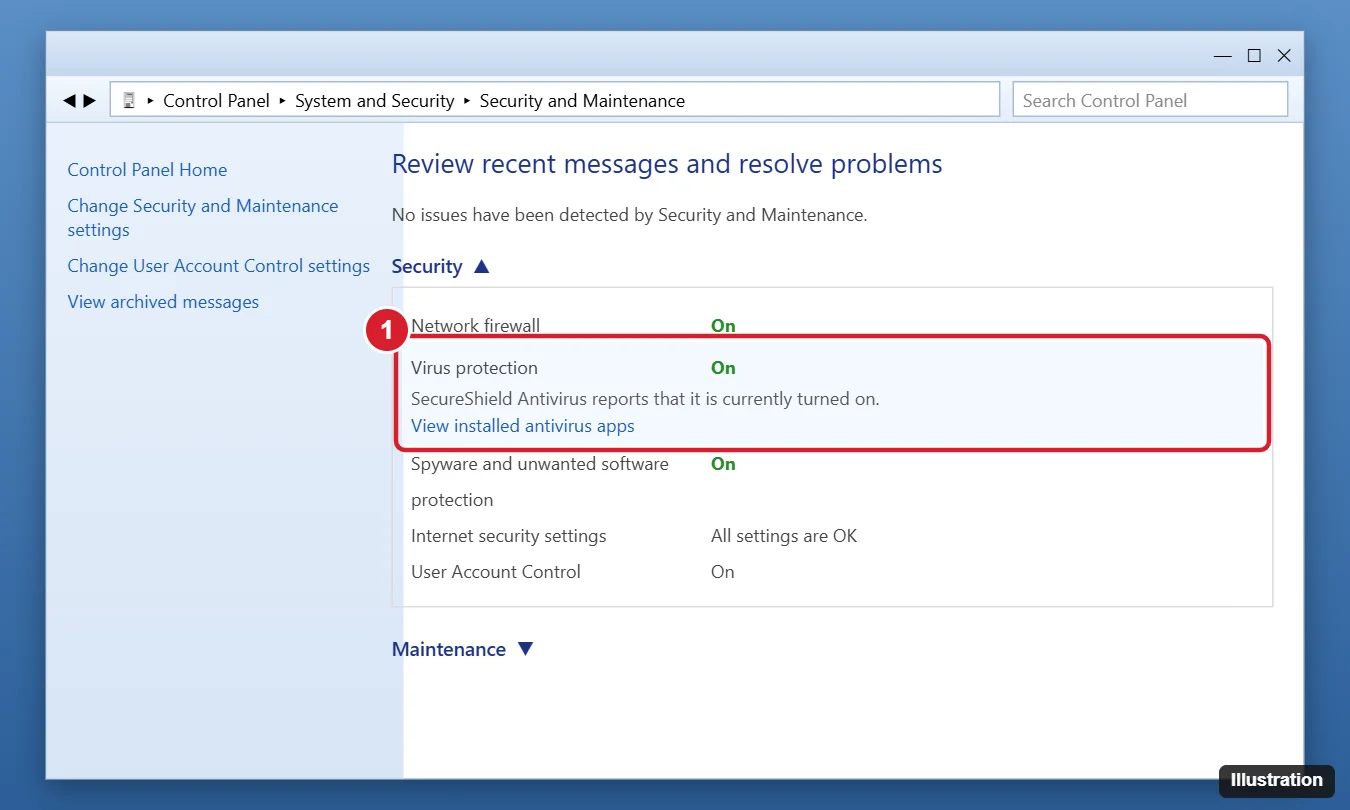
Method 2: Security and Maintenance (Control Panel)
- Open Control Panel > System and Security > Security and Maintenance.
- Expand Security.
- Look at Virus protection. It shows On or Off and names the antivirus that’s reporting. Click View installed antivirus apps to see others.
Method 3: PowerShell
- Right-click Start and choose Windows PowerShell.
- Run:
Get-CimInstance -Namespace root/SecurityCenter2 -ClassName AntivirusProduct | Select-Object displayName, productState
Each registered antivirus appears by name. The productState number is technical, but the list confirms what’s installed. Leftover entries from uninstalled software occasionally appear here too.
Method 4: System Tray and Installed Apps
- Click the up arrow at the right end of the taskbar. Antivirus programs usually show an icon there; hover over it to see the name.
- Go to Settings > Apps > Apps & features and search for words like “security,” “antivirus,” or known brand names to find installed suites, including expired trials.
What to Do With the Results
Only Microsoft Defender
That’s fine for most home users. Keep Windows updated so Defender gets the latest definitions. Note that Windows 10 reached end of support in October 2025; security intelligence updates for Defender continue for a period, but the operating system itself no longer gets regular security fixes unless you’re enrolled in Extended Security Updates, so plan an upgrade to Windows 11 or ESU.
A third-party antivirus
Open it and check that its subscription is active and definitions are up to date. An expired antivirus may still show as installed but stop updating. If you don’t want to renew, uninstall it completely (use the vendor’s removal tool if available), and Microsoft Defender turns back on automatically.
If the product listed is SentinelOne on a work or school PC, removal goes through your IT team, as explained in removing the SentinelOne agent with IT approval.
If the product listed is Quick Heal and you only need it out of the way for a few minutes, you can pause or uninstall Quick Heal in Windows 10 with its own settings.
Two antivirus programs running
Running two real-time antivirus products can slow your PC and cause conflicts. Keep one. Windows normally handles this by putting Defender in passive mode when another antivirus is active.
How Defender steps aside for another product, and how to pause it briefly yourself, is covered in turning off Windows Defender temporarily.
Virus protection is Off
Click Turn on in Windows Security or open your antivirus app. If it won’t turn on, run a scan with Microsoft Defender Offline (Scan options > Microsoft Defender Offline scan) in case malware disabled it.
Can I check if my antivirus is working?
Run a quick scan and check the last update date. For a safe test, the industry-standard EICAR test file (from eicar.org) should be detected immediately by any working antivirus.
Related: install Trend Micro on Windows 11.
Related: How to use Windows Defender.
Related: Run a virus scan with Microsoft Defender.
Related: Check for malware on Windows 11.
If the product listed is Norton and you no longer want it, removing Norton from Windows also explains how to stop the subscription from renewing.
Seeing McAfee warnings even though McAfee is not on that list? Fake McAfee pop-ups usually come from a website, and blocking its notifications stops them.

Kermit Matthews runs Live2Tech from just outside Philadelphia. He is an IT specialist with over 20 years of experience, from a university help desk to small-business IT, IT management and his own consulting practice, and has written tech guides full time since 2020. Steps are checked against the current software on a real device or the maker’s official documentation. More about Kermit.