Pause protection only briefly: Quick Heal lets you turn off its Virus Protection from its own dashboard for 15 minutes, 30 minutes, 1 hour or until the next restart, and it turns itself back on afterwards. If you want Quick Heal gone for good, uninstall it with Quick Heal’s own uninstaller (it sends a verification code to your registered phone or email), restart, and confirm Microsoft Defender Antivirus is on.
Pause Quick Heal’s Virus Protection for a set time
These steps follow Quick Heal’s version 26 documentation for Quick Heal Total Security and Quick Heal Internet Security on Windows 10; Quick Heal AntiVirus Pro and other editions use similar wording.
Virus Protection is Quick Heal’s real-time scanner, the part that checks files as they are opened, downloaded or copied. It is the switch most people mean when they say “turn off Quick Heal.” Quick Heal turns it on by default and recommends keeping it on, so treat a pause as a short window for one specific job, such as installing a program from a publisher you trust that Quick Heal keeps blocking.
- Open Quick Heal from the Start menu (or double-click its icon in the notification area at the bottom right of the taskbar).
- In the left pane, go to Protection > Device Security and click Virus Protection.
- Turn the Virus Protection switch off.
- When the confirmation pop-up appears, click Yes.
- Pick how long it should stay off: Turn on after 15 minutes, Turn on after 30 minutes, Turn on after 1 hour or Turn on after next reboot.
- Click OK to save. If you set a Quick Heal password, enter it when asked.
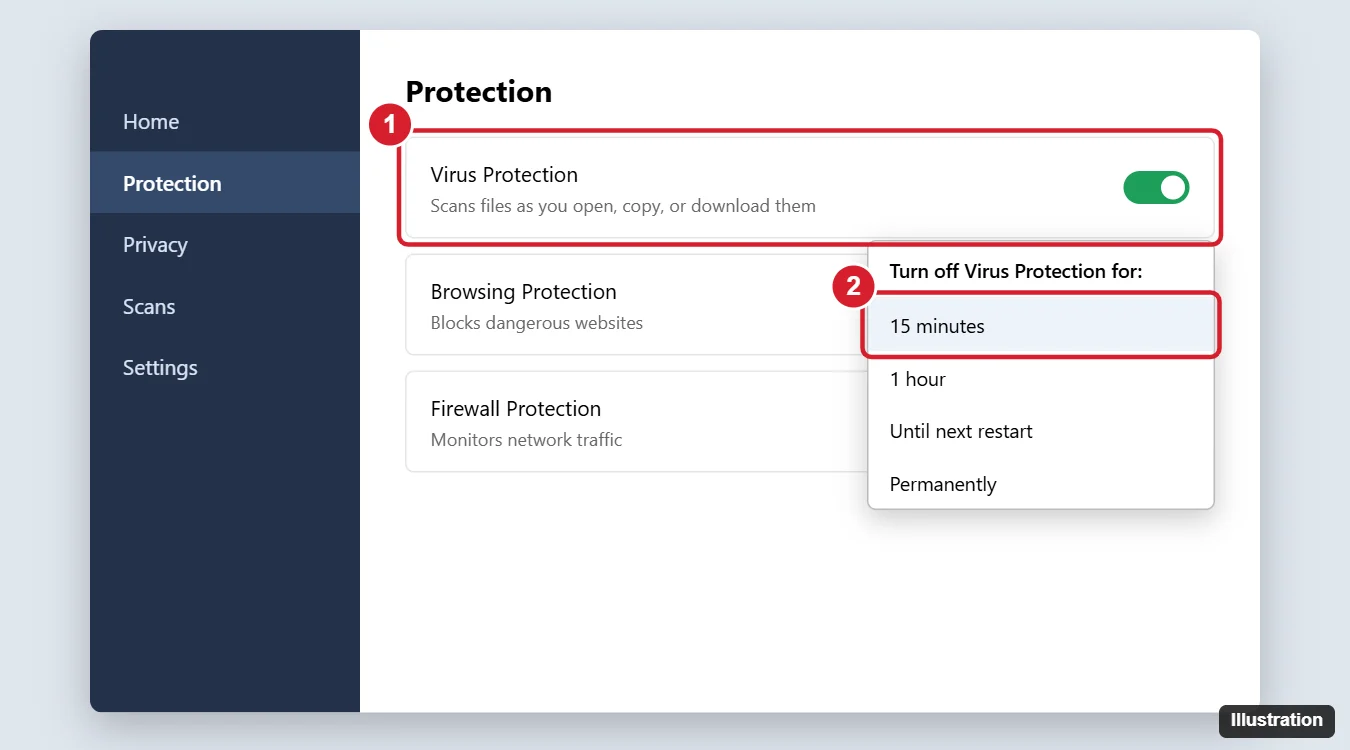
Quick Heal’s version 26 documentation lists only these four timed choices; there is no “off forever” option on that screen. A timer also means protection comes back even if you forget. Choose the shortest one that covers your task.
While Virus Protection is paused, Windows Security may warn that virus protection is off. That warning is expected and clears once Quick Heal is protecting the PC again. Avoid browsing, opening email attachments or downloading anything else during the pause.
Turn Virus Protection back on
If you picked a timed option, Quick Heal turns Virus Protection back on by itself when the time is up, or at the next restart if you chose Turn on after next reboot.
To turn it on sooner:
- Open Quick Heal and go to Protection > Device Security > Virus Protection.
- Turn Virus Protection on.
- Click Save.
If you also switched off any other shield, turn it back on the same way.
When an exclusion or a single shield is the better fix
Turning off the whole scanner is often more than you need. Two narrower options keep most of your protection in place:
- Exclude one trusted file or folder. Older Quick Heal documentation places this under Protection > Scan Settings > Exclude Files & Folders, where you click Add, choose the item, pick which detections to skip and save. The label may sit in a slightly different place in version 26, so look for “Exclude” in Quick Heal’s settings. Only exclude items you are sure are safe, because Quick Heal will not scan them.
- Check the shield that is actually blocking you. A program that cannot reach the internet is usually stopped by the firewall, and a download or website that will not open is usually stopped by browsing protection, not by Virus Protection. Depending on your edition, Quick Heal lists shields such as Firewall Protection, Browsing Protection, Ransomware Protection and Safe Banking. Pausing only the one involved, then turning it back on, leaves the rest of the PC covered.
If you are not sure which security program is active on the PC in the first place, see how to find out what antivirus you have on Windows 10 before you change anything.
Uninstall Quick Heal with its own uninstaller
Uninstalling is the right choice if your subscription has ended, you are switching to another product, or you want Microsoft Defender Antivirus to handle protection. Before you start, have two things within reach:
- Your registered phone or email. Quick Heal asks for a one-time authentication code so nobody else (or no piece of malware) can remove it. Quick Heal says users outside India receive the code by email.
- Administrator rights on the PC, and your Quick Heal password if you set one.
Quick Heal documents these steps (shown here with Internet Security; Total Security uses the same flow with its own name):
- Select Start > Programs > Quick Heal Internet Security > Uninstall Quick Heal Internet Security.
- On the authentication screen, click Send Code, enter the code you receive and click Verify Code.
- Choose Remove Quick Heal and keep reports (useful if you plan to reinstall) or Remove Quick Heal completely, then click Next.
- If Quick Heal is password protected, enter the password and click OK.
- Click Yes to confirm. A feedback form appears; fill it in and click Submit if you like.
- When Quick Heal shows your product key, click Save to file and keep that file somewhere safe. You need the key to reinstall Quick Heal on this or another PC.
- Click Restart Now (or Restart Later if you need to save work first). Removal finishes after the restart.
Quick Heal warns that removing it may expose the system to threats, which is why the Defender check further down matters. The full flow is on Quick Heal’s Internet Security 26 uninstallation page.
Uninstall from Windows Settings or Control Panel
You can also start the removal from Windows. Quick Heal’s own uninstaller still opens, so expect the same code and confirmation screens.
- Settings (Windows 10): open Start > Settings > Apps, find Quick Heal under Apps & features, select it and click Uninstall.
- Control Panel: go to Programs > Programs and Features, right-click Quick Heal and choose Uninstall or Uninstall/Change.
Microsoft describes both routes, and the Windows 11 equivalents, on its uninstall or remove apps page. On a Windows 11 PC the list is under Settings > Apps > Installed apps, as described in this walkthrough to uninstall a program on Windows 11. Removing another security suite works much the same way, as in the steps to uninstall Norton on Windows 11.
Do not delete Quick Heal’s folders by hand. Its Self Protection feature, which is on by default, guards Quick Heal’s files, processes and services, and a half-removed antivirus can leave the PC with no working protection at all. If the uninstaller fails, contact Quick Heal support.
Check that Microsoft Defender Antivirus took over
This check matters more than usual on Windows 10. Quick Heal still supports it, but Microsoft notes that Windows 10 has reached the end of support on October 14, 2025, so the PC no longer gets security updates for Windows itself.
Windows switches its built-in antivirus off while another product such as Quick Heal is active. Microsoft’s Windows Security overview says that if you uninstall the other app, Microsoft Defender Antivirus turns back on automatically. Confirm it after the restart:
- Search Start for Windows Security and open it.
- Select Virus & threat protection.
- Check that Microsoft Defender Antivirus is listed and that Real-time protection is on under Manage settings.
If it still shows as off, follow the steps to turn on Windows Defender in Windows 10 (or turn on Windows Defender in Windows 11 on a newer PC). Once Defender is your antivirus, the same “pause or exclude” choice applies to it: you can add an exclusion to Windows Defender for one trusted folder.
If the switch, password or code gets in the way
- The Virus Protection switch will not move. Sign in to Windows with an administrator account. Self Protection also blocks other programs from changing Quick Heal, so make the change inside Quick Heal itself.
- You forgot the Quick Heal password. In newer versions, go to More > Settings > Password Management > Forgot Password, choose your mobile number or email address, enter the verification code and set a new password. Older builds call the setting Password Protection. Quick Heal’s Total Security 26 settings page explains both.
- The authentication code never arrives. Check the email address or phone number registered with your license, look in spam, and request the code again. If you no longer have that phone or email, Quick Heal support has to help.
- An app is still blocked with Virus Protection off. Look at the firewall and browsing protection, or add an exclusion, then restart the blocked app.
Quick Heal questions
Will uninstalling Quick Heal cancel my license?
Uninstalling does not use up the key, which is why the uninstaller offers to save it. Quick Heal says each product key is intended for use on a single system at a time, so to move your protection to another PC, uninstall Quick Heal from this one first, then install it on the new PC with the same key.
Should I keep reports or remove Quick Heal completely?
Keep reports if you expect to reinstall and want the old scan history back. Choose completely if you are moving to a different antivirus or giving the PC away.
Can Quick Heal and Microsoft Defender protect the PC at the same time?
Not both in real time. Microsoft Defender Antivirus turns itself off while Quick Heal is active and returns when Quick Heal is removed. To pause Microsoft’s own antivirus rather than Quick Heal, see how to turn off Windows Security in Windows 10 and 11 or disable Windows Defender in Windows 10.
Whichever route you took, finish by opening Windows Security once more: a green check under Virus & threat protection, from Quick Heal or Defender, means the PC is covered again.

Kermit Matthews runs Live2Tech from just outside Philadelphia. He is an IT specialist with over 20 years of experience, from a university help desk to small-business IT, IT management and his own consulting practice, and has written tech guides full time since 2020. Steps are checked against the current software on a real device or the maker’s official documentation. More about Kermit.