Removing programs you no longer use frees up disk space, cuts down on background processes, and gets rid of unwanted trial software. Windows 11 gives you several ways to uninstall apps: from Settings, directly from the Start menu, the classic Control Panel, or the command line. This guide covers each, plus what to do when a program refuses to uninstall.
Quick Answer
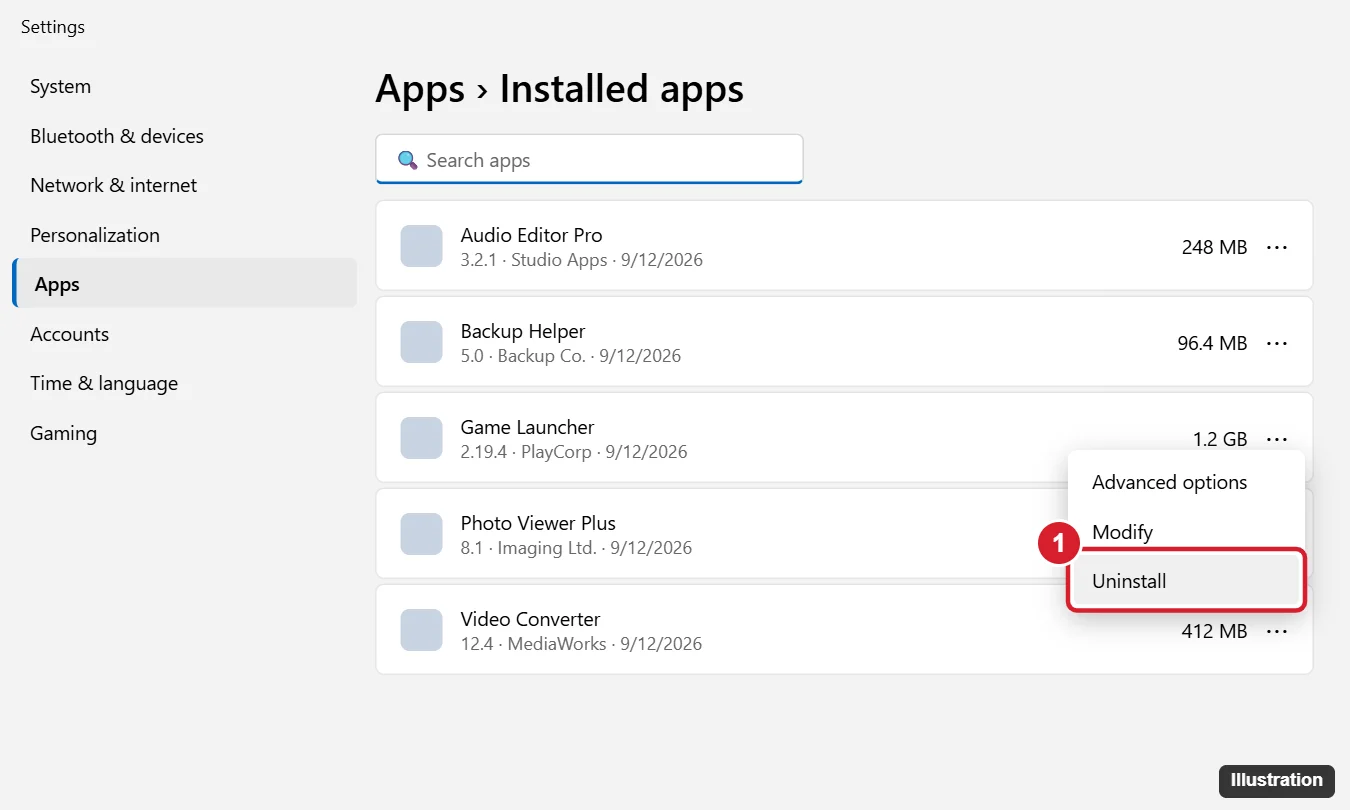
Go to Settings > Apps > Installed apps, find the program, click the three dots (…) next to it, and choose Uninstall. Click Uninstall again to confirm, then follow any prompts from the program’s uninstaller.
Method 1: Settings (Recommended)
- Press Windows + I to open Settings.
- Go to Apps > Installed apps.
- Search for the app or sort the list by Size or Date installed to find big or recent programs.
- Click the three dots next to the app and select Uninstall.
- Confirm. Desktop programs may open their own uninstaller; follow its steps.
Method 2: Start Menu
- Open Start and click All (or All apps), or search for the app.
- Right-click the app and choose Uninstall.
Microsoft Store apps uninstall immediately. For desktop programs, Windows opens Settings or Control Panel so you can finish.
Method 3: Control Panel
- Press Windows + R, type appwiz.cpl, and press Enter to open Programs and Features.
- Select the program and click Uninstall (or Uninstall/Change) at the top.
This classic view lists only desktop programs, not Store apps, and is handy for programs that offer Change or Repair options.
Method 4: Command Line (winget)
- Right-click Start and choose Terminal (Admin).
- Run winget list to see installed apps and their names or IDs.
- Run winget uninstall “App Name” (or use –id with the exact ID).
winget is useful for removing several apps quickly or scripting cleanups.
Can’t Uninstall a Program? Try These
- Close it first: Quit the app and check the system tray (the up arrow on the taskbar). End it in Task Manager if it’s still running, then try again.
- Restart and retry: A pending update or locked file can block uninstallation.
- Use the program’s own uninstaller: Look in its folder under C:\Program Files for a file like uninstall.exe, or download the vendor’s removal tool (many antivirus programs require one).
- Safe Mode: Stubborn programs may uninstall in Safe Mode. Hold Shift and click Restart, then choose Troubleshoot > Advanced options > Startup Settings > Restart > 4.
- Microsoft’s troubleshooter: Microsoft offers a Program Install and Uninstall troubleshooter on its support website that can fix broken uninstall entries.
- Uninstall is grayed out: Some built-in Windows apps can’t be removed, and work or school PCs may block uninstalling. Ask your IT team for managed devices.
Remove Leftover Files
Uninstallers sometimes leave settings behind. After uninstalling, you can check C:\Program Files, C:\Program Files (x86), and %AppData% for the program’s folder and delete it if you’re sure you don’t need its settings. Avoid registry cleaners; they rarely help and can cause problems.
Uninstall vs. Disable
If you just want an app to stop running at startup, you don’t need to uninstall it. Turn it off in Settings > Apps > Startup. To temporarily stop an app, use Advanced options > Terminate in its Installed apps menu (for Store apps).
You can also remove apps from the command line with winget; see installing winget.
Related: Install CorelDRAW X4 on Windows 10.
Frequently Asked Questions
Does uninstalling delete my files?
Usually not your documents, photos or other files saved in your user folders. App settings and anything saved only inside the app may be removed, so export or back up that data first.
Can I reinstall a program later?
Yes. Reinstall it from the Microsoft Store (Library shows apps you have owned) or from the developer’s website.
How do I free the most space?
In Settings, Apps, Installed apps, change Sort by to Size (large to small) and remove large apps and games you no longer use.
Why is Uninstall greyed out?
Some built-in Windows components cannot be removed, and apps installed by your organisation may be locked.
Summary
- Go to Settings > Apps > Installed apps, click the three dots, and choose Uninstall.
- Or right-click the app in Start and choose Uninstall.
- Use appwiz.cpl for the classic Programs and Features.
- For stubborn programs, close them, restart, use the vendor’s tool, or try Safe Mode.
Related: Find installed programs in Windows 11.

Kermit Matthews runs Live2Tech from just outside Philadelphia. He is an IT specialist with over 20 years of experience, from a university help desk to small-business IT, IT management and his own consulting practice, and has written tech guides full time since 2020. Steps are checked against the current software on a real device or the maker’s official documentation. More about Kermit.