Ask your IT admin first: the SentinelOne agent is managed by your organization, and removing it needs either an admin working in the SentinelOne management console or an uninstall passphrase or approval they issue for your device. On a managed work or school computer, the IT admin must remove the agent or approve the removal, and there is no supported way around that. Ask them to uninstall it remotely, or to approve a local uninstall on your PC.
Whose computer is it?
SentinelOne is endpoint security software that companies, schools and IT service providers install on the computers they manage. Each agent connects to the organization’s management console, and SentinelOne’s own FAQ says the Management console is used to manage all the agents, including initiating a full uninstall. Who should act depends on whose device it is:
| Your situation | Who removes the agent | What you do |
|---|---|---|
| Work or school computer you still use | Your IT team, or you with their approval | Open a request with IT or the help desk; do not try to remove it yourself |
| Your own PC enrolled in a work program (for example, to reach company email) | Your IT team | Ask IT to uninstall it as part of removing the PC from the program |
| Personal PC with an agent left over from a former job, school or IT provider | The organization that installed it | Contact that organization’s IT team; see the section on leftover agents below |
| You are the SentinelOne administrator | You, in the management console | Uninstall it from the console, or approve a local uninstall |
Not sure SentinelOne is the security product on the PC at all? Check how to find out what antivirus you have on Windows 10; the same Windows Security check works on Windows 11.
What to ask your IT team for
A clear request gets handled faster. Include:
- The device. Its name or asset tag as IT knows it (often on a sticker on the device).
- The reason. For example, you are returning the laptop, the PC is moving to personal use, or a program you need for work conflicts with the agent.
- The route you want. Either “please uninstall the agent from the console” (the device usually needs to be on and online so it can receive the command), or “please approve a local uninstall,” in which case the admin approves it or gives you an uninstall passphrase for that one device.
If the agent is causing a problem with one program, say so. IT may be able to fix the conflict in its SentinelOne policy without removing protection at all, which is usually the outcome your organization prefers.
Uninstall the agent on the PC after IT approves
If your administrator approves a local uninstall, the removal itself uses Windows’ normal app list. You need a Windows account with administrator rights; on many managed PCs, IT does this part for you.
- Open Start > Settings > Apps > Installed apps on Windows 11. On Windows 10, open Settings > Apps and look under Apps & features.
- Find the SentinelOne agent in the list (it may appear as Sentinel Agent).
- On Windows 11, select More (the three dots) > Uninstall. On Windows 10, select the app and then Uninstall.
- When the uninstaller asks for verification, enter the uninstall passphrase your administrator provides, or wait while they approve the request from their side.
- Restart the PC when the uninstall finishes.
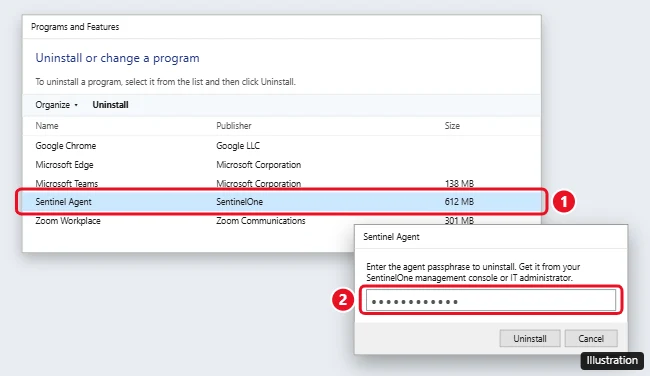
If Settings will not remove it, Microsoft’s uninstall or remove apps page also describes the Control Panel route: Programs > Programs and Features, right-click the app and choose Uninstall or Uninstall/Change. The general steps are the same as for any program, as covered in how to uninstall a program on Windows 11; the only difference is the approval the agent requires.
Treat a passphrase like a password: do not share it or reuse it.
A personal PC that still has an old organization’s agent
This happens when a former employer, school or IT contractor set up a computer that is now yours, or when you buy a used business laptop. The agent still answers to that organization’s console, so:
- Contact the organization that installed it (its IT team or help desk) and ask them to uninstall the agent from their console or approve a local uninstall.
- Have proof that the device is now yours ready, such as a release or sale document.
- If you cannot tell who installed it, the seller or the company that leased the device is the place to start.
SentinelOne’s support page is set up for its customers, meaning the organizations that run the console, so the organization is the one that can open a case with SentinelOne if its own tools cannot remove the agent.
If the uninstall fails or the agent comes back
- The uninstall stops or reports an error. Tell IT what the message says. The administrator can retry from the console or ask SentinelOne support for help with that agent.
- The agent reappears after a restart. Many organizations reinstall their security tools automatically on managed devices. Ask IT to remove the PC from their device management as well.
- No one will approve it. Then the agent stays. SentinelOne builds anti-tamper protection into the agent to prevent security interruptions, and trying to force it off on a managed device can break company policy.
After the agent is gone: check Microsoft Defender
Microsoft Defender Antivirus switches itself off while another security product is active. Microsoft’s Windows Security overview says that if you uninstall the other app, Defender turns back on automatically. To confirm:
- Search Start for Windows Security and open it.
- Select Virus & threat protection and check that real-time protection is on (under Manage settings).
- Check that the SentinelOne agent no longer appears in your installed apps list.
If Defender stays off, follow the steps to turn on Windows Defender in Windows 11 or turn on Windows Defender in Windows 10, then learn the basics of using Windows Defender as your everyday antivirus. On a Windows 10 PC, keep in mind that Windows 10 has reached the end of support on October 14, 2025, so Windows itself no longer receives security updates.
SentinelOne removal questions
Can I remove SentinelOne without the passphrase or my admin?
Not in any supported way. Removal is controlled from the organization’s management console, either directly or through the approval it issues. If the organization will not act, the agent stays.
Will removing it get me in trouble at work?
Removing security software from a work device without approval can break your organization’s policies, which is why the request should go through IT first.
If IT is replacing your work computer instead of releasing the old one, the steps to install Windows on a new PC are a useful related read for setting up a computer of your own.

Kermit Matthews runs Live2Tech from just outside Philadelphia. He is an IT specialist with over 20 years of experience, from a university help desk to small-business IT, IT management and his own consulting practice, and has written tech guides full time since 2020. Steps are checked against the current software on a real device or the maker’s official documentation. More about Kermit.