Leaving Windows 8 behind today means choosing between Windows 10, whose support ended on October 14, 2025, and Windows 11 if the PC meets its requirements. Whichever you pick, back up your files first: the Windows 10 upgrade can keep them, but a Windows 11 install on a Windows 8.1 PC starts from a clean drive. Both routes need a license, and both use Microsoft’s own download pages.
Where do you stand?
Find the row that describes your PC, then jump to the section it points to.
| Your situation | Route Microsoft documents |
|---|---|
| Still on Windows 8, not 8.1 | Microsoft’s Windows 8 lifecycle page says customers must update to Windows 8.1, and the Windows 10 requirements name Windows 8.1 Update as the starting point. If the PC is still on Windows 8, use the clean-install or new-PC rows. |
| Windows 8.1, you have a Windows 10 license, and you want to keep files and apps | Upgrade to Windows 10 with the media creation tool, then move to Windows 11 if the PC qualifies |
| The PC meets the Windows 11 requirements and you have a Windows 11 license | Back up, then clean install Windows 11 from Microsoft’s installation media |
| The PC is too old for Windows 11 | Microsoft suggests moving to a new Windows 11 device |
| You only need your files on another computer | Upload them to OneDrive or copy them to an external drive |
One fact shapes every row: Microsoft says There currently aren’t free upgrade paths from unsupported versions of Windows to either Windows 10 or Windows 11.
That sentence is on its page explaining what it means when Windows isn’t supported, so plan on buying a license if you do not already own one.
What Microsoft says about Windows 8 and 8.1 support
Plain Windows 8 lost support first. Microsoft’s Windows 8 lifecycle page says Support for this product has ended. Customers must update to Windows 8.1 in order to remain supported.
Windows 8.1 followed. In Microsoft’s words, Windows 8.1 will reach the end of support on January 10, 2023. After this date, this product will no longer receive security updates, non-security updates, bug fixes, technical support, or online technical content updates.
That notice is on the Windows 8.1 lifecycle page.
Windows 10 is out of support too. Microsoft’s Windows 10 requirements page says Support for Windows 10 has ended on October 14, 2025,
so Windows 11 is the version Microsoft points people to. A Windows 10 PC can still get security updates through the Extended Security Updates (ESU) program, which covers Windows 10 version 22H2 only and runs until October 12, 2027.
Back up your files first
Microsoft’s Windows 11 FAQ puts it simply: Back up files and data, for example to OneDrive.
A copy matters even for the Windows 10 upgrade, because a failed setup or a wrong choice on the keep screen can still cost you files.
The OneDrive desktop app no longer syncs on Windows 8.1, so Microsoft’s guide to moving files off a Windows 8.1 PC with OneDrive uses the website instead:
- On the Windows 8.1 PC, open the OneDrive website in a browser and sign in with your Microsoft account.
- Select Upload, then Files or Folders, and pick what to copy.
- Wait for the uploads to finish before you start any setup.
- On the upgraded or new PC, sign in to OneDrive with the same account and let the files sync.
An external hard drive or USB drive works too. Copy your Documents, Pictures, Desktop and Downloads folders, then open a few files from the drive to make sure the copy is readable.
Check the PC against both versions
The two versions ask for very different hardware. These are Microsoft’s minimums from the Windows 10 requirements page and the Windows 11 specifications page:
| Item | Windows 10 | Windows 11 |
|---|---|---|
| Processor | 1 GHz or faster | 1 GHz or faster with 2 or more cores on a compatible 64-bit processor or SoC |
| Memory | 1 GB for 32-bit or 2 GB for 64-bit | 4 GB |
| Storage | 32 GB or larger hard disk | 64 GB or larger storage device |
| Firmware and security | Not listed | UEFI, Secure Boot capable, and TPM version 2.0 |
| Graphics | DirectX 9 or later with WDDM 1.0 | DirectX 12 or later with WDDM 2.0 |
Microsoft’s PC Health Check app gives a full Windows 11 verdict, but its help page describes it for PCs currently running Windows 10
and says nothing about Windows 8.1. On the 8.1 PC, compare the table with your processor model, memory and firmware settings instead, or run PC Health Check later if you reach Windows 10 first.
Microsoft also asks for the latest Windows 8.1 Update before a Windows 10 upgrade, so install any updates Windows Update still offers.
Upgrade to Windows 10 with Microsoft’s tool
This is the only in-place route Microsoft documents from Windows 8.1. The Windows 10 download page still offers the media creation tool, and it states the condition up front: To get started, you will first need to have a license to install Windows 10.
Its upgrade section is for people who have a license to install Windows 10 and are upgrading this PC from Windows 7 or Windows 8.1.
Before step 4, decide what to keep. Choosing Nothing wipes your files and apps from the PC.
- On the Windows 8.1 PC, open Microsoft’s Windows 10 download page and download the media creation tool from the Create Windows 10 installation media section.
- Run the tool (you need to be an administrator) and select Accept on the License terms page if you agree.
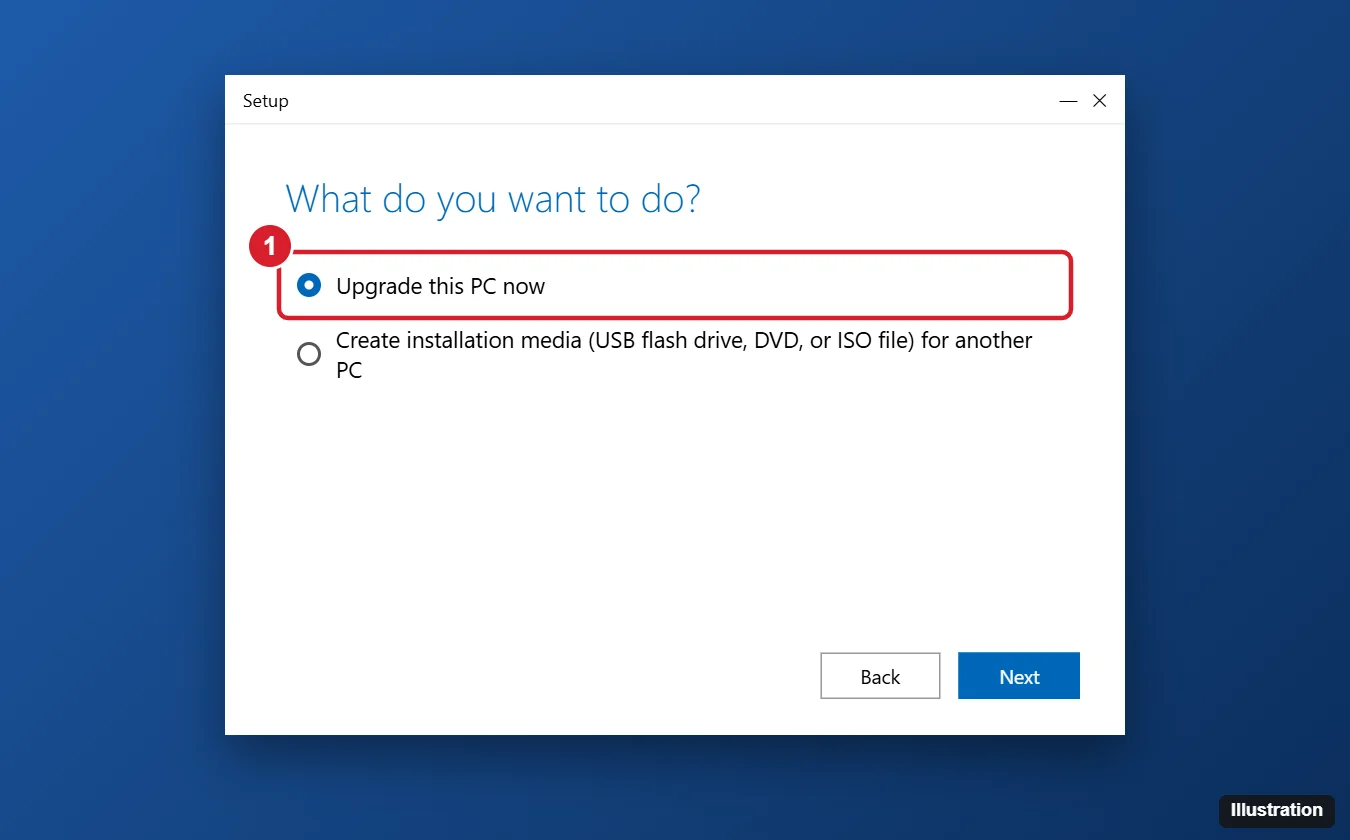
- On the What do you want to do? page, select Upgrade this PC now, and then select Next.
- When setup offers it, select Change what to keep and choose Keep personal files and apps, Keep personal files only, or Nothing.
- Save and close open apps and files, then select Install. Setup can take a while and the PC restarts a few times; don’t turn it off.
Windows 7 owners follow nearly the same path; upgrading Windows 7 to Windows 10 covers that starting point. If you want a USB drive or ISO file from the same tool instead, see creating Windows 10 installation media.
Moving on to Windows 11
Microsoft documents no in-place upgrade from Windows 8.1 straight to Windows 11. Its Windows 11 upgrade FAQ talks about upgrading from Windows 10, and the Windows 11 Installation Assistant needs Windows 10, version 2004 or higher. That leaves two routes.
Through Windows 10
Microsoft notes that It may be easier for you to first upgrade to Windows 10 and then upgrade to Windows 11.
Once the PC runs Windows 10, run PC Health Check and select Check now. If the PC is eligible, Microsoft says Upgrades to Windows 11 from Windows 10 are free.
Its getting-ready page describes Windows Update offering the upgrade on eligible Windows 10 PCs, and the Installation Assistant on the Windows 11 download page is the other option.
A clean install
If the PC meets the requirements and you have a Windows 11 license, use Create Windows 11 Installation Media on the same download page. Microsoft’s media tool needs a license to install Windows 11 or have a Windows 10 device that qualifies for an upgrade to Windows 11.
Be clear about the cost: Microsoft says that installing Windows 11 on a PC running an unsupported version of Windows overwrites the contents of your existing hard drive,
and Setup asks you to agree that everything will be deleted including files, apps, and settings.
Your backup is how the files come back.
The Windows 11 installation USB walkthrough covers building the drive, and upgrading Windows 7 to Windows 11 without losing data follows the same backup, install and restore order from an older starting point.
Installing Windows 11 on hardware below the requirements is not a route Microsoft supports. Its download page warns that such a PC will no longer be supported and won’t be entitled to receive updates.
After the upgrade: activation, updates and going back
- Activation. In current versions of Windows 11, check Settings > System > Activation. If Windows is not activated, Microsoft’s activation help says Go to Store opens the Microsoft Store app, where you can buy a Windows 11 digital license.
- Updates. Run Windows Update until it finds nothing new, so drivers and security fixes arrive before you rely on the PC.
- Apps and printers. Open the programs and devices you use most. Reinstall anything that did not carry over.
- Going back. Microsoft’s go-back page says
In most cases, you have 10 days to go back.
In Windows 11, open Settings > System > Recovery and, if the option is available, select Go back. Microsoft’s current page gives only the Windows 11 path. Microsoft says this keeps your personal files but removes apps and drivers installed after the upgrade.
Readers who reached Windows 11 and want Windows 10 instead can see reverting from Windows 11 to Windows 10, keeping in mind that Windows 10 no longer gets regular support.
If setup stops or the PC can’t run either version
When the media creation tool or Setup stops, write down the exact message and deal with what it names before you run the tool again. Check the drive and memory against the requirements table above too, because those rows are Microsoft’s minimums for each version.
If the PC falls short of Windows 11 and you do not want to buy a Windows 10 license for a version that is already out of support, Microsoft’s advice is direct: consider moving to a new Windows 11 device.
Its Windows 8.1 lifecycle page likewise recommends replacing devices that can’t run a current Windows release. Your OneDrive or drive backup moves with you, and installing Windows on a new PC covers the setup side.
Windows 8 upgrade answers
Will my Windows 8 or 8.1 product key activate Windows 10 or 11?
Microsoft does not say it will. Its current pages say you need a license to install Windows 10 or Windows 11 and that there are no free upgrade paths from unsupported versions, so plan on a new license.
Can Windows 8.1 get Extended Security Updates?
No. Microsoft’s ESU page lists Windows 10, version 22H2 as the version the program covers. Microsoft’s Windows 8.1 end-of-support announcement says Microsoft will not be offering Extended Security Updates (ESU) for Windows 8.1.
Does a Windows 7 upgrade work the same way?
The Windows 10 tool’s upgrade section names both Windows 7 and Windows 8.1 as starting points, so the Windows 10 steps match. For the Windows 11 side, upgrading from Windows 7 to Windows 11 explains how that version fits the same Microsoft rules.

Kermit Matthews runs Live2Tech from just outside Philadelphia. He is an IT specialist with over 20 years of experience, from a university help desk to small-business IT, IT management and his own consulting practice, and has written tech guides full time since 2020. Steps are checked against the current software on a real device or the maker’s official documentation. More about Kermit.