Weigh the cost up front: Windows 11 Home becomes Pro on the installation you already have once you buy the upgrade through the Microsoft Store or enter a Pro product key from the Activation page in Settings. Afterward, open Settings > System > Activation again: the edition shown at the top should read Windows 11 Pro, with the Activation state showing Active.
Steps cover current versions of Windows 11 Home on a personal PC; a short section near the end covers Windows 10.
Before you pay: edition, activation and cost
Two things decide whether the upgrade will go smoothly: which edition you have now, and whether that copy is activated. Both are on one page.
- Select Start, then Settings > System > Activation.
- Look at the top of the page. The edition appears next to the Windows logo, for example Windows 11 Home.
- Find the Activation state line and read what it says.
- Look for a section called Upgrade your edition of Windows. If it is there, the upgrade is available on this PC.
What you see tells you where to go next:
- Home, activated: you can use either upgrade route below.
- Home, not activated: Microsoft recommends activating Windows 11 Home first, because its Settings steps are written for an activated copy. The walkthrough on activating Windows 11 or Windows 10 covers that.
- No Upgrade your edition of Windows section: Microsoft says the edition might already be Pro, or edition upgrade might not be available on that device. Check the edition name at the top before you buy anything.
If you only want a second opinion on the edition, checking your Windows version shows the other places Windows lists it, including Settings > System > About.
Microsoft’s support page shows no price. The Microsoft Store shows the price for your region when you open the upgrade, so that screen is the place to check before you commit. If you already bought a Windows 11 Pro product key, the upgrade itself costs nothing more.
The switch is an edition change, not a fresh installation. Microsoft’s edition upgrade reference describes changing your Windows edition without reinstalling, and its table marks Home to Pro with a product key as supported with a restart required. You do not go through the Windows setup screens again.
Microsoft’s pages do not promise in so many words that every file and app is left alone, so take a backup of anything you cannot replace before you start. Then save your open work, because the PC restarts during the upgrade.
Plan on it being one-way. The same reference lists Pro to Home as an unsupported path, and says that when a path isn’t supported, a clean install is required.
What Pro adds, and what Home already has
Microsoft’s Home to Pro upgrade page describes Pro as offering “more advanced security and business networking features” and names three of them. The table adds what Home offers in each case, so you can tell whether you actually need to pay.
| Pro feature (Microsoft’s list) | What it lets you do | Closest thing on Home |
|---|---|---|
| BitLocker Drive Encryption | Encrypt drives with BitLocker and manage it yourself | Device encryption, on PCs that support it |
| Remote Desktop | Let other devices connect to this PC | Home can connect out to a Pro PC, but other devices cannot connect to a Home PC |
| Join a domain or Microsoft Entra ID | Sign in with a work or school account managed by an organization | None |
A few details behind those rows:
- Encryption: Microsoft’s device encryption page says BitLocker Drive Encryption is available on Pro, Enterprise and Education, while device encryption covers “a wider range of devices, including those running Windows Home.” Look under Privacy & security > Device encryption on your Home PC. If the setting is there, you may already have the protection you were after.
- Remote Desktop: Microsoft’s Remote Desktop page says the PC you connect to must run a Pro edition, and the device you connect from can run Home or Pro. If you only ever connect out to a work PC, Home is enough.
- Virtual machines: Microsoft’s Hyper-V install page states that the Hyper-V role can’t be installed on Windows 11 Home. If you want to create a virtual machine with Hyper-V, that is a real reason to upgrade.
Other tools, such as the Group Policy editor and Windows Sandbox, are often described as Pro features, but Microsoft’s upgrade page does not list them. If one of those is your reason for upgrading, check that feature’s own Microsoft page first.
Pay for Pro from the Activation page
Both of Microsoft’s routes start on the same Settings page; which one you use depends on whether you already hold a Pro key.
With no key: the Microsoft Store
Microsoft calls the Store “the best way” to go from Home to Pro. Use this route when you don’t have a Pro key.
- Sign in to Windows with the Microsoft account you want the purchase tied to. Microsoft asks you to make sure you’re signed in with your Microsoft account when buying Windows 11 Pro.
- Open Settings > System > Activation.
- Expand Upgrade your edition of Windows by selecting it.
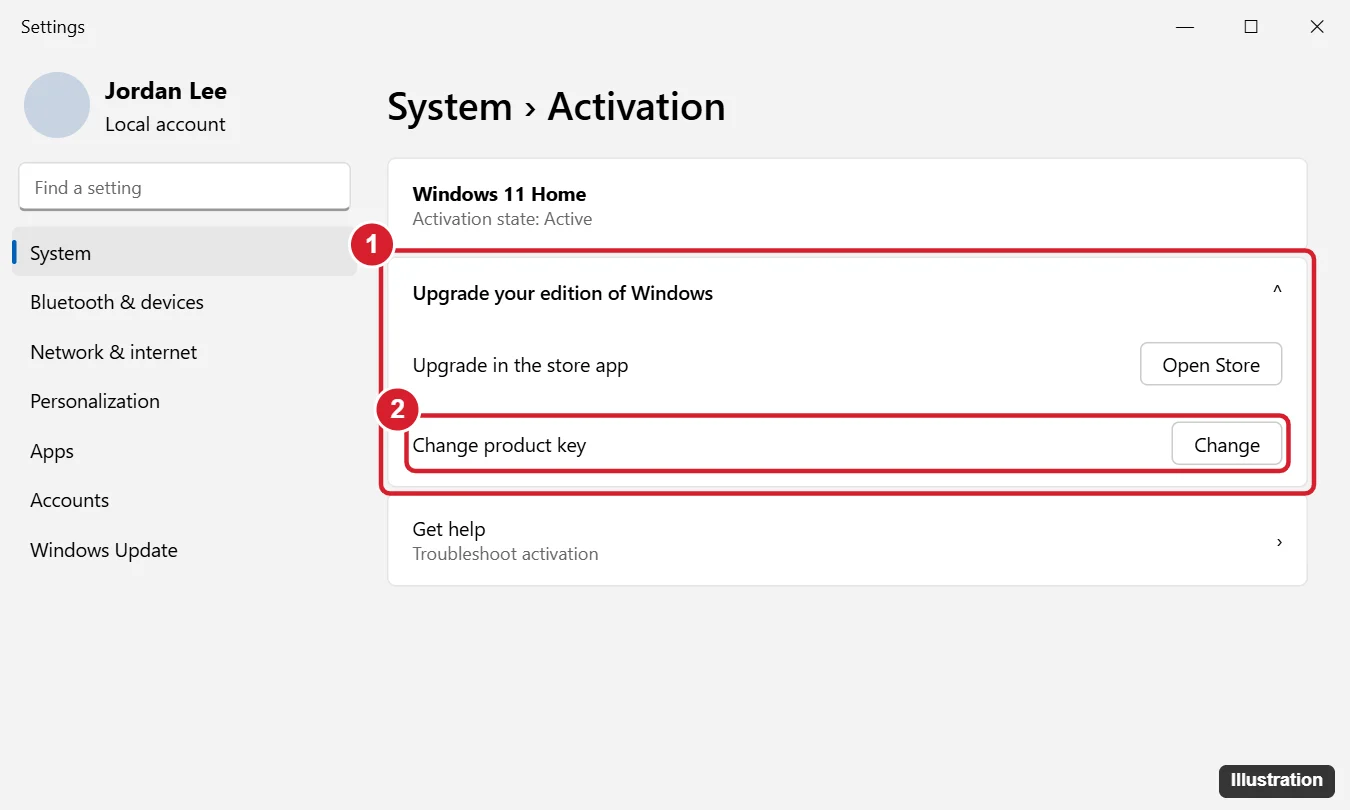
Expand Upgrade your edition of Windows (1), then buy Pro in the Store or choose Change product key (2). - Next to Upgrade in the Microsoft app, select Open Store. The older screen shown above may label things a little differently; go by the wording on your PC.
- The Store opens on the Windows 11 Pro upgrade. Check the price, then follow the Store’s instructions to buy it.
- After the purchase, the Store prompts you to install Windows 11 Pro. Accept, save anything still open, and let the PC restart.
The Store checks whether your Home copy is activated and guides you from there, so follow what it says if it asks you to sort out activation first.
With a Pro key you own
Use this route if you have a 25-character Windows 11 Pro key, for example from a retail box or an order from Microsoft or an authorized retailer. If you are not sure where your key is, finding your Windows product key lists where keys are usually kept.
- Open Settings > System > Activation.
- Next to Change product key, select Change.
- If a User Account Control box appears, enter an administrator account’s details or approve it.
- In the Change Product Key window, type the 25-character Windows 11 Pro product key.
- Select Next to start the upgrade to Windows 11 Pro, then follow the prompts and let the PC restart.
Microsoft’s page asks for a Windows 11 Pro key. A Home key, an Enterprise key or a key for a different product will not make this switch.
Be wary of very cheap “lifetime” Pro keys sold on marketplaces, and of anything offering free activation with scripts or server tricks. They are not Microsoft’s routes, and a key that is blocked later leaves you with an unactivated PC. If you prefer typing commands to clicking, activating Windows with Command Prompt explains how to enter your own genuine key with slmgr.
Restart, then confirm Windows 11 Pro is active
When the PC comes back, check three things before you move on:
- Edition: open Settings > System > Activation (or Settings > System > About, under Windows specifications). It should say Windows 11 Pro.
- Activation state: on the Activation page it should show Active. If it shows an error code, go to the error table below.
- Microsoft account link: if the Activation page offers Add an account, add the Microsoft account you use on this PC. Microsoft’s reinstall guidance relies on that link for reactivating after a reinstall.
Then turn on what you upgraded for:
- Remote Desktop: go to Settings > System > Remote Desktop, turn on Enable Remote Desktop and select Confirm. Setting up the connecting device is covered in using Remote Desktop on Windows 11 and Windows 10.
- BitLocker: before you encrypt a drive, decide where the recovery key will be kept. Where to look for a BitLocker recovery key shows the places Windows can save it, which also tells you where to save it now.
- Hyper-V: follow Microsoft’s Hyper-V install page linked above; the feature is off until you turn it on.
When the upgrade or activation fails
Start with the codes Microsoft documents on its activation errors page. The table matches the codes you are most likely to see during a Home to Pro switch.
| What you see | What Microsoft says it means | What to do |
|---|---|---|
| 0xC004F050 or 0x803FA067 | The key can’t be used, or the activation servers were busy right after an upgrade | Check the key and enter it again or use a different valid key; or wait a while and select Activate. Contact Microsoft support if it persists. |
| 0xC004F210 or 0xC004F212 | The key is for a different edition (0xC004F210), or Windows was reinstalled as a different edition from the digital license (0xC004F212) | Enter a Windows 11 Pro key that matches the installed edition, or run the Activation troubleshooter to install the edition your license covers. |
| 0xC004F00F | An Enterprise key was entered on Home or Pro | Use a Pro key instead |
| 0xC004F211 | Hardware changed since Windows was activated | Run the Activation troubleshooter while signed in with the Microsoft account linked to the license before the change. If Windows came preinstalled and the motherboard was replaced, Microsoft says you may need to buy a new license. |
For any other code, Microsoft suggests starting with the automated Windows Activation troubleshooter in the Get Help app, and contacting customer support if that doesn’t fix it. The full activation walkthrough linked in the first section covers reactivation after hardware changes in more depth.
If the Store purchase went through but nothing changed, open the Activation page again and look for a prompt to install Pro, then restart. If the Upgrade your edition of Windows section has disappeared, check the edition name at the top: the upgrade may already have finished.
Still on Windows 10 Home?
The same two routes exist on Windows 10, in a different place: Settings > Update & Security > Activation, with a Change product key link and a Go to the Store link. Before paying for Windows 10 Pro, note Microsoft’s wording on the same upgrade page: “Support for Windows 10 has ended on October 14, 2025,” with no more free software updates, technical assistance or security fixes. If the PC can run Windows 11, moving to Windows 11 first is the better use of the money.
Home to Pro upgrade questions
Is the Home to Pro upgrade free?
Not from Microsoft. The Store charges the price shown for your region, and Microsoft’s support page names no free route. The only way it costs nothing extra is if you already own a Windows 11 Pro key.
Will Pro reactivate if I reinstall Windows later?
Install the edition your license covers, Windows 11 Pro, and sign in with the Microsoft account the license is linked to. Microsoft’s reinstall guidance says the edition must match your license.
Once the Activation page shows Windows 11 Pro and Active, the upgrade is done; turn on the one feature you needed and leave the rest at their defaults until you have a use for them.

Kermit Matthews runs Live2Tech from just outside Philadelphia. He is an IT specialist with over 20 years of experience, from a university help desk to small-business IT, IT management and his own consulting practice, and has written tech guides full time since 2020. Steps are checked against the current software on a real device or the maker’s official documentation. More about Kermit.