Windows Setup asking for a product key during a reinstall does not always mean you need one. Many PCs activate with a digital license, so you can choose I don’t have a product key and Windows activates once it is online. If your PC came with Windows, the key is usually stored in its firmware, which a PowerShell command can read. Otherwise, look on a sticker or Certificate of Authenticity, or in your purchase email or order history.
Do you actually need the key?
| Situation | Need the key? |
|---|---|
| Reinstalling the same edition on the same PC | Usually no. Choose I don’t have a product key in Setup and sign in with the Microsoft account the license is linked to; Windows activates online. |
| Upgrading from Home to Pro | Yes, a Pro key, or buy the upgrade from the Microsoft Store, which gives a digital license. |
| Moving Windows to a new PC | Depends on your license terms. A key that came preinstalled on a PC generally stays with that PC. |
| Replacing the motherboard | Link the license to your Microsoft account first, then use the Activation troubleshooter after the swap. |
A product key is 25 characters in five groups (XXXXX-XXXXX-XXXXX-XXXXX-XXXXX). Microsoft’s find your product key page explains that a free upgrade from Windows 7 or 8.1 to Windows 10, or from Windows 10 to Windows 11, gives you a digital license rather than a key, so there may be no key anywhere to find.
Check your activation status first
- On Windows 11, go to Settings > System > Activation. On Windows 10, go to Settings > Update & Security > Activation.
- Read the status. Microsoft uses these messages:
- Windows is activated with a digital license linked to your Microsoft account: no key needed to reactivate after a reinstall.
- Windows is activated with a digital license: activated but not linked; linking it (below) makes hardware changes easier.
- Windows is activated: a product key was used. The methods below help you find it.
- Windows is not activated: you need a valid license.
Each message is explained in more detail in checking whether Windows 10 is activated.
Read the key stored in your PC’s firmware
PC makers often store the original key in the motherboard firmware; Microsoft calls it the OA3 digital product key. These commands read that firmware key. Run them on the PC before you wipe it, because the key is easier to note down while Windows still works.
PowerShell (Windows 11 and Windows 10)
- Right-click Start and choose Terminal (Admin) on Windows 11 or Windows PowerShell (Admin) on Windows 10. Click Yes if asked.
- Paste this command and press Enter:
(Get-CimInstance -ClassName SoftwareLicensingService).OA3xOriginalProductKey - The 25-character key appears on the next line. Write it down or save it somewhere private.
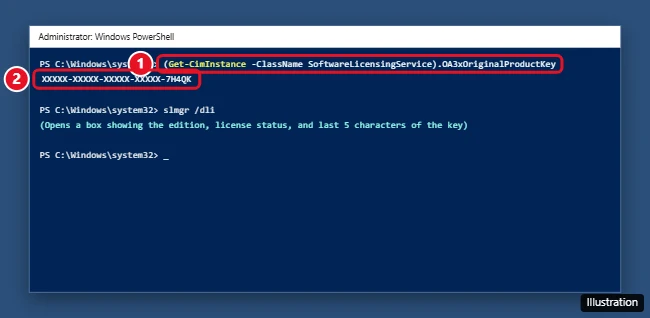
This shows the key the PC shipped with. If you later upgraded to Pro or typed in a different key, the key Windows is using now may be different.
If the key you found is a Windows 11 Pro key and the PC still runs Home, switching Windows 11 Home to Pro shows where to enter it in Settings.
Command Prompt with wmic (Windows 10)
The older Command Prompt method uses the WMIC tool. Microsoft’s WMIC page says the tool is deprecated, and that from August 2026 Windows 11 versions 24H2 and 25H2 no longer include it and it cannot be added back. On current versions of Windows 11, use the PowerShell command above. On Windows 10, wmic still works:
- Click Start and type cmd.
- Right-click Command Prompt and choose Run as administrator.
- Type this command and press Enter:
wmic path softwarelicensingservice get OA3xOriginalProductKey - The key appears on the line below the OA3xOriginalProductKey heading.
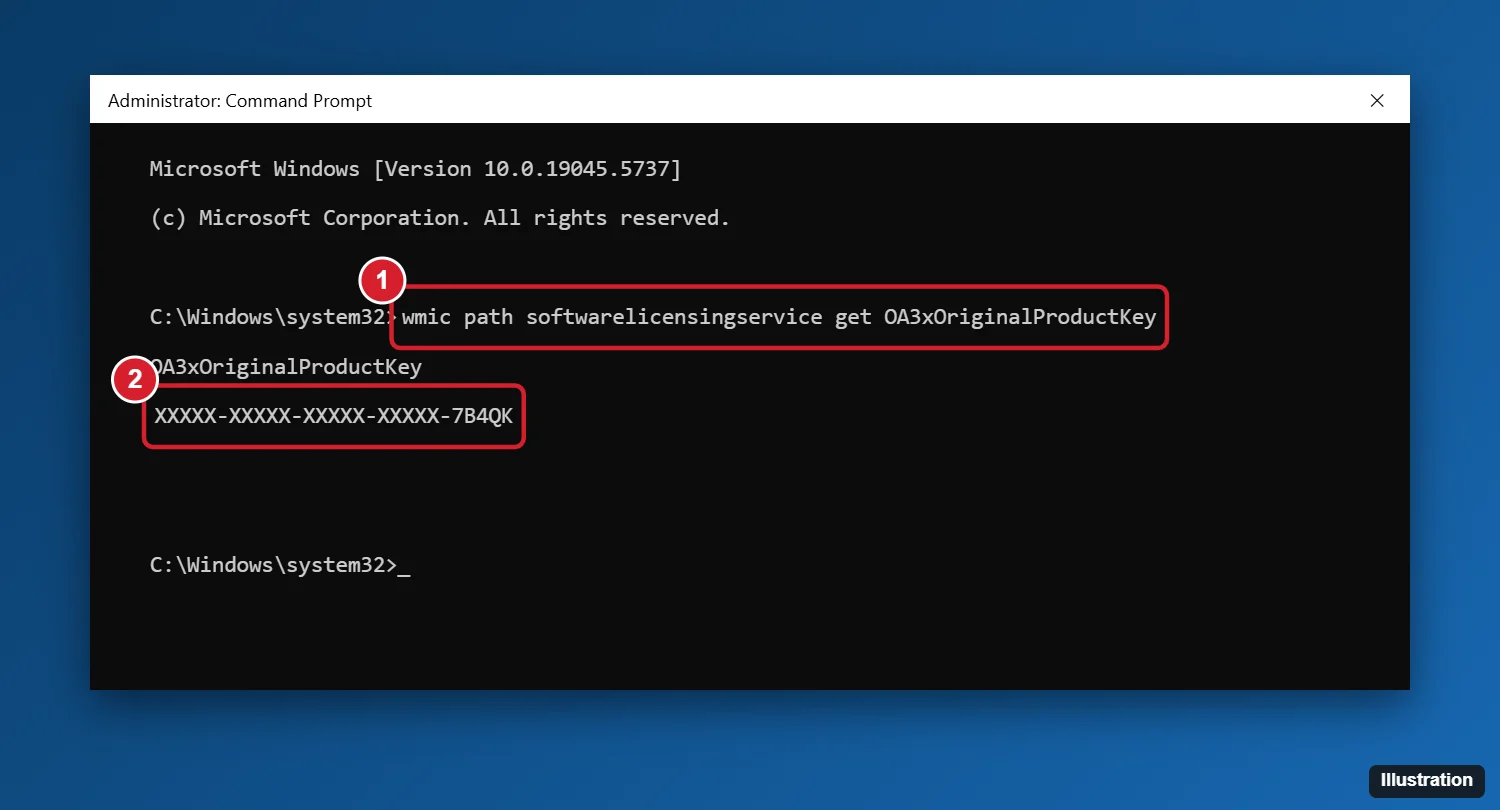
If Command Prompt answers that wmic “is not recognized,” the tool is not on that PC. Run the PowerShell command instead; it reads the same information.
What a blank result means
Both commands return nothing when no key is stored in the firmware. That is normal if:
- the PC was upgraded for free from Windows 7, 8.1 or 10 and has a digital license;
- you bought a retail copy or an online key and typed it in yourself;
- you built the PC yourself;
- it is a work or school PC that the organization activated with its own volume license (some of these still have a firmware key from the maker).
In those cases, the activation status above is the useful answer, and the key (if there is one) is in your purchase records.
See the last five characters of the key in use
To see which key Windows is using right now, run slmgr /dli in Command Prompt or PowerShell. A box shows the edition, the license type and the last five characters of the installed key. slmgr /dlv shows more detail. Microsoft’s slmgr reference confirms neither option needs administrator rights. Neither one shows the full key.
If that box shows a volume KMS client channel on a home PC, clear the KMS setup first and then activate with your own key.
The partial key helps you match an email or sticker, with one catch: Microsoft’s OEM activation guidance notes that the /dli or /dlv output is not necessarily the last five digits of the firmware key.
Other places your key may be
- Bought from Microsoft’s online store: the key is in the confirmation email, and Microsoft keeps a record in your Microsoft account Order history at account.microsoft.com. Microsoft only keeps that record for purchases from its own online store.
- Bought a digital copy from another retailer: check the confirmation email or the retailer’s digital locker or account page.
- Boxed retail copy: a label or card inside the box.
- New PC with Windows: the key may be preinstalled, included in the packaging, or on a Certificate of Authenticity (COA) sticker attached to the PC. On older PCs, the COA sticker is usually on the case; on PCs that shipped with Windows 8 or later, the key is normally in the firmware instead, so use the PowerShell command above.
- Work or school PC: volume licenses are managed through the organization’s licensing portal, so ask the IT department.
If the PC originally shipped with Windows 7, its COA sticker holds a Windows 7 key; finding a Windows 7 product key covers that case.
Key finder apps: use with caution
Third-party key finder programs read a key from the Windows registry. They are not Microsoft tools, and they may return a generic installation key instead of yours on PCs with a digital license. Fake key finder downloads are also a common way to spread malware. If you try one, download it only from the developer’s own site, and treat the built-in commands and your purchase records as the more reliable sources.
Link your license to your Microsoft account
A linked license is the easiest way to avoid needing a key again:
- Go to Settings > Accounts > Your info and make sure you are signed in with a Microsoft account that is an administrator.
- Return to the Activation page and select Add an account if it appears.
- Check that the status now ends in linked to your Microsoft account.
For the full activation process, including reinstalling without a key, see activating Windows 11 or Windows 10.
A product ID is not a product key
The Product ID shown in Settings > System > About is a different number and cannot activate Windows. Microsoft’s OEM guidance also notes that this Product ID is not unique to the firmware key. Keep the real key out of public screenshots and forum posts, since anyone who copies it could try to use it.
If you need to enter a different key, follow changing the product key in Windows 10. If you have no license at all, getting a Windows 10 license key covers the legitimate ways to buy one.
Product key questions
Setup is asking for a key right now. What do I click?
If this PC was activated before, choose I don’t have a product key and continue. Install the same edition (Home or Pro) the PC had, then connect to the internet after setup.
The PowerShell command returns nothing. Is my Windows illegal?
No. A blank result only means no key is stored in the firmware. Check the Activation page; if it says activated, you are licensed.
Can I copy the firmware key to another computer?
A key that came preinstalled on a PC is generally tied to that PC. Check your license terms before moving any key to new hardware.
Does reinstalling Windows erase the firmware key?
No. The key lives in the motherboard firmware, not on the drive, so a clean install or reset does not remove it.
Before you reinstall, run the PowerShell command once and check the Activation page; between them, you will know whether you need a key at all.
Once you have the key, entering it is also how the Activate Windows watermark goes away.

Kermit Matthews runs Live2Tech from just outside Philadelphia. He is an IT specialist with over 20 years of experience, from a university help desk to small-business IT, IT management and his own consulting practice, and has written tech guides full time since 2020. Steps are checked against the current software on a real device or the maker’s official documentation. More about Kermit.