To activate Windows, go to Settings > System > Activation. If your PC has a digital license, which most PCs that came with Windows or were upgraded for free do, Windows activates by itself once you’re online, with no product key needed. If it doesn’t, enter a product key there with Change product key, or buy a license with Open Store.
There’s no legitimate free activation for a PC that has never had a license. “Free activation” tools and scripts use fake KMS servers or leaked keys. They aren’t valid, can stop working, and often come with malware. You can use Windows without activating it, with some limits covered below.
Step 1: Check your activation status
- Select Start > Settings > System > Activation. (Windows 10: Settings > Update & Security > Activation.)
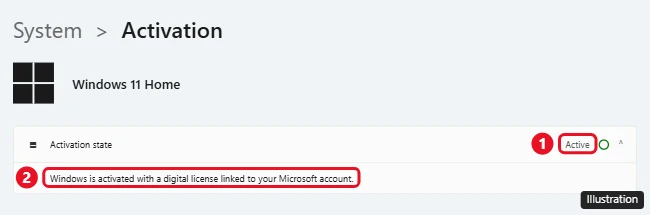
- Look at the Activation state row. It shows Active with a green check, or Not active.
- Select the row to expand it and read the message:
- Windows is activated with a digital license linked to your Microsoft account: you’re done, and you can reactivate after hardware changes.
- Windows is activated with a digital license or Windows is activated: you’re done. Link your Microsoft account (see Step 5).
- Windows is not activated: keep going. The message usually includes an error code, which you can look up in the table at the end.
Step 2: Activate with a digital license (no product key)
You probably have a digital license if any of these apply:
- Your PC came with Windows 10 or 11 installed.
- You upgraded for free from Windows 10 to 11, or from Windows 7 or 8.1 to 10.
- You bought Windows from the Microsoft Store app.
- Windows was activated on this PC before and you’re reinstalling the same edition.
To use it:
- Connect the PC to the internet.
- Go to Settings > System > Activation and wait a moment. Windows checks Microsoft’s servers automatically.
- If it still says not activated, select Troubleshoot and follow the prompts. The Troubleshoot option only appears while Windows isn’t activated.
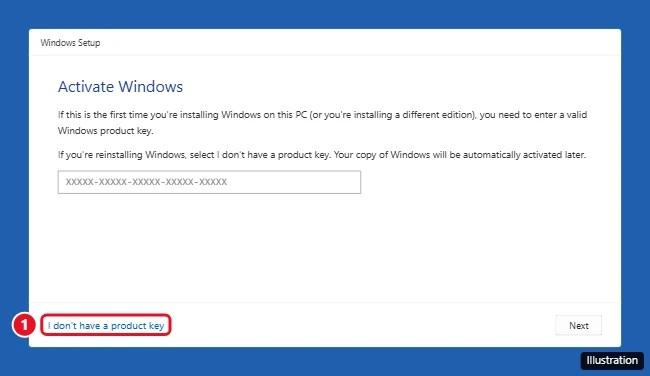
Reinstalling? During setup, choose I don’t have a product key and pick the same edition (Home or Pro) that was activated before. Windows activates itself after setup when it goes online.
Step 3: Activate with a product key
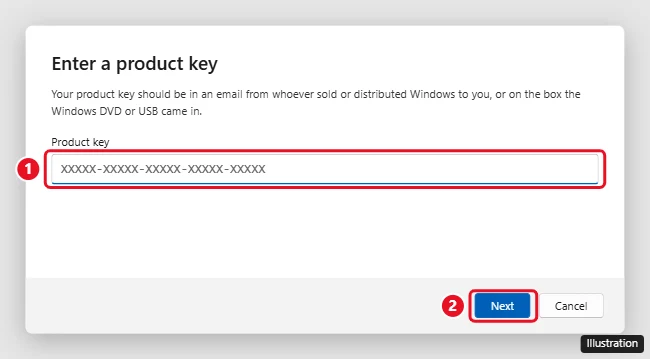
- Find your 25-character key. It’s in the confirmation email from Microsoft or an authorized retailer, on a card inside the retail box, or on the Certificate of Authenticity label on some older PCs. Here’s how to find a product key already on your PC.
- Go to Settings > System > Activation. Expand Upgrade your edition of Windows (or the product key section if Windows isn’t activated), then select Change next to Change product key.
- Type the key and select Next, then Activate.
Prefer the command line? In Terminal (Admin), run slmgr /ipk XXXXX-XXXXX-XXXXX-XXXXX-XXXXX with your genuine key, then slmgr /ato. Don’t use the “KMS server” commands some guides include. They’re for business networks only. For every command, offline activation, and error fixes, see how to activate Windows using Command Prompt.
Step 4: Reactivate after a hardware change
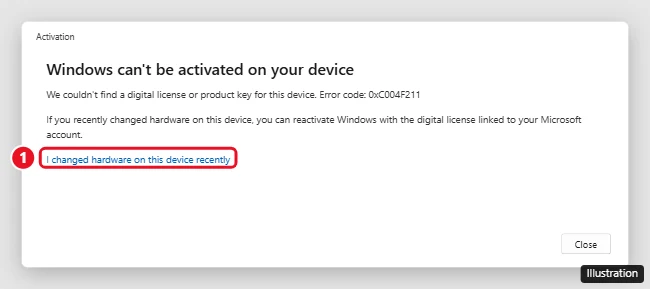
Replaced the motherboard or made other big hardware changes? Windows may lose activation (error 0xC004F211). If your digital license was linked to your Microsoft account before the change:
- Go to Settings > System > Activation and select Troubleshoot.
- Select I changed hardware on this device recently, then Next.
- Sign in with your Microsoft account.
- Find this PC in the list, check This is the device I’m using right now, and select Activate.
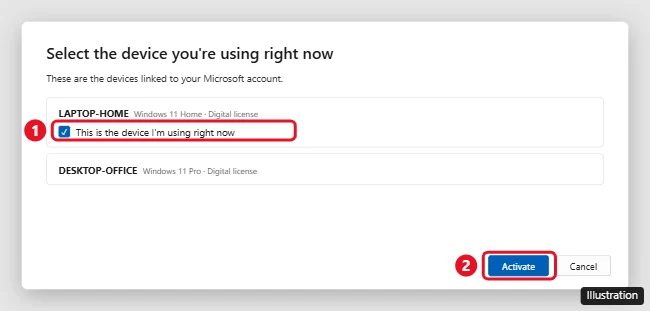
The Windows edition must be the same as before. If the account wasn’t linked beforehand, you’ll need a product key.
Step 5: Link your license to your Microsoft account
Do this once and future reactivation is much easier. On the Activation page, select Add an account and sign in. The status changes to linked to your Microsoft account.
No license? Your legitimate options
- Buy Windows from the Microsoft Store (select Open Store under Upgrade your edition of Windows on the Activation page) or an authorized retailer.
- Upgrading from Home to Pro: select Open Store next to Upgrade in the Microsoft app on the Activation page instead of buying a full license.
- Avoid bargain keys from marketplace sellers. They’re often resold volume or OEM keys that get blocked later.
- Using Windows unactivated is allowed, but you’ll see an “Activate Windows” watermark and can’t change personalization settings such as the wallpaper and colors.
Still on Windows 10? It reached end of support on October 14, 2025. Consider upgrading to Windows 11 if your PC meets the requirements. An activated Windows 10 PC usually upgrades for free with a digital license.
Common activation errors
| Error | What it means | What to do |
|---|---|---|
| 0xC004F213 | No product key found on the device | Enter a valid key or buy a license |
| 0x803F7001 | No valid Windows license found for this PC | Change product key, or buy from the Store |
| 0xC004C003 | The key isn’t valid, often because it’s already used on other PCs | Use a key that belongs to this PC |
| 0xC004F074 | Enterprise key used on Home or Pro | Use a key that matches your edition |
| 0xC004F211 | Hardware changed | Run the troubleshooter (Step 4) |
If Windows was activated with an unofficial tool, remove it first. See how to remove KMS activation.
Frequently asked questions
Can I activate Windows 11 for free?
Only if your PC already has a digital license, for example from a free upgrade from an activated Windows 10. Otherwise you need to buy a license.
Do I need a product key to install Windows 11?
No. Choose “I don’t have a product key” during setup. Windows activates later if the PC has a digital license, or you can enter a key afterward.
Can I move my license to a new PC?
Retail licenses can usually be moved. Licenses that came preinstalled on a PC (OEM) generally stay with that PC.

Kermit Matthews is a freelance writer based in Philadelphia, Pennsylvania with more than a decade of experience writing technology guides. He has a Bachelor’s and Master’s degree in Computer Science and has spent much of his professional career in IT management.
He specializes in writing content about iPhones, Android devices, Microsoft Office, and many other popular applications and devices.