To find your Windows product key, open PowerShell as an administrator and run (Get-CimInstance -ClassName SoftwareLicensingService).OA3xOriginalProductKey. If your PC came with Windows preinstalled, this shows the key stored in its firmware. If nothing appears, your PC probably uses a digital license instead of a key you can view. In that case, check Settings > System > Activation, and look for the key in your purchase email, the Windows box, or your Microsoft account’s order history.
Many people don’t need their key at all, because Windows 10 and 11 reactivate automatically on the same PC. Here’s how to tell what kind of license you have, and every place your key might be.
Do you actually need your product key?
| Situation | Need the key? |
|---|---|
| Reinstalling Windows on the same PC | Usually no. Skip the key during setup, and Windows activates automatically once online. |
| Upgrading from Home to Pro | Yes, a Pro key (or buy the upgrade in the Microsoft Store) |
| Moving Windows to a new PC | Only for retail licenses, which you can transfer. OEM licenses stay with the original PC. |
| Replacing the motherboard | Link your license to your Microsoft account first, then use the Activation troubleshooter. |
Step 1: Check your activation status
- Go to Settings > System > Activation (on Windows 10, Settings > Update & Security > Activation).
- Look at the Activation state:
- Active with a digital license linked to your Microsoft account: Your license is saved to your account. You don’t need a key to reactivate.
- Active with a digital license: Activated, but not linked to an account. Sign in with a Microsoft account to link it.
- Active with a product key: A key was entered. Use the methods below to find it.
Step 2: Find the key stored in your PC’s firmware
PCs sold with Windows 8 or later usually have the key embedded in the motherboard firmware.
- Right-click Start and choose Terminal (Admin) or Windows PowerShell (Admin).
- Paste this command and press Enter:
(Get-CimInstance -ClassName SoftwareLicensingService).OA3xOriginalProductKey - Your 25-character key appears. Write it down or save it somewhere safe.
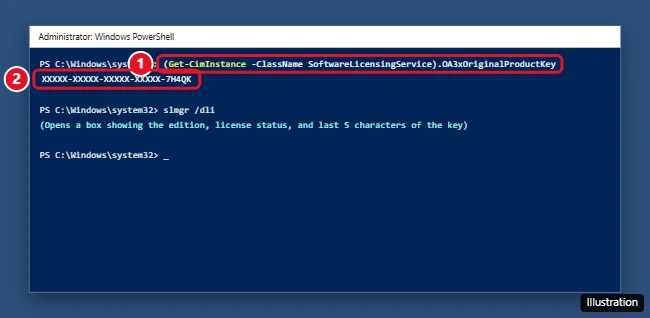
On older versions of Windows, you can use Command Prompt instead: wmic path softwarelicensingservice get OA3xOriginalProductKey. Newer versions of Windows 11 no longer include WMIC by default, so use PowerShell.
If the result is blank, your PC doesn’t have a key in its firmware. That’s normal for custom-built PCs, PCs upgraded from Windows 7 or 8, and many digital licenses.
This command shows the key that came with the PC. If you later upgraded to Pro or entered a different key, the key Windows is using may be different.
Step 3: See the last five characters of your current key
To check which key Windows is using right now, run slmgr /dli in Command Prompt or PowerShell. A box shows your edition, license type, and the last five characters of the key. It doesn’t show the full key, but it helps you match a key from an email or sticker.
Step 4: Check your purchase records
- Bought from Microsoft: Sign in at account.microsoft.com, go to Payment & billing > Order history, and open the Windows order.
- Bought from another store: Search your email for “Windows product key” or the store’s name. Digital purchases from retailers like Amazon or Best Buy are often listed in your account’s digital orders.
- Boxed copy: The key is on a card or label inside the box.
- Work or school PC: It may use a volume license managed by your organization. Ask your IT department.
Step 5: Look for a sticker on older PCs
PCs sold with Windows 7 or earlier often have a Certificate of Authenticity (COA) sticker with the key. Check the bottom of a laptop, under the battery, or on the side or back of a desktop. PCs that came with Windows 8 or later usually have a Windows logo sticker without a key, because the key is in the firmware.
Step 6: Use a key finder tool (optional)
Free tools like ProduKey by NirSoft read the key that’s stored in the Windows registry. Download them only from the developer’s official website, since fake “key finder” downloads are a common way to spread malware. Some antivirus apps flag these tools because they read license data, even when the download is genuine.
If a tool shows BBBBB-BBBBB-BBBBB-BBBBB-BBBBB or a key ending in -3V66T or similar generic keys, your PC is using a digital license or a generic installation key, not your personal key.
How to link your license to your Microsoft account
- Go to Settings > Accounts > Your info.
- Click Sign in with a Microsoft account instead and follow the steps.
- Go back to Activation. It should now say linked to your Microsoft account.
This makes reactivating after a hardware change much easier.
Related: Get a Windows 10 license key.
Related: How to see your Windows 10 product key.
Do not confuse a product ID with a product key
The Product ID shown in system information is not the code you enter to activate Windows. Licensing commands can also show only part of a key or a default installation key. Microsoft documents these limits in its OEM activation guidance.
Finding a key does not establish transfer rights. Keep the key out of public screenshots, and use purchase records and the applicable license terms when moving to another device.
Related: How to change the product key in Windows 10.
Frequently asked questions
Can I find my product key without a command?
Yes. Check your purchase email, the Windows box, your Microsoft account’s order history, or a sticker on older PCs.
Why does the command return nothing?
Your PC doesn’t have a key in its firmware. It likely activated with a digital license, which works without a visible key.
Can I use my Windows 10 key for Windows 11?
Yes. A valid Windows 10 key for the same edition, such as Home or Pro, activates Windows 11.
How do I find my Windows 7 product key?
Check the COA sticker on the PC first. For more ways, see how to find your Windows 7 product key.

Kermit Matthews is a freelance writer based in Philadelphia, Pennsylvania with more than a decade of experience writing technology guides. He has a Bachelor’s and Master’s degree in Computer Science and has spent much of his professional career in IT management.
He specializes in writing content about iPhones, Android devices, Microsoft Office, and many other popular applications and devices.