Undo the KMS setup: a home PC that shows a KMS or volume activation channel usually got it from an unofficial activator, and Microsoft’s own Software License Manager (slmgr) can clear the KMS key and host setting. Once that is done, you activate Windows with a license you actually own: a digital license, a product key or a purchase from the Microsoft Store.
Plan for a restart and a long malware scan. The steps apply to current versions of Windows 11 and to Windows 10.
Is this a work or school PC? Check first
KMS (Key Management Service) is a legitimate tool. Companies, schools and government offices use it to activate their own computers, so a KMS activation on a laptop from your employer is normal and should stay. Removing it can leave a managed PC unlicensed and break things your IT team set up.
Before you run any command, look for signs that an organization manages the PC:
- The PC was issued by an employer or school, or you sign in with a work or school account.
- The PC sits on a company network and you never typed in a product key.
If any of these apply, stop here and ask your IT department. The rest of this article is for personal PCs, including used PCs bought from someone else, where nobody can explain where the KMS activation came from.
What KMS activation is, and why a home PC should not have it
Microsoft designed KMS for volume licensing. Volume-licensed editions of Windows are KMS clients: they use a generic client key and contact a KMS host on the organization’s own network to activate. Microsoft states that these generic keys are for volume licensing and cannot be used with retail editions. KMS activation also expires unless the PC keeps checking in with that host, which is why Microsoft notes that its expiry check is mainly useful for KMS clients, while retail and MAK activation is permanent.
A home PC has no KMS host. When one shows a KMS channel anyway, the usual cause is an unofficial “activator” that imitates a KMS host so Windows reports itself as activated. That is not a valid license. These tools also run with administrator rights and often bring unwanted software with them, which is why the cleanup below includes a malware scan, not just a key change.
Check how your PC is activated
Start in Settings, then confirm with slmgr. Neither check needs administrator rights, and neither changes anything.
- Open Settings > System > Activation. Read the line next to Activation status. Microsoft lists messages such as Windows is activated, Windows is activated with a digital license, Windows is activated with a digital license linked to your Microsoft account and Windows is not activated.
- Press Windows key + R, type
cmdand press Enter to open Command Prompt. - Type
slmgr /dlvand press Enter. Windows shows detailed license information for the installed copy of Windows. Look at the description and channel lines; a volume KMS client entry (shown as VOLUME_KMSCLIENT on many PCs) means the PC is set up for KMS activation. - Select OK, then type
slmgr /xprand press Enter. This shows the activation expiration date. Microsoft notes that this check is mainly useful for KMS clients, because retail and MAK activation is perpetual, so a KMS client shows a date.
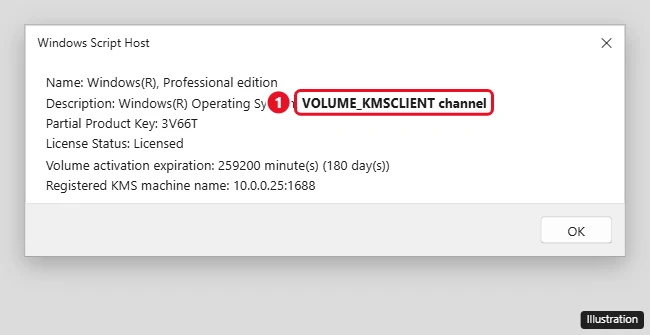
The illustration shows the shorter slmgr /dli view; /dlv shows the same fields plus more detail. If the status says activated, /xpr shows an expiry date, and you never bought a volume license, carry on. For a deeper look at every status message, see how to tell whether Windows is activated.
Clear the KMS key and host with slmgr
Microsoft documents three slmgr options for this, all in its slmgr.vbs options reference. They need an elevated (administrator) Command Prompt.
Before you start: after the first command and a restart, Windows will be unlicensed until you add a genuine license. Have your product key or Microsoft account details ready, or plan to buy a license afterward.
- Select Start, type cmd, right-click Command Prompt and choose Run as administrator. Select Yes in the User Account Control prompt.
- Run
slmgr /upk. Microsoft describes this as uninstalling the product key of the current Windows edition. Wait for the confirmation box and select OK. - Run
slmgr /cpky. This removes the product key from the registry so malicious code cannot read it. Select OK. - Run
slmgr /ckms. This removes the stored KMS host name, address and port from the registry and restores KMS autodiscovery, the default behavior. Select OK. - Restart the PC.
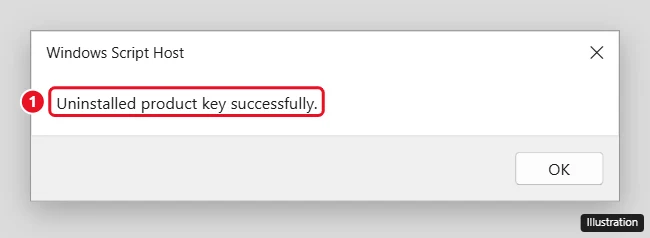
If you prefer the full form, each option also runs as cscript slmgr.vbs /upk (and so on). After the restart, the Activation page reporting that Windows is not activated is the expected result: Microsoft says the system stays unlicensed until a new product key is installed.
Remove the activator and run a Microsoft Defender scan
Skip the uninstall part if the KMS setup came from a former employer rather than a tool, but still run the scan on any PC you bought used.
- Open Settings > Apps > Installed apps. Find any program you did not install or that refers to KMS or activation, select the More (three dots) button next to it and choose Uninstall. If a program does not offer Uninstall in Settings, try Control Panel > Programs and Features. More options are in uninstalling a program on Windows 11.
- Open Windows Security and go to Virus & threat protection > Scan options.
- Choose Full scan, which Microsoft describes as scanning every file and program on the device, and start it. Expect it to take a while on a large drive.
- Then choose Microsoft Defender Antivirus (offline scan) and start it. Save your work first: the PC restarts and scans in the Windows Recovery Environment, before Windows loads, which helps with malware that hides while Windows is running.
- When Windows is back, check Protection history in Windows Security for anything found and the action taken.
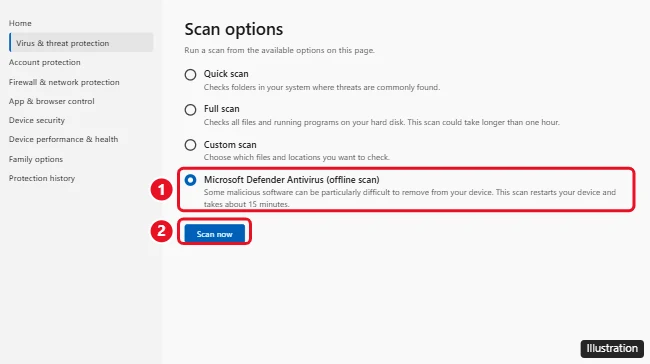
Microsoft’s virus and threat protection page explains each scan type, and running a virus scan on Windows 11 walks through them with more detail. If you use a different antivirus app, Windows Security shows that app instead; run a full scan there as well. If threats keep coming back after both scans, back up your files and consider resetting or reinstalling Windows from Microsoft’s own media.
Activate with a license you own
Which route you take depends on what license the PC really has. All three start at Settings > System > Activation, following Microsoft’s activate Windows page.
The PC came with Windows or was upgraded for free
It probably has a digital license (Microsoft also calls it a digital entitlement) tied to the hardware. Connect to the internet and give Windows a few minutes, then check the status line. If it still says Windows is not activated, run the Activation troubleshooter from the Activation page (Microsoft’s name for the tool; the button label can vary). A successful result reads Windows is activated with a digital license.
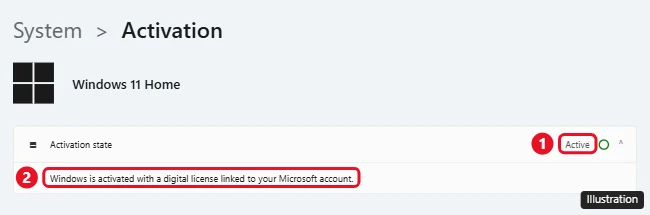
Once it is active, select Add an account on the same page to link your Microsoft account. Microsoft says a linked license lets you reactivate with the Activation troubleshooter after a significant hardware change.
You have a product key
- On the Activation page, select Change product key.
- Type the 25-character key and follow the prompts.
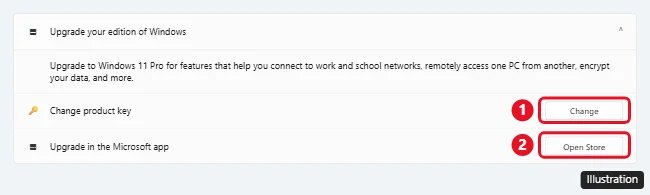
If you are not sure where your key is, find the product key that came with your PC first, since many machines store one in the firmware. For Windows 10, see changing the product key in Windows 10.
You don’t have a license
Select Open Store on the Activation page to buy a digital license from the Microsoft Store, or buy from an authorized retailer. Buy only from Microsoft or an authorized retailer. For Windows 10 options, see how to get a Windows 10 license key.
The edition doesn’t match your license
If your license doesn’t match the Windows edition installed, Microsoft says Windows will not activate. For example, a Home license will not activate Pro. Either buy an upgrade to the edition you are running from the Activation page, or reinstall the edition you own from Microsoft’s official installation media.
If activation still fails
- An error code appears. The full list of fixes, including reactivating after a hardware change, is in how to activate Windows 11 or Windows 10.
- You would rather type the key at the command line. That is a separate job from removing KMS; see activating Windows from Command Prompt.
- The KMS channel comes back after a restart. Something on the PC may be reapplying it. Check Installed apps again and repeat the full and offline scans before you reactivate.
- You only want the corner watermark gone. Activating with a genuine license is the fix that lasts.
Still on Windows 10? Microsoft says Windows 10 reached the end of support on October 14, 2025, so it no longer gets security updates unless the PC is enrolled in Extended Security Updates. The slmgr steps above work the same on Windows 10, but if the PC can run Windows 11, upgrading is the better long-term fix.
KMS removal questions
Will removing KMS activation delete my files?
No. The slmgr options change licensing only. Your apps, files and settings stay where they are. A reset or reinstall is a different matter, so back up before either of those.
What happens if I leave Windows unactivated for a while?
Windows keeps running, and Settings > System > Activation shows Windows is not activated until you add a license. It is fine to finish the scans before you add one.
Can a PC show “activated” and still have a problem?
Yes. Microsoft notes that activation only pairs a key or digital entitlement with the hardware and does not by itself prove the copy is genuine. That is why the channel check with slmgr /dlv matters more than the status line alone.
When the Activation page shows a digital license and your Microsoft account is linked, the cleanup is complete.

Kermit Matthews runs Live2Tech from just outside Philadelphia. He is an IT specialist with over 20 years of experience, from a university help desk to small-business IT, IT management and his own consulting practice, and has written tech guides full time since 2020. Steps are checked against the current software on a real device or the maker’s official documentation. More about Kermit.