You’re at home and need a file, an app or a full desktop that lives on your office PC (or the reverse). Windows Remote Desktop handles this. On the PC you want to reach, which must run Windows 11 Pro, Enterprise or Education, open Settings > System > Remote Desktop, turn it on and note the PC name. Then, on the other device, open Remote Desktop Connection (or Windows App), enter that name and sign in.
What you need before you start
Remote Desktop involves two computers. The host is the PC you want to control. The client is the device you’re sitting at. The rules for each are different.
| Device | Requirement |
|---|---|
| Host (the PC you connect to) | Windows 11 or Windows 10 in the Pro, Enterprise or Education edition. Home edition can’t act as a host. |
| Client (the device you connect from) | Any edition of Windows, including Home, or a Mac, iPhone, iPad or Android device with the right app. |
| Account | A user account on the host with a password. You need administrator rights on the host to turn the feature on. |
| Network | Both devices on the same network, or a VPN connection to the host’s network when you’re away. |
To check the host’s edition, open Settings > System > About and look at the Edition line under Windows specifications. If it says Home, the built-in host feature isn’t available. Your options for that case are covered in using Remote Desktop with Windows 11 Home and Remote Desktop on Windows 10 Home. Avoid “RDP wrapper” downloads or patches that modify Windows system files to get around the edition limit.
Turn on Remote Desktop on the PC you want to reach
Do this while you’re physically at the host PC, signed in with an administrator account. These steps match current versions of Windows 11 and Microsoft’s page on how to use Remote Desktop.
- Select Start > Settings > System > Remote Desktop.
- Turn the Remote Desktop switch on, then select Confirm in the prompt that appears.
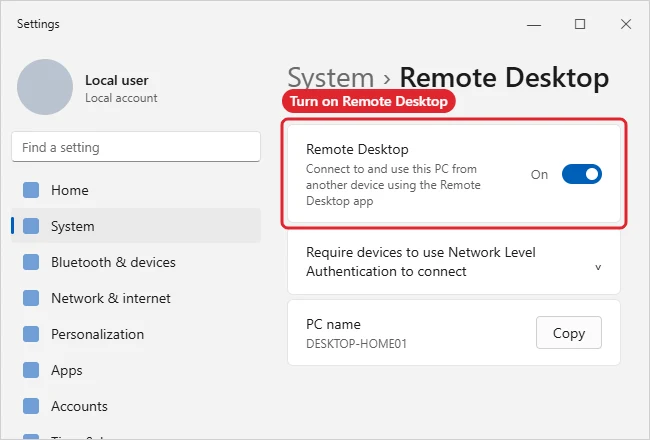
Turn on Remote Desktop on the PC you want to connect to. - On the same page, write down the name shown next to PC name. You’ll type it on the client.
- If someone other than an administrator needs to connect, open the users setting on this page (labeled Remote Desktop users on current versions, or Select users that can remotely access this PC on older ones), select Add, enter their account name and select OK. Administrator accounts can always connect.
- Make sure the account you’ll use has a password. A strong, unique one matters here, because anyone who can reach the PC over the network gets a sign-in prompt.
Turning the switch on also opens the Windows Firewall rule Remote Desktop needs, so you normally don’t have to touch firewall settings. Microsoft advises enabling it only on trusted networks, since it opens a port on the PC.
The host has to be on, awake and connected to the network whenever you want to reach it. If it sleeps after a few minutes, change that in Settings > System > Power & battery (or Power on desktops) under the screen and sleep settings.
On Windows 10
The path is the same (Settings > System > Remote Desktop), but the switch is labeled Enable Remote Desktop, and the PC name appears in a section called How to connect to this PC. Windows 10 reached end of support on October 14, 2025, so a Windows 10 host should be enrolled in Extended Security Updates or moved to Windows 11 if you plan to keep remote access open.
Connect from another Windows PC
Windows includes the classic Remote Desktop Connection client on every edition, Home included.
- On the client, select Start, type Remote Desktop Connection and open it. (You can also press Windows + R, type mstsc and press Enter.)
- In the Computer box, type the host’s PC name from the steps above. If the name doesn’t work, use the host’s IP address instead.
- Select Connect.
- Enter the username and password of the account on the host. For a Microsoft account, that’s usually the email address and its password.
- If you see a warning that the identity of the remote computer can’t be verified, check that the name in the warning matches the PC you meant to reach before choosing to continue. On a home or small office network this warning is common the first time; an unexpected name is a reason to stop.
The host’s desktop fills your screen. To end the session, sign out from the host’s Start menu, or close the connection bar at the top of the window to disconnect and leave your apps running on the host.
Options worth setting before you connect
Select Show Options in Remote Desktop Connection to see tabs for display size, local resources (such as printers, the clipboard and local drives) and connection speed. You can save these settings as a shortcut file so you don’t have to type the PC name each time. Display and scaling questions are handled in changing the screen resolution in a Remote Desktop session.
Or use Windows App
Microsoft’s newer Windows App can also connect to a remote PC from Windows. Install it from the Microsoft Store, select Add a remote PC on the Welcome page (or the Add (+) button on the Devices tab), enter the PC Name, then select Add & Connect. Either client works for a typical home or office PC; Remote Desktop Connection is already installed, which makes it the quickest choice on Windows. On a Windows 10 PC, Microsoft supports Windows App only on devices enrolled in Extended Security Updates, so Remote Desktop Connection is the simpler choice there.
Connect from a Mac, iPhone, iPad or Android device
- Mac, iPhone and iPad: install Windows App from the App Store, add a PC using the host’s PC name, then select it and sign in.
- Android: Microsoft’s support page points to the Remote Desktop app from Google Play. Windows App is also listed for Android and Chrome OS on Microsoft’s Windows App getting started page.
On a phone, the host’s full desktop is shrunk to a small screen, so it’s best for quick tasks like starting a download or checking a file rather than hours of work.
Reaching the PC when you’re not on the same network
Remote Desktop is a direct connection: the client has to be able to reach the host on the network. That works out of the box inside one home or office. From a coffee shop or another city, you need a way in.
Microsoft’s page on allowing access to your PC from outside your network describes two options:
- VPN (preferred): connect to a virtual private network that puts your client on the host’s network. Remote Desktop then works as if you were in the building, and the PC isn’t exposed to the public internet. For a work PC, use the VPN your employer provides.
- Port forwarding on your router: this sends outside traffic on port 3389 (the Remote Desktop default) to the PC. Microsoft says this opens the PC to the internet, which isn’t recommended. Remote Desktop ports exposed to the internet are a frequent target for password-guessing attacks, so treat port forwarding as a last resort, if at all.
For a work PC, your IT department may also block Remote Desktop by policy or offer its own gateway. Ask before changing anything on a managed PC.
Keep the connection secure
- Leave Network Level Authentication on. Network Level Authentication (NLA) makes users sign in before a full remote session starts. Microsoft recommends keeping it on. On Windows 10, the setting appears as a checkbox under Advanced settings on the Remote Desktop page.
- Limit who can connect. Add only the accounts that need access to the Remote Desktop users list.
- Turn it off when you don’t need it. If you only connect now and then, switch Remote Desktop off between uses. To check for and shut down remote access you didn’t set up, see how to stop someone from accessing your computer remotely.
- Keep Windows updated on both the host and the client.
Quick Assist for helping someone else
If the goal is to fix a relative’s or coworker’s PC once, rather than reach your own PC whenever you like, Quick Assist is often the better fit. It works on Home editions, needs no settings changed in advance, and the other person approves every session. Microsoft’s page on solving PC problems with Quick Assist gives the flow:
- Both people open Quick Assist (select Start and type Quick Assist, or press Ctrl + Windows logo key + Q).
- The helper selects Help someone and shares the 6-digit code.
- The person getting help types it into Code from assistant, submits it, then selects Allow to share their screen.
- The helper can select Request control, which the other person must also allow.
- When finished, select Leave.
Only use Quick Assist with someone you know and trust. A caller who claims to be from Microsoft and asks you to open it is a common scam. For other ways to share a screen, see screen sharing on Windows.
If the connection fails
- “Remote Desktop can’t connect to the remote computer”: check that the host is on, awake and online, that Remote Desktop is switched on, and that you typed the PC name correctly. Try the IP address instead of the name (on the host, look in Settings > Network & internet, under the properties of your Wi-Fi or Ethernet connection).
- You’re away from the host’s network: connect the VPN first. Without it, the name won’t resolve and the connection times out.
- Sign-in is rejected: use the host’s account name and password, not the client’s. For a Microsoft account, use the full email address. If the account isn’t an administrator, confirm it’s on the Remote Desktop users list.
- No Remote Desktop switch in Settings: the host is running Home edition, or an organization policy is hiding it.
- It worked yesterday but not today: the host may have restarted for updates and is waiting at the sign-in screen, which is fine, or it may be asleep or powered off, which isn’t.
Remote Desktop questions
Can two people use the host at the same time?
On Windows 11 and 10 Pro, one person uses the PC at a time. Running several simultaneous sessions is a separate topic; multiple Remote Desktop sessions on Windows 10 and 11 explains the limits.
Do I need a Microsoft account to connect?
No. You sign in with whatever account exists on the host, local or Microsoft. Windows App doesn’t require a personal Microsoft account sign-in to connect to a remote PC either.
Does the person at the host see what I’m doing?
Remote Desktop is built for working on the PC yourself, not for showing your screen to someone sitting at it. If you want the other person to watch or approve what you do, use Quick Assist instead.
Can I reach a server the same way?
Yes, Windows Server editions host Remote Desktop too, with extra options for administrators. The basics are in connecting to a server from Windows 10.
Once the host is set up and you’ve connected once on the same network, save the connection in Remote Desktop Connection or Windows App so the next session is two clicks away.

Kermit Matthews runs Live2Tech from just outside Philadelphia. He is an IT specialist with over 20 years of experience, from a university help desk to small-business IT, IT management and his own consulting practice, and has written tech guides full time since 2020. Steps are checked against the current software on a real device or the maker’s official documentation. More about Kermit.