Screen sharing on Windows can mean three things: showing your screen to people in a video meeting, letting someone help you remotely, or mirroring your display to a TV or projector. Windows 10 and 11 handle all three, using meeting apps, the built-in Quick Assist tool, and wireless casting. This guide walks through each method.
Quick Answer
- In a meeting: click Share or Share screen in Teams, Zoom, or Google Meet, then pick a window or your entire screen.
- For remote help: press Ctrl + Windows + Q to open Quick Assist, enter the code from the person helping you, and allow screen sharing.
- To a TV or projector: press Windows + K and choose a wireless display.
- Microsoft Teams: in a meeting, click Share (the arrow icon) and choose a screen, window, or PowerPoint file. Turn on Include sound if you’re playing video.
- Zoom: click Share Screen (or Share), select a window or Screen, and click Share. Check Share sound for audio.
- Google Meet (browser): click Present now (or the share icon), choose Entire screen, Window, or Tab, and click Share.
Tip: sharing a single window instead of your whole screen keeps notifications and other apps private.
Method 2: Quick Assist for Remote Help
Quick Assist is built into Windows 10 and 11 and lets a trusted person view or control your PC.
- Helper: opens Quick Assist (search Start or press Ctrl + Windows + Q), clicks Help someone, signs in with a Microsoft account, and shares the security code.
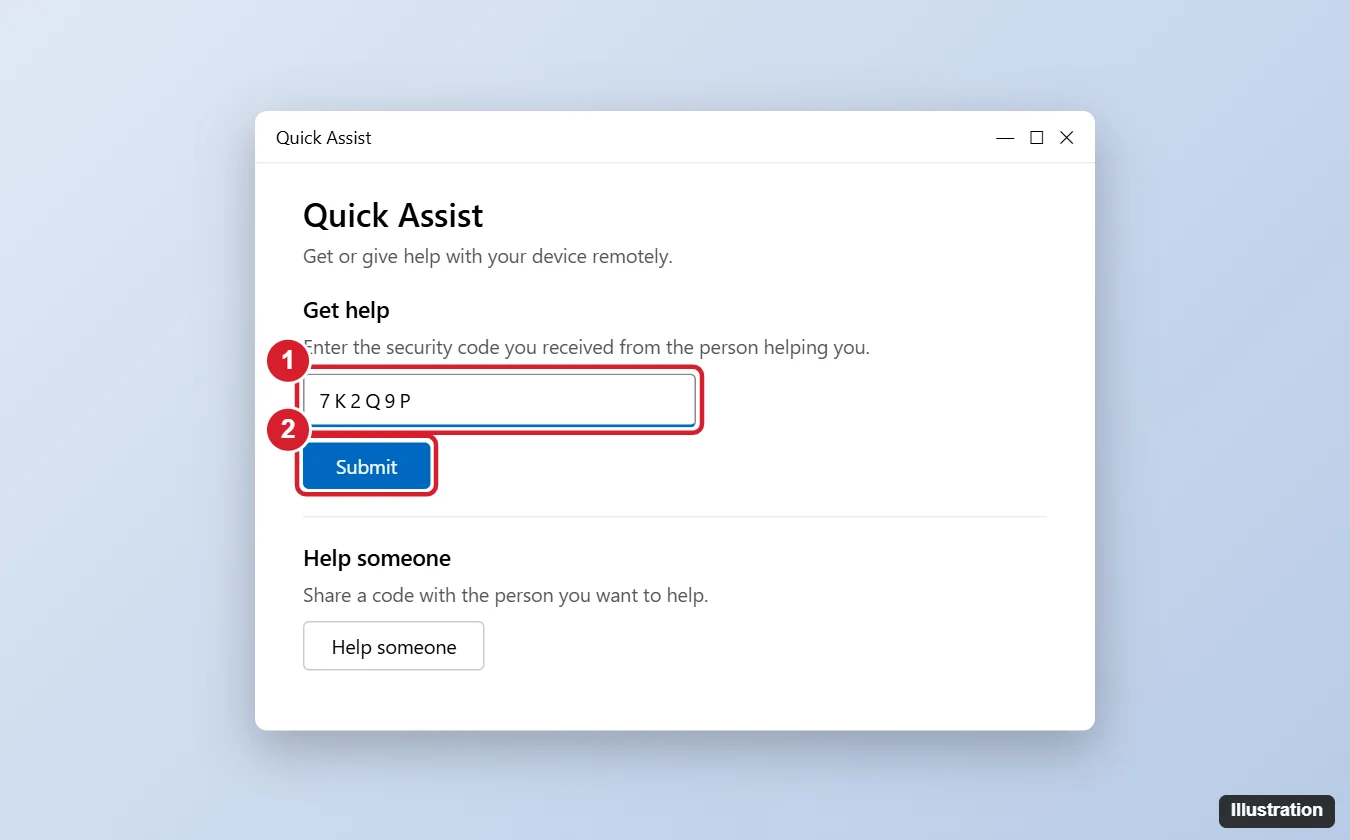
- Person getting help: opens Quick Assist, types the code under Get help, and clicks Submit.
- Review the sharing request and click Allow. The helper can view your screen, and can request full control if you approve.
- Click Leave or close the window to end the session.
Safety: only use Quick Assist with people you know and trust. Microsoft and legitimate companies won’t call you unexpectedly asking you to open Quick Assist; that’s a common scam.
Method 3: Cast Your Screen to a TV or Projector
- Make sure the TV, projector, or streaming device supports Miracast and is on the same network (or in screen mirroring mode).
- Press Windows + K (or open Quick Settings > Cast).
- Choose your display from the list.
- Press Windows + P to switch between Duplicate, Extend, or Second screen only.
For a wired option, connect an HDMI cable and press Windows + P.
If others hear static when you talk, fix mic static on Windows before your next meeting.
Troubleshooting
- Black screen when sharing: some apps block screen capture (streaming services). Share a different window or check the meeting app’s hardware acceleration settings.
- Browser asks for permission: browser-based meetings may ask to allow screen sharing; click Allow.
- Quick Assist missing: install it from the Microsoft Store.
- Display not found for casting: restart the TV or adapter and make sure your PC supports Miracast (Settings > System > Display > Multiple displays).
For TV-specific routes, including what to do when the PC fails the Miracast check, see how to cast Windows 10 to a TV.
For full control of your own PC from another location instead of a shared screen, look at Windows Remote Desktop.
Frequently Asked Questions
Can people see my notifications when I share?
If you share your entire screen, yes. Share a single window or turn on Do not disturb first.
Is Quick Assist free?
Yes. It’s included with Windows.
Summary
- Use your meeting app’s Share screen button for calls.
- Use Quick Assist (Ctrl + Windows + Q) for trusted remote help.
- Press Windows + K to cast to a TV or projector.
- Share a single window to keep other content private.

Kermit Matthews runs Live2Tech from just outside Philadelphia. He is an IT specialist with over 20 years of experience, from a university help desk to small-business IT, IT management and his own consulting practice, and has written tech guides full time since 2020. Steps are checked against the current software on a real device or the maker’s official documentation. More about Kermit.