A new router or a move to a new home often leaves a Chromecast showing “Not connected.” How you fix it depends on the model. A Chromecast with Google TV or Google TV Streamer changes Wi-Fi from its own on-screen Settings with the remote. An older Chromecast (3rd gen or earlier, Ultra or Audio) needs the Google Home app, and if its old network is gone, a factory reset and a fresh setup.
Which Chromecast do you have?
Google sold several devices under the Chromecast name, and they don’t share a menu. Check this first, because the steps below are split by model.
| Model | How to recognize it | Change Wi-Fi without the Google Home app? |
|---|---|---|
| Google TV Streamer | A small box that sits beside the TV, with a remote; has an Ethernet port | Yes, from Settings with the remote |
| Chromecast with Google TV (HD or 4K) | A dongle that hangs behind the TV, with a remote; shows the Google TV home screen of apps | Yes, from Settings with the remote |
| Chromecast (1st, 2nd or 3rd gen), Chromecast Ultra | No remote; the TV shows a background photo and the time (“ready to cast”) | No, you need the Google Home app |
| Chromecast Audio | Small round puck that plugs into a speaker, not a TV | No, you need the Google Home app |
One rule applies to all of them. Google’s change Wi-Fi help page says its streaming devices remember only one Wi-Fi network at a time. Joining a new network replaces the old one rather than adding to a list.
What you need before you start
- The new network’s name and password. Chromecast needs a secure network with a password. Networks that need a username and password (WPA2-Enterprise, common at offices and schools) usually can’t be used.
- Proper power. Plug the Chromecast into the wall adapter that came with it, not the TV’s USB port. A weak USB port can make it restart or drop Wi-Fi during setup.
- For classic models, a phone or tablet with the latest Google Home app, signed in to the same Google Account used to set up the Chromecast, with Bluetooth and location turned on for the app.
- For Google TV models, the remote. If it’s lost, see the section on setting up without the Google Home app below.
Change Wi-Fi on a Chromecast with Google TV or Google TV Streamer
These models have their own menu, so you can switch networks right on the TV. You don’t need your phone, and your apps and accounts stay in place.
- On the Google TV home screen, go to the top right and select Settings (on some screens you reach it through your profile picture).
- Select Wi-Fi network. Some software versions group this under Network & Internet.
- Make sure Wi-Fi is turned on, then choose the new network from the list.
- Enter the password with the on-screen keyboard and select Connect.
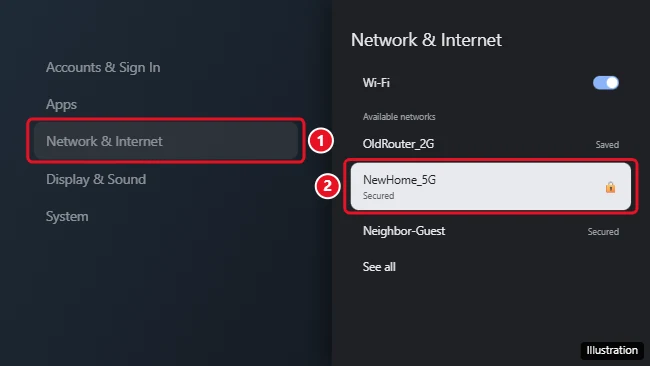
Expected result: the network shows as connected, and apps such as YouTube load again.
Stop it from jumping back to the old network
If the old router is still on (for example, a neighbor’s spare or your old provider’s box), remove it so the device doesn’t switch back. In the same Wi-Fi list, select the old network name and choose Forget network. Google’s own instructions for these models also use Forget network on the current connection before you join the new one.
If the new network doesn’t appear
Restart the router and the Google TV device, then check the list again. If the network is hidden, the list won’t show it; making the network visible in the router’s settings during setup is the simplest fix. Also confirm the router isn’t using a login type the device can’t join, such as WPA2-Enterprise.
Change Wi-Fi on a classic Chromecast with the Google Home app
A classic Chromecast has no menu, so the phone does the work. Which path you take depends on whether the Chromecast can still reach its old network.
If the old network still works
This applies when you’re switching to a new network but the old router is still running, for example when you’re moving the Chromecast from a 2.4 GHz network to a new mesh system.
- Connect your phone or tablet to the old network, the one the Chromecast is still on.
- Open the Google Home app, signed in with the same Google Account that set up the Chromecast.
- Tap Home, then All devices.
- Touch and hold the Chromecast’s tile, then tap Settings.
- Tap Device information, then Wi-Fi, then Forget this network.
- Connect your phone to the new network and go back to the Home app’s main screen.
- Tap Add in the top right, then Device, and set up the Chromecast again, choosing the new network.

If the old network is gone
After a move or a router swap, the Chromecast can’t reach the Home app on its old network, so you can’t use Forget this network. Google’s answer is a factory reset, then setup on the new network. Skip ahead to the reset steps, then come back to the first-time setup section.
The shortcut: reuse the old network name and password
If you control the new router, you can give it the same Wi-Fi name and password as the old one. A Chromecast that only remembers the old details may join the new router without any reset. This doesn’t always work (a change in security type or band can still block it), but it’s worth trying before a reset, especially if you have several Google speakers and displays on the same network. The same trick helps Google Home speakers on a new Wi-Fi network.
Factory reset a Chromecast so it can join a new network
Warning: a factory reset erases the device’s settings, and on Google TV models it also removes installed apps and signed-in accounts. You’ll set it up from scratch afterward. Keep the device plugged into the TV and power the whole time. The button and timing differ by model, according to Google’s Chromecast factory reset page.
| Model | Reset with the button on the device | Reset from a menu |
|---|---|---|
| Google TV Streamer | Hold the button on the back for 10 to 12 seconds; the light blinks yellow; release when it turns solid white | Profile icon > All settings > System > About > Factory Reset |
| Chromecast with Google TV | Hold the button on the back until the light blinks yellow; release when it turns solid white | Profile icon > All settings > System > About > Factory Reset |
| Chromecast (2nd or 3rd gen), Ultra | Hold the button on the back until the light blinks yellow; release when it turns solid white | Google Home app (same network only): tile > Settings > More > Factory reset |
| Chromecast (1st gen) | Hold the button for at least 25 seconds, until the light blinks and the TV goes blank | Google Home app (same network only) |
| Chromecast Audio | Hold the button until the light blinks orange, then release at solid white | Google Home app (same network only) |
The Google Home app reset only helps when the Chromecast and your phone are still on the same network. If the network is gone, use the physical button. Google also notes that support for the 1st gen Chromecast has ended, so it may not set up reliably with current versions of the Home app.
Expected result: the TV shows a setup screen with a code (classic models) or the Google TV welcome screen.
Set up a Chromecast on Wi-Fi for the first time
Use these steps for a new Chromecast, a reset Chromecast or a classic model that’s moving to a new network. They’re based on Google’s Chromecast setup page.
- Plug the Chromecast into an HDMI port on the TV and its power adapter into a wall outlet. If the TV’s ports are cramped or behind metal, use the short HDMI extender if your model came with one.
- Switch the TV to that HDMI input.
- Connect your phone or tablet to the Wi-Fi network you want the Chromecast to use. Turn on Bluetooth. On Android, the phone needs Android 9.0 or later.
- Open the Google Home app and sign in with your Google Account.
- In the top right, tap Add, then Device. Choose your home if you have more than one.
- Scan the QR code on the TV when asked. If scanning fails, tap Use setup code and enter the code for your device.
- If the app asks, confirm that the code on your TV matches the one in the app.
- If the app asks, pick your Wi-Fi network, enter the password and tap Connect. Finish the remaining prompts, such as room name.
Google TV models also offer setup directly on the TV with the remote, which skips the phone. The Home app route links the device to your Google Home and is the one Google describes.
Once it’s connected, look for the Cast icon in apps such as YouTube, Netflix or a Chrome tab, and pick the Chromecast from the list. If you plan to present from a laptop, see casting Google Slides to a TV.
Connecting without the Google Home app: what works and what doesn’t
The “without the app” question has a different answer for each model.
- Google TV models: you can change Wi-Fi from Settings with the remote, and setup can be completed on the TV. No app needed after that.
- Lost Google TV remote: the Google TV app on a phone can act as a remote once both are on the same network. If the TV can’t reach any network, you’ll need a replacement remote.
- Classic Chromecast: there’s no way around the Google Home app. Older web-browser setup methods aren’t part of Google’s current instructions. If you don’t have a smartphone, borrow one or use a tablet; you can sign in to the Home app with your own Google Account.
- Setting up from a computer: Google’s setup page says Chromecast setup on a computer isn’t supported, so use a phone or tablet with the Google Home app.
Hotel, dorm and office Wi-Fi
Networks that show a sign-in web page before you can browse (captive portals) are the most common reason a Chromecast won’t join while traveling. Classic models have no browser to accept the terms, and enterprise-style logins usually can’t be used. Options that work:
- Travel router. A small router signs in to the hotel network once, then creates a private network for your Chromecast and phone.
- Phone hotspot. Set up the Chromecast on a hotspot, but cast from a second device that joins the same hotspot, because the phone sharing its connection often can’t also cast reliably. Streaming uses mobile data. Steps for an iPhone are in sharing your iPhone’s internet connection.
- Ask IT. Many dorms and offices run a separate network for streaming devices, often registered by the device’s MAC address. The help desk can tell you whether one exists.
- Ethernet. The Google TV Streamer has an Ethernet port, which sidesteps Wi-Fi where a wired jack is available.
Chromecast still won’t connect to Wi-Fi
Work through these in order, rechecking after each one.
- Restart both ends. Unplug the Chromecast for a minute and restart the router. Plug the Chromecast back in after the router is fully up.
- Check the phone. It should be on the same Wi-Fi network you’re setting up, not mobile data or a guest network. Turn off any VPN during setup.
- Check permissions. The Google Home app needs Bluetooth, location and (for QR codes) camera access.
- Update the app. Install the latest Google Home app and phone software.
- Look at router settings. Features called AP isolation, client isolation or device isolation stop the phone from seeing the Chromecast. Turn them off on the network you’re using, or use the main network instead of a guest one.
- Try the other band. If your router has separate 2.4 GHz and 5 GHz names, try the other one. The original 2013 Chromecast only works on 2.4 GHz; 2.4 GHz also travels farther through walls, while 5 GHz is faster near the router.
- Improve the signal. A Chromecast behind a wall-mounted TV may get a weak signal. Use the HDMI extender, move the router closer or add a mesh point.
- Reset and start over. If none of that works, factory reset the Chromecast and set it up again.
A typical case: after a provider swaps the router, a living room Chromecast with Google TV shows “Not connected.” Selecting the new network in Settings and entering the password printed on the router is usually all it takes. A classic Chromecast in the bedroom on the same router needs a button reset and the Home app setup instead.
If the Chromecast belongs to a home on someone else’s account, you may need to be added to that home first; see moving Google Home to another account.
Chromecast Wi-Fi questions
Can a Chromecast remember more than one Wi-Fi network?
No. Google says its streaming devices remember one network at a time. Taking a Chromecast between two homes means changing the network (Google TV models) or setting it up again (classic models) at each place, unless both networks share the same name and password.
Does changing Wi-Fi delete my apps or settings?
No. Switching networks on a Google TV model keeps your apps and accounts. Only a factory reset erases them.
Why doesn’t my Chromecast show up in the Google Home app?
Usually the phone and the Chromecast are on different networks, the phone is using a VPN, or the router isolates devices from each other. Check those, then restart the Chromecast.
Can a Chromecast work without Wi-Fi?
It needs a network shared with the device you cast from. The Google TV Streamer can use its Ethernet port instead of Wi-Fi. Other models can use a phone hotspot as the network, with a second device joining the same hotspot to cast.
Is the Chromecast still sold?
Google’s current streaming device is the Google TV Streamer. Older Chromecast models still work, though Google has ended support for the 1st gen model. Because the Wi-Fi steps differ by model, identify yours first.
Next step: once the Chromecast is back online, open any app with a Cast icon and send a video to the TV to confirm it’s working.

Kermit Matthews runs Live2Tech from just outside Philadelphia. He is an IT specialist with over 20 years of experience, from a university help desk to small-business IT, IT management and his own consulting practice, and has written tech guides full time since 2020. Steps are checked against the current software on a real device or the maker’s official documentation. More about Kermit.