Upgrading a Windows 7 PC to Windows 11 means a clean installation, so your files stay safe only if you copy them somewhere first. Microsoft says plainly that the installation “overwrites the contents of your existing hard drive.” Before you buy anything, you also need to know whether this particular PC can run Windows 11 at all, because Microsoft says PCs on unsupported versions of Windows are unlikely to meet the requirements.
Where your PC stands before you start
Windows 7 support ended on January 14, 2020, and Microsoft’s page on unsupported versions of Windows states: “There currently aren’t free upgrade paths from unsupported versions of Windows to either Windows 10 or Windows 11.” That leaves a few realistic situations. Find yours in the table, then follow the sections it points to.
| Your situation | What keeps your data safe | Where to go next |
|---|---|---|
| The PC meets every Windows 11 requirement | Back up, clean install Windows 11, copy files back | All sections in order |
| The PC fails one or more requirements | Back up now and plan to move files to a newer PC | Copying your files, then the last section |
| You already bought a new Windows 11 PC | Copy files off the old PC and onto the new one | Copying your files, then putting them back |
| You already own a Windows 10 license | Back up, then consider the Windows 10 detour | The Windows 10 detour section |
In every row, the backup comes first: a clean install of Windows 11 keeps nothing, so the copy you make is your real safety net.
Copy your files off the Windows 7 PC
Microsoft suggests “an external hard drive or USB key to copy over files,” or cloud storage. There is one catch with the cloud on Windows 7: Microsoft says personal OneDrive desktop apps on Windows 7 “stop syncing to the cloud on March 1, 2022.” The OneDrive app on this PC will not upload anything now, but you can still upload files by hand on the OneDrive website in your browser.
- Connect an external drive or USB flash drive with enough free space for your files.
- Open your user folder and copy Documents, Pictures, Desktop, Downloads, Music and Videos to the drive. Check other drives or folders where you saved work, too.
- Export your browser bookmarks and make sure you know your saved passwords or have them in an account you can sign in to later.
- Write down the programs you rely on, plus any license keys or sign-in details they need. You will reinstall them on Windows 11.
- Open a few files from the backup on another computer to confirm the copy works before you go any further.
Search the PC for photo and document files outside your user folders before you decide the backup is complete. For more ways to save Windows 7 data, including a system image, see backing up a Windows 7 computer.
Check the Windows 11 requirements from Windows 7
The Windows 11 specifications page lists these minimums:
- Processor: 1 gigahertz (GHz) or faster with 2 or more cores on a compatible 64-bit processor or System on a Chip (SoC)
- RAM: 4 gigabytes (GB)
- Storage: 64 GB or larger storage device
- System firmware: UEFI, Secure Boot capable
- TPM: Trusted Platform Module (TPM) version 2.0
- Graphics card: compatible with DirectX 12 or later with WDDM 2.0 driver
- Display: high definition (720p) display that is greater than 9 inches diagonally, 8 bits per color channel
Microsoft’s PC Health Check app is the easy way to test a PC, but Microsoft documents it for devices “already running Windows 10,” so on Windows 7 you compare the hardware yourself. Look up the processor model, installed memory and whether Windows is 32-bit or 64-bit (finding your computer specs in Windows 7 shows where), then check the processor against the lists linked from Microsoft’s specifications page. A PC that runs 32-bit Windows 7 may still have a 64-bit processor, so check the processor itself, not just the Windows edition.
UEFI, Secure Boot and TPM settings live in the PC’s firmware, and the menu names differ by manufacturer. Check your PC maker’s support pages rather than guessing at firmware settings.
Get a license and Microsoft’s installation USB
If the PC qualifies, Microsoft says you “can purchase and download a full version of Windows 11 Home or Windows 11 Pro or buy from a retailer.” Buy the edition you want before you install, because Microsoft’s reinstall instructions say the edition you install must match your license.
Next, make the installer. Microsoft’s Windows 11 download page offers three options, and the one you want here is Create Windows 11 Installation Media, which builds a bootable USB drive or DVD for a reinstall or clean install. (The Windows 11 Installation Assistant is not an option on Windows 7: it needs Windows 10, version 2004 or higher.) Run the media creation tool on a working Windows PC and use a blank USB flash drive with at least 8GB of space, since Microsoft says “any content on the flash drive will be deleted.” Creating a Windows 11 installation USB drive walks through every screen of the tool.
Install Windows 11 over Windows 7
Disconnect your backup drive before you start, so it can’t be picked as the install location by mistake. Then follow Microsoft’s clean install screens from its reinstall Windows with installation media page:
- Plug the USB drive into the Windows 7 PC, turn it on, and open the boot menu with the key your PC maker lists. Choose the USB drive.
- Pick your language and keyboard. On the Select setup option screen, choose Install Windows 11, then check I agree everything will be deleted including files, apps, and settings. This is the point of no return for anything you did not back up.
- Enter your new Windows 11 product key. Microsoft’s page also shows I don’t have a product key, but warns: “If you don’t have a product key and your product key isn’t linked to your Microsoft account, don’t proceed forward.”
- On Select location to install Windows 11, select each partition on Disk 0 and choose Delete Partition until only Disk 0 Unallocated Space remains. Leave any other disk alone.
- Select the unallocated space and continue. The PC restarts several times while Windows 11 installs.
If the drive or PC refuses to boot from USB, the firmware may still be in an older boot mode. Your PC maker’s documentation is the place to change that.
Put your files back and finish setup
Have your network password and Microsoft account details ready for the first setup screens (see the answers below).
- Once you reach the desktop, connect your backup drive and copy your folders into the matching folders in File Explorer.
- If you uploaded files to the OneDrive website, sign in to OneDrive on Windows 11 and let it download what you need.
- Open Settings > Windows Update and install every available update, including driver updates.
- Reinstall your programs from your list. Microsoft notes that “you’ll need to reinstall your apps,” and programs from the Windows 7 era often need a newer version.
- Import your browser bookmarks and sign back in to your accounts.
- Turn on OneDrive or another backup so you keep an ongoing copy.
Keep the backup drive untouched for a few weeks, until you have opened the files you care about on the new system.
The Windows 10 detour Microsoft mentions
Microsoft’s unsupported-Windows page adds one more line: “It may be easier for you to first upgrade to Windows 10 and then upgrade to Windows 11.” This only makes sense if you already hold a Windows 10 license, since Microsoft’s Windows 10 download page says you “will first need to have a license to install Windows 10.” Microsoft’s in-place upgrade choices include Keep personal files and apps, as marked in the illustration below.
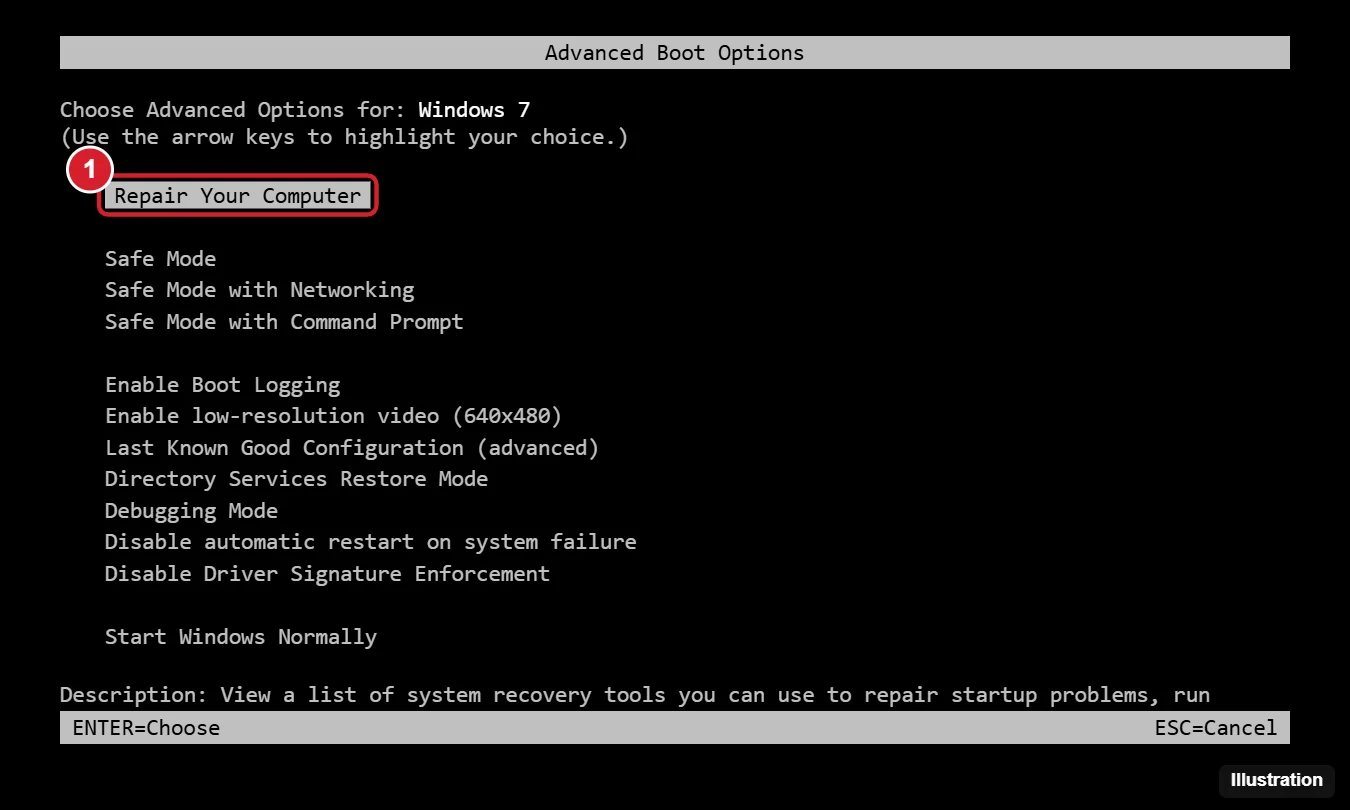
Two cautions before you go this way. First, back up anyway, exactly as described above. Second, Windows 10 is only a stepping stone now: “Windows 10 has reached the end of support on October 14, 2025,” in Microsoft’s words, and Microsoft says the consumer Extended Security Updates (ESU) program “can protect your Windows 10 device till October 12, 2027.” Once you are on Windows 10, Microsoft says “You can upgrade from Windows 10 to Windows 11 for free,” on hardware that meets the same requirements listed earlier. If the PC fails them, this detour does not help. For the Windows 10 leg itself, see upgrading Windows 7 to Windows 10.
When the PC can’t run Windows 11
For an older PC, Microsoft’s suggestion is a new device that comes with Windows 11. Your backup then moves straight to the new machine: plug in the drive and copy the folders across.
Microsoft also warns against forcing the install. Its page on Windows 11 on unsupported devices says “Installing Windows 11 on this PC is not recommended,” that such a PC “won’t be entitled to receive updates,” and that damage from incompatibility isn’t covered by the manufacturer warranty. This article doesn’t cover ways around the requirements for that reason. If you want the short version of what is and isn’t possible, whether you can upgrade from Windows 7 to Windows 11 sums it up.
Until your files are safe elsewhere, use the Windows 7 PC online as little as possible; it has had no security updates since January 2020.
Windows 7 to 11 answers
Do I need a Microsoft account to set up Windows 11?
For Windows 11 Home and Windows 11 Pro for personal use, yes: Microsoft lists internet connectivity and a Microsoft account as requirements during initial device setup. Create the account or check your password before install day.
Can a 32-bit Windows 7 PC run Windows 11?
Only if its processor is a compatible 64-bit model that meets the rest of the list. Windows 11 itself is 64-bit only, so a PC with a 32-bit processor can’t run it.
The same backup-first order applies when moving a Windows 8.1 PC to Windows 10 or Windows 11.
Related guides
- Microsoft: What does it mean if Windows isn’t supported?
- Microsoft: OneDrive sync app no longer supported on Windows 7, 8, or 8.1
- Microsoft: Windows 11 on devices that don’t meet minimum system requirements

Kermit Matthews runs Live2Tech from just outside Philadelphia. He is an IT specialist with over 20 years of experience, from a university help desk to small-business IT, IT management and his own consulting practice, and has written tech guides full time since 2020. Steps are checked against the current software on a real device or the maker’s official documentation. More about Kermit.