If OneDrive keeps asking you to back up folders or syncs files you never meant to share with the cloud, you have three levels to choose from on Windows 11. To pause it, click the OneDrive cloud icon, then the Settings gear, then Pause syncing. To stop syncing on this PC, open OneDrive Settings > Account > Unlink this PC. To remove the app, go to Settings > Apps > Installed apps > Microsoft OneDrive > Uninstall.
Pause, unlink, or uninstall: pick your level
Every option below leaves the files in your Microsoft account alone. They stay at OneDrive.com no matter which one you pick. What changes is how much of OneDrive keeps running on this PC and how easy it is to go back.
| What you want | Use this | What keeps running | How to undo it |
|---|---|---|---|
| A break from syncing for a few hours (slow connection, big download, a game) | Pause syncing (2, 8, or 24 hours) | The app stays signed in; syncing resumes on its own | Choose Resume syncing, or wait |
| OneDrive closed for the rest of this session | Quit OneDrive | Nothing until you open it again or sign in again | Open OneDrive from Start |
| Your Desktop, Documents, and Pictures saved on the PC, not in the cloud | Stop folder backup | OneDrive still syncs its own folder | Turn backup back on in Manage backup |
| No OneDrive window or icon at every sign-in | Turn it off as a startup app | Nothing at sign-in; you can still open it by hand | Turn the startup toggle back on |
| No syncing at all on this PC, but keep the app | Unlink this PC | The app is installed but signed out | Open OneDrive and sign in again |
| The app gone from this PC | Uninstall Microsoft OneDrive | Nothing | Download and install OneDrive again |
| Nobody on a Pro PC able to use OneDrive | Group Policy | OneDrive is blocked for every user | Set the policy back to Not Configured |
A good rule of thumb: if OneDrive is only annoying you today, pause or quit it. If you never want it to run but might use it someday, stop the folder backup, unlink, and turn it off at startup. Uninstall only when you are sure you won’t use it on this PC, since unlinking already stops all syncing. If you just want OneDrive tied to a different Microsoft account, you don’t need any of this: switch the OneDrive account on Windows 11 instead.
Check two things before you turn anything off
Most “OneDrive deleted my files” stories come from skipping these checks. Neither one takes long.
Is OneDrive backing up your Desktop, Documents, or Pictures?
OneDrive’s folder backup (Microsoft also calls it PC folder backup) moves those everyday folders into the OneDrive folder so they sync. While it is on, the Desktop you see is really C:\Users\<name>\OneDrive\Desktop. If you unlink or uninstall without stopping the backup first, Windows keeps pointing at those OneDrive copies, and anything that was online-only can’t be opened. To check, open File Explorer and look at the path of your Desktop or Documents folder. If OneDrive appears in it, do the first section below before anything else.
Are some files online-only?
OneDrive can keep files in the cloud and show only a placeholder on your PC. In File Explorer, a blue cloud icon in the Status column means the file is online-only; a solid green circle with a white check mark means it is always kept on the device. To bring files down, right-click a file or a whole folder in your OneDrive folder and choose Always keep on this device, then wait until the cloud icons turn into check marks. If you have a lot of data, the full routine for downloading OneDrive files to your PC and stopping cloud syncing covers it in more detail, including checking free disk space first.
Stop OneDrive from backing up your folders
Stopping the backup is the step that decides where your files end up, so read the options before you click.
Once folder backup is off, Windows may start prompting you again, and these steps to silence Windows Backup reminders deal with that.
- Click the OneDrive cloud icon in the notification area at the right end of the taskbar. If you don’t see it, click the ^ arrow to show hidden icons.
- Click the Help & Settings gear and choose Settings.
- Select Sync and backup, then Manage backup.
- Turn off the toggle for each folder you want back on the PC, such as Desktop, Documents, and Pictures.
- When OneDrive asks where the files should live, choose the option that keeps them only on my PC if you want them local. The other choice keeps them only in OneDrive and removes them from the PC.
- Confirm, then open the local folder (for example, C:\Users\<name>\Documents) to make sure your files are there.
Microsoft’s instructions for backing up and un-backing your folders with OneDrive explain what each choice does. The key point: one copy stays and the other is removed, so picking “only in OneDrive” by accident is how Desktop files seem to vanish from the PC. They are still at OneDrive.com if that happens.
The move can stop with a message saying some files couldn’t be moved and asking you to download them first by setting them to Always keep on this device. Do that, then try again. Files that are open in another app and OneNote notebooks can also block the move, so close your apps first. If a file fails with a too-long path error while you move things around, you can turn on long file paths in Windows 11 or shorten the folder names.
A gentler option if you like OneDrive but not all of it: in OneDrive settings, Account > Choose folders lets you pick which OneDrive folders appear on this PC. Anything you clear stays online but stops taking space here.
From now on, programs that save to Documents or Desktop save to the PC. To make Word, Excel, and PowerPoint default to the PC as well, see how to save files to your PC instead of OneDrive in Windows 11.
Pause syncing or quit OneDrive
Pausing is the right choice when you want OneDrive out of the way for a while, such as on a metered hotspot or during a video call.
- Click the OneDrive cloud icon in the notification area.
- Click the Help & Settings gear.
- Choose Pause syncing, then pick 2 hours, 8 hours, or 24 hours.
OneDrive starts syncing again when the time runs out. To restart sooner, open the same menu and choose Resume syncing.
To close OneDrive completely for this session, open the gear menu, choose Pause syncing, and then Quit OneDrive. Confirm when Windows asks. The cloud icon disappears from the taskbar. OneDrive comes back the next time you sign in to Windows (unless you also do the startup step below), or when you search for OneDrive in Start and open it. Microsoft’s page on how to stop or cancel sync in OneDrive covers both.
Keep OneDrive from opening when you sign in
This keeps OneDrive installed and signed in but stops it from launching on its own. You can use any one of these three places:
- Press Windows key + I to open Settings.
- Go to Apps > Startup.
- Find Microsoft OneDrive in the list and switch it Off.
In Task Manager (Ctrl + Shift + Esc), select Startup apps, right-click Microsoft OneDrive, and choose Disable. Inside OneDrive itself, the settings window has an option to start OneDrive automatically when you sign in to Windows; turning it off does the same job. The exact place of that toggle has moved between OneDrive versions, so the Windows Settings route is the most predictable. More examples and fixes for stubborn apps are in this walkthrough to stop apps from opening on startup in Windows 11.
Keep in mind that if OneDrive doesn’t run, nothing syncs. That is the point here, but it also means changes you make on another device won’t reach this PC until you open OneDrive again.
Unlink this PC
Unlinking signs OneDrive out on this computer. It’s the cleanest way to stop all syncing while keeping the option to come back.
- Click the OneDrive cloud icon, then the Help & Settings gear, then Settings.
- Select Account.
- Click Unlink this PC, then confirm with Unlink account.
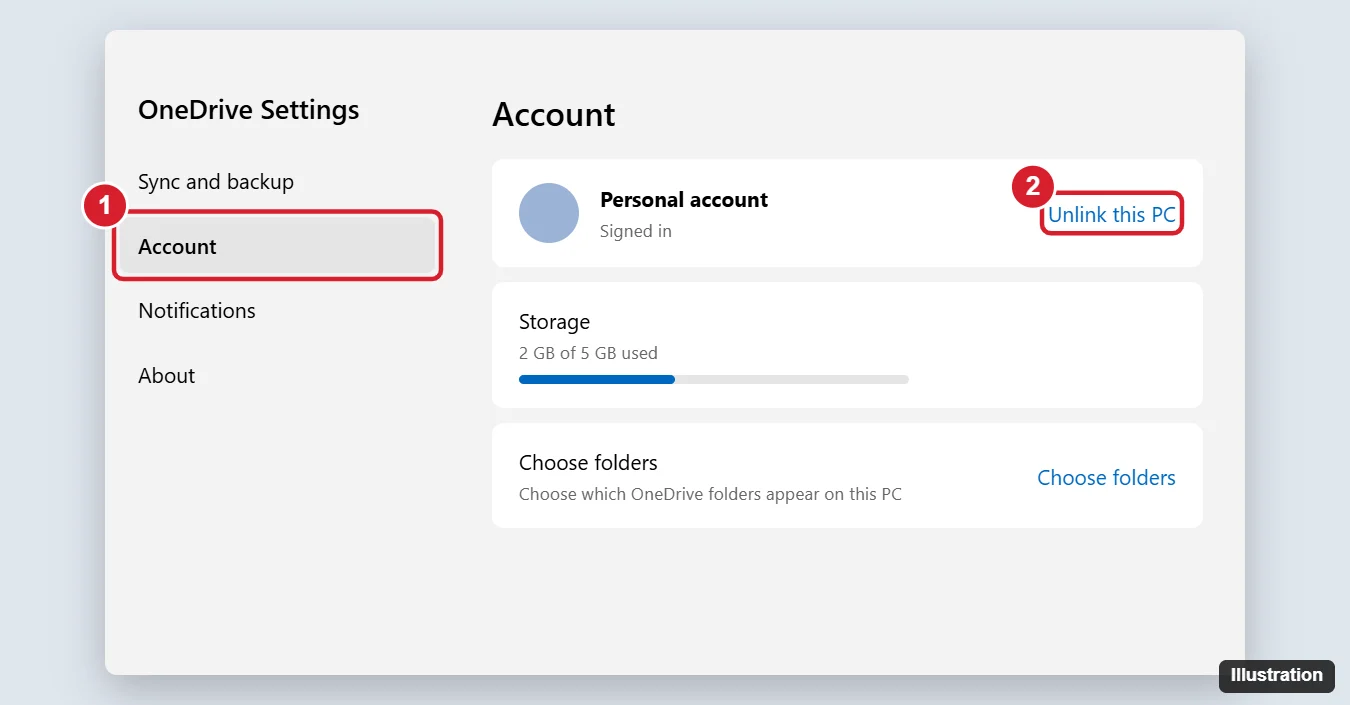
What happens next: files that were already downloaded stay in the OneDrive folder on your PC as ordinary files. Files that were online-only are just placeholders, so they won’t open until you sign in again (and you’ll need an internet connection to get them). Nothing is deleted from OneDrive.com, and if you sign in again later, OneDrive matches up the folder and syncs any changes.
After unlinking, OneDrive usually shows its sign-in screen. Close it. If you also want OneDrive gone from the startup list, do the previous section too.
Uninstall OneDrive from Windows 11
Uninstalling removes the sync app. It doesn’t delete your files from OneDrive.com or from the OneDrive folder on the PC. Do the folder backup and unlink steps first so your files are where you expect.
- Press Windows key + I and go to Apps > Installed apps.
- Type OneDrive in the search box above the list.
- Click the three dots (…) next to Microsoft OneDrive and choose Uninstall.
- Click Uninstall again to confirm, and allow the change if User Account Control asks.
The cloud icon leaves the taskbar when the uninstall finishes. Microsoft’s support page to turn off, disable, or uninstall OneDrive lists the same route. If you prefer the classic tools, Control Panel > Programs > Programs and Features also lists Microsoft OneDrive with an Uninstall button. The general methods for removing apps, including what to do when Uninstall is grayed out, are in this rundown of how to uninstall a program on Windows 11.
If you like the command line, Windows Package Manager can do the same thing. Open Terminal, run winget list OneDrive to see the package ID on your PC, then run winget uninstall –id followed by that ID.
On a Windows 10 PC, the route is Settings > Apps > Apps & features, then Microsoft OneDrive > Uninstall; the folder backup and unlink steps work the same way. Windows 10 reached end of support on October 14, 2025 (consumer Extended Security Updates run through October 12, 2027). For a Windows 10-specific walkthrough, see how to completely remove OneDrive from Windows 10.
Hide OneDrive in File Explorer without uninstalling
On some PCs, the Uninstall button isn’t available, or you may want to keep the app for later. Microsoft’s own method is to hide the folder:
- Unlink OneDrive (see above).
- Open File Explorer, right-click OneDrive in the left pane, and choose Properties.
- On the General tab, under Attributes, check Hidden, and click OK.
- Click the OneDrive cloud icon, open the Help & Settings gear, and quit OneDrive.
To bring the folder back, turn on Hidden items in File Explorer’s View > Show menu, open the folder’s Properties, and clear Hidden. If you later want OneDrive in the navigation pane again, here is how to add OneDrive to File Explorer in Windows 11 and 10.
After an uninstall, the OneDrive entry in the left pane normally goes away after a restart. If an empty OneDrive folder remains in C:\Users\<name>, it’s harmless. Move any files you want out of it, then delete it. Avoid registry edits or deleting folders in Program Files to force the entry away; they aren’t Microsoft-supported ways to do it.
Block OneDrive with Group Policy on Pro, Enterprise, or Education
Group Policy Editor (gpedit.msc) comes with Pro, Enterprise, and Education editions, not Home. On those editions, an administrator can block OneDrive for everyone who uses the PC. This is useful on a shared family or lab computer where you don’t want anyone signing in to OneDrive.
On a work or school PC, stop here and ask your IT department. Organizations often require OneDrive and manage it centrally, and they may reinstall or re-enable it automatically.
- Press Windows key + R, type gpedit.msc, and press Enter.
- Go to Computer Configuration > Administrative Templates > Windows Components > OneDrive.
- Double-click Prevent the usage of OneDrive for file storage.
- Select Enabled, then click OK.
- Restart the PC.
With the policy on, OneDrive can’t be used to store files on this PC. To undo it, open the same policy and choose Not Configured, then restart. If the policy isn’t in your list, your PC may be using a different set of policy templates; in that case use the unlink and uninstall steps instead.
Turn OneDrive back on later
How you bring it back depends on how far you went:
- Paused: choose Resume syncing from the gear menu.
- Quit or disabled at startup: search for OneDrive in Start and open it, and switch it back on in Settings > Apps > Startup if you want it at every sign-in.
- Unlinked: open OneDrive, sign in with your Microsoft account, and accept the existing folder location (OneDrive offers to use the folder that’s already there). Sign-in trouble is covered in how to sign in to OneDrive on Windows 10 and fix sign-in problems; the steps are similar on Windows 11.
- Uninstalled: download OneDrive again from Microsoft’s OneDrive download page, install it, and sign in.
- Folder backup stopped: open Sync and backup > Manage backup and turn the folders back on.
Problems after turning OneDrive off
Desktop or Documents looks empty
The files are almost always in C:\Users\<name>\OneDrive\Desktop (or \Documents), or online at OneDrive.com if you chose “only in OneDrive” when you stopped the backup. Sign in at OneDrive.com and download them, or open the OneDrive folder in File Explorer and move them back.
Folders still point to OneDrive
If Desktop or Documents still opens the OneDrive copy after backup stops, right-click the folder in File Explorer, choose Properties, open the Location tab, and click Restore Default. Windows offers to move the files to the default location; say yes only if you want them moved.
Microsoft OneDrive isn’t in Installed apps
Type the name in the search box instead of scrolling. If it really isn’t listed, it may already be removed, or your organization may manage it. Use the hide method above if you only want it out of sight.
Uninstall fails or files show sync errors
Quit OneDrive from its cloud icon first (Help & Settings > Pause syncing > Quit OneDrive), then run Uninstall again. If files show a red X before you uninstall, let OneDrive finish syncing or copy those files to another folder on the PC first.
OneDrive came back
Some users report OneDrive returning after a large Windows update. If that happens, uninstall it again with the same steps and check the startup toggle.
OneDrive questions
Does turning off OneDrive delete anything?
Pausing, quitting, unlinking, and uninstalling don’t delete files from your account. The one action that does remove files from the PC is stopping folder backup and choosing to keep them only in OneDrive. Also, if you delete a file inside the OneDrive folder while it is still syncing, it’s deleted online too, so unlink first before you clean up.
Can I keep OneDrive but silence its pop-ups?
Yes. OneDrive settings include notification options you can turn off, and in Windows Settings > System > Notifications you can switch off notifications from OneDrive. That leaves syncing alone.
Will Word and Excel still work without OneDrive?
Yes. Microsoft 365 apps open and save files on your PC as usual. You lose AutoSave and live co-authoring for files that used to sync, because those features rely on files stored in OneDrive or SharePoint.
Does unlinking free up space?
No. Downloaded files stay on the PC after you unlink. To reclaim space, move what you need elsewhere and delete the rest from the local OneDrive folder after unlinking, so the deletions don’t sync to the cloud.
If you only wanted OneDrive quiet for now, pause it and move on. If you want it gone, stop the folder backup first, unlink, and then uninstall, in that order.

Kermit Matthews runs Live2Tech from just outside Philadelphia. He is an IT specialist with over 20 years of experience, from a university help desk to small-business IT, IT management and his own consulting practice, and has written tech guides full time since 2020. Steps are checked against the current software on a real device or the maker’s official documentation. More about Kermit.