You can still upgrade a Windows 7 PC to Windows 10 with Microsoft’s Media Creation Tool: download it on the Windows 7 PC, choose Upgrade this PC now, and pick whether to keep your files and apps. But there are two big catches. Microsoft ended the free upgrade path, so a Windows 7 key no longer activates Windows 10, and Windows 10 itself stopped getting regular security updates in October 2025. For most people, a better plan is moving to Windows 11 on compatible hardware, or replacing a Windows 7-era PC.
Here’s how to decide, how to upgrade if you still want to, and how to protect your files along the way.
Your options in 2026
| Option | Pros | Cons |
|---|---|---|
| Upgrade to Windows 10 | Familiar, runs on older hardware | Needs a paid license, no regular security updates |
| Upgrade to Windows 11 | Supported and secure | Most Windows 7-era PCs don’t meet the requirements |
| Buy a new PC | Fast, supported, includes Windows 11 | Cost |
To see if your PC can run Windows 11, check for a processor from about 2018 or later, TPM 2.0, and UEFI Secure Boot support.
Is it safe to keep using Windows 7?
No. It hasn’t received security updates since 2020, and most current browsers no longer support it.
If you still plan a clean reinstall of Windows 7 offline, finding your Windows 7 product key shows where Microsoft says the key lives.
For the short time you need it online, joining Wi-Fi on Windows 7 covers the steps and fixes.
Before you upgrade
- Back up your files to an external drive or cloud storage.
- Get a valid license. You’ll need a Windows 10 or Windows 11 product key. A Windows 11 key generally activates the same edition of Windows 10.
- Check free space. You need at least 20 GB free, more is better.
- Update drivers and uninstall old antivirus software, which can block the upgrade.
How to upgrade Windows 7 to Windows 10
- On the Windows 7 PC, download the Windows 10 Media Creation Tool from Microsoft’s website.
- Run the tool, accept the license terms, and choose Upgrade this PC now. Click Next.
- Enter your product key when asked.
- Choose what to keep: Keep personal files and apps, Keep personal files only, or Nothing.
- Click Install. Your PC restarts several times. Don’t turn it off.
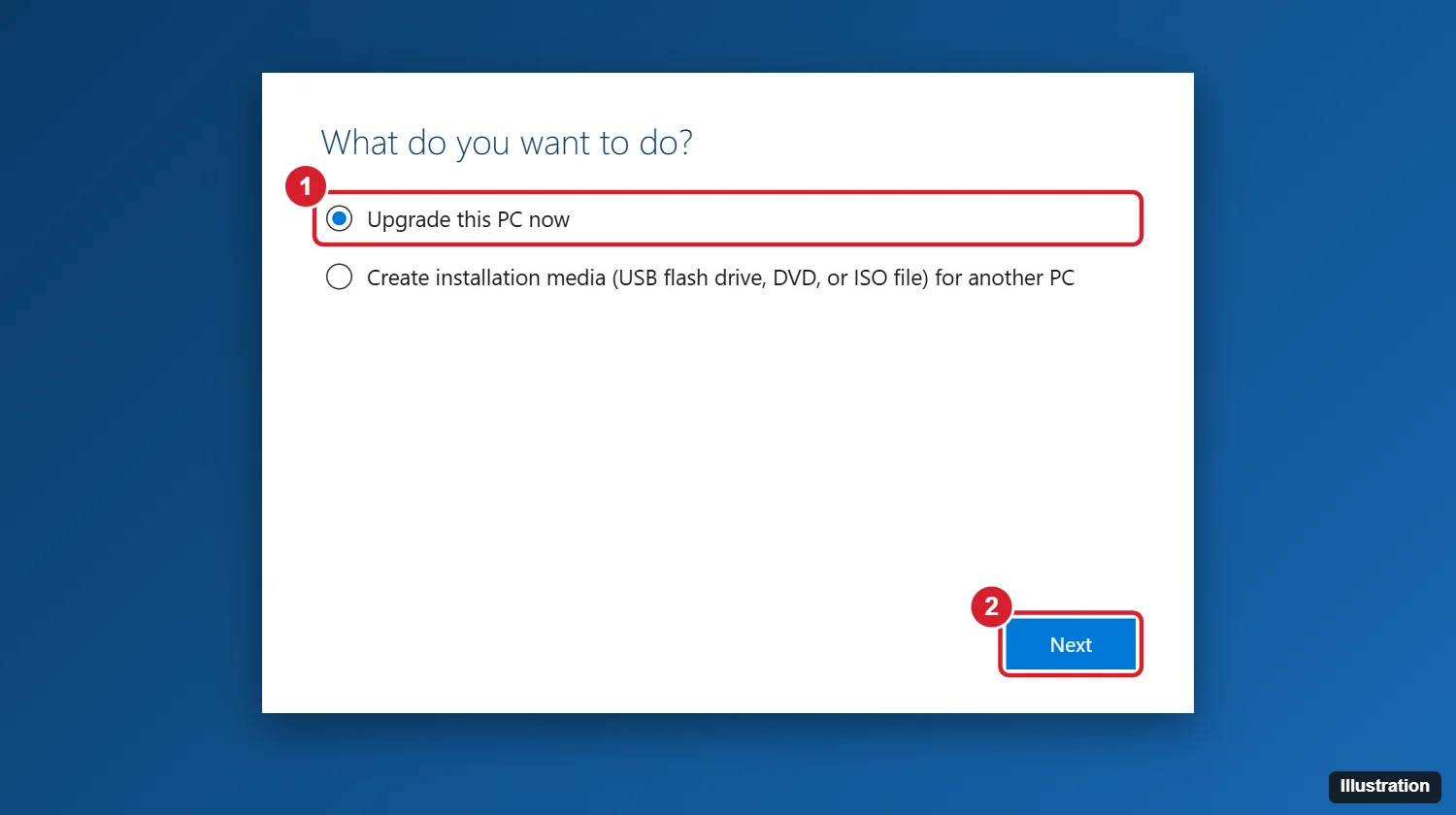
If the in-place upgrade fails, create a USB drive with the tool’s Create installation media option on another PC and do a clean install.
When the PC meets the Windows 11 requirements, moving from Windows 7 straight to Windows 11 with your files intact is the longer-lasting choice.
Running Windows 8.1 rather than Windows 7? Upgrading a Windows 8 PC to Windows 10 or 11 covers the same tool plus the Windows 11 routes Microsoft documents.
After upgrading
- Check Settings > Update & Security > Activation to confirm Windows is activated.
- Run Windows Update to install the latest updates and drivers.
- Consider enrolling in Extended Security Updates if it’s offered, since Windows 10 no longer receives regular security fixes.

Kermit Matthews runs Live2Tech from just outside Philadelphia. He is an IT specialist with over 20 years of experience, from a university help desk to small-business IT, IT management and his own consulting practice, and has written tech guides full time since 2020. Steps are checked against the current software on a real device or the maker’s official documentation. More about Kermit.