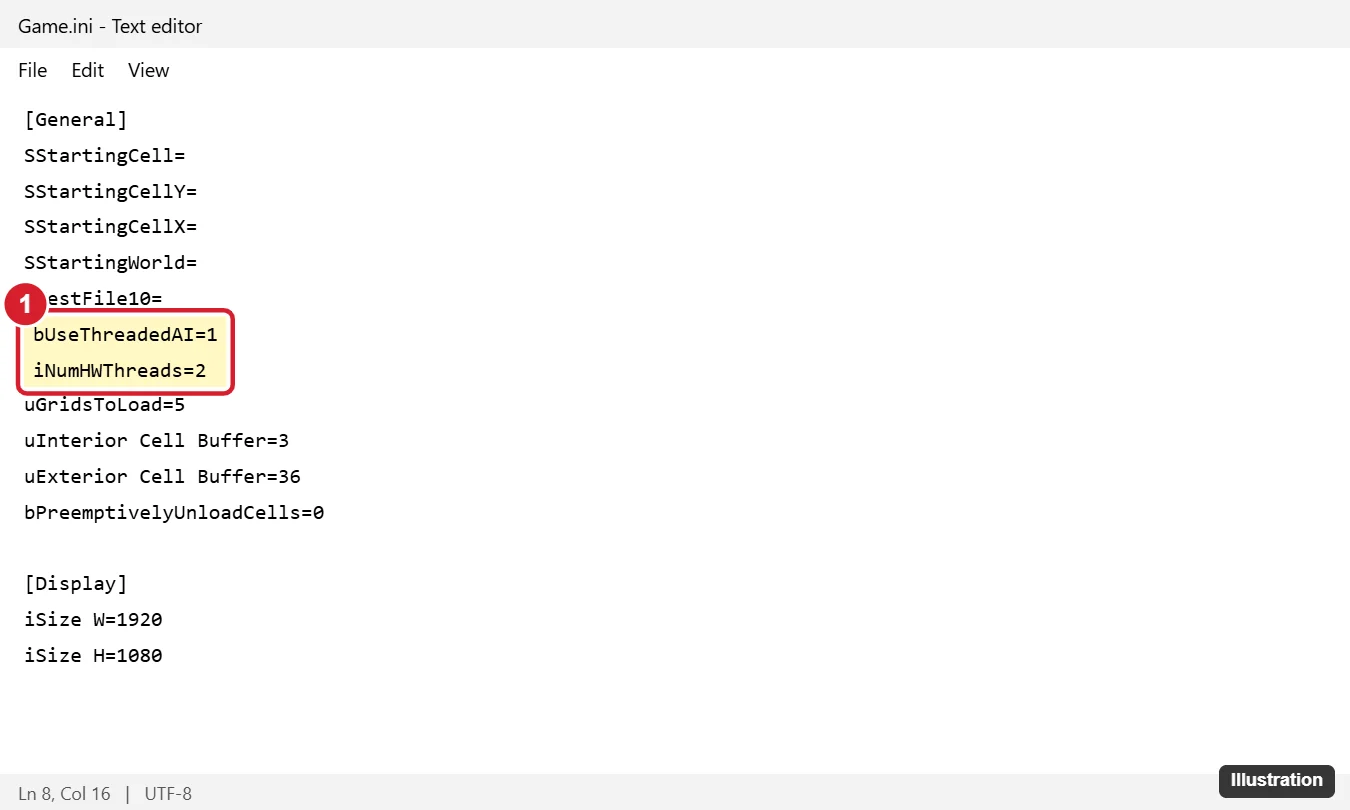
Fallout 3 was released in 2008, and on Windows 10 and Windows 11 it often crashes at launch, freezes when starting a new game, or shows a black screen. Most problems come from the game’s age: it wasn’t built for modern multi-core processors, and older versions depended on the discontinued Games for Windows Live. The fix that works most often is to open Documents > My Games > Fallout3 > Fallout.ini, set bUseThreadedAI=1 under [General], add a new line iNumHWThreads=2, save, and run the game as administrator.
Fix 1: Edit the INI File (Most Effective)
- Launch Fallout 3 once from its launcher so it creates its settings files, then close it.
- Open File Explorer > Documents > My Games > Fallout3.
- Back up Fallout.ini, then open it in Notepad.
- Press Ctrl + F and find bUseThreadedAI. Change 0 to 1.
- Press Enter at the end of that line and type iNumHWThreads=2.
- Save the file.
This limits the game to two CPU threads, which it handles reliably. If the game still crashes, try iNumHWThreads=1.
Fix 2: Run as Administrator and Try Compatibility Mode
- Find Fallout3.exe (in Steam, right-click the game > Manage > Browse local files).
- Right-click it > Properties > Compatibility.
- Check Run this program as an administrator.
- If it still won’t start, check Run this program in compatibility mode for and choose Windows 7 or Windows XP (Service Pack 3).
- Click OK. Do the same for FalloutLauncher.exe.
Fix 3: Games for Windows Live (Older Versions)
Games for Windows Live (GFWL) has been discontinued. Current Steam and GOG releases don’t need it, but some older copies, including disc versions, still try to load it and fail to start. Options:
- Use a current store version of the game if possible.
- For older copies, community fixes are available that remove the GFWL requirement. Download them only from well-known modding sites and follow their instructions.
Fix 4: Verify Files and Update Drivers
- Steam: right-click the game > Properties > Installed Files > Verify integrity of game files.
- GOG Galaxy: Manage installation > Verify / Repair.
- Update your graphics driver from your GPU maker.
- Install the DirectX End-User Runtime from Microsoft, which includes older DirectX 9 files the game needs.
Fix 5: Display and Launcher Settings
- In the launcher’s Options, set the resolution to your monitor’s native resolution, or edit iSize W and iSize H in FalloutPrefs.ini.
- Try Windowed mode if you get a black screen.
- Disable overlays (Steam overlay, Discord, recording apps) that can conflict with older games.
Fix 6: Stability Mods (Optional)
The PC modding community maintains unofficial patches and stability tools for Fallout 3 that fix many crashes, memory limits, and bugs. If you plan to play for many hours, installing a well-known community patch through a mod manager is worth it. Always back up your saves first.
Where are my Fallout 3 saves?
In Documents > My Games > Fallout3 > Saves. Back them up before changing files or installing mods.

Kermit Matthews runs Live2Tech from just outside Philadelphia. He is an IT specialist with over 20 years of experience, from a university help desk to small-business IT, IT management and his own consulting practice, and has written tech guides full time since 2020. Steps are checked against the current software on a real device or the maker’s official documentation. More about Kermit.