An INI file is a plain-text settings file made of [section] headers and key=value lines, so Notepad creates one when you save your text with a .ini name instead of .txt. Before you start, turn on file name extensions in File Explorer so you can see whether Windows saved it as settings.ini or settings.ini.txt.
The steps below use Notepad and File Explorer in current versions of Windows 11.
What goes inside an INI file
INI files have no single official standard, so the program that reads the file decides which section names and keys it understands. Most follow the same basic layout:
- Sections are names in square brackets on their own line, such as
[General]or[Display]. - Keys sit under a section as
name=valuepairs, such asWidth=1280. - Comments usually start with a semicolon (
;). Some programs also accept#, and some ignore comments in places others allow them.
Here is a small example for a made-up photo tool:
; Settings for the photo tool
[General]
Language=en
StartMinimized=0
[Display]
Width=1280
Height=720
Microsoft’s own description of the format matches this: a section has the form [section] followed by key=string lines, and Windows’ built-in profile function that reads these files is not case-sensitive and drops quotation marks around a value (see the GetPrivateProfileString reference). Programs that use their own reader can behave differently with capital letters, quotes, duplicate keys or nested names, so copy the exact spelling from the program’s documentation or from a sample file it ships with.
The same Microsoft page says these functions exist for compatibility with old 16-bit Windows programs and that applications should store their settings in the registry. In practice that means many current apps use JSON, XML or the registry instead, and some games and portable tools still read INI files. If the program’s documentation never mentions an .ini file, creating one will not change anything.
Create an INI file with Notepad
Notepad is already installed on Windows 11, and its Save as dialog lets you choose the file type, which is what keeps the .txt extension off the name. An INI file is simply a text file with a different extension, so if you have never made a plain text file before, making a basic text file in Windows covers the other ways to start one.
- Select Start, type Notepad, and open it.
- Type or paste your sections and keys. Keep one setting per line.
- On the File menu, select Save as.
- Go to the folder where the program expects the file. If you are not sure, save it to Documents for now and move it later.
- Change Save as type to All files (*.*).
- In the File name box, type the name in quotation marks, for example “settings.ini”. The quotation marks tell the dialog to use the name exactly as typed.
- Leave the encoding at its default for now (see the next section), then select Save.
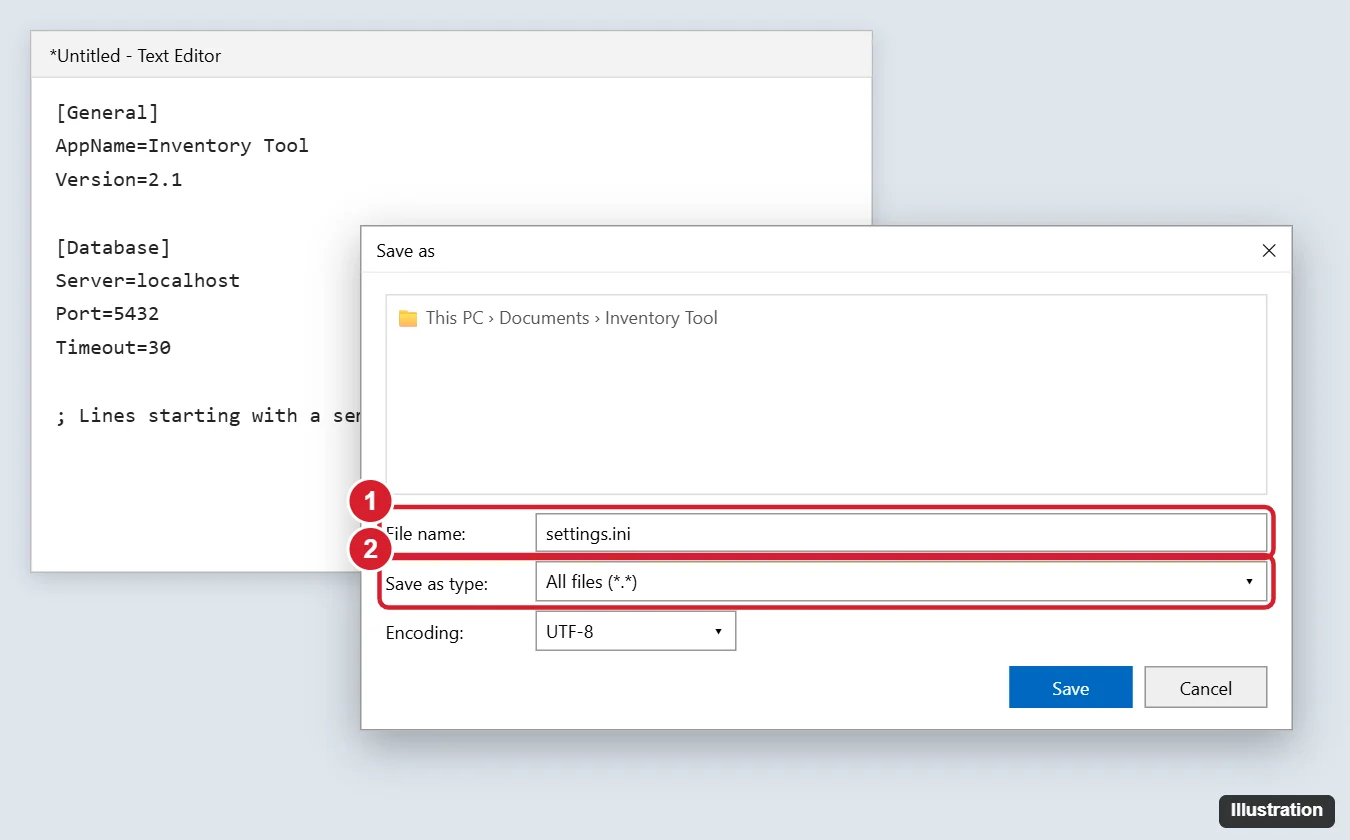
Microsoft uses this same pattern (All files plus a quoted file name) in its own Notepad steps for recreating the hosts file, another plain-text settings file with no .txt extension.
Which encoding to choose
Encoding is how the characters are stored on disk. Plain English letters, numbers and symbols look the same in every common encoding, so for a file like the example above the choice rarely matters. It starts to matter when a value contains accented letters, non-Latin script or symbols. Use whatever the program’s documentation names. If it names nothing, keep Notepad’s default, test the program, and only try another encoding if the program shows garbled characters or skips lines. Microsoft documents one specific case: a desktop.ini file that customizes a folder must be saved in Unicode format.
Create an INI file from File Explorer
This route is handy when you are already looking at the folder where the file has to go. It works only if Windows shows file name extensions, because you need to replace .txt with .ini.
- Open File Explorer and select View > Show > File name extensions so it has a check mark. Microsoft gives this same path for Windows 11 and Windows 10 on its common file name extensions page, which also lists .ini as a Windows initialization configuration file. Other ways to do it are in showing file extensions in Windows 11.
- Open the folder where the INI file belongs.
- Right-click an empty area and choose New > Text Document. If you do not see New on the first menu, select Show more options first.
- Type the full name, such as settings.ini, replacing the whole name including .txt, and press Enter. If Windows asks whether you are sure you want to change the extension, select Yes.
- Right-click the new file, choose Open with > Notepad, add your sections and keys, and save.
Renaming only changes the name. As Microsoft puts it, changing an extension does not convert the file to another format, which is fine here because an INI file is plain text either way. When you are done, you can leave extensions visible or hide file extensions again.
Create one from PowerShell or Command Prompt
A command is useful when you need the same file on several PCs or want to script it. Both examples write to Documents; change the path to the folder you need.
PowerShell: Set-Content -Path "$env:USERPROFILE\Documents\settings.ini" -Value "[General]","Language=en" -Encoding UTF8
Each item after -Value becomes its own line. The Set-Content reference for Windows PowerShell 5.1 (the version built into Windows) says that without -Encoding the file uses the system’s active code page, usually ANSI. In PowerShell 7 the default is UTF-8 without a byte order mark, per the current Set-Content reference. Pick the value your program needs; -Encoding Unicode writes UTF-16.
Command Prompt: echo [General]>"%USERPROFILE%\Documents\settings.ini" creates the file with one line, and echo Language=en>>"%USERPROFILE%\Documents\settings.ini" adds a line to the end. A single > replaces whatever the file held, so use >> for every line after the first. If a line ends in a single digit, such as StartMinimized=0, put the redirection first: >>"%USERPROFILE%\Documents\settings.ini" echo StartMinimized=0. Characters such as &, |, < and > inside a value need a caret (^) in front of them, as the echo command reference explains.
Where to save the file
There is no universal INI folder. The program’s documentation or its existing files tell you where it looks. Common places are:
| Location | Typical use |
|---|---|
| The program’s own folder, next to its .exe | Portable tools and older programs |
| %AppData% or %LocalAppData% | Per-user settings for installed apps and games |
| %ProgramData% | Settings shared by every user on the PC |
| Documents (often a folder named after a game) | Some games keep editable config files here |
To find a program’s folder, open its file location from the Start menu or a shortcut. The AppData folders are hidden by default, and finding the AppData folder shows the quickest ways in. A matching name matters as much as the folder: if the program reads config.ini, a file named settings.ini in the same folder is ignored.
Edit an INI file in a protected folder
Program Files and the Windows folder are protected, so a normal Notepad window usually cannot save over a file there. Use one of these routes, and only for a file the program’s documentation tells you to edit:
- Copy, edit, copy back: copy the INI file to Documents, edit and save the copy, then drag it back into the program folder. Windows may ask for administrator approval to replace the original.
- Notepad as administrator: right-click Notepad in Start, choose Run as administrator, then open the file with File > Open and the file type set to All files. Other ways to elevate an app are in running a program as administrator in Windows 11.
Either way, keep a backup first: copy the original and rename the copy to something like settings.ini.bak, so you can put it back if the program stops starting. Close the program before you edit, because some programs write their settings back when they exit and overwrite your changes.
Opening an INI file in Notepad is harmless, since plain text does not run. The values themselves can change how a program behaves, though, so be careful with INI files you download from someone else.
If the program ignores your INI file
- The name ends in .ini.txt. With extensions visible, rename the file and delete the .txt part, or save it again from Notepad with All files selected and the name in quotes.
- Wrong folder or name. Compare the full path and the exact file name with the program’s documentation. For a profile-style read with no full path, Microsoft says Windows looks in the Windows folder, which is rarely where you want a custom file.
- The program was already running. Many programs read their settings only at startup. Close it completely and open it again.
- Spelling or layout. Check the section headers, brackets and key names against a known-good sample. Test with a small file holding one setting, then add the rest a few at a time.
- Garbled characters. Save again with the encoding the program expects.
- Changes vanish. The program rewrote the file on exit, or it keeps the real setting somewhere else (another INI file, JSON, the registry). Change the setting inside the program if it has an options screen.
INI file questions
Is this different on Windows 10?
No. Notepad, the Save as steps and the View > Show > File name extensions path work the same way. Windows 10 is past its end of support, so it no longer gets security updates.
Can I use desktop.ini, win.ini or system.ini as a template?
Desktop.ini is a documented Windows INI file that changes how a folder is shown, and Microsoft says to make it hidden and system when you create one. Leave win.ini and system.ini alone; they exist for old programs and are not a place to store your own settings.
How is INI different from JSON or XML?
INI is flat: sections and key=value pairs. JSON and XML can hold nested data and lists, which is why newer apps tend to use them. Use the format the program asks for, not the one you prefer.
Once the file is saved and the program reads it, change one setting, restart the program, and confirm the effect before you add more.

Kermit Matthews runs Live2Tech from just outside Philadelphia. He is an IT specialist with over 20 years of experience, from a university help desk to small-business IT, IT management and his own consulting practice, and has written tech guides full time since 2020. Steps are checked against the current software on a real device or the maker’s official documentation. More about Kermit.