Names like report.docx and holiday.jpg can make a folder look cluttered, and when the ending is visible it is easy to change it by accident while renaming. On Windows 11, open File Explorer and select View > Show, then clear the check mark next to File name extensions. On Windows 10, clear the File name extensions box on the View tab. One caution before you do: with endings hidden, the name alone no longer tells you a file’s real type.
Hide extensions in File Explorer on Windows 11
A file extension is the short code after the last period in a file name, such as .docx or .mp3. Microsoft explains that extensions tell your computer which application created or can open the file and which icon to use.
- Open File Explorer (select its folder icon on the taskbar or press Windows key + E).
- Select View in the command bar at the top of the window.
- Point to Show.
- Select File name extensions so the check mark disappears.
The change applies to all folders. Microsoft’s page on common file name extensions documents the same View > Show > File name extensions setting for turning them on, so selecting it again brings them back.
Windows 11, version 25H2 and later, also has a switch in the Settings app: go to Settings > System > Advanced, expand File Explorer and turn off Show file extensions. Microsoft’s Advanced settings page notes this page was formerly called For developers, so on older versions look there instead.
On Windows 10, the same check box is on the ribbon: select the View tab and, in the Show/hide group, clear File name extensions.
Use the Hide extensions for known file types box
This older dialog exists in Windows 11, Windows 10 and Windows 7, and it controls the same setting as the File Explorer check box. It is handy if you already have the dialog open for other folder settings.
- Open the folder options dialog:
- Windows 11: in File Explorer, select See more (the three dots) on the command bar, then Options.
- Windows 10: select View > Options > Change folder and search options.
- Windows 7: select the folder icon on the taskbar to open Windows Explorer.

Windows 7 shown; current versions of Windows look different. Then select Organize > Folder and search options.

Windows 7 shown; current versions of Windows look different.
- Select the View tab at the top of the dialog.
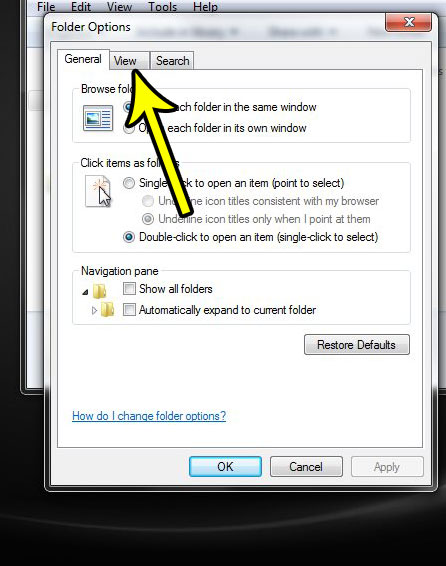
Windows 7 shown; the dialog in current versions looks different. - In Advanced settings, check Hide extensions for known file types, then select Apply and OK.

Windows 7 shown; the dialog in current versions looks different.
Note the logic is reversed here: a check mark in this box hides extensions, while a check mark next to File name extensions in the View menu shows them. Microsoft’s File Explorer help page describes the same box from the other direction (unselect it to show extensions). If an open window does not update, press F5 to refresh it, or restart File Explorer.
What changes and what does not
- Only the display changes. The file is still report.docx on disk, opens in the same app, and keeps its icon.
- All known types at once. The setting is all or nothing in File Explorer; there is no check box for hiding just one type.
- Renaming is safer, with one trap. When you rename report to summary, the hidden .docx stays. But if you type summary.txt yourself, the real name becomes summary.txt.docx. To actually change a type, show extensions first and follow how to change a file type in Windows 11.
- File types are harder to see. A name can end in what looks like an extension (photo.jpg) while the real, hidden one is different. Check the icon and the Type column in Details view before opening attachments or downloads.
- Hidden files are a different setting. Extensions and hidden files both live under View > Show, but hiding one does nothing to the other. See showing hidden files on Windows 11.
File extension questions
Why do some files still show an extension after I hid them?
The setting covers known file types. A file whose type Windows does not recognize, or a name with two periods such as backup.tar.gz, can still show part of its ending.
How can I check one file’s type without showing all extensions?
Right-click the file and choose Properties. The General tab lists the type of file. Details view in File Explorer also has a Type column.
Does this affect other people who use the PC?
No. The option is saved for your user account, so other accounts keep their own choice.
Does it work on a Mac?
Not this setting. Finder has its own option, covered in showing filename extensions in Finder.
Changed your mind? Selecting File name extensions again brings them back, and showing file extensions in Windows 11 covers every route in more detail. If the goal is a tidier screen in general, a related but separate setting is hiding desktop icons in Windows 7, which clears the desktop without moving or deleting anything.

Kermit Matthews runs Live2Tech from just outside Philadelphia. He is an IT specialist with over 20 years of experience, from a university help desk to small-business IT, IT management and his own consulting practice, and has written tech guides full time since 2020. Steps are checked against the current software on a real device or the maker’s official documentation. More about Kermit.