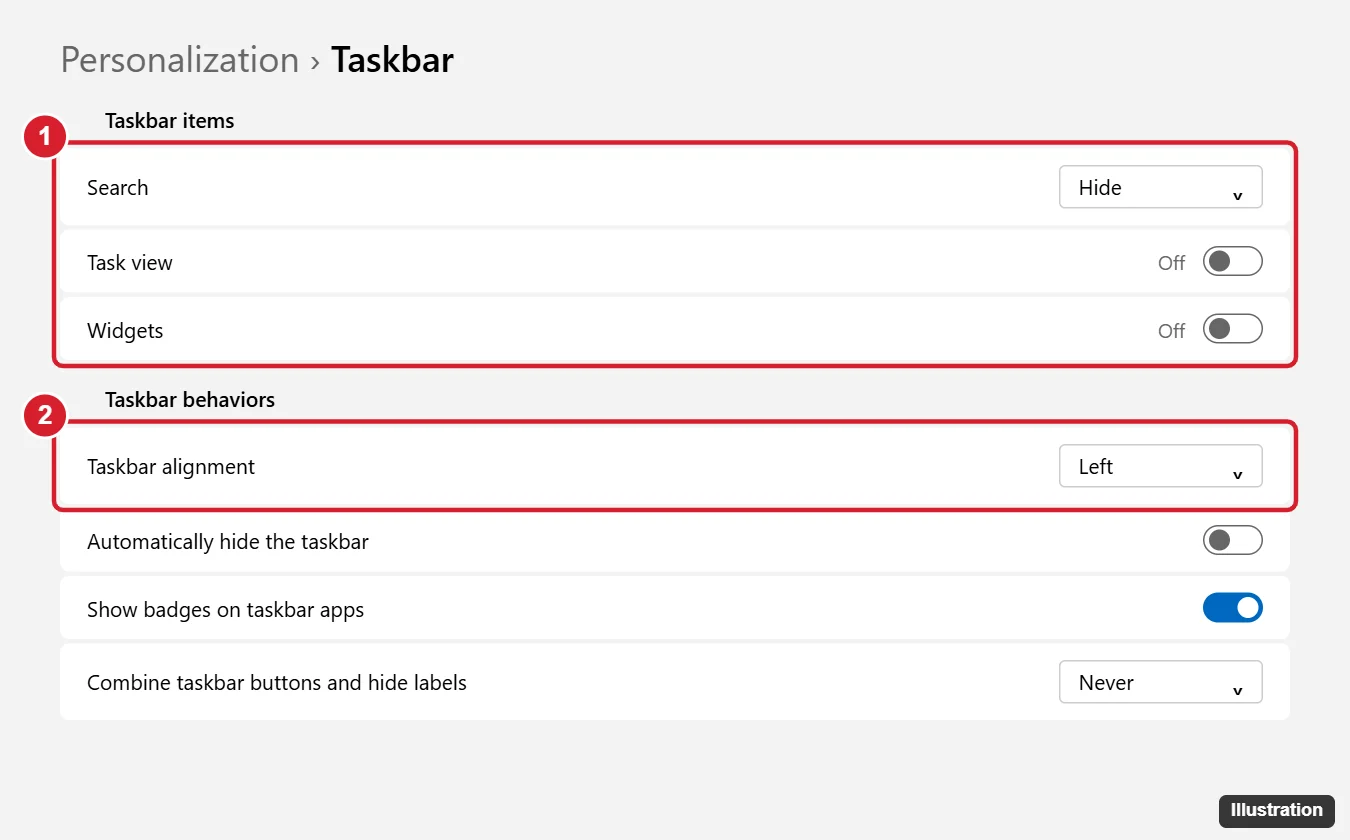
Upgraded and missing the old layout? Most of the Windows 10 feel comes back with built-in settings in current versions of Windows 11. Move the Start button and taskbar icons to the left (Settings > Personalization > Taskbar > Taskbar behaviors > Taskbar alignment: Left), tidy the taskbar and Start, and use Show more options for the full right-click menu. The Windows 10 Start menu and ribbon need third-party tools, which are optional and come with caveats.
What comes back, and what doesn’t
No single switch turns Windows 11 into Windows 10, so treat it as a list of habits and fix the ones you care about. This table maps each to what current versions of Windows 11 offer.
| What you miss from Windows 10 | Built into Windows 11? | How to get it |
|---|---|---|
| Start button and icons on the left | Yes | Taskbar behaviors > Taskbar alignment: Left |
| Search box on the taskbar, no Widgets button | Yes | Taskbar items > Search and Widgets |
| App names on separate taskbar buttons | Yes, on current versions | Combine taskbar buttons and hide labels: Never |
| Taskbar on the top or side | Not generally yet | See the taskbar position note below |
| Windows 10 Start menu with Live Tiles | No | Live Tiles are gone; third-party Start menus only |
| Full right-click menu | One time, yes; permanently, only with an unofficial registry change | Show more options, Shift+F10, or the registry option |
| Tighter File Explorer spacing, opening to This PC | Yes | Compact view; Options > Open File Explorer to |
| File Explorer ribbon | No | Third-party tools only |
| Square window corners | No | No setting exists |
Start with the built-in rows: they take minutes, touch only your own settings and are easy to reverse. A left-aligned taskbar plus Compact view is often enough.
Microsoft’s taskbar help page documents the settings below.
- Right-click an empty part of the taskbar and choose Taskbar settings (or open Settings > Personalization > Taskbar).
- Expand Taskbar behaviors near the bottom of the page.
- Set Taskbar alignment to Left. The Start button and pinned apps move left right away.
- Under Taskbar items, turn off Widgets, and keep Task view only if you used it in Windows 10.
- Set Search to Search box for the Windows 10 look. The other choices are Search icon and label, Search icon only, and Hide; pressing the Windows key and typing searches with any of them.
More Windows 10 taskbar habits
| Windows 10 behavior | Where to set it in Windows 11 |
|---|---|
| Separate buttons with window titles | Taskbar behaviors > Combine taskbar buttons and hide labels: Never (on current versions; older releases lack it) |
| Clicking the far right corner shows the desktop | Taskbar behaviors > Select the far corner of the taskbar to show the desktop |
| Auto-hide the taskbar | Taskbar behaviors > Automatically hide the taskbar |
| Tray icons always visible | The system tray icons section of the same page; turn on the apps you want shown |
| Your usual apps one click away | Right-click an app in Start and choose Pin to taskbar |
The Chat button older guides tell you to hide no longer exists on current versions.
A note on moving the taskbar to the top or side
Windows 10 let you drag the taskbar to any edge; Microsoft’s taskbar page says Windows 11 has no setting for that. Microsoft announced in May 2026 that a Taskbar position option under Taskbar behaviors was starting to reach Windows Insider testers in the Experimental channel, so it may not be on your PC yet. Check Taskbar behaviors on your PC; if the option isn’t there, the current status and choices are covered in moving the Windows taskbar to the top, side or bottom. Older registry values that moved the taskbar on early Windows 11 builds are unreliable now and can break after updates.
Make Start less cluttered
Built-in settings can’t make Start look like Windows 10, and Live Tiles are gone (Widgets, Windows key + W, are the closest replacement). You can make Start calmer:
- Add folder shortcuts next to Power. Open Settings > Personalization > Start > Folders and turn on the folders you want, such as Documents, Downloads, Settings or File Explorer. They appear beside the power button, much like the left column of the Windows 10 Start menu. Microsoft’s Start menu help page covers the Folders setting.
- Turn off what you don’t want suggested. On the same Start page, switch off the toggles for recommendations and recently added or most used apps (labels vary between releases).
- Pin your core apps. Right-click an app in Start and choose Pin to Start, then drag pins into the order you used before.
If you came from an even older PC and miss the Windows 7 Start menu, the options for that are in making Windows 11 look like Windows 7.
Colors, wallpaper, scrollbars and desktop icons
- Theme and wallpaper. Open Settings > Personalization > Themes to pick a theme, or go to Background and choose a picture. A Windows 10 wallpaper saved from your old PC works fine.
- Colored title bars. In Settings > Personalization > Colors, turn on the option to show your accent color on title bars and window borders, as Windows 10 could.
- Flatter look. Turn off Transparency effects (on the Colors page, or under Settings > Accessibility > Visual effects) for solid backgrounds instead of the frosted effect.
- Scrollbars that stay visible. Turn on Always show scrollbars at Settings > Accessibility > Visual effects, as Microsoft’s visual effects page describes.
- This PC and Recycle Bin on the desktop. Open Settings > Personalization > Themes > Desktop icon settings, check This PC (Computer), Recycle Bin, Network or User’s Files, then click OK, per Microsoft’s desktop icons page.
Light or dark mode is on the Colors page too. Rounded window corners can’t be turned off.
Make File Explorer feel like Windows 10
File Explorer has more padding, a command bar instead of the ribbon, and a different left pane. Microsoft’s File Explorer help page documents Compact view, the Show menu and the This PC option.
Tighten the spacing with Compact view
Windows 11 spaces items out for touch; Compact view takes most of that back.
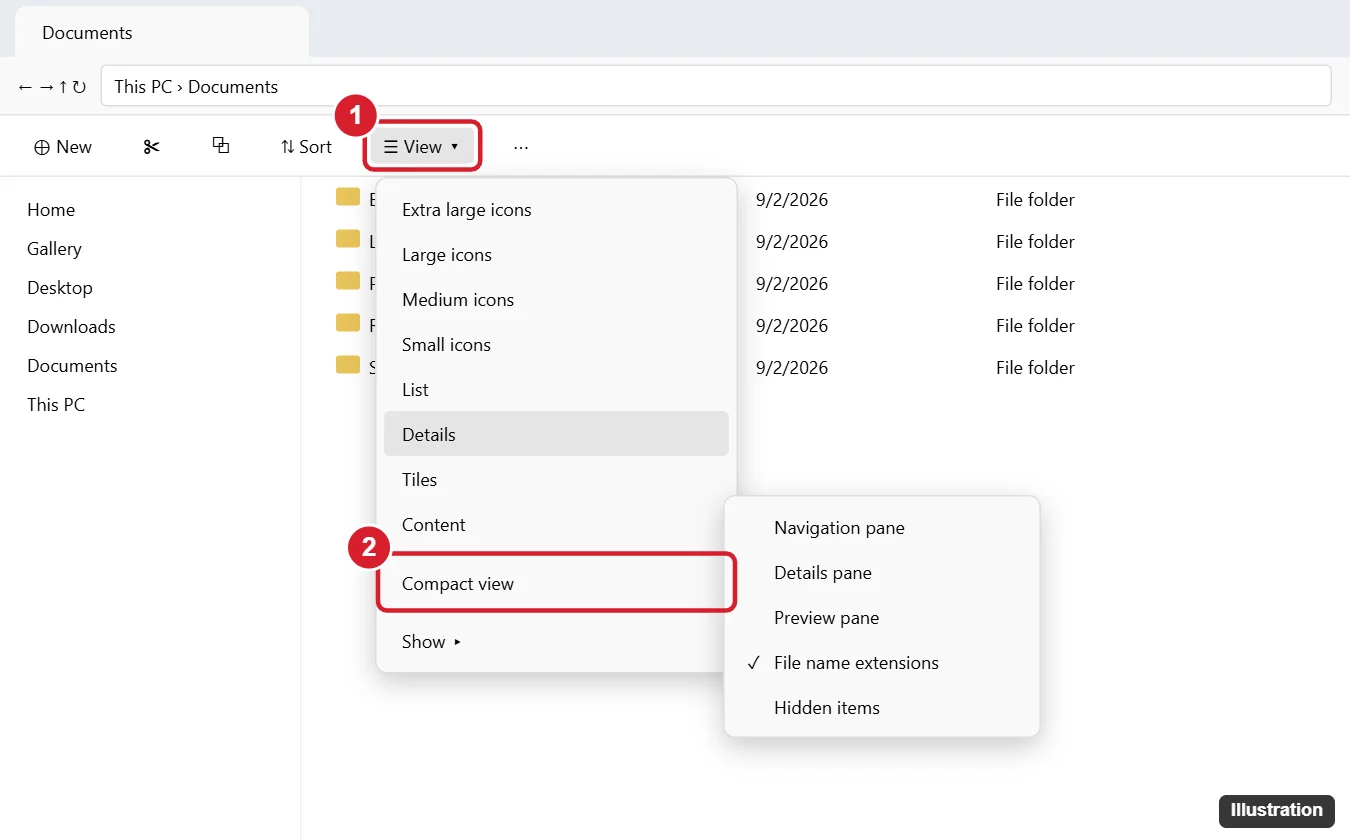
- Press Windows + E to open File Explorer.
- Click View on the command bar.
- Click Compact view. A check mark shows it’s on, and rows move closer together.
If text looks too small afterward, see the steps to change the font size in File Explorer cover the text slider and scaling.
Use Details view everywhere
Choose View > Details in a folder, then open See more (the three dots) > Options, go to the View tab, and click Apply to Folders to use that layout for other folders of the same type. Details view is also where columns such as Tags appear, which helps if you add tags to your files and sort by them.
Open File Explorer to This PC
- Click See more on the command bar and choose Options. The Folder Options window opens on the General tab.
- Set Open File Explorer to to This PC.
- Optional: in the Privacy section, clear the boxes for showing recently used files and frequently used folders so Home stays tidy.
- Click Apply, then OK. New File Explorer windows start on This PC.
Rebuild the folder tree
In current versions of Windows 11, Desktop, Documents, Downloads, Pictures, Music and Videos are pinned under Home rather than listed under This PC, and no built-in setting moves them back. For a fuller tree, right-click an empty part of the navigation pane and choose Show all folders. The same section of Folder Options (View tab, Navigation pane) has Expand to open folder; turn it off if you don’t want the tree to jump as you move between folders. Right-click any folder you use often and choose Pin to Quick access to keep it at the top.
Show extensions, hidden items and panes
The ribbon’s View check boxes moved under View > Show: File name extensions, Hidden items, Item check boxes, Navigation pane, and the Details and Preview panes. Showing extensions also helps safety, since invoice.pdf.exe looks very different once the real ending shows. See how to show file extensions in Windows 11 and how to show hidden files on Windows 11.
Windows 11 tucks many commands, including ones other apps add, behind Show more options.
Open the full menu one time
- Right-click the item and click Show more options at the bottom of the menu.
- Or select the item and press Shift+F10.
- Or hold Shift while you right-click.
Nothing changes on the system, so start here.
Make the classic menu the default (unofficial)
A widely shared per-user registry command makes the full menu appear on every right-click. Microsoft doesn’t document it, so it may stop working after a feature update. It changes only your own account (HKEY_CURRENT_USER).
Back up first. Microsoft’s registry backup instructions use Registry Editor: press Windows + R, type regedit, go to HKEY_CURRENT_USER > Software > Classes > CLSID, then choose File > Export and save the file.
- Right-click Start and open Terminal. An administrator window isn’t needed.
- Run this command exactly as written:
reg add "HKCU\Software\Classes\CLSID\{86ca1aa0-34aa-4e8b-a509-50c905bae2a2}\InprocServer32" /f /ve - Restart Windows Explorer: press Ctrl+Shift+Esc, select Windows Explorer, and click Restart (or sign out and back in). The steps to restart File Explorer in Windows 11 include a command-line option.
- Right-click any file; the long menu should appear straight away.
To undo it, run reg delete "HKCU\Software\Classes\CLSID\{86ca1aa0-34aa-4e8b-a509-50c905bae2a2}" /f and restart Windows Explorer, or import the .reg file you exported. To remove app entries from the menu or reorder commands, see how to change right-click options in Windows 11.
Optional third-party tools for Start, the taskbar and the ribbon
The Windows 10 Start menu, a fully classic taskbar and the ribbon need programs from independent developers that patch how Windows draws them. Early registry tricks for the ribbon (such as a Shell Extensions Blocked key) were reported broken in later builds, so skip them.
| Tool (third party) | Cost | What people use it for |
|---|---|---|
| ExplorerPatcher | Free, open source | Windows 10-style taskbar and Start menu (some features vary by Windows version); get it only from the official ExplorerPatcher GitHub page |
| StartAllBack | Paid, with a trial | Windows 7-style Start menu, classic taskbar (including top or side placement) and Explorer ribbon; from its official site, startallback.com |
| Start11 | Paid, with a trial | Windows 10 or 7-style Start menu and taskbar tweaks; from the Start11 page at Stardock |
| Open-Shell | Free, open source | Classic Start menu styles; from the Open-Shell GitHub page; on Arm PCs use version 4.4.196 or later |
Before you install any of them:
- Avoid work or school PCs. Managed devices may block the install, and IT policies often forbid shell changes.
- Use one tool at a time. Two programs patching the same taskbar tend to conflict.
- Download only from the official source. Copies on download sites can carry malware, and some antivirus programs flag even genuine copies because they modify the shell.
- Read the current release notes. Check the developer’s release notes for known issues and the Windows versions each release supports.
- Expect updates to break things. After a feature update, check the developer’s page for a compatible version. Create a restore point before installing.
Undo the changes
- Taskbar: set Taskbar alignment back to Center and turn Widgets, Task view and Search back to how they were.
- Start: turn the Folders and recommendation toggles back on.
- File Explorer: click Compact view and the View > Show items again; set Open File Explorer to back to Home; or click Restore Defaults on the General tab and Reset Folders on the View tab of Folder Options.
- Right-click menu: run the reg delete command above and restart Explorer, or import your .reg backup.
- Third-party tools: uninstall from Settings > Apps > Installed apps. If Explorer won’t start after an update, press Ctrl+Shift+Esc, choose Run new task, and run appwiz.cpl to reach the classic uninstall list.
Major updates sometimes reset a setting or two; if so, run through the built-in sections again.
Windows 10 look questions
Can I get Live Tiles back?
No built-in setting restores them. Some third-party Start menus imitate the tile layout without live content.
Do these changes affect other people who use the PC?
Taskbar, Start, color and Folder Options settings, plus the registry command, apply to your own account. Third-party tools install for the whole PC, though their settings may differ per user.
Should I just go back to Windows 10?
Windows 10 reached end of support on October 14, 2025. Per Microsoft’s end-of-support page, consumer Extended Security Updates run through October 12, 2027, after which security fixes stop. Customizing Windows 11 is the safer long-term choice.

Kermit Matthews runs Live2Tech from just outside Philadelphia. He is an IT specialist with over 20 years of experience, from a university help desk to small-business IT, IT management and his own consulting practice, and has written tech guides full time since 2020. Steps are checked against the current software on a real device or the maker’s official documentation. More about Kermit.