On a wide or ultrawide monitor, a taskbar along the bottom eats scarce vertical space while the sides sit empty. On Windows 11 with the August 27, 2026 update (KB5120998) or later, open Settings > Personalization > Taskbar, expand Taskbar behaviors, and pick Top, Left, Right or Bottom. On Windows 10, turn off Lock the taskbar, then choose a Taskbar location on screen or drag the bar to an edge.
Which edge suits your screen?
Before you move anything, think about how you use the space:
- Left or right: best on ultrawide and wide monitors. Screens are wider than they are tall, so a vertical taskbar takes width you have plenty of and gives back height for documents, spreadsheets and web pages.
- Top: handy if you’re used to a menu bar at the top of the screen, or if a monitor sits low on the desk and you look down at its bottom edge.
- Bottom: the default, and still the edge where every taskbar feature works.
If what you really want is the Start button at the left rather than in the middle, you don’t need to move the taskbar at all; that is the alignment setting, covered further down.
Move the taskbar on Windows 11
Microsoft’s release notes for KB5120998 say you can now choose whether the taskbar appears at the bottom, top, left or right side of your screen. That update came out as an optional preview on August 27, 2026, and the change is included in later cumulative updates, such as the September 8, 2026 security update. Microsoft is turning the feature on in a gradual rollout, so two PCs with the same updates may not show it on the same day.
- Right-click an empty part of the taskbar and select Taskbar settings. You can also open Settings (Windows + I) and go to Personalization > Taskbar.
- Scroll down to Taskbar behaviors. After the update it is usually already expanded; if not, select it to open it.
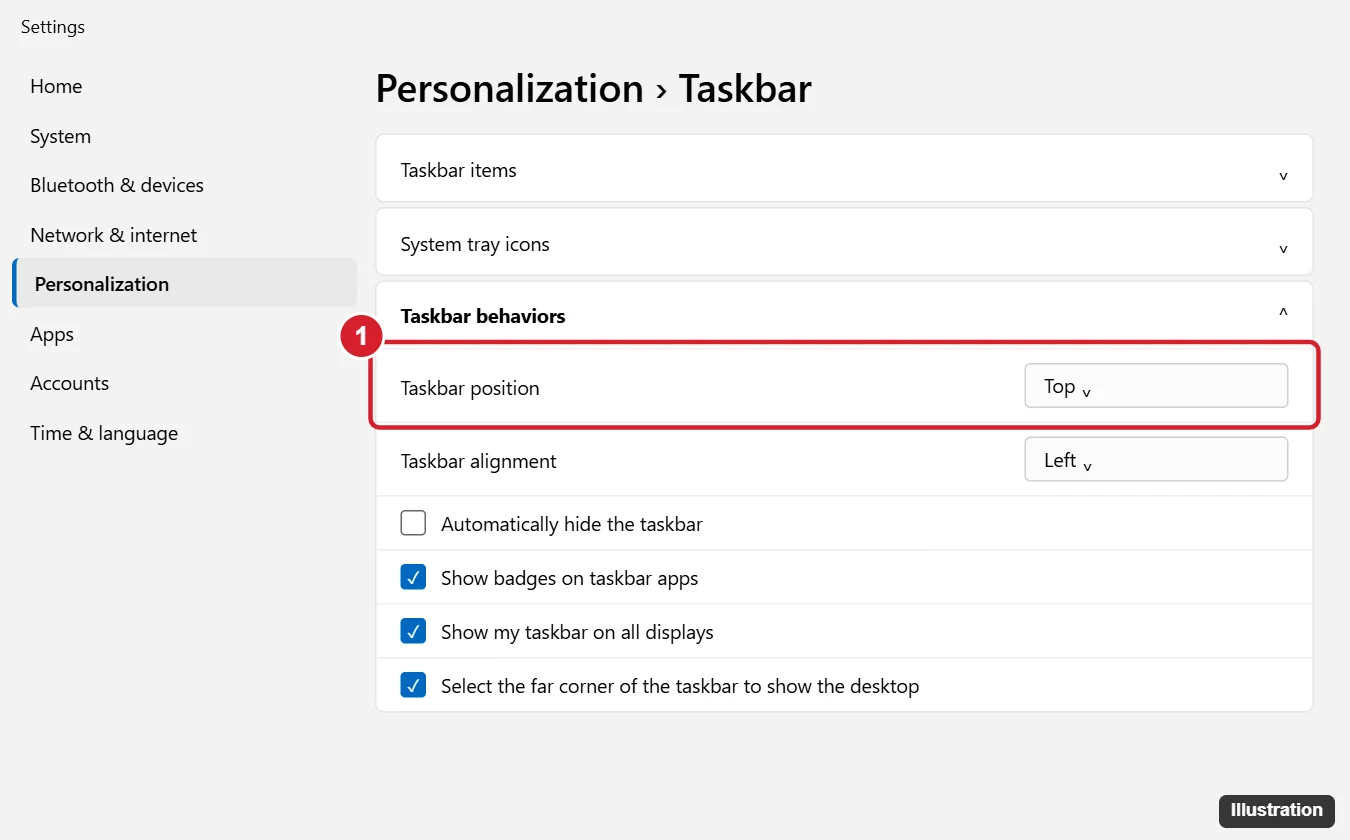
- Find the taskbar position option and open its drop-down list.
- Choose Top, Left, Right or Bottom. The taskbar moves as soon as you pick a value; there is nothing to save and no restart.

To move it back, return to the same drop-down and choose Bottom. Your pinned apps stay pinned wherever the taskbar goes; only their direction changes, running down the screen on a side taskbar instead of across it.
Windows 11 doesn’t let you drag the taskbar to another edge. The setting is the only built-in way, and older registry edits or third-party taskbar tools aren’t needed for it. If you used one of those in the past, remove it before you try the setting, since it may conflict with the built-in option.
What changes at each edge
Not every taskbar feature works the same on all four sides. The details below come from KB5120998 and Microsoft’s Windows Insider announcement of the feature, and Microsoft describes some of them as current limits that may change.
| Feature | Top or bottom | Left or right |
|---|---|---|
| Search box on the taskbar | Works as a box | Shown as a search icon |
| Smaller taskbar option | Supported | Not supported at launch |
| Icon alignment choices | Left or center | Top or center |
| Menus, flyouts and tooltips | Open from the taskbar | Open from the taskbar |
| Automatically hide the taskbar | Bottom only; listed as not yet supported at the top in Microsoft’s preview notes | Not yet supported, per the same notes |
If the search box turns into a magnifying glass after you move the taskbar to the side, nothing is broken; that is how Windows shows search on a vertical taskbar. Press Windows + S any time to search without the box.
If the position option isn’t there yet
Microsoft’s own page on customizing the taskbar still says Windows 11 has no setting to move the taskbar; that text predates the August update, so go by what your Settings app shows. Work through these checks in order:
- Confirm the Windows version. Go to Settings > System > About and look under Windows specifications. Microsoft lists KB5120998 for Windows 11, version 25H2 (and 24H2). If About shows a version that no longer gets updates, install the feature update first.
- Install updates. Open Settings > Windows Update, select Check for updates, and install what’s offered, including optional updates if you want features sooner. Restart when asked.
- Allow time for the rollout. With a gradual rollout, the option can appear days or weeks after the update installs. On the Windows Update page, the switch to get the latest updates as soon as they’re available can put you earlier in line. While you wait, Taskbar alignment set to Left or Automatically hide the taskbar (both in Taskbar behaviors) can free up space at the bottom.
- Check whether the PC is managed. A work or school PC may hold updates back or lock taskbar settings. Ask the IT team if the option never appears.
Avoid tools or tweaks that claim to force hidden features on. They aren’t supported by Microsoft and can leave the taskbar or Start menu misbehaving.
Move the taskbar on Windows 10
Windows 10 has always allowed any edge, through a setting or by dragging. Both methods need the taskbar to be free to move, which is the Lock the taskbar option. Windows 10 reached end of support on October 14, 2025, and consumer Extended Security Updates run until October 12, 2027.
Use Taskbar settings
- Right-click an empty part of the taskbar and select Taskbar settings.
- Turn off Lock the taskbar.
- Under Taskbar location on screen, choose Left, Top, Right or Bottom.
- Turn Lock the taskbar back on if you want to stop it moving by accident.
Drag it
- Right-click the taskbar. If Lock the taskbar has a check mark, select it to clear the check.
- Press and hold on an empty part of the taskbar, then drag toward the edge you want. Let go when the bar jumps to that edge.
- Right-click again and select Lock the taskbar to fix it in place.
On Windows 10 you can also drag the inner border of a vertical taskbar to make it wider, and turn on Use small taskbar buttons in Taskbar settings for a slimmer bar.
Alignment is not the same as position
Windows 11 centers the Start button and app icons by default. To put them on the left, as in Windows 10, go to Settings > Personalization > Taskbar > Taskbar behaviors and set Taskbar alignment to Left. The taskbar stays at the same edge; only the icons shift.
Alignment and position work together. On a top or bottom taskbar the choices are left or center. Per Microsoft’s preview notes, on a side taskbar the icons line up at the top or in the center instead. Windows 10 has no alignment setting; its icons always start from the left (or top, on a vertical taskbar). For more ways to arrange Start itself, see how to customize the Windows 11 Start menu.
Several monitors
In Windows 11, the taskbar position applies to the taskbar layout as a whole; Microsoft’s preview notes list a different position per monitor as something still under evaluation. To control where the taskbar shows up at all, open Taskbar behaviors and use Show my taskbar on all displays and the setting for where taskbar apps appear when you use multiple displays. In Windows 10, the same options sit under Multiple displays in Taskbar settings.
If the second screen isn’t set up yet, start with how to use two screens on Windows, then come back to the taskbar options.
Moving the taskbar is one part of a wider change; the other settings that bring back the Windows 10 look on Windows 11 include left alignment, Compact view and the full right-click menu.
Taskbar position questions
Why can’t I lock the taskbar in Windows 11?
Windows 11 has no Lock the taskbar option because the taskbar can’t be dragged, so there is nothing to lock. What you can still change is listed in what you can change on the Windows 11 taskbar.
Does moving the taskbar change Start menu placement?
Start and other taskbar menus open from the taskbar, so on a side or top taskbar they appear from that edge instead of rising from the bottom.
The taskbar froze or went blank after I moved it. What now?
Restart Windows Explorer from Task Manager, or sign out and back in. Steps for both are in how to restart the taskbar in Windows 11.
Can I make a side taskbar wider in Windows 11?
Microsoft hasn’t documented a width control for a vertical taskbar in Windows 11. Windows 10 lets you drag the border when the taskbar isn’t locked.
Try a side position for a day on a wide screen; if it doesn’t suit you, the same drop-down puts the taskbar back at the bottom in one click.

Kermit Matthews runs Live2Tech from just outside Philadelphia. He is an IT specialist with over 20 years of experience, from a university help desk to small-business IT, IT management and his own consulting practice, and has written tech guides full time since 2020. Steps are checked against the current software on a real device or the maker’s official documentation. More about Kermit.