You opened a spreadsheet yesterday, closed it, and now can’t remember which folder it lives in. Windows already tracks it. Press Windows + E and look under Recent in File Explorer Home (Windows 11) or Recent files in Quick access (Windows 10). For a much longer list, press Windows + R, type shell:recent and press Enter. App jump lists and a search by Date modified fill in the gaps.
Which method to use
| Your situation | Best route |
|---|---|
| You opened the file in the last day or two | File Explorer Home or Quick access |
| The file has dropped off that short list | The Recent Items folder (shell:recent) |
| You know which app you used | That app’s jump list or its own Recent list |
| You saved or changed the file but may not have opened it | File Explorer search by Date modified |
A quick note on names: on Windows 11, the File Explorer start page has been called Home since version 22H2 (it used to be Quick access). That is a page in File Explorer, not the Windows 11 Home edition. Every method here works on both Home and Pro editions.
Method 1: File Explorer Home or Quick access
Windows 11
- Press Windows + E, or click the folder icon on the taskbar.
- Click Home at the top of the left pane if File Explorer opened somewhere else.
- Look at the Recent tab in the file list below Quick access. Files you opened most recently are at the top.
- Double-click a file to open it, or right-click it and choose Open file location to jump to the folder that holds it.
Depending on the account you sign in with, Home can also show your Microsoft 365 files (for example from OneDrive) alongside local ones.
Windows 10
- Press Windows + E.
- If File Explorer opens to This PC, click Quick access at the top of the left pane.
- Expand Recent files to see the list.
- Double-click a file to open it, or right-click and choose Open file location.
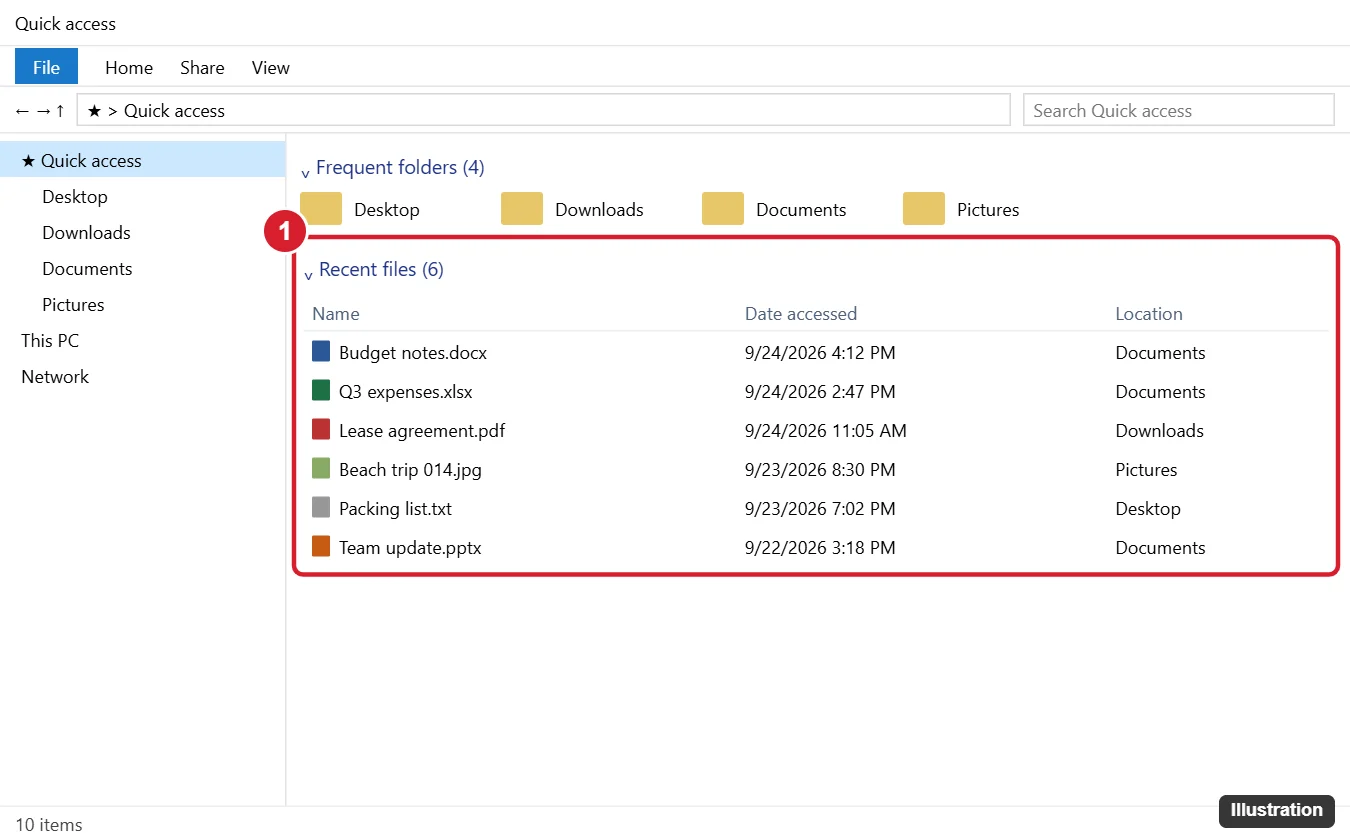
To make File Explorer always open on this view in Windows 10, click View > Options, set Open File Explorer to Quick access, and click OK. On Windows 11, the same setting is under See more (the three dots) > Options, where you choose Home.
Why the list stops at 20 files
Quick access and Home show up to 20 recent files. That cap is widely reported and has no supported setting to raise it; Microsoft does not document one, and registry tweaks that circulate online change jump lists, not this list. So if you need to reach back further than 20 files, don’t try to stretch Quick access. Use one of the routes below instead.
- Recent Items folder: keeps shortcuts to far more files and folders (often well over 20).
- Jump lists: per app, and you can pin files so they never drop off.
- Office Recent lists: Word, Excel and PowerPoint keep their own, longer history.
- Pinning: pin a file you use every day to Quick access (Windows 10) or Favorites in Home (Windows 11) so it stays put.
Method 2: The Recent Items folder (see more than 20 files)
- Press Windows + R to open the Run box.
- Type shell:recent and press Enter. The Recent Items folder opens in File Explorer. You can also type shell:recent straight into the File Explorer address bar.
- Switch to Details view: on Windows 11 click View > Details; on Windows 10 click the View tab and choose Details.
- Click the Date modified column header so the newest entries sit at the top.

The folder lives at C:\Users\<name>\AppData\Roaming\Microsoft\Windows\Recent, where <name> is your account folder. A few things to know about what you see there:
- The entries are shortcuts. Each item is a small .lnk file pointing at the real document. Deleting a shortcut here does not delete the original file.
- Folders appear too. Folders you opened show up alongside files, which is why the list is usually much longer than 20.
- Old shortcuts can break. If you moved or renamed a file after opening it, its shortcut may report that the target can’t be found. Search for the file name instead.
- Use the search box. Type part of a file name in the folder’s search box to filter a long list quickly.
Keep the Recent Items folder one click away
- Open the folder with shell:recent.
- Right-click Recent Items in the left pane (or the folder in the address bar) and choose Pin to Quick access.
Prefer a desktop icon? Right-click the desktop, choose New > Shortcut, enter explorer.exe shell:recent as the location, click Next, name it Recent Items, and click Finish.
Method 3: Jump lists on the taskbar and Start
- Right-click an app’s icon on the taskbar, such as Word, Notepad or Photos. The app can be open or pinned.
- Look under Recent for files you opened with that app.
- Click a file to open it. To keep it on the list, hover over it and click the pin icon; it moves to a Pinned section.
Jump lists usually show about 10 to 12 items per app. On Windows 11, the Recommended section of Start (click More to see the full list) also shows recently opened files, and the Windows Search panel may show a short Recent list when you click the search box.
Optional: raise the jump list count (registry)
This is an unsupported tweak that Microsoft doesn’t document. It affects jump lists only, not the 20 files in Quick access or Home. Editing the registry incorrectly can cause problems, so create a restore point first.
- Press Windows + R, type regedit, and press Enter. Click Yes at the User Account Control prompt.
- Go to HKEY_CURRENT_USER\Software\Microsoft\Windows\CurrentVersion\Explorer\Advanced.
- Right-click an empty area in the right pane, choose New > DWORD (32-bit) Value, and name it JumpListItems_Maximum.
- Double-click it, select Decimal, enter a number such as 25, and click OK.
- Sign out and back in, or restart, if the jump lists don’t change right away.
To undo it, delete the JumpListItems_Maximum value and sign out again.
Method 4: Recent lists inside Office apps
Word, Excel and PowerPoint keep their own history, separate from File Explorer. Click File > Open and look at the Recent list, where you can pin documents (newer Microsoft 365 versions use Add to Favorites instead). To change how many documents appear there, go to File > Options > Advanced and, under Display, adjust Show this number of Recent Documents; setting it to 0 hides the list. See Microsoft’s guide to the recent files list for details. Most other apps have a similar list under File > Open Recent or File > Recent.
Method 5: Search File Explorer by date modified
Recent lists only record files you opened. A date search catches files you saved, downloaded or changed without opening them from File Explorer.
- Open File Explorer and click This PC, or a specific folder such as Documents.
- Click in the search box. On Windows 10 the Search tab appears on the ribbon; on Windows 11 start typing and a Search options button appears.
- Choose Date modified and pick Today, Yesterday, This week or another range.
- Narrow it with Kind (Document, Picture and so on) if the results are crowded.
You can type the filter yourself, too: datemodified:yesterday or datemodified:this week, optionally followed by part of the file name. For more filters, see searching for files by name or type. If the file came from a browser and you never opened it, the browser’s download list is quicker, as covered in finding downloaded files on Windows 10.
Windows 10’s old Timeline view in Task View no longer works as a recent-files tool, so it isn’t covered here. If you want to look at what Windows recorded about your activity, see viewing activity history on Windows 10.
Recent files not showing up
- Check the File Explorer privacy setting. Windows 10: View > Options, then under Privacy check Show recently used files in Quick access. Windows 11: See more > Options, then under Privacy make sure the recent files option is checked (Microsoft’s current wording is Include account-based insights, recent, favorite, and recommended files). Click OK.
- Check the Start setting. Open Settings > Personalization > Start and turn on the toggle for showing recently opened items in Start, jump lists and File Explorer. The exact wording differs between Windows 10 and Windows 11.
- Look at cleanup tools. Privacy or registry cleaner apps often wipe recent files on a schedule. Turn that option off in the tool if you want the history kept.
- Reset the history. If the list looks stuck or wrong, click Clear under Privacy in Folder Options. New entries appear as you open files again.
Clear or hide recent files
Shared PCs are the usual reason to do this. Clearing removes the history only; your files stay where they are.
- Remove one file: right-click it in Quick access or Home and choose Remove from Quick access (Windows 10) or Remove from Recent (Windows 11).
- Clear everything: open Folder Options (View > Options on Windows 10, See more > Options on Windows 11) and click Clear next to Clear File Explorer history.
- Stop tracking: uncheck the recent files option under Privacy, and turn off the Start setting above to stop jump lists and Start from listing files too.
Windows 11 users can find more detail in removing recent files in Windows 11.
Recent file questions
Does the Recent Items folder keep files forever?
Not reliably. Microsoft doesn’t document how long Windows keeps these shortcuts, and clearing File Explorer history or running a cleanup tool empties the folder. Treat it as a long history, not an archive.
Can I see files another person opened on the same PC?
Each account has its own recent list in its own profile folder. Viewing another account’s Recent Items folder needs administrator rights to that profile.
A file I opened is gone from its folder. Where did it go?
If the shortcut in Recent Items points nowhere, the file was moved, renamed or deleted. Check the Recycle Bin first, then see finding recently deleted files on Windows.
Is Windows 10 still supported?
Windows 10 support ended on October 14, 2025. PCs enrolled in Extended Security Updates keep getting security fixes for a limited time, and eligible PCs can upgrade to Windows 11 free. The recent-file features above work the same either way. Microsoft has details on its Windows 10 end of support page, and its File Explorer help page covers Home and Quick access.
Next time you lose track of a file, start with Home or Quick access, then go straight to shell:recent if it isn’t there. Pinning that folder now saves a step later.

Kermit Matthews runs Live2Tech from just outside Philadelphia. He is an IT specialist with over 20 years of experience, from a university help desk to small-business IT, IT management and his own consulting practice, and has written tech guides full time since 2020. Steps are checked against the current software on a real device or the maker’s official documentation. More about Kermit.