Looking for every PDF, photo, or spreadsheet on your computer? Windows 10’s File Explorer can filter search results by file type using a simple wildcard, a file extension filter, or a broader “kind” filter. This guide covers all three, plus the Search tab’s built-in filters, faster searching with indexing, and command-line options for power users.
Note: Windows 10 reached end of support on October 14, 2025. Consumer Extended Security Updates (ESU) now run until October 12, 2027. These steps still work on Windows 10, but upgrading to Windows 11 is the long-term way to keep getting security fixes.
Quick Answer
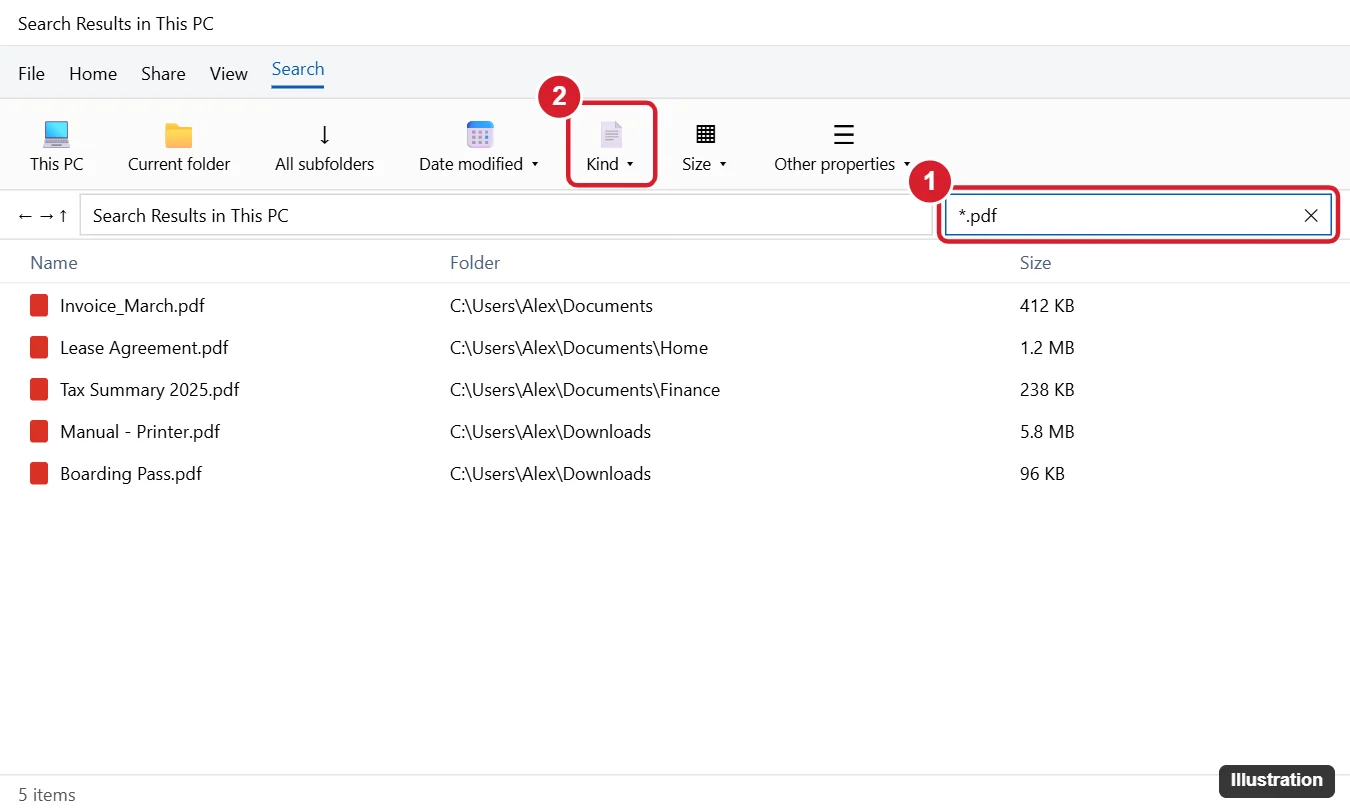
Open File Explorer, click the folder or drive you want to search (or This PC for everything), click the search box in the top-right corner, and type *.pdf (replace pdf with any extension). Press Enter to list every matching file.
Search for a File by Name
If you know part of the file’s name, you don’t need any filters:
- From the taskbar: click the search box (or press Windows + S), type part of the name, and select Documents at the top of the results, or open More to choose Folders or Photos, to narrow them. This searches indexed locations like your user folders and is the fastest option for recent files.
- From File Explorer: press Windows + E, open the folder or drive you think contains the file (choose This PC to search everywhere), click the search box in the top-right corner, and type the name. Results appear as you type, and the search covers every subfolder.
- Open the file’s location: right-click a result and choose Open file location to see where it’s stored.
Don’t remember the name? Search by type, date, or size instead, as shown in the methods below.
Method 1: Search by File Extension
- Press Windows + E to open File Explorer.
- Choose where to search: a specific folder is fastest; This PC searches all drives.
- Click the search box and type one of these:
*.docx— any file ending in .docxext:.xlsx— files with the .xlsx extension*.jpg OR *.png— either type (type OR in capitals)report *.pdf— PDFs with “report” in the name
- Press Enter and wait for the green progress bar in the address bar to finish.
Method 2: Search by Kind of File
If you want all documents or all pictures regardless of extension, use the kind filter:
kind:=picture— photos and images (JPG, PNG, GIF, and more)kind:=music— audio fileskind:=video— video fileskind:=document— text, Word, PDF, and similar fileskind:=folder— folders only
You can also click in the search box, then open the Search tab on the ribbon and choose Kind to pick from the list.
Method 3: Combine Filters with the Search Tab
After you click the search box, a Search tab appears in the ribbon. Combine a type search with:
- Date modified: Today, This week, Last month, and more (adds
datemodified:). - Size: Tiny to Gigantic (adds
size:), for example*.mp4 size:>1GB. - Current folder or All subfolders to control how deep the search goes.
- Save search to keep a search you use often.
Sort and Group the Results
With results showing, click View > Details, then click the Type or Folder column header to sort. Right-click an empty area and choose Group by > Type to cluster results. To show extensions in file names, check View > File name extensions.
Speed Up Searches with Indexing
Searching unindexed locations can be slow. To index more places:
- Open Settings > Search > Searching Windows.
- Choose Enhanced to index your whole PC, or click Advanced Search Indexer Settings and Modify to add specific folders.
- Let Windows finish indexing (it runs in the background).
Command-Line Options
- Command Prompt:
dir C:\Users\%USERNAME% /s /b *.pdflists every PDF in your user folder with full paths. - PowerShell:
Get-ChildItem -Path $HOME -Recurse -Filter *.pdf -ErrorAction SilentlyContinue - Add
> pdfs.txtto the Command Prompt version to save the list to a text file.
Troubleshooting
- Files you know exist don’t appear: search from This PC or the correct drive, and make sure All subfolders is selected. Hidden files won’t show unless View > Hidden items is checked.
- Search is slow or stuck: rebuild the index in Indexing Options > Advanced > Rebuild.
- Search box does nothing: restart Windows Explorer in Task Manager, or run the search troubleshooter in Settings > Update & Security > Troubleshoot.
Related: How to disable Windows Search.
Related: Open Control Panel in Windows 10.
Related: Change a file type in Windows 11.
Can’t remember the file name at all? Try the recent files lists in File Explorer and shell:recent before searching the whole drive.
Frequently Asked Questions
Does this work in Windows 11?
Yes. The same search syntax works in Windows 11 File Explorer, though the filters are under Search options on the toolbar instead of a ribbon tab.
Can I search for several file types at once?
Yes. Use OR in capitals, for example *.docx OR *.pdf OR *.txt.
How do I find the largest files of a type?
Search for the type, switch to Details view, and click the Size column to sort from largest to smallest.
Summary
- Open File Explorer and pick a location.
- Type *.ext (like *.pdf) or kind:=picture in the search box.
- Narrow results with the Search tab’s date and size filters.
- Index more folders for faster results.

Kermit Matthews runs Live2Tech from just outside Philadelphia. He is an IT specialist with over 20 years of experience, from a university help desk to small-business IT, IT management and his own consulting practice, and has written tech guides full time since 2020. Steps are checked against the current software on a real device or the maker’s official documentation. More about Kermit.