To use the FILTER function in Excel, click an empty cell with plenty of blank space below and to the right, type =FILTER(the data, the condition, what to show if nothing matches), and press Enter. For example, =FILTER(A2:E11,C2:C11="East","No matching orders") returns every row in A2:E11 where the Region column says East. You type the formula in one cell only. Excel fills in, or “spills”, all the matching rows for you, and the list updates by itself whenever the source data changes.
Below you will find the syntax in plain English, a first formula built step by step, ways to combine conditions with AND and OR, how to sort the results or remove duplicates, fixes for the #SPILL! and #CALC! errors, and a clear explanation of how the FILTER function differs from the Filter button on the Data tab.
What you need and which versions this covers
FILTER is a built-in worksheet function, so there is nothing to install or turn on. You do need a version of Excel that includes it:
- Works: Excel for Microsoft 365 (Windows and Mac), Excel 2024 and Excel 2021 (Windows and Mac), and the Excel apps for iPad, iPhone and Android, which are the versions Microsoft lists on its FILTER help page. Excel for the web also calculates FILTER formulas in current builds. If a browser ever shows #NAME? for a FILTER formula, open the file in the desktop app.
- Does not work: Excel 2019, Excel 2016 and earlier. FILTER is missing from those versions. If someone opens your file in one of them, the FILTER cells show an error instead of results. In those versions, use the Filter button or Advanced Filter on the Data tab.
The steps below use Excel for Microsoft 365 on Windows. Typing the formula works the same way on a Mac and in Excel for the web. In some countries Excel expects semicolons instead of commas between arguments, for example =FILTER(A2:E11;C2:C11="East"). Use whichever separator your Excel shows in its own formula tips.
Two terms come up a lot:
- Array: a block of values. It can be a single column, a single row, or a rectangle of rows and columns, such as A2:E11.
- Spill: when a formula returns more than one value, Excel places the extra values in the empty cells next to it. The cells it fills are called the spill range, and Excel draws a thin blue border around them when you click inside.
FILTER syntax explained
The function has two required arguments and one optional argument:
=FILTER(array, include, [if_empty])
| Argument | Required? | What it means | Example |
|---|---|---|---|
| array | Yes | The data you want results from. Include every column you want to see in the answer, but not the header row. | A2:E11 |
| include | Yes | A test that produces TRUE or FALSE for each row. Rows that come out TRUE are kept. The test range must be the same height as the array (or the same width if you filter columns). | C2:C11="East" |
| if_empty | No | What to show when no row passes the test. Without it, Excel shows a #CALC! error when nothing matches. | "No matching orders" |
The include argument is where most of the work happens. When you write C2:C11="East", Excel checks each of the ten cells in C2:C11 and builds a list of ten TRUE or FALSE answers. FILTER then keeps the rows that line up with a TRUE. Excel treats any number other than zero as TRUE and zero as FALSE, which is why you can combine conditions with arithmetic (explained below).
The sample data used in this guide
Every example uses this small orders list in A1:E11, with headers in row 1. Type it into a blank worksheet if you want to follow along.
| Order (A) | Rep (B) | Region (C) | Product (D) | Amount (E) |
|---|---|---|---|---|
| 1001 | Alex Rivera | East | Laptop | 1,250 |
| 1002 | Jordan Lee | West | Monitor | 320 |
| 1003 | Sam Patel | East | Monitor | 290 |
| 1004 | Alex Rivera | South | Keyboard | 85 |
| 1005 | Taylor Brooks | West | Laptop | 1,180 |
| 1006 | Jordan Lee | East | Laptop | 1,320 |
| 1007 | Sam Patel | South | Monitor | 305 |
| 1008 | Taylor Brooks | East | Keyboard | 70 |
| 1009 | Alex Rivera | West | Monitor | 340 |
| 1010 | Jordan Lee | South | Laptop | 1,210 |
How to write your first FILTER formula
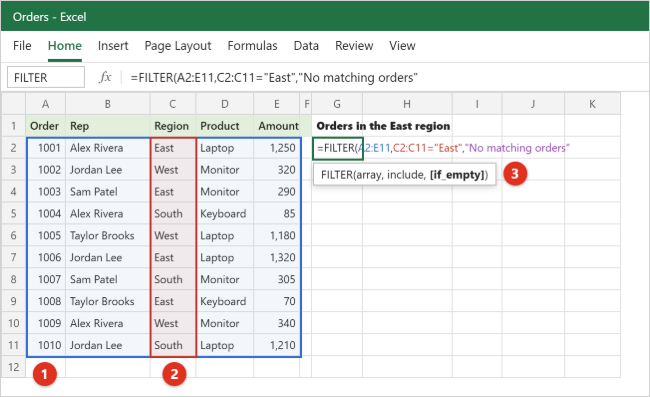
This example lists every order from the East region in a separate area of the sheet, starting in cell G2.
Step 1: Pick an output cell with empty space around it
Click cell G2. FILTER needs enough blank cells below and to the right to hold every matching row and column. Our data has five columns, so G2 through K2 and the rows below them must be empty. If anything is in the way, you will get a #SPILL! error instead of results. Type a label such as Orders in the East region in G1 so you know what the list shows.
Step 2: Start the formula and choose the array
Type =FILTER(. Excel shows a tip under the cell with the three arguments. Now select or type A2:E11, the rows you want results from, and type a comma. Leave out the header row. If you include it, the header has to pass the test too, which usually just confuses the result.
Step 3: Add the include test
Type C2:C11="East". This tells Excel to keep rows where the Region column equals East. Put text in straight double quotes. Numbers do not need quotes, so a test like E2:E11>1000 works as written. The comparison is not case sensitive, so “east” and “East” match the same rows.
Step 4: Add a message for no results
Type a comma, then "No matching orders", then a closing parenthesis. Your complete formula is:
=FILTER(A2:E11,C2:C11="East","No matching orders")
If you would rather show a blank cell when nothing matches, use two quotation marks with nothing between them: "".
Step 5: Press Enter and check the spill range
Press Enter. Excel returns four rows (orders 1001, 1003, 1006 and 1008) across G2:K5. Click any cell in that block and you will see a blue border around the whole spill range. Only G2 holds the formula. The other cells show it greyed out in the formula bar and cannot be edited on their own.
Step 6: Point the condition at a cell (optional but handy)
Instead of typing “East” inside the formula, type East in a cell such as M1 and change the formula to =FILTER(A2:E11,C2:C11=M1,"No matching orders"). Now anyone can type West or South in M1 and the list changes instantly. To prevent typos, turn M1 into a drop-down list with Data > Data Validation, choose List under Allow, and point the Source box at your region names.
Step 7: Format the results
FILTER copies values, not formatting. Format the spill area yourself, for example by applying a currency format to the Amount column (K2 downward). Formatting a few extra rows below the current results helps when the list grows later.
To undo the whole thing, click G2 and press Delete. Removing the formula removes every spilled result with it. Your original data is never changed by FILTER.
Filter with multiple criteria (AND, OR, and both)
You cannot use Excel’s AND() or OR() functions inside FILTER’s include argument, because they return a single TRUE or FALSE for the whole range instead of one answer per row. Instead, wrap each test in its own parentheses and join them with arithmetic:
- Multiply (*) for AND. TRUE counts as 1 and FALSE as 0. A row is kept only when every test is TRUE, because 1 × 1 = 1 and anything × 0 = 0.
- Add (+) for OR. A row is kept when at least one test is TRUE, because the total is 1 or more. A row that passes both tests adds up to 2, which still counts as TRUE, so it appears once, not twice.
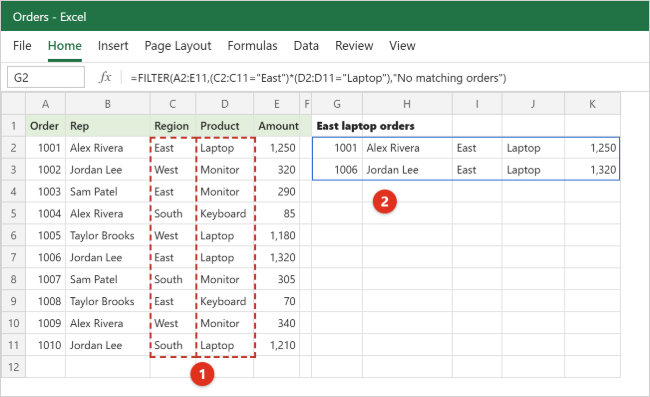
AND: East region and Laptop product
=FILTER(A2:E11,(C2:C11="East")*(D2:D11="Laptop"),"No matching orders")
Result: orders 1001 and 1006. Both tests must pass for a row to appear.
AND with a number: West region and amount of at least 1,000
=FILTER(A2:E11,(C2:C11="West")*(E2:E11>=1000),"No matching orders")
Result: order 1005 only. Use the comparison operators =, <> (not equal to), >, <, >= and <=. Write “at least” as >= and “at most” as <=, with the equal sign second.
OR: West region or Keyboard product
=FILTER(A2:E11,(C2:C11="West")+(D2:D11="Keyboard"),"No matching orders")
Result: orders 1002, 1004, 1005, 1008 and 1009, in their original order. Rows that pass either test are included.
AND and OR together: East or South, and more than 300
Put the OR part in its own extra set of parentheses so it is worked out first, then multiply by the AND part:
=FILTER(A2:E11,((C2:C11="East")+(C2:C11="South"))*(E2:E11>300),"No matching orders")
Result: orders 1001, 1006, 1007 and 1010. Without the extra parentheses, Excel multiplies before it adds, and you would get a different (wrong) list.
Between two values: amounts from 300 to 1,200
A range is just two AND conditions on the same column:
=FILTER(A2:E11,(E2:E11>=300)*(E2:E11<=1200),"No matching orders")
Result: orders 1002, 1005, 1007 and 1009. The same pattern works with dates. For example, (F2:F100>=DATE(2026,1,1))*(F2:F100<=DATE(2026,3,31)) keeps first-quarter rows in a date column F. Using DATE avoids problems with how dates are typed in different regions.
Other useful conditions
Everything except one value
=FILTER(A2:E11,C2:C11<>"East") returns the six orders that are not from the East region.
Skip blank rows
=FILTER(A2:E100,A2:A100<>"") keeps only rows where column A has something in it. This is handy when you point FILTER at a range larger than your current data so new rows get picked up. Multiply several of these tests together to require that several columns are filled in.
Cells that contain a word (partial match)
FILTER compares whole cell values, so wildcards such as * and ? do not work inside the test. To find text anywhere inside a cell, combine SEARCH and ISNUMBER:
=FILTER(A2:E11,ISNUMBER(SEARCH("top",D2:D11)),"No matching orders")
SEARCH returns a position number when “top” appears in a product name and an error when it does not. ISNUMBER turns that into TRUE or FALSE. The result is the four Laptop orders. SEARCH ignores case. Swap it for FIND if upper and lower case must match. For more ways to look for words in a sheet, see how to search for a word in Excel.
Rows that match any item in a list
Say J2:J3 holds the names Sam Patel and Taylor Brooks, and you want all of their orders. Typing a long chain of + conditions gets messy, so test against the list instead:
=FILTER(A2:E11,ISNUMBER(MATCH(B2:B11,J2:J3,0)),"No matching orders")
MATCH looks up each rep name in J2:J3 and returns a number when it finds it. ISNUMBER converts that to TRUE or FALSE. Result: orders 1003, 1005, 1007 and 1008. Add or remove names in the list (and widen J2:J3 if needed) to change the result without editing the condition.
Values above the average
=FILTER(A2:E11,E2:E11>AVERAGE(E2:E11)) keeps orders larger than the average amount. The cutoff is calculated from the data, so it moves as the data changes.
Combine FILTER with SORT and UNIQUE
FILTER keeps rows in the same order as the source data. Because FILTER returns an array, you can feed it straight into other dynamic array functions, which are functions that return a list that spills.
Sort the filtered results
SORT’s syntax is =SORT(array, [sort_index], [sort_order], [by_col]). The sort_index is the column number within the results, and sort_order is 1 for ascending (the default) or -1 for descending.
=SORT(FILTER(A2:E11,C2:C11="East","No matching orders"),5,-1)
This sorts the East orders by column 5 (Amount), largest first: 1006 (1,320), 1001 (1,250), 1003 (290), then 1008 (70). If you would rather sort by a column that is not in the output, use SORTBY, which sorts by a separate range instead of a column number.
Get a unique list from filtered rows
UNIQUE removes duplicates. To list each rep who sold a laptop, once each and in alphabetical order:
=SORT(UNIQUE(FILTER(B2:B11,D2:D11="Laptop")))
Result: Alex Rivera, Jordan Lee and Taylor Brooks. Jordan Lee sold two laptops but appears only once. The order of nesting matters: FILTER picks the rows, UNIQUE removes repeats, and SORT orders what is left.
Build a dependent drop-down list
A common use for this combination is a second drop-down that depends on the first. Put =SORT(UNIQUE(C2:C11)) in one cell to spill the list of regions, and use it for a region drop-down in M1. Then put =SORT(UNIQUE(FILTER(B2:B11,C2:C11=M1))) in another cell to list only that region’s reps. In Data Validation, set the second drop-down’s Source to that formula’s cell followed by a # sign (for example =P2#) so the list always matches the spill range.
Return selected columns, totals and table-based results
Return only some columns
The array argument controls which columns come back. For one column, point it at that column: =FILTER(B2:B11,C2:C11="East") returns only rep names. For columns that are side by side, use a narrower range such as B2:C11.
For columns that are not next to each other, filter twice. The outer FILTER keeps columns instead of rows, using a list of 1s and 0s with one entry per column:
=FILTER(FILTER(A2:E11,C2:C11="East"),{0,1,0,0,1})
This returns only Rep and Amount for East orders. In Microsoft 365 you can also wrap the data in CHOOSECOLS, for example =FILTER(CHOOSECOLS(A2:E11,2,5),C2:C11="East"), which some people find easier to read.
Total, count or average filtered values
Wrap FILTER in another function to calculate with only the matching values:
=SUM(FILTER(E2:E11,C2:C11="East",0))returns 2,930, the total of East orders. The 0 in if_empty means the total is 0, not an error, if nothing matches.=AVERAGE(FILTER(E2:E11,D2:D11="Laptop"))averages laptop orders.- To count how many rows a spilled FILTER returned, refer to its spill range with a # after the first cell:
=ROWS(G2#). This updates automatically as the result grows or shrinks.
For one simple total, SUMIFS or COUNTIFS is often quicker, and our guide to summing a column in Excel covers those. FILTER becomes the better choice when the condition is unusual (such as a partial text match) or when you want to see the rows as well as the total.
Use an Excel table so new rows are included
If your data is formatted as an Excel table (select it and choose Insert > Table), point FILTER at the table by name. With a table named Orders:
=FILTER(Orders,Orders[Region]="East","No matching orders")
These names are called structured references. They grow automatically when you add rows to the table, so new East orders appear in the results without changing the formula. Put the FILTER formula outside the table, because spilled formulas cannot live inside a table.
Filter across columns instead of rows
If your data runs left to right, with months across row 1 for example, the include test can be a row instead of a column. It just has to be the same width as the array, such as =FILTER(B1:M3,B3:M3>500) to keep only the month columns where row 3 is over 500.
Excel has two different tools with the word “filter” in their names, and they solve different problems. The Filter button on the Data tab (often called AutoFilter) adds drop-down arrows to your headers and hides the rows you do not want in place. The FILTER function leaves your data alone and builds a separate, live copy of the matching rows somewhere else.
| Question | FILTER function | Filter button (AutoFilter) |
|---|---|---|
| Where do results appear? | In a new location, wherever you type the formula | In place: rows that don’t match are hidden |
| Does it update by itself? | Yes, whenever the source data or the criteria cell changes | No. You reapply the filter to pick up changes |
| How do you set criteria? | By writing a formula, so any logic is possible | By clicking check boxes or using Text or Number Filters |
| Can other formulas use the result? | Yes, for example SORT, UNIQUE, SUM or a chart | Only indirectly, with functions such as SUBTOTAL |
| Can you edit the results? | No, the results are read-only output | Yes, you are editing the real rows |
| Which versions? | Microsoft 365, Excel 2021 and 2024, and the mobile apps | All versions of Excel |
Choose the Filter button when you want to look through or edit the actual rows. Choose the FILTER function when you want a report, dashboard or second list that stays up to date. To use the button, click a cell in your data, select Data > Filter, then click the arrow on a column header. If you work in Google Sheets as well, it has its own FILTER function and filter views, covered in how to filter columns in Google Sheets.
Fix #SPILL!, #CALC! and other FILTER errors
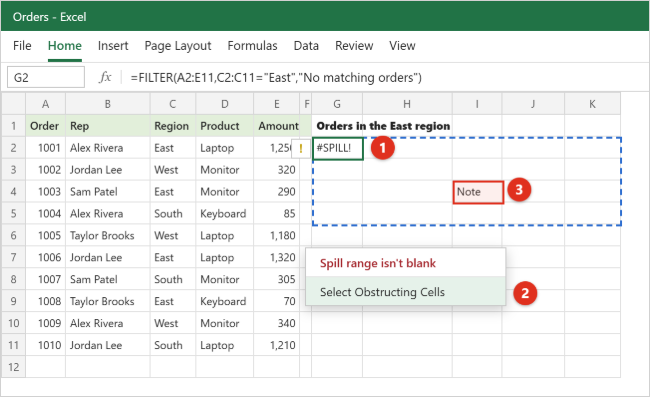
#SPILL!: the spill range isn’t blank
This is the most common FILTER error. Something is sitting in the cells where the results need to go, even if it is only a space or a cell that looks empty but contains an empty text value.
- Click the cell showing #SPILL!. A dashed border shows where the results want to go.
- Click the small warning icon next to the cell and choose Select Obstructing Cells. Excel jumps to whatever is in the way.
- Delete or move that content. The results appear as soon as the space is clear.
Other #SPILL! causes
- Table formula: the FILTER formula is inside an Excel table. Move it outside the table, or convert the table to a normal range with Table Design > Convert to Range.
- Spill into merged cells: results cannot spill into merged cells. Unmerge them or move the formula.
- Extends beyond the worksheet’s edge: the results would run off the bottom or right side of the sheet. Move the formula higher or further left, or refer to a smaller range instead of whole columns.
- Out of memory: the range is too large. Refer to a smaller range.
#CALC!: nothing matched
Excel cannot return an empty list, so FILTER shows #CALC! when no row passes the test and you left out if_empty. For example, =FILTER(A2:E11,C2:C11="North") returns #CALC! because our data has no North orders. Add a third argument, such as "No matching orders", "" for a blank cell, or 0 when the result feeds into a calculation. If you expected matches, check for extra spaces in the data (for example “East ” with a trailing space) or numbers stored as text.
#VALUE!: the ranges are different sizes
The include test must cover the same number of rows as the array. =FILTER(A2:E11,C2:C12="East") fails because C2:C12 is one row taller than A2:E11. Make the row numbers match. An error value inside the tested column (such as #N/A) can also make FILTER return an error, so fix or exclude those cells.
#NAME?: FILTER isn’t available or is misspelled
Check the spelling first. If the formula is spelled correctly, the file is probably open in Excel 2019 or earlier, which does not have FILTER. Open it in Microsoft 365 or Excel 2021 or later.
#REF!: data in another workbook
FILTER can pull from another workbook only while that workbook is open. If you close the source file, the formula returns #REF! the next time it refreshes. Open the source workbook again, or copy the data into the same file.
The results don’t update or can’t be edited
If results do not change when the data does, check that calculation is automatic in Formulas > Calculation Options. If you try to type over a cell in the spill range, Excel will not let you, because only the first cell holds the formula. To keep a fixed copy you can edit, select the spill range, copy it, and use Paste Special > Values somewhere else.
Wrong rows are returned
Check that the array and the include test start on the same row (A2 and C2, not A2 and C1). A one-row offset shifts every result. Also confirm that you used * for AND and + for OR, and put parentheses around each test.
Frequently Asked Questions
Do I need to press Ctrl+Shift+Enter for FILTER?
No. In versions that include FILTER, you press Enter and the results spill automatically. Ctrl+Shift+Enter belongs to older-style array formulas, which Microsoft keeps only for compatibility.
Why does my FILTER formula show #CALC! instead of a blank?
No rows matched and the formula has no if_empty argument. Add "" as the third argument to show a blank cell, or a short message such as “No results”.
Can FILTER use more than two conditions?
Yes. Keep multiplying tests for AND, for example (C2:C11="East")*(D2:D11="Laptop")*(E2:E11>1000), or keep adding them for OR. There is no small fixed limit, but very long formulas are easier to manage when the criteria are typed in cells and referenced.
Is the FILTER function case sensitive?
No. “east”, “East” and “EAST” all match. If case matters, use EXACT in the test, such as =FILTER(A2:E11,EXACT(C2:C11,"East")).
Can I use wildcards like * in FILTER?
Not directly. FILTER compares whole values, so “Lap*” looks for that exact text. Use ISNUMBER(SEARCH("lap",D2:D11)) to find text anywhere in a cell, or LEFT(D2:D11,3)="Lap" for text that starts a certain way.
Can FILTER pull data from another sheet?
Yes. Include the sheet name in both ranges, for example =FILTER(Orders!A2:E11,Orders!C2:C11="East"). This works in the same workbook at any time, and from another workbook only while that workbook is open.
Will FILTER results work for people with older Excel?
Not as live formulas. Excel 2019 and earlier do not have FILTER, so the cells will not calculate there. If you share with someone on an older version, paste the results as values first, or ask them to use the Filter button instead.
Does FILTER change or delete my original data?
No. FILTER only reads the source range and shows a copy of matching rows. Deleting the formula removes the copy and leaves the source untouched.
How do I show the header row with the results?
Type or copy the headers into the row above the formula (G1:K1 in this guide). In Microsoft 365 you can also stack the headers on top in one formula with VSTACK, for example =VSTACK(A1:E1,FILTER(A2:E11,C2:C11="East")).
Next step
Start with a single condition on your own data, then add a criteria cell so the list changes when you type a new value. Once that works, try wrapping it in SORT. Microsoft’s FILTER function reference and its guide to correcting a #SPILL! error are useful to keep bookmarked as you build bigger reports.

Kermit Matthews is a freelance writer based in Philadelphia, Pennsylvania with more than a decade of experience writing technology guides. He has a Bachelor’s and Master’s degree in Computer Science and has spent much of his professional career in IT management.
He specializes in writing content about iPhones, Android devices, Microsoft Office, and many other popular applications and devices.