To use XLOOKUP in Excel, click the cell where you want the answer and type =XLOOKUP(what to find, where to look, what to return), then press Enter. For example, =XLOOKUP(G2,A2:A7,D2:D7) finds the item ID in cell G2 inside column A and returns the price from the same row in column D. XLOOKUP looks for an exact match by default, can return a column to the left of the one you search, and lets you show your own message instead of an error when nothing matches.
This guide explains every part of the formula, walks through a dozen worked examples with sample tables you can rebuild in a minute, shows how XLOOKUP compares with VLOOKUP, and covers the errors people run into most.
What you need and which versions this covers
XLOOKUP is a built-in worksheet function. There is nothing to install or turn on, but you need a version of Excel that includes it:
- Works: Excel for Microsoft 365 (Windows and Mac), Excel 2024, Excel 2021 (Windows and Mac), Excel for the web, and the Excel apps for iPad, iPhone and Android.
- Does not work: Excel 2019, Excel 2016 and earlier. Microsoft states that XLOOKUP is not available in Excel 2016 and Excel 2019. If someone using one of those versions opens your file, XLOOKUP cells show #NAME? once they recalculate.
- Microsoft 365 only: a newer regular expression (regex) option for the match_mode argument. It is covered in its own section below.
The steps below use Excel for Microsoft 365 on Windows. The formula itself is typed the same way on a Mac, in a browser and in the mobile apps, so the examples work everywhere XLOOKUP is available. Where the menus differ, the differences are called out.
Contents
- XLOOKUP syntax and what each argument means
- How to write your first XLOOKUP formula
- Building the formula with the Function Arguments window
- Worked examples with sample data
- Choosing a match_mode and search_mode
- XLOOKUP vs VLOOKUP
- XLOOKUP errors and how to fix them
- Frequently Asked Questions
XLOOKUP syntax and what each argument means
Here is the full formula. The first three arguments are the ones you fill in almost every time; the three in square brackets are optional.
=XLOOKUP(lookup_value, lookup_array, return_array, [if_not_found], [match_mode], [search_mode])
| Argument | Required? | What it means in plain English |
|---|---|---|
| lookup_value | Yes | The thing you are searching for, such as an item ID, a name or a number. It is usually a cell reference like G2, but you can type text in quotes (“P-104”) or a number. |
| lookup_array | Yes | The single column (or single row) Excel searches, such as A2:A7. |
| return_array | Yes | The column (or row) holding the answer you want back, such as D2:D7. It must be the same height as lookup_array. It can be several columns wide if you want several answers at once. |
| if_not_found | No | What to show when there is no match, such as “Not found” or 0. Leave it out and Excel shows the #N/A error instead. |
| match_mode | No | How strict the match is. 0 = exact match (the default). -1 = exact match, or the next smaller item. 1 = exact match, or the next larger item. 2 = wildcard match, where *, ? and ~ have special meaning. Microsoft 365 also offers 3 = regex match. |
| search_mode | No | Which direction Excel searches. 1 = first to last (the default). -1 = last to first, which finds the most recent entry. 2 and -2 = fast binary search on data sorted in ascending or descending order. |
Two terms come up again and again:
- An array is just a list of values. In everyday use it is a range of cells, like A2:A7.
- Spilling is what happens when one formula returns more than one value. Excel fills the neighboring empty cells automatically and draws a thin blue border around them. XLOOKUP spills when you ask it for several columns or several lookup values at once.
To skip an optional argument but still use a later one, leave an empty space between the commas. For example, =XLOOKUP(G2,A2:A7,D2:D7,,-1) skips if_not_found and sets match_mode to -1.
How to write your first XLOOKUP formula
The steps use this small product list. Type it into a blank worksheet starting in cell A1 if you want to follow along.
| A: Item ID | B: Product | C: Category | D: Price | |
|---|---|---|---|---|
| 2 | P-101 | Desk Lamp | Lighting | 34.99 |
| 3 | P-102 | Office Chair | Furniture | 189.00 |
| 4 | P-103 | Monitor Arm | Accessories | 79.50 |
| 5 | P-104 | Standing Desk | Furniture | 449.00 |
| 6 | P-105 | Webcam | Electronics | 64.95 |
| 7 | P-106 | Keyboard | Electronics | 49.99 |
The goal: type an item ID in cell G2 and have Excel show its price in cell H2.
Step 1: Check your data layout
Make sure the values you will search for sit in one column with a single header row above them, and that each value appears only once if you expect one answer. XLOOKUP returns the first match it finds, so a duplicate ID further down the list is ignored unless you search from the bottom (see the last-match example below). Type P-104 in cell G2.
Step 2: Click the cell where the answer should appear
Click cell H2. This is where the formula goes. The cell can be on the same sheet, another sheet or even another workbook.
Step 3: Start the formula
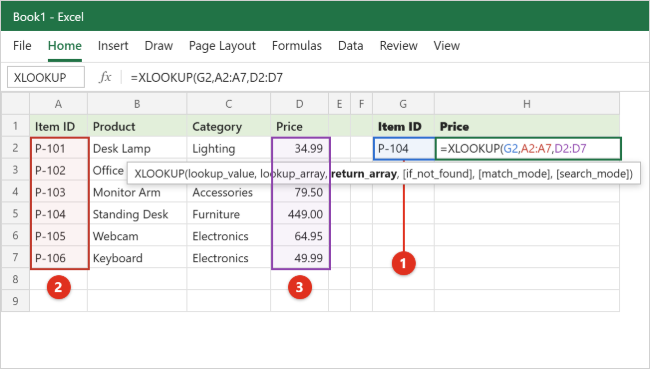
Type =XLOOKUP( with the opening parenthesis. As you type, Excel’s formula AutoComplete suggests the function, and once the parenthesis is in place a small tooltip appears under the cell listing all six arguments. The argument you are filling in is shown in bold, which is a handy reminder of where you are.
Step 4: Pick the lookup value
Click cell G2 (or type G2), then type a comma. G2 now becomes the value Excel searches for. Excel outlines G2 in color so you can see which cell the formula uses.
Step 5: Pick the column to search
Drag over A2:A7, the Item ID column, then type a comma. Do not include the header in row 1. You should see a second colored outline around the selected cells.
Step 6: Pick the column to return
Drag over D2:D7, the Price column. It must cover the same rows as the column you search (rows 2 through 7 here). If the two ranges are different sizes, XLOOKUP returns a #VALUE! error.
Step 7: Close the formula and press Enter
Type ) and press Enter. Your formula reads =XLOOKUP(G2,A2:A7,D2:D7) and cell H2 shows 449, the price of the Standing Desk. If you want the result to look like currency, select H2 and pick Currency from the number format box on the Home tab; XLOOKUP returns the value, not the source cell’s formatting.
Step 8: Test it and copy it down
Change G2 to P-102. H2 updates to 189 straight away. To look up several IDs in a column, lock the ranges first so they don’t shift when you copy the formula: click inside A2:A7 in the formula bar and press F4 to change it to $A$2:$A$7, do the same for the return range, press Enter, then drag the fill handle (the small square at the bottom-right of the cell) down. On any version, including Excel for Mac and the web, you can also type the dollar signs yourself.
Tip: if your data is formatted as an Excel table (select it and press Ctrl + T), you can use column names instead of cell ranges, for example =XLOOKUP(G2,Products[Item ID],Products[Price]). The formula keeps working when you add rows to the table, so you never have to fix the ranges.
Building the formula with the Function Arguments window
If you prefer filling in boxes to typing commas, Excel for Windows can walk you through each argument:
- Click the cell where the answer should go.
- On the Formulas tab, click Lookup & Reference and choose XLOOKUP. You can also click the fx (Insert Function) button to the left of the formula bar, search for XLOOKUP and click OK.
- A window opens with one box per argument. Click in the first box and then click the lookup cell on the worksheet; click in the second box and drag over the search column; repeat for the return column and any optional arguments.
- Read the short description and live result at the bottom of the window, then click OK.
Excel for Mac and Excel for the web also have the Formulas tab and an Insert Function button, although the window looks a little different. If you can’t find it, typing the formula directly in the cell gives exactly the same result on every version.
Worked examples with sample data
All examples use the product list above (A1:D7) unless a new table is shown. Each one gives the formula, the result you should see, and why it works.
Example 1: Look up a value to the left
Find the item ID for the Webcam. The ID column (A) is to the left of the Product column (B), which VLOOKUP can’t handle without rearranging your data.
=XLOOKUP("Webcam",B2:B7,A2:A7) returns P-105.
Because the search column and return column are separate arguments, their order on the sheet doesn’t matter.
Example 2: Show a friendly message when nothing matches
=XLOOKUP("P-110",A2:A7,D2:D7,"Not found") returns Not found instead of #N/A, because P-110 isn’t in the list.
You can put a number (0), a cell reference, or even another formula in that fourth argument. Be careful with an empty text value (“”): it hides the error completely, which can make a typo in your lookup value look like a genuine blank.
Example 3: Return several columns at once
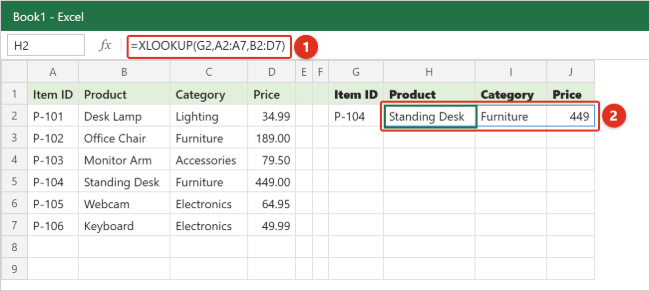
To show the product, category and price for the ID in G2, point the return array at all three columns:
=XLOOKUP(G2,A2:A7,B2:D7) entered in H2 with P-104 in G2 fills Standing Desk, Furniture and 449 across H2, I2 and J2.
You only type the formula in H2. The other two cells are filled by spilling. To change or delete the result, edit or delete H2; the spilled cells can’t be edited on their own.
Example 4: Look up a whole list of values with one formula
Type P-102, P-105 and P-101 in G2:G4. Then in H2 enter:
=XLOOKUP(G2:G4,A2:A7,D2:D7)
H2:H4 fill with 189, 64.95 and 34.99. Using a range as the lookup value makes XLOOKUP spill one answer per item, so there’s nothing to copy down. If you add a fourth ID in G5, change G2:G4 to G2:G5.
Example 5: Approximate match for price tiers or grades
Approximate matching is for bands such as discounts, shipping rates, commission rates or letter grades. Put this tier table in F10:G13:
| F: Order total from | G: Discount | |
|---|---|---|
| 10 | 0 | 0% |
| 11 | 100 | 5% |
| 12 | 250 | 10% |
| 13 | 500 | 15% |
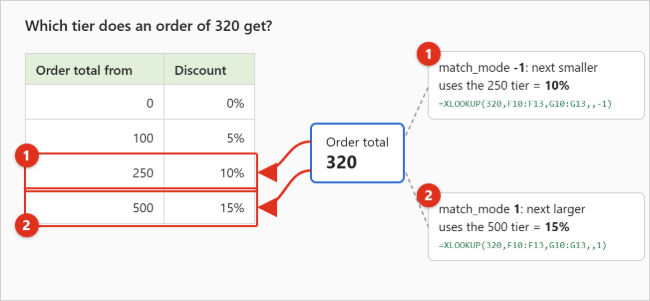
An order of 320 sits between the 250 and 500 tiers.
=XLOOKUP(320,F10:F13,G10:G13,,-1)returns 10%. Match_mode -1 means “exact match, or else the next smaller value”, so Excel falls back to 250.=XLOOKUP(320,F10:F13,G10:G13,,1)returns 15%. Match_mode 1 means “exact match, or else the next larger value”, so Excel rounds up to 500.=XLOOKUP(320,F10:F13,G10:G13)returns #N/A, because the default exact match finds no 320.
For “from” thresholds like these, -1 is almost always what you want. With match_mode -1 or 1 and the default search mode, the tier list doesn’t need to be sorted, unlike VLOOKUP’s approximate match.
Example 6: Partial (wildcard) match
Wildcards let you match part of a cell. An asterisk (*) stands for any number of characters, a question mark (?) for exactly one character, and a tilde (~) tells Excel to treat the next * or ? as a normal character. In XLOOKUP, wildcards only work when match_mode is 2.
=XLOOKUP("*Desk*",B2:B7,D2:D7,,2) returns 34.99, the price of Desk Lamp, the first product containing “Desk”.
To match text typed in a cell, join the asterisks to the cell reference: =XLOOKUP("*"&G2&"*",B2:B7,D2:D7,"No match",2). Without the 2, Excel looks for a product literally named *Desk* and returns #N/A or your not-found message.
Example 7: Find the last match instead of the first
This order log has repeat customers. Put it in A20:D27:
| A: Order # | B: Customer | C: Product | D: Amount | |
|---|---|---|---|---|
| 21 | 1001 | Alex Rivera | Desk Lamp | 34.99 |
| 22 | 1002 | Jordan Lee | Webcam | 64.95 |
| 23 | 1003 | Alex Rivera | Keyboard | 49.99 |
| 24 | 1004 | Sam Patel | Office Chair | 189.00 |
| 25 | 1005 | Jordan Lee | Desk Lamp | 34.99 |
| 26 | 1006 | Alex Rivera | Monitor Arm | 79.50 |
| 27 | 1007 | Sam Patel | Webcam | 64.95 |
=XLOOKUP("Alex Rivera",B21:B27,C21:C27)returns Desk Lamp, Alex’s first order.=XLOOKUP("Alex Rivera",B21:B27,C21:C27,,0,-1)returns Monitor Arm, Alex’s most recent order. Search_mode -1 tells Excel to start at the bottom.
The same trick works with the wildcard example: =XLOOKUP("*Desk*",B2:B7,D2:D7,,2,-1) returns 449 for the Standing Desk, the last product containing “Desk”.
Example 8: Match on two conditions
XLOOKUP only has one lookup_value, but you can combine conditions with a little math. To find the order number where the customer is Jordan Lee and the product is Desk Lamp:
=XLOOKUP(1,(B21:B27="Jordan Lee")*(C21:C27="Desk Lamp"),A21:A27) returns 1005.
Each comparison in parentheses produces a list of TRUE and FALSE values, one per row. Multiplying them turns TRUE into 1 and FALSE into 0, so a row only scores 1 when both conditions are true. XLOOKUP then looks for the 1. Add a third condition by multiplying another comparison in the same way. Because the combined list only contains 1s and 0s, this method is for exact matches; it doesn’t combine well with approximate match modes.
Example 9: Two-way lookup (row and column)
This sales table has regions down the side and quarters across the top. Put it in A30:E33:
| A: Region | B: Q1 | C: Q2 | D: Q3 | E: Q4 | |
|---|---|---|---|---|---|
| 31 | East | 12,400 | 13,100 | 12,900 | 14,200 |
| 32 | West | 9,800 | 10,450 | 11,300 | 11,900 |
| 33 | North | 7,650 | 8,020 | 8,700 | 9,150 |
=XLOOKUP("West",A31:A33,XLOOKUP("Q3",B30:E30,B31:E33)) returns 11,300.
Read it from the inside out. The inner XLOOKUP searches the header row for Q3 and returns that whole column (12,900, 11,300 and 8,700). The outer XLOOKUP then searches the regions for West and picks the matching value from that column. This replaces the older INDEX and MATCH combination and works horizontally too, so XLOOKUP also covers anything you used HLOOKUP for.
Example 10: Horizontal lookup
To get Q2 sales for East without the nested formula, search the header row and return the East row:
=XLOOKUP("Q2",B30:E30,B31:E31) returns 13,100. When both ranges are rows, XLOOKUP searches left to right instead of top to bottom.
Example 11: Total a range between two lookups
XLOOKUP returns a cell reference, not just a value, so you can use two of them as the start and end of a range. To add North’s sales from Q2 through Q4:
=SUM(XLOOKUP("Q2",B30:E30,B33:E33):XLOOKUP("Q4",B30:E30,B33:E33)) returns 25,870 (8,020 + 8,700 + 9,150).
To see how a formula like this is evaluated, select the cell and choose Formulas > Evaluate Formula, then click Evaluate repeatedly to step through it.
Example 12: Look up data on another sheet, or check a second list
If the product list lives on a sheet named Products, include the sheet name in the ranges. The easiest way is to start the formula, click the other sheet’s tab, select the range and type the comma; Excel writes the reference for you.
=XLOOKUP(A2,Products!$A$2:$A$7,Products!$D$2:$D$7,"Not found")
Put the sheet name in single quotes if it contains a space, such as 'Price List'!A2:A7.
To check a second list when the first one has no match, put another XLOOKUP in the if_not_found argument:
=XLOOKUP(G2,A2:A7,D2:D7,XLOOKUP(G2,Discontinued!A2:A20,Discontinued!D2:D20,"Not found"))
Excel searches the main list first and only moves to the Discontinued sheet if the ID isn’t there.
Choosing a match_mode and search_mode
Most lookups need neither optional argument. Use this as a quick decision guide when they do.
| You want to… | match_mode | search_mode |
|---|---|---|
| Find an exact ID, name or code | 0 or leave blank | 1 or leave blank |
| Find which tier or band a number falls into (thresholds listed as “from”) | -1 | Leave blank |
| Round up to the next band or package size | 1 | Leave blank |
| Match part of the text (“contains”, “starts with”) | 2, with * or ? in the lookup value | Leave blank |
| Get the most recent or last entry for something | 0 | -1 |
| Speed up exact lookups on a very large list you keep sorted | 0 | 2 (sorted A to Z / smallest first) or -2 (sorted Z to A / largest first) |
Warning about binary search: search_mode 2 and -2 rely on the lookup column being sorted. If it isn’t, Microsoft warns that XLOOKUP returns invalid results, and those wrong answers can look perfectly normal. Only use binary search on data you sort every time it changes.
The regex match mode in Microsoft 365
Microsoft has added a match_mode of 3 for regular expressions (regex), a pattern language for describing text, such as “three capital letters followed by four digits”. Microsoft announced it for XLOOKUP and XMATCH as part of the regular expression features in Excel for Microsoft 365; it isn’t available in Excel 2021 or 2024. As of October 2026 Microsoft’s XLOOKUP help page still lists only modes 0, -1, 1 and 2, so if your copy of Excel rejects a 3 in that position, use wildcards (mode 2) instead. An example pattern formula is =XLOOKUP("^P-10[1-3]$",A2:A7,B2:B7,,3), which returns the first product whose ID is P-101, P-102 or P-103 (Desk Lamp).
XLOOKUP vs VLOOKUP
XLOOKUP is Microsoft’s replacement for VLOOKUP and HLOOKUP. Microsoft describes it as an improved version of VLOOKUP that works in any direction and returns exact matches by default. Here is the same lookup written both ways, using the product list:
- VLOOKUP:
=VLOOKUP(G2,A2:D7,4,FALSE) - XLOOKUP:
=XLOOKUP(G2,A2:A7,D2:D7)
| Feature | VLOOKUP | XLOOKUP |
|---|---|---|
| Default match | Approximate (TRUE) unless you add FALSE | Exact |
| Return a column to the left | No; the search column must be first | Yes |
| How you pick the answer column | A column number (4) | A range (D2:D7) |
| Inserting or deleting a column in the table | Can break it, because the column number doesn’t update | Ranges adjust automatically |
| Built-in “not found” message | No; wrap it in IFERROR or IFNA | Yes, the fourth argument |
| Search from the bottom | No | Yes, search_mode -1 |
| Return several columns from one formula | No (one column per formula) | Yes, by spilling |
| Horizontal lookups | Needs HLOOKUP | Same function |
| Approximate match on unsorted data | Gives wrong results; the first column must be sorted | Works with match_mode -1 or 1 |
| Works in Excel 2019 and 2016 | Yes | No |
When to keep VLOOKUP: if a workbook is shared with people on Excel 2019 or older, VLOOKUP (or INDEX and MATCH) is the safer choice, because their copy of Excel can’t calculate XLOOKUP. Otherwise XLOOKUP is easier to read and harder to get wrong.
If you also work in Google Sheets, it has its own XLOOKUP and VLOOKUP functions with very similar arguments; see how to use VLOOKUP in Google Sheets for the Sheets version of these lookups.
XLOOKUP errors and how to fix them
#N/A: no match was found
The lookup value isn’t in the lookup column, or it looks the same but isn’t identical. Check these in order:
- Extra spaces. “P-104 ” with a trailing space won’t match “P-104”. Clean the source data, or wrap the lookup value in TRIM:
=XLOOKUP(TRIM(G2),A2:A7,D2:D7). - Numbers stored as text. The number 1005 won’t match the text “1005”. A small green triangle in the corner of a cell often marks a number stored as text. Convert one side so both are the same type, for example by selecting the column and choosing Data > Text to Columns > Finish.
- A partial value without wildcard mode. If you are searching for part of a cell with *, set match_mode to 2.
- A genuine missing value. Add a fourth argument such as “Not found” so the sheet stays readable.
#VALUE!: the ranges are different sizes
The lookup_array and return_array must cover the same number of rows (or columns, for a horizontal lookup). A formula such as =XLOOKUP(G2,A2:A7,D2:D50) causes this error. Make both ranges run from the same first row to the same last row.
#NAME?: your Excel doesn’t have XLOOKUP, or the name is misspelled
Check the spelling first. If it’s correct, you’re probably using Excel 2019, Excel 2016 or older; when such a version opens a file containing XLOOKUP, the formula bar may show the function with an _xlfn. prefix. Microsoft explains that this prefix means the workbook contains a function your version doesn’t support. The fix is to open the file in Microsoft 365, Excel 2021 or later, or Excel for the web, or to rewrite the formula with VLOOKUP or INDEX and MATCH. If you have Microsoft 365 and still see it, update Excel on Windows and try again.
#SPILL!: something is in the way
When XLOOKUP returns more than one value, it needs empty cells to spill into. Select the cell showing #SPILL!; Excel draws a dashed border around the range it wants to use. Delete or move whatever is in those cells, or click the error alert next to the cell and choose Select Obstructing Cells to find the culprit. Spilled formulas also can’t be used inside an Excel table, and they can’t spill into merged cells. See Microsoft’s guide to correcting a #SPILL! error for the less common causes.
#REF!: the other workbook is closed
If your XLOOKUP points at a table in another workbook, keep that workbook open while the formula recalculates, or copy the data into the current file.
A 0 appears instead of a blank
When the matching cell in the return column is empty, XLOOKUP shows 0 rather than leaving the cell blank. If that’s misleading, test for an empty result: =IF(XLOOKUP(G2,A2:A7,C2:C7)="","",XLOOKUP(G2,A2:A7,C2:C7)).
The wrong row comes back
- XLOOKUP stops at the first match. If the value appears more than once, it returns the topmost one, or the bottom one with search_mode -1. To return every matching row, use the FILTER function instead, for example
=FILTER(A21:D27,B21:B27="Alex Rivera"). - You used search_mode 2 or -2 on unsorted data. Remove the sixth argument.
- You used match_mode -1 or 1 by accident on an exact lookup. Remove the fifth argument or set it to 0.
- Your ranges are offset, for example A2:A7 and D3:D8. Both must start on the same row.
The formula shows as text
If the cell shows =XLOOKUP(...) instead of an answer, the cell was formatted as Text before you typed, or Show Formulas is on. Here’s how to fix Excel showing formulas instead of results.
An @ sign appears in front of XLOOKUP
The @ is Excel’s implicit intersection operator. In a formula such as =@XLOOKUP(...) it makes XLOOKUP return a single value instead of spilling, so a multi-column or multi-value lookup shows only one result. Microsoft notes that removing the @ lets the result spill into neighboring cells, which changes what the sheet shows, so delete it only when you want the full spilled result and the cells next to the formula are empty.
To undo any of these changes, press Ctrl + Z (Command + Z on a Mac) right after editing, or select the formula cell and press Delete to remove the formula and all its spilled results.
Frequently Asked Questions
Is XLOOKUP available in Excel 2019 or Excel 2016?
No. XLOOKUP is available in Excel for Microsoft 365, Excel 2024, Excel 2021, Excel for the web and the Excel mobile apps. Excel 2019 and 2016 can open a file that contains XLOOKUP but can’t calculate it, and the cells show #NAME? after recalculation. Use VLOOKUP or INDEX and MATCH if the file must work in those versions.
Does XLOOKUP do an exact match by default?
Yes. If you leave out match_mode, XLOOKUP only returns an exact match and shows #N/A (or your if_not_found text) when there isn’t one. This is the opposite of VLOOKUP, which defaults to an approximate match unless you add FALSE.
Is XLOOKUP case-sensitive?
No. A lookup for “webcam” matches “Webcam”. If you need a case-sensitive match, combine XLOOKUP with the EXACT function: =XLOOKUP(TRUE,EXACT(G2,A2:A7),D2:D7).
Can XLOOKUP return more than one match?
It can return several columns from the one matching row, and it can look up several values at once, but for any single lookup value it returns only one row: the first match (or the last, with search_mode -1). To list every row that matches, use FILTER.
Is XLOOKUP better than INDEX and MATCH?
Both can look left, look horizontally and do two-way lookups. XLOOKUP does it in one function with a built-in not-found message and reverse search, which most people find easier to read. INDEX and MATCH still have the advantage of working in Excel 2019 and earlier.
Why does my approximate match return the wrong tier?
Check which direction you need. Match_mode -1 returns the next smaller value, which suits thresholds that start a band (“orders from 250”). Match_mode 1 returns the next larger value, which suits upper limits (“up to 250”). Also make sure the tier column holds numbers, not numbers stored as text.
Can Copilot write an XLOOKUP formula for me?
If your Microsoft 365 plan includes Copilot in Excel, you can describe the lookup in plain words and it can suggest a formula. It’s still worth knowing the arguments so you can check its ranges and match settings. See how to use Copilot in Excel to create a formula.
What happens if I leave lookup_value empty?
Microsoft notes that if lookup_value is omitted, XLOOKUP returns the blank cells it finds in lookup_array. In practice this means a formula that points at an empty cell can match the first blank row in your data, so make sure the lookup cell is filled in before trusting the result.
Next step
Rebuild the product list, try the basic formula, then add one optional argument at a time: a not-found message first, then a last-match search, then a multi-column return. Once those feel natural, swap a few of your existing VLOOKUP formulas for XLOOKUP in a copy of a workbook and compare the results. For the official argument reference and more Microsoft examples, see Microsoft’s XLOOKUP function page and, for comparison, the VLOOKUP function page.

Kermit Matthews is a freelance writer based in Philadelphia, Pennsylvania with more than a decade of experience writing technology guides. He has a Bachelor’s and Master’s degree in Computer Science and has spent much of his professional career in IT management.
He specializes in writing content about iPhones, Android devices, Microsoft Office, and many other popular applications and devices.