To insert an image into a cell in Google Sheets, click the cell, then select Insert > Image > Image in cell, and choose your picture. The image sits inside the cell, so it moves, resizes, sorts, and filters with your data, which is how you “lock” a picture to a cell in Google Sheets. You can also add an image from a web address with the =IMAGE() function.
Below are both methods, how to switch an image between “in cell” and “over cells,” and fixes for the most common problems.
Method 1: Insert an image in a cell from the Insert menu
- Open your spreadsheet in Google Sheets on a computer.
- Click the cell where you want the picture.
- Select Insert > Image > Image in cell.
- Choose where the picture comes from: Upload, By URL, Camera, Google Drive, or Google Images.
- Select the image, then click Insert or Select.
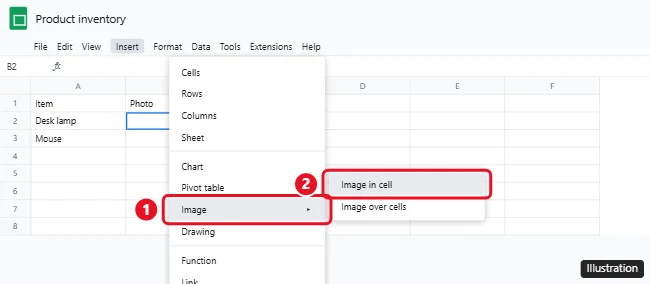
The picture shrinks to fit the cell and keeps its shape. To make it bigger, drag the row border down or the column border to the right. The image grows with the cell.
Keep in mind that a cell holding an image can’t also hold text. Put labels in the cell next to it.
Method 2: Use the IMAGE function
If the picture is already online, you can pull it into a cell with a formula. This is handy for product lists and catalogs, because you can fill a whole column at once.
- Click an empty cell.
- Type
=IMAGE("https://www.example.com/photo.jpg"), using the full address of the image, includinghttps://. - Press Enter.
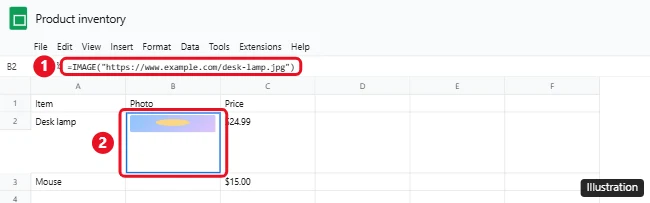
You can control the size with an optional second number, called the mode:
| Formula | What it does |
|---|---|
=IMAGE(url) or =IMAGE(url, 1) |
Fits the image inside the cell and keeps its proportions (default). |
=IMAGE(url, 2) |
Stretches or squeezes the image to fill the cell. |
=IMAGE(url, 3) |
Shows the image at its original size, which may crop it. |
=IMAGE(url, 4, 100, 150) |
Uses a custom size: 100 pixels high by 150 pixels wide. |
To reuse addresses stored in another column, point the formula at that cell, for example =IMAGE(A2), then drag the fill handle down.
Paste an image into a cell
You can also copy an image from your computer or a web page and paste it into Sheets with Ctrl + V (Cmd + V on a Mac). If the pasted picture lands over the cells instead of inside one, use the steps below to move it into a cell.
Switch an image between “in cell” and “over cells”
Images placed over cells float on top of the grid. You can drag them anywhere, but they don’t move when you sort or filter. Images in a cell stay attached to their row and column.
- To move a floating image into a cell: click the cell you want, click the image, select the three-dot More menu on the image, then choose Put image in selected cell.
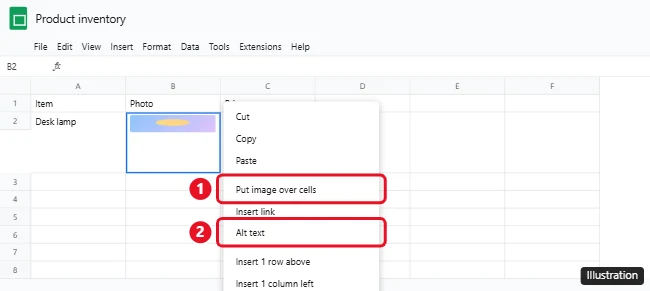
- To make an in-cell image float: right-click the cell and choose Put image over cells.
Add alt text to an image
Alt text describes the picture for screen readers. For an image in a cell, right-click it and choose Alt text. For an image over cells, click it, select More, then Alt text.
If your image won’t insert or show up
- The file is too big or the wrong type. Images need to be under 50 MB and in PNG, JPG, or GIF format. SVG files aren’t supported.
- The IMAGE formula shows nothing. Make sure the address is in quotation marks, starts with
https://, and points straight to the image file. Links to files in Google Drive (drive.google.com) don’t work in the IMAGE function. Use Insert > Image > Image in cell > Google Drive instead. - The image is tiny. In-cell images are limited to the cell’s size. Make the row taller and the column wider.
- The image moved when you sorted. It’s probably floating over the cells. Move it into a cell using the steps above.
On a phone or tablet
The Google Sheets app can add images too, but the options are more limited than on a computer. See how to insert a picture in the Google Sheets iPhone app. For full control over in-cell images and the IMAGE function, use Sheets in a web browser.
Frequently asked questions
How do I lock an image to a cell in Google Sheets?
Insert it with Image in cell, or move a floating image into a cell with Put image in selected cell. It then stays with that cell when you sort, filter, or resize.
Can I put text and an image in the same cell?
No. A cell with an image can’t hold text. Put the text in a neighboring cell or add a note to the cell.
How do I delete an image in a cell?
Click the cell and press Delete or Backspace, just like clearing any other cell.

Kermit Matthews is a freelance writer based in Philadelphia, Pennsylvania with more than a decade of experience writing technology guides. He has a Bachelor’s and Master’s degree in Computer Science and has spent much of his professional career in IT management.
He specializes in writing content about iPhones, Android devices, Microsoft Office, and many other popular applications and devices.