To make a title in Google Sheets, type it in cell A1 (insert a new row above your data first if needed with right-click row 1 > Insert 1 row above). Select A1 across to the last column of your data, click Format > Merge cells > Merge all (or the Merge button on the toolbar), then center it and make it bold and larger. To name the file itself, click Untitled spreadsheet at the top left and type a name. To print a title on every page, use File > Print > Headers & footers.
This guide covers creating a title row, formatting it, keeping it visible while scrolling, adding a printed title, naming the spreadsheet, and adding chart titles.
Step 1: Add a row for the title
- Right-click the 1 row header on the left.
- Choose Insert 1 row above.
- Click A1 and type your title, such as “2026 Monthly Sales Report.”
Step 2: Merge cells so the title spans the table
- Select from A1 across to the last column your data uses (for example, A1:E1).
- Click Format > Merge cells > Merge all, or click the Merge cells button on the toolbar.
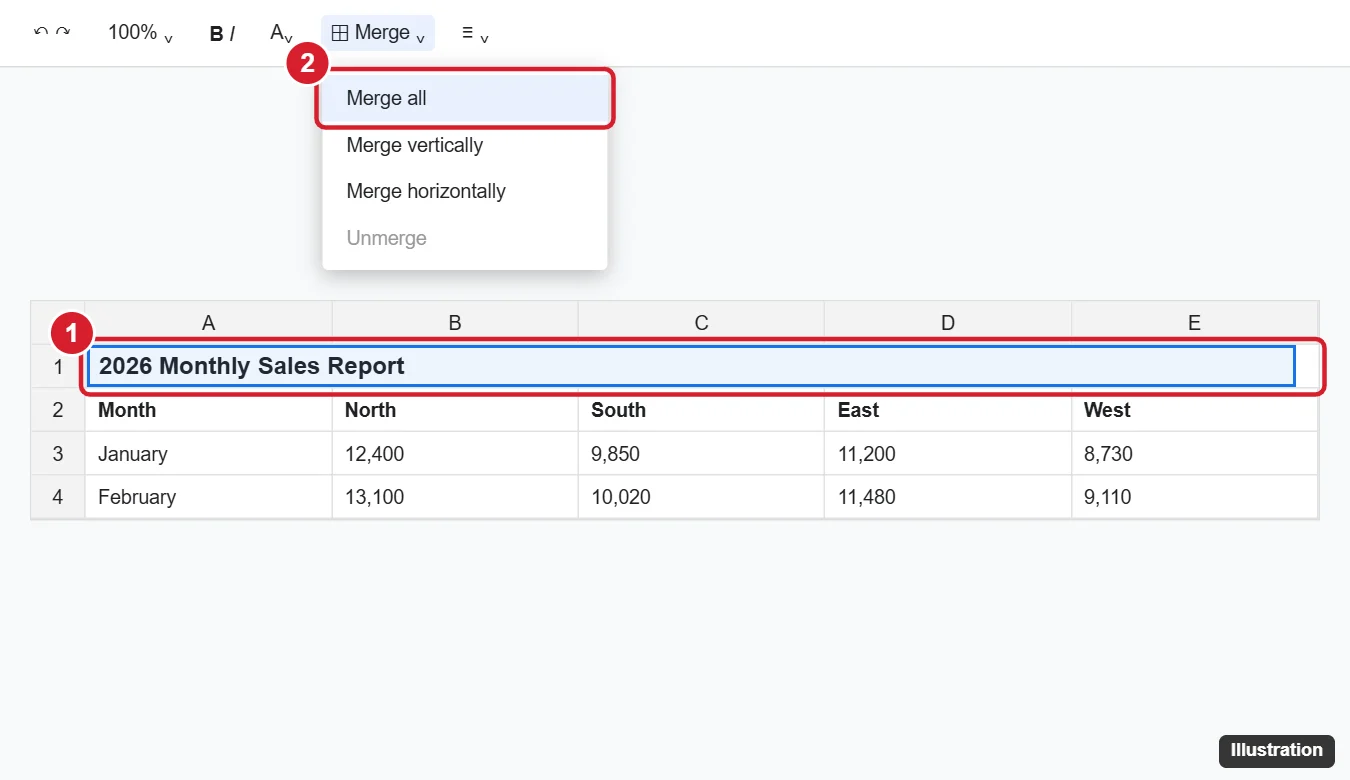
Merged cells can make sorting and filtering awkward. If you’ll sort the data, you can instead leave the title in A1 without merging and simply center it across the columns visually by making column A wide enough, or keep the title in a separate row that isn’t part of the filtered range.
Step 3: Format the title
- Center – click Horizontal align > Center.
- Size and weight – set the font size to 16–20 and click Bold (Ctrl + B).
- Color – use Fill color and Text color to make it stand out.
- Row height – drag the bottom of row 1 to make it taller, and set Vertical align to Middle.
Step 4: Keep the title visible (optional)
Click View > Freeze > 2 rows to keep the title and column headers on screen as you scroll.
Add a title that prints on every page
- Click File > Print (Ctrl + P).
- Open Headers & footers and check Workbook title or Sheet name, or click Edit custom fields to type your own header text.
- To repeat the title row itself on every printed page, freeze it first; frozen rows repeat when printing (check the Repeat frozen rows option if shown).
Name the spreadsheet file
Click the file name (Untitled spreadsheet) at the top left, type a new name, and press Enter. This is the name shown in Google Drive, which is different from a title inside the sheet.
Rename a sheet tab
Double-click the tab at the bottom (for example, Sheet1), or right-click it and choose Rename.
Add a chart title
Double-click a chart to open the Chart editor, go to Customize > Chart & axis titles, choose Chart title, and type your title.
On the mobile app
Tap a cell and type the title. Select the title cells by dragging the blue handles, then tap the Format (A) icon and use Merge cells and text options.
Frequently asked questions
How do I unmerge a title?
Select it and choose Format > Merge cells > Unmerge.
Can I center text across cells without merging?
Google Sheets doesn’t have Excel’s Center Across Selection option, so merging is the usual way.
Why can’t I sort my data after adding a title?
Merged cells in the sort range block sorting. Select only your data rows before sorting, or use a filter that starts below the title.

Kermit Matthews is a freelance writer based in Philadelphia, Pennsylvania with more than a decade of experience writing technology guides. He has a Bachelor’s and Master’s degree in Computer Science and has spent much of his professional career in IT management.
He specializes in writing content about iPhones, Android devices, Microsoft Office, and many other popular applications and devices.