Deleting a column in Google Sheets removes it completely and shifts the columns to its right over to fill the gap. You can delete one column, several at once, or only a column's contents, and you can do it on a computer or in the mobile app. This guide covers every method, the difference between deleting, clearing, and hiding, and how formulas react when a column disappears.
Quick Answer
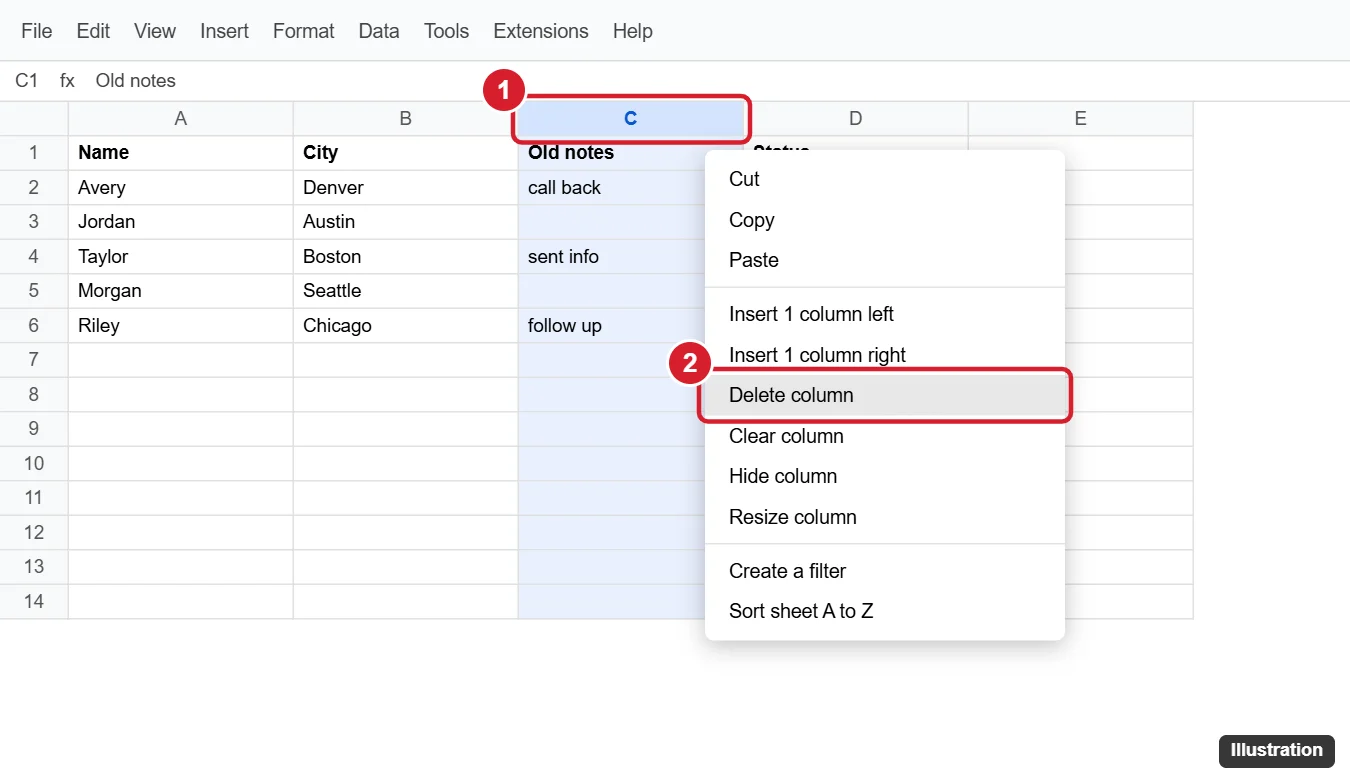
Right-click the column letter at the top of the sheet (for example, C) and choose Delete column. To delete several, select them first by dragging across the letters or holding Ctrl (Cmd on Mac), then right-click and choose Delete columns. Press Ctrl + Z to undo.
Delete, Clear, or Hide?
| Action | What happens | Use when |
|---|---|---|
| Delete column | Removes the column and shifts columns left | You no longer need the column at all |
| Clear column (or Delete key) | Empties the cells but keeps the column in place | You want to keep the layout but remove data |
| Hide column | Keeps the data but hides it from view | Formulas still need the data, or you may want it later |
Method 1: Delete a Column With the Right-Click Menu
- Open your spreadsheet in Google Sheets.
- Right-click the column letter at the top.
- Choose Delete column.
You can also right-click any cell in the column and choose Delete column (it may be under Delete or View more cell actions in newer menus).
Method 2: Use the Edit Menu
- Click any cell in the column, or click the column letter.
- Go to Edit > Delete > Column C (the letter matches your selection).
Method 3: Keyboard Shortcut
- Click a cell in the column and press Ctrl + Space to select the whole column.
- Press Ctrl + Alt + minus (Cmd + Option + minus on Mac) to delete it.
If the shortcut does not work, make sure Enable compatible spreadsheet shortcuts is not changing your keys under Help > Keyboard shortcuts.
Delete Multiple Columns
- Next to each other: click the first column letter, hold Shift, and click the last one (or drag across them). Right-click and choose Delete columns C – E.
- Not next to each other: hold Ctrl (Cmd on Mac) and click each column letter. Right-click one of them and choose Delete selected columns.
Delete a Column on Android or iPhone
- Open the spreadsheet in the Google Sheets app.
- Tap the column letter to select the column.
- Tap it again to open the menu (or tap the three-dot menu that appears).
- Tap Delete column.
To select more columns on mobile, drag the blue selection handle across the neighboring column letters before opening the menu.
Clear a Column Without Deleting It
- Select the column and press Delete or Backspace to remove the contents. Formatting stays.
- To remove formatting too, choose Format > Clear formatting (Ctrl + \).
- Or right-click the column letter and choose Clear column, if available in your menu.
Hide a Column Instead
Right-click the column letter and choose Hide column. Small arrows appear where the column was; click them to show it again. Hidden data is still included in formulas and can still be seen by collaborators who unhide it, so do not use hiding to protect private information.
How Deleting Affects Formulas
- Formulas that refer to the deleted column show a #REF! error because the referenced cells no longer exist.
- Formulas that refer to columns to the right update automatically. For example,
=E2*2becomes=D2*2after you delete column C. - Ranges that include the deleted column, such as
=SUM(B2:E2), shrink to=SUM(B2:D2).
Before deleting, you can check dependencies by searching the sheet with Ctrl + F for the column letter, or hide the column first and see whether anything breaks.
Undo or Restore a Deleted Column
- Press Ctrl + Z (Cmd + Z) right away, or click the Undo arrow in the toolbar.
- If it has been a while, use File > Version history > See version history, pick an earlier version, and either restore it or copy the column back.
Troubleshooting
Delete column is grayed out
You may have view-only or comment-only access, or the column may be in a protected range. Ask the owner for edit access or to remove protection under Data > Protect sheets and ranges.
The column came back
Another collaborator may have undone your change, or a script, form, or import may be adding it again. Check version history to see who made changes.
Charts or pivot tables broke
Update their data ranges in the chart editor or pivot table editor to point to the correct columns.
Frequently Asked Questions
What is the shortcut to delete a column in Google Sheets?
Select the column with Ctrl + Space, then press Ctrl + Alt + minus (Cmd + Option + minus on Mac).
Can I delete a column without affecting other columns?
Deleting always shifts the columns to the right. To leave everything in place, clear the column instead.
How do I delete empty columns?
Select them with Ctrl-click and delete them together. For large sheets, you can sort or filter to find empty columns first, or use an add-on from a trusted developer.
Is there a limit to how many columns I can delete?
No. You can delete any number of columns, but a sheet must keep at least one column.
Summary
- Right-click the column letter and choose Delete column.
- Select multiple columns with Shift or Ctrl before deleting.
- Use Clear to empty a column or Hide to keep its data.
- Watch for #REF! errors in formulas, and use Ctrl + Z or version history to undo.

Kermit Matthews is a freelance writer based in Philadelphia, Pennsylvania with more than a decade of experience writing technology guides. He has a Bachelor’s and Master’s degree in Computer Science and has spent much of his professional career in IT management.
He specializes in writing content about iPhones, Android devices, Microsoft Office, and many other popular applications and devices.