To turn off autocomplete in Google Sheets, select Tools > Suggestion controls and clear Enable autocomplete. Sheets then stops suggesting entries based on what’s already in the column. The same menu has separate switches for formula suggestions and corrections if those are what bother you.
The change applies only to you, not to other people editing the file. Google renamed this menu from Autocomplete to Suggestion controls, so older screenshots elsewhere may show the old name.
Quick Answer
Select Tools > Suggestion controls and uncheck Enable autocomplete.
Turn Off Autocomplete in a Browser
- Open any spreadsheet in Google Sheets.
- Select Tools in the menu bar.
- Point to Suggestion controls. (Older versions call this menu Autocomplete.)
- Select Enable autocomplete so the check mark disappears.
- Type in a column to confirm. Sheets no longer fills in earlier entries.
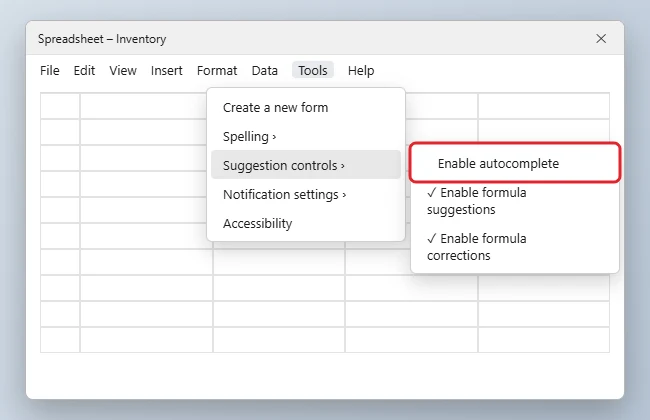
Turn Off Formula Suggestions and Corrections
- Go to Tools > Suggestion controls.
- Clear Enable formula suggestions to stop Sheets from proposing formulas as you work.
- Clear Enable formula corrections to stop it from offering fixes for formulas with errors.
Which Setting Does What?
| Setting | What it does |
|---|---|
| Enable autocomplete | Suggests text you’ve typed before in the same column |
| Enable formula suggestions | Recommends formulas based on your data |
| Enable formula corrections | Offers fixes when a formula has a mistake |
| Smart Fill | Detects patterns and offers to fill a column; it follows the Enable autocomplete setting, or press Esc to reject one suggestion |
| Formula help box | Shows argument hints while typing a function; press F1 or select the X to hide it |
Use Autocomplete Just Once, or Skip a Suggestion
- Press Delete or Backspace to remove the suggested text before pressing Enter.
- Keep typing; the suggestion disappears if what you type no longer matches.
Autocomplete is different from filling a number series. To number rows, see how to add sequential numbers in Google Sheets.
Getting a “protected cell” warning instead of suggestions? Here’s how to unlock a Google Sheet.
Troubleshooting
- Autocomplete is off but suggestions still appear: Those may be Smart Fill or a dropdown from Data validation. Check Data > Data validation for the cells.
- The setting keeps turning back on: Check it again in the file you’re using, and make sure you’re signed in to the right Google account.
- No Autocomplete option in the mobile app: The Sheets app doesn’t offer this switch. Change it on a computer.
Other Sheets settings you might want to adjust include recalculation settings and the spreadsheet language and locale.
Frequently Asked Questions
Does turning off autocomplete affect other people?
No. It only changes what you see. Collaborators keep their own setting.
Is this the same as Excel’s AutoComplete?
It works the same way, but Excel’s setting is in File > Options > Advanced.
Summary
- Select Tools > Suggestion controls.
- Uncheck Enable autocomplete.
- Turn off formula suggestions or corrections separately if needed.

Kermit Matthews is a freelance writer based in Philadelphia, Pennsylvania with more than a decade of experience writing technology guides. He has a Bachelor’s and Master’s degree in Computer Science and has spent much of his professional career in IT management.
He specializes in writing content about iPhones, Android devices, Microsoft Office, and many other popular applications and devices.