A text box in Excel 2013 can show the result of a formula by linking it to a cell. That is handy for dashboards and charts, where you want a total or label to float over the sheet and update automatically. The text box can only point to one cell, so put the actual formula in a cell first. Office 2013 reached end of support on April 11, 2023, so it no longer receives security updates.
Quick Answer
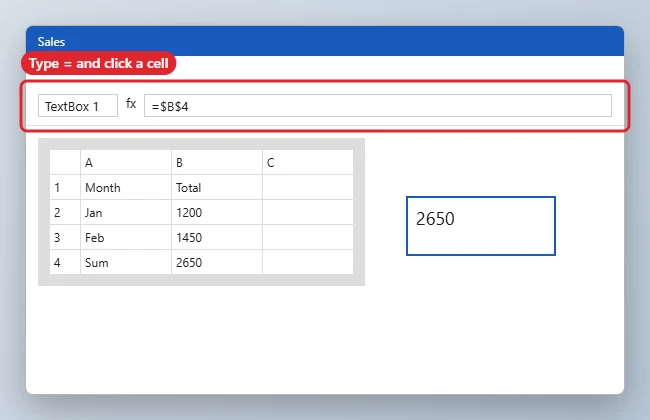
Put the formula in a cell, select the text box border, click in the formula bar, type an equals sign followed by the cell address (for example =$B$4), and press Enter.
How to Display a Formula Result in an Excel Text Box
- Enter your formula in a worksheet cell, such as =SUM(B2:B3) in B4.
- Insert a text box with Insert, Text Box, and draw it on the sheet.
- Click the text box border so the whole box is selected, not the text inside.
- Click in the formula bar, type =, then click the cell with the formula (or type its address).
- Press Enter. The text box now shows the cell’s value and updates when it changes.
Text Box Linking Rules
| Rule | Details |
|---|---|
| One cell only | You cannot type a full formula into the text box |
| Other sheets allowed | Use a reference such as =Summary!B4 |
| Formatting | The text box shows the cell’s displayed value |
| Updates | Changes as soon as the cell recalculates |
Troubleshooting
- Excel shows an error when you press Enter: the text box contains typed text. Select the border, not the inside, before typing in the formula bar.
- The number shows too many decimals: format the source cell, since the text box copies its display.
- To clean up the box’s look, see how to remove fill color from a text box in Excel 2013.
- If you cannot see the formula bar, read where the formula bar is in Excel 2013.
Frequently Asked Questions
Can I link a shape instead of a text box?
Yes. Most shapes can be linked to a cell the same way.
Can I add text before the number?
Not in the link itself. Build the full sentence in the cell with a formula such as =”Total: “&B4 and link to that cell.
Does this work in newer Excel versions?
Yes. The steps are the same in current Excel.
Summary
- Put the formula in a cell.
- Select the text box border.
- Type = and the cell address in the formula bar.
- Press Enter.

Kermit Matthews is a freelance writer based in Philadelphia, Pennsylvania with more than a decade of experience writing technology guides. He has a Bachelor’s and Master’s degree in Computer Science and has spent much of his professional career in IT management.
He specializes in writing content about iPhones, Android devices, Microsoft Office, and many other popular applications and devices.