Excel normally prints the results of your formulas, not the formulas themselves. Printing the formulas is useful for checking your work, documenting a spreadsheet, or showing a teacher or auditor how the numbers are calculated. The trick is to switch the sheet to Show Formulas mode before printing, and optionally print the row and column headings so each formula’s cell references make sense. This guide covers Excel for Microsoft 365, Excel 2021, 2019, 2016 and 2013, plus Excel for Mac.
Quick Answer
Press Ctrl + ` (the grave accent key, left of 1) or click Formulas > Show Formulas. Then go to Page Layout, check Print under Headings and Gridlines, and press Ctrl + P to print.
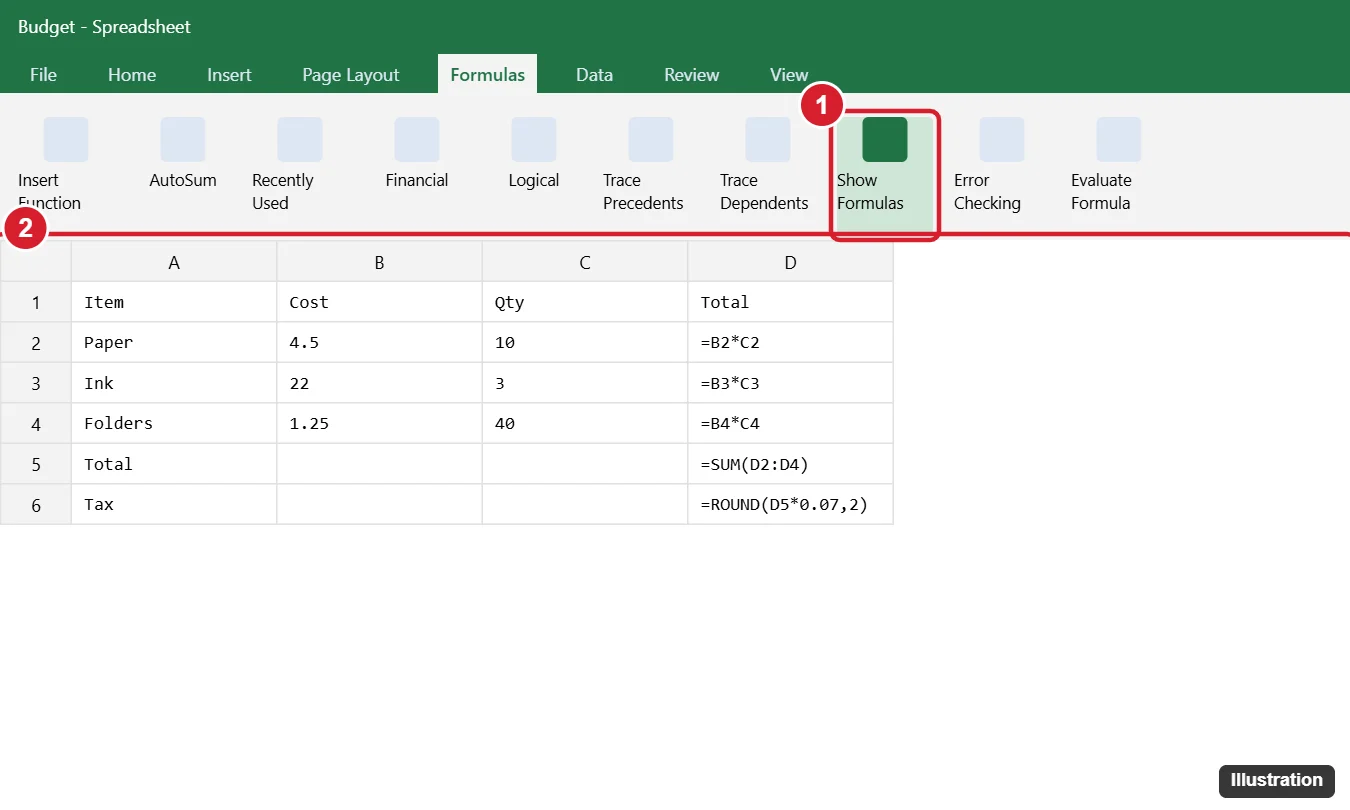
Step 1: Show Formulas Instead of Results
- Open the worksheet.
- Click the Formulas tab.
- In the Formula Auditing group, click Show Formulas.
Columns get wider so the formulas fit. The setting applies only to the current sheet, so repeat it on each sheet you want to print.
Step 2: Print Row and Column Headings
- Click the Page Layout tab.
- In the Sheet Options group, check Print under Headings. This prints the A, B, C column letters and 1, 2, 3 row numbers.
- Check Print under Gridlines so the cell boundaries are clear.
Step 3: Adjust the Page and Print
- Resize columns if some formulas are cut off: select the columns and double-click a column border.
- Go to Page Layout > Orientation > Landscape for wide sheets.
- Press Ctrl + P. Under Settings, choose Fit All Columns on One Page if needed.
- Check the preview and click Print. To create a PDF instead, choose Microsoft Print to PDF as the printer, or use File > Export.
When you’re done, press Ctrl + ` again or click Show Formulas to switch back to results.
Print Formulas and Results Side by Side
Use the FORMULATEXT function (Excel 2013 and later) to show a formula as text next to its result:
- In an empty column next to your formulas, type =FORMULATEXT(D2), where D2 contains a formula.
- Fill the formula down the column.
- Print normally. You’ll see each result and its formula on the same page.
FORMULATEXT returns #N/A for cells that don’t contain formulas; wrap it in IFERROR(FORMULATEXT(D2),””) to hide those.
Excel for Mac and the Web
- Mac: press Ctrl + ` or use Formulas > Show Formulas. Headings and Gridlines printing is on the Page Layout tab.
- Web: Excel for the web has Formulas > Show Formulas, but printing options are more limited. Download the file for full control.
Troubleshooting
- Shortcut doesn’t work: on some keyboard layouts the grave accent is elsewhere. Use the Show Formulas button instead.
- A formula still shows a result: the cell may contain a value, not a formula, or the sheet may be protected with formulas hidden. Check Review > Unprotect Sheet.
- Formulas show as text all the time: the cell may be formatted as Text. Change the format to General and re-enter the formula.
- Long formulas are cut off: widen the column, or turn on Wrap Text for those cells while Show Formulas is on.
Frequently Asked Questions
Can I print formulas for all sheets at once?
Turn on Show Formulas on each sheet, then in the Print screen choose Print Entire Workbook.
Does Show Formulas change my data?
No. It’s a display setting only.
How do I hide formulas from other people?
Format the cells as Hidden (Format Cells > Protection) and protect the sheet.
Summary
- Press Ctrl + ` or click Formulas > Show Formulas.
- Check Print for Headings and Gridlines on Page Layout.
- Adjust columns and orientation.
- Press Ctrl + P to print, then toggle back.

Kermit Matthews is a freelance writer based in Philadelphia, Pennsylvania with more than a decade of experience writing technology guides. He has a Bachelor’s and Master’s degree in Computer Science and has spent much of his professional career in IT management.
He specializes in writing content about iPhones, Android devices, Microsoft Office, and many other popular applications and devices.