To create a filter in Gmail, open Gmail in a web browser on a computer, click Show search options (the sliders icon at the right end of the search bar), enter what the emails have in common, such as the sender in From, and click Create filter. Then tick the action you want, such as Skip the Inbox (Archive it) or Apply the label, and click Create filter again. From then on, Gmail handles every new matching email for you automatically.
The quickest route is Search bar > Show search options > enter criteria > Create filter > choose actions > Create filter. Below you’ll find each step in detail, every filter action explained, search operators for more precise rules, ready-made filter examples, how to apply a filter to email you already have, how to edit, delete, export and import filters, and what to check when a filter doesn’t work.
What You Need and What This Covers
- Gmail on a computer. Google’s filter instructions are written for Gmail in a web browser on a computer (mail.google.com). The Gmail apps for Android, iPhone and iPad don’t include a filter builder, so you can’t create or edit filters there.
- A personal Gmail account or a work or school Google account. The steps are the same. On a work or school account, your administrator can limit some options, most often automatic forwarding.
- Any current browser, such as Chrome, Edge, Safari or Firefox.
Filters run on Google’s servers, not on your device. Once you create one on a computer, it works on every new email that reaches the account, whether you later read that mail in the Gmail app on your phone, in a browser, or in another mail app.
This guide reflects Gmail on the web as of October 2026. Google changes Gmail’s look from time to time, so if a button looks slightly different, look for the same label in roughly the same place.
How Gmail Filters Work
A Gmail filter is a saved rule with two halves. The first half is the criteria: a description of which emails the rule should catch, such as “from anyone at example.com” or “has the word invoice in the subject.” The second half is the action: what Gmail should do to those emails, such as label them, archive them, star them, forward them or delete them. If you’ve used Outlook, a Gmail filter is the same idea as an Outlook rule.
A few terms come up again and again:
- Label: Gmail’s version of a folder. A label is a tag, so one email can carry several labels at once. Filters often apply a label so related mail is easy to find in the left sidebar.
- Archive: removing an email from the inbox without deleting it. Archived mail stays in All Mail and in any labels it has, and search still finds it.
- Search operator: a short code you type into the search box, such as
from:orhas:attachment, that narrows a search. Filters understand the same operators as Gmail search.
The most useful thing to know is that a filter uses exactly the same matching as Gmail search. Whatever a search finds, a filter with the same criteria will catch. That’s why the best habit is to search first, check the results, and only then turn the search into a filter.
Filters act on mail as it arrives. They don’t run on a schedule and they don’t revisit old mail on their own, although you can apply a new filter to existing conversations once, at the moment you create it (covered below).
How to Create a Filter From the Search Bar
This is the main method and the one Google documents. It works for any kind of filter.
Step 1: Open Gmail on your computer
Go to mail.google.com in your browser and sign in. If you use more than one Google account, check the profile picture in the top-right corner to make sure you’re in the account the filter is for, because filters belong to one account only.
Step 2: Click Show search options
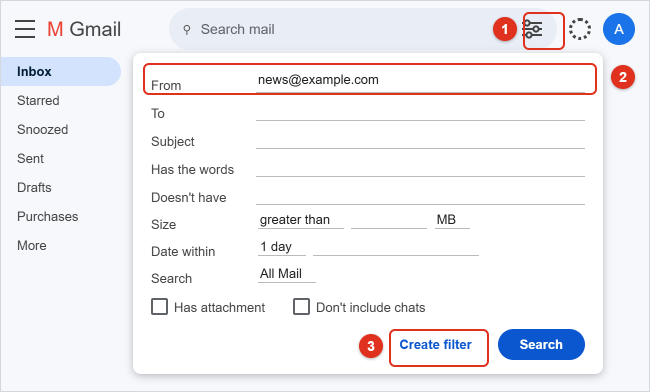
In the search bar at the top of the page, click the Show search options icon at the far right. It looks like a set of sliders. A panel opens below the search bar with fields named From, To, Subject, Has the words, Doesn’t have, Size and Date within, plus checkboxes for Has attachment and Don’t include chats.
Step 3: Enter your criteria
Fill in only the fields you need. Here is what each one matches:
- From: the sender. Type a full address (
[email protected]) or a whole domain (@example.com) to catch everyone who writes from that company. - To: the recipient. Useful if several addresses deliver to one inbox, or if you use a “plus” address such as
[email protected]when signing up for stores. - Subject: words in the subject line only.
- Has the words: words anywhere in the email, including the body. This field also accepts search operators, which makes it the most flexible box.
- Doesn’t have: words that rule an email out.
- Size: greater than or less than a size you choose, in MB, KB or bytes.
- Has attachment: only emails with a file attached.
If you fill in more than one field, an email has to match all of them. Typing several words in one box also means “all of these words.” To match any one of several words or senders, put OR between them, as explained in the search operators section. Date within only affects the search you run now; it doesn’t become part of the saved filter.
Step 4: Test the search
Click Search at the bottom of the panel. Gmail lists the emails that match. Scroll through them. If you see emails you don’t want caught, add more detail or use Doesn’t have. If expected emails are missing, loosen the criteria. When you’re happy, click Show search options again to reopen the panel with your criteria still filled in.
This test matters most when the action will delete or forward mail, because a filter works silently and you won’t see what it catches.
Step 5: Click Create filter
Click Create filter at the bottom of the search panel (not the blue Search button). The panel changes to a list of actions with checkboxes.
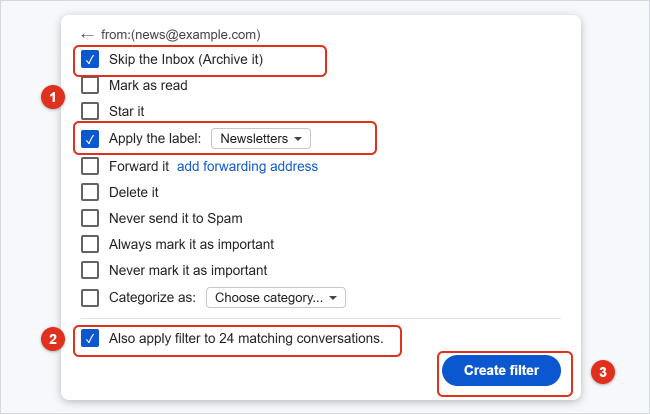
Step 6: Choose one or more actions
Tick each action you want. You can combine compatible actions, for example Skip the Inbox (Archive it), Mark as read and Apply the label together. To apply a label, tick Apply the label, open the Choose label menu and pick a label, or choose New label to create one on the spot. Each action is explained in the next section.
Step 7: Decide about existing email, then save
Below the actions, Gmail shows a checkbox that says Also apply filter to followed by the number of matching conversations. Tick it if you want the actions to happen to matching email already in your account as well as to new mail. Leave it unticked if you only want the rule to work from now on. Then click Create filter.
Gmail shows a short confirmation that your filter was created. Expected result: the next email that matches is handled automatically. If you ticked the existing-mail box, the matching conversations change straight away, for example moving out of the inbox and into the new label.
The existing-mail checkbox is offered only while you create or update a filter. If you skip it and change your mind, open the filter for editing (see Edit or delete a filter) and tick it when you save the update.
Every Filter Action Explained
The actions available in Gmail on the web are listed below, with when each is useful and what to watch for.
| Action | What it does | Good for | Watch out for |
|---|---|---|---|
| Skip the Inbox (Archive it) | Keeps the email out of the inbox. It goes to All Mail and any label you apply. | Newsletters, receipts, app notifications | Pair it with a label, or the mail is only findable by searching All Mail. |
| Mark as read | The email arrives already read, so it doesn’t add to your unread count. | Alerts you keep but rarely open | You won’t get the bold “unread” cue, so don’t use it for mail you must act on. |
| Star it | Adds a star so the email shows in Starred. | Mail from your manager or a key client | None; easy to undo by removing the star. |
| Apply the label | Tags the email with one label you choose. | Sorting by project, client, store or family member | One filter applies one label. To add two labels, create a second filter with the same criteria. |
| Forward it | Sends a copy to another address you have verified. | Sending invoices to a bookkeeper, copying mail to another account | The address must be verified first, and forwarding only affects new mail. |
| Delete it | Moves the email to Trash. | Persistent unwanted senders | Trash is emptied for good after 30 days. Test the search first. |
| Never send it to Spam | Stops Gmail’s spam checks from moving matching mail to Spam. | A trusted sender whose mail keeps landing in Spam | Keep criteria narrow, such as one exact address, so real spam can’t slip through. |
| Always mark it as important / Never mark it as important | Forces Gmail’s yellow importance marker on or off. | Priority Inbox or Important first users | Only noticeable if you use an inbox type that sorts by importance. |
| Categorize as | Places the email in an inbox tab: Primary, Social, Updates, Forums or Promotions. | Moving a sender Gmail keeps putting in the wrong tab | Only visible if inbox tabs are turned on. |
| Send template | Replies automatically with a saved template. | Answering routine requests | Templates must be turned on first (see below). |
If a filter would combine actions that make no sense together, such as Delete it with Star it, keep it simple and choose one outcome per filter. A starred email that also goes to Trash is still in Trash, so the star does nothing useful. If your inbox tabs aren’t showing, our guide to adding or removing tabs in the Gmail inbox shows where to turn them on so Categorize as has a visible effect.
Create a Filter From an Email You Already Have
When you’re looking at a message from the sender you want to filter, this is the fastest route because Gmail fills in the sender for you.
Step 1: Select or open the email
In your inbox, tick the checkbox to the left of the email. You can also open the email instead.
Step 2: Click More and choose Filter messages like these
Click More (the three vertical dots) in the toolbar above the email list, or at the top right of an open message, and choose Filter messages like these. The search options panel opens with the sender’s address already in From.
Step 3: Adjust the criteria
Add a subject word or other detail if you only want some of that sender’s emails. To cover everyone at the same company, change the address to just the domain, such as @example.com.
Step 4: Create the filter
Click Create filter, tick your actions, decide whether to apply the filter to existing conversations, and click Create filter again.
Create a Filter From Settings
This route is handy when you’re already reviewing your filter list and want to add one more.
- Click Settings (the gear icon at the top right), then See all settings.
- Click the Filters and Blocked Addresses tab.
- Click Create a new filter, below the list of existing filters.
- The same search options panel opens. Enter your criteria and continue from Step 4 above.
Search Operators for More Precise Filters
The basic boxes cover most needs, but operators let one filter do much more. Type them in Has the words, or in the search bar itself, then open Show search options and click Create filter. These operators come from Google’s search operators you can use with Gmail list:
| Operator | What it matches | Example |
|---|---|---|
OR or { } |
Any one of several terms | from:([email protected] OR [email protected]) |
- (minus) |
Excludes a term or sender | invoice -from:[email protected] |
" " |
An exact phrase | "order confirmation" |
( ) |
Groups terms together | subject:(receipt OR invoice) |
subject: |
Words in the subject line | subject:"weekly report" |
has:attachment |
Emails with an attachment | has:attachment from:@example.com |
filename: |
Attachment name or type | filename:pdf |
larger: / smaller: |
Message size | larger:10M |
list: |
Mail sent through a mailing list | list:[email protected] |
deliveredto: |
The address the mail was delivered to | deliveredto:[email protected] |
AROUND |
Two words near each other | budget AROUND 5 approval |
Three rules save a lot of frustration:
- Type OR in capital letters. That’s how every example in Google’s list is written, and lowercase “or” can be treated as an ordinary word.
- Use OR between multiple senders. If you type two addresses in From without OR, Gmail looks for an email from both at once, which never exists, so the filter catches nothing.
- Exclusions apply to messages, not whole threads. Gmail matches individual messages first, so a conversation can still be affected by a filter if just one message in it matches.
Date operators such as older_than:1y are great for cleanup searches but don’t suit filters, because a brand-new email is never older than a year when it arrives. For a one-time cleanup of old mail, see our guide on how to delete Gmail emails in bulk, which covers selecting and removing thousands of messages at once.
Ready-to-Use Filter Examples
These examples use placeholder addresses at example.com. Replace them with the real senders from your own inbox, run the search first to check the results, and then create the filter.
| Goal | Where to type it | What to type | Actions to tick |
|---|---|---|---|
| Send newsletters to a reading label | Has the words | unsubscribe -from:@yourcompany.com |
Skip the Inbox, Apply the label: Newsletters |
| Collect receipts in one place | Has the words | subject:(receipt OR "order confirmation" OR invoice) |
Apply the label: Receipts, Mark as read |
| Never miss your boss | From | [email protected] |
Star it, Always mark it as important, Never send it to Spam |
| Quiet app notifications | From | [email protected] OR [email protected] |
Skip the Inbox, Mark as read, Apply the label: Alerts |
| Sort a whole client | From | @clientexample.com |
Apply the label: Clients/Example Co |
| Track mail from a sign-up alias | To | [email protected] |
Skip the Inbox, Apply the label: Shopping |
| Find big files later | Has the words | has:attachment larger:10M |
Apply the label: Large attachments |
| Send bills to a bookkeeper | Has the words | from:@utilityexample.com subject:bill |
Forward it to a verified address, Apply the label: Bills |
A worked example. Say Alex Rivera gets about 15 store newsletters a week and wants them out of the inbox but not deleted. Alex creates a label called Newsletters, then types unsubscribe in Has the words and clicks Search. The results include a few emails from Alex’s own employer, which also contain the word in their footer, so Alex changes the criteria to unsubscribe -from:@alexworkexample.com and searches again. The list now shows only store mail. Alex clicks Show search options, then Create filter, ticks Skip the Inbox (Archive it) and Apply the label: Newsletters, ticks the box to apply the filter to the 240 matching conversations, and clicks Create filter. The inbox shrinks immediately, and future newsletters wait under the Newsletters label in the sidebar.
The word “unsubscribe” is a broad net. Banks, schools and online services sometimes include it in important mail too, which is why archiving is a safer action than deleting for this kind of filter.
Forward or Auto-Reply With a Filter
Forward only certain emails
Gmail won’t let a filter forward to an address until that address is verified. Google’s automatic forwarding help page describes the process:
- Click Settings > See all settings > Forwarding and POP/IMAP.
- Click Add a forwarding address, enter the address, and click Next, Proceed and OK.
- Gmail sends a verification email to that address. Open it in the other mailbox and click the verification link.
- Return to Gmail and refresh the page. You don’t need to turn on Forward a copy of incoming mail to, because that would forward everything. Leave it off to forward only what your filter catches.
- Create your filter, tick Forward it, choose the verified address, and click Create filter.
A forwarding filter only forwards new mail. The existing-mail checkbox applies the other actions but doesn’t forward old messages, so forward those by hand. To forward to several addresses, Google says to create a separate filter for each one. On a work or school account, if Forward it or the forwarding tab is missing, your administrator has probably turned off automatic forwarding.
For a week after you set up forwarding, Gmail shows a notice at the top of your inbox. If you ever see that notice without having set up forwarding yourself, change your password and check the forwarding settings right away, because a forwarding filter is a common way for someone who got into an account to keep receiving copies of your mail.
Send an automatic reply to certain emails
Gmail’s vacation responder replies to everyone. To reply only to certain emails, combine a template with a filter. Google’s template help page lists these steps:
- Click Settings > See all settings > Advanced. Next to Templates, click Enable, then Save Changes.
- Compose a new email with your reply text. Click More options (three dots) at the bottom of the compose window, choose Templates > Save draft as template > Save as new template, and name it.
- Create a filter with your criteria, tick Send template, choose the template, and click Create filter.
Templates can only be turned on and used in Gmail on a computer. If you want a reply to everyone while you’re away instead, see how to set a vacation response in Gmail.
Edit or Delete a Filter
All your filters live on one settings page.
Step 1: Open Filters and Blocked Addresses
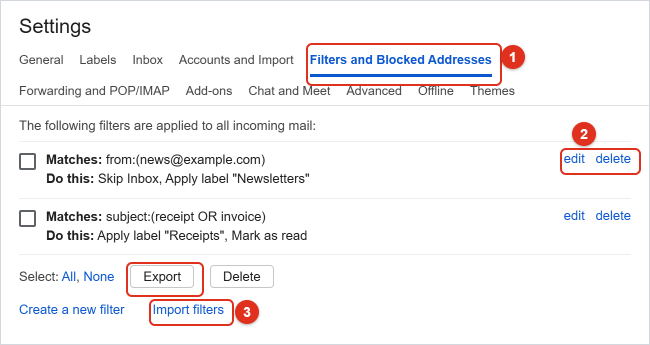
Click Settings (gear icon) > See all settings, then the Filters and Blocked Addresses tab. Each filter is listed with its criteria on the left (for example, “Matches: from:([email protected])”) and its actions next to it (“Do this: Skip Inbox, Apply label”).
Step 2: Edit a filter
Click edit next to the filter. Change the criteria, click Continue, adjust the actions, and click Update filter. You can tick the existing-mail checkbox here to apply the updated rule to matching email already in your account.
Step 3: Delete a filter
Click delete next to the filter and confirm with OK. To remove several at once, tick their checkboxes and click Delete below the list.
Deleting a filter doesn’t undo what it already did. Emails it labeled keep the label, archived emails stay out of the inbox, and deleted emails stay in Trash until Gmail empties it after 30 days. To reverse a filter’s work, search for the affected mail (for example, label:newsletters), select it, and move it back to the inbox or remove the label. To recover emails a filter sent to Trash, open Trash, select them and use Move to, as described in Google’s recover deleted Gmail messages page.
Blocked addresses share this page
The same tab lists senders you’ve blocked from a message’s More menu. Blocking sends that sender’s future mail to Spam. It’s quicker than a filter for a single sender, while a filter gives you more choices, such as deleting or labeling. To undo a block, tick the address and click Unblock selected addresses.
Export and Import Filters
Exporting saves your filters as an .xml file, which works as a backup and as a way to copy the same rules into another Gmail account.
Export
- Go to Settings > See all settings > Filters and Blocked Addresses.
- Tick the checkbox next to each filter you want, or use Select: All.
- Click Export below the list. Your browser downloads an .xml file.
Google notes you can edit this file in a text editor. That’s useful if you need many near-identical filters: copy one entry, change the address, and import the result. Keep a backup copy of the original first.
Import
- Sign in to the account that should receive the filters and open Filters and Blocked Addresses.
- Click Import filters below the list.
- Choose the .xml file and click Open file.
- Gmail lists the filters in the file. Tick the ones you want, decide whether to apply them to existing email, and click Create filters.
Filters that apply labels need those labels in the new account. If a label is missing, create it first. You can also create labels from the Labels area of the left sidebar, as described in Google’s create labels to organize Gmail page. A filter that forwards mail also needs the forwarding address verified again in the new account.
Filters on Android, iPhone and iPad
The Gmail app on Android, iPhone and iPad doesn’t let you create, edit or view filters. Google’s filter instructions only cover Gmail on a computer. The good news is that filters still work for mail you read on your phone, because Gmail applies them on its servers before the email reaches any device. A filter that labels and archives newsletters means you’ll find them under that label in the app, not in the inbox.
If you’re away from a computer, the reliable option is to make a note of the sender and set up the filter later. Some people open mail.google.com in a phone browser and request the desktop site, but Google doesn’t document filter creation that way and it can be awkward on a small screen. Apple’s Mail app has its own separate features and doesn’t change your Gmail filters.
Troubleshooting
The filter doesn’t catch an email it should
- Test the criteria as a search. Copy the filter’s “Matches” text from the settings page into the search bar. If the search doesn’t find the email, the filter can’t either. Adjust until it does.
- Check OR. Multiple senders or words need
ORin capitals between them, ideally inside parentheses:from:([email protected] OR [email protected]). - Check the exact sender address. Many companies send from several addresses, such as news@ and offers@. Using just the domain (
@example.com) is often more reliable. - Look at replies. Google notes that when someone replies to a message you’ve filtered, the reply is only filtered if it also meets the criteria. A changed subject line can break a subject-based filter.
- Remember filters only act on arrival. Older mail isn’t touched unless you ticked the existing-mail checkbox when creating or updating the filter.
Emails seem to disappear
A filter with Skip the Inbox or Delete it is usually the cause. Open Filters and Blocked Addresses and read the “Do this” part of each filter. Then look in All Mail, the label the filter applies, Trash and Spam. Searching in:anywhere plus a word from the email searches all of them at once. Filters that overlap can also act together, so if one filter stars an email and another archives it, the email leaves the inbox. Merge overlapping filters into one where you can.
Create filter does nothing, or a filter catches far too much
Make sure at least one criteria field is filled in before clicking Create filter. A filter catching too much usually has a very common word in Has the words, or a broad domain such as @gmail.com in From, which would include all your friends. Narrow it with an exact address, a subject word or a - exclusion.
Forward it is greyed out or missing
Add and verify the forwarding address first (see Forward only certain emails). On a work or school account, an administrator may have disabled automatic forwarding, and only they can change that.
You can’t find the filter settings on your phone
They aren’t in the Gmail app. Use Gmail in a browser on a computer.
There’s a limit to how many filters you can have
Google’s developer documentation for Gmail filters states a maximum of 1,000 filters per account. Few people get close, but if you have many one-sender filters, combine them with OR or domain-wide criteria to keep the list manageable.
Frequently Asked Questions
Can I create Gmail filters in the Gmail app on my phone?
No. The Gmail apps for Android, iPhone and iPad don’t include filter settings. Create filters in Gmail in a browser on a computer. Filters you create there still apply to new mail you read on your phone.
Do Gmail filters work on emails I already have?
Only if you ask them to. When you create or update a filter, tick the Also apply filter to matching conversations checkbox before clicking Create filter or Update filter. Forwarding is the exception: a forwarding filter only forwards new messages.
How do I make Gmail move emails to a folder automatically?
Gmail uses labels instead of folders. Create a filter, tick Apply the label and choose a label, and also tick Skip the Inbox (Archive it). Matching emails then appear only under that label in the left sidebar, which works like a folder.
How do I filter emails from more than one sender?
Type the addresses in From with OR in capitals between them, such as [email protected] OR [email protected]. To catch everyone at one company, type only the domain, such as @example.com.
What’s the difference between blocking a sender and filtering them?
Blocking sends a sender’s future email to Spam and takes two clicks from the message’s More menu. A filter lets you choose exactly what happens, such as delete, archive or label, and can match much more than one address. Both appear on the Filters and Blocked Addresses settings tab.
Does deleting a filter bring back emails it deleted?
No. Deleting a filter only stops it from acting on future mail. Emails it already moved to Trash can be recovered from Trash for up to 30 days, after which Gmail permanently deletes them.
Can a filter apply two labels to the same email?
Not in one filter, because Apply the label takes a single label. Create a second filter with the same criteria and a different label, and both labels are applied.
Can I copy my filters to another Gmail account?
Yes. Export them from Filters and Blocked Addresses as an .xml file, then sign in to the other account and use Import filters on the same tab. Create any needed labels and verify forwarding addresses in the new account.
Next Step
Start with two or three filters for the mail you sort by hand most often, such as newsletters, receipts and app alerts. Search first, check the results, then create the filter and apply it to existing mail. After a week, open Filters and Blocked Addresses, read what each filter does, and adjust any that catch too much or too little. For the full official reference, see Google’s Create rules to filter your emails page.

Kermit Matthews is a freelance writer based in Philadelphia, Pennsylvania with more than a decade of experience writing technology guides. He has a Bachelor’s and Master’s degree in Computer Science and has spent much of his professional career in IT management.
He specializes in writing content about iPhones, Android devices, Microsoft Office, and many other popular applications and devices.