Game invites popping up mid-task, or friend requests from people you don’t know, usually trace back to Game Center. On current versions of iOS there is no single “Allow Invites” switch anymore. Instead, open Settings > Game Center and turn off Nearby Players, then manage Friend Requests. To block multiplayer invites and new friends completely, use the Game Center limits in Screen Time. This applies to iPhone; iPad settings are similar.
Which setting stops which invite
Invites reach you through a few different routes, so the right fix depends on where they come from. Use this table to pick the setting before you start changing things.
| What is bothering you | Setting to change | Where it is |
|---|---|---|
| Invites from strangers playing the same game near you | Nearby Players | Settings > Game Center |
| Friend requests from people you don’t know | Friend Requests, Help Friends Find You | Settings > Game Center |
| One friend who keeps sending invites | Remove Friend or Report Friend | Games app > your avatar > All Friends |
| A child getting multiplayer invites or adding friends | Multiplayer Games, Adding Friends and related limits | Settings > Screen Time > Content & Privacy Restrictions |
| Invite banners and sounds | Allow Notifications | Settings > Notifications |
| Everything Game Center related | Sign Out | Settings > Game Center |
Apple does not document a switch that blocks invites from friends while keeping them on your list. If an existing friend is the problem, removing that friend or using the Screen Time limits are the documented options.
Turn off invites from nearby players
The Nearby Players setting lets Game Center players who are close by, and playing the same game, invite you to a multiplayer match over Wi-Fi or Bluetooth. This is the closest thing to the old invite switch and the first one to turn off.
- Open the Settings app.
- Tap Game Center. If you don’t see it, swipe down on the main Settings screen and type “Game Center” in the search field.
- Turn off Nearby Players.
Apple describes this switch as covering Game Center players near you in the same game, so it is not a way to stop invites from people already on your friends list. To allow local multiplayer again (for example, playing with someone in the same room), turn Nearby Players back on.
Limit friend requests and who can find you
Fewer friends means fewer people who can invite you. The same Settings > Game Center screen has several options that control who reaches you:
- Friend Requests: shows pending requests so you can accept or decline each one. You can also answer requests in the Games app (tap your avatar, then Friend Requests).
- Help Friends Find You: lets people who have the email address or phone number tied to your Apple Account find you. Turn it off if strangers keep sending requests.
- Share Friends List: controls whether your friends list is shared.
- All Friends: lists everyone you are connected with, so you can review who can still invite you.
- Activity sharing: choose Everyone, Friends Only or Only You to set who sees your profile, achievement progress, leaderboard updates and recently played games.
A practical setup for someone who only wants to play with a few known people: turn off Help Friends Find You, set activity sharing to Friends Only, and decline any request from a name you don’t recognize.
Remove or report someone who keeps inviting you
When one person is the source of most invites, removing them is quicker than changing every setting. Apple’s friends page for the Games app lists these steps:
- Open the Games app and tap your avatar.
- Tap All Friends, then tap the friend’s name.
- Tap Remove Friend. If the invites or messages are abusive or spam, tap Report Friend instead.
Apple doesn’t say whether a removed friend can find you again, so if you want to stay hard to reach, also turn off Help Friends Find You.
Block multiplayer invites with Screen Time
For a child’s iPhone, or for anyone who wants a firm block, the Game Center limits in Screen Time are the strongest option. They sit behind the Screen Time passcode, so a child can’t just switch them back. If you haven’t created one yet, see how to set a Screen Time passcode first, because without it anyone holding the phone can undo these limits.
- Open Settings and tap Screen Time.
- Tap Content & Privacy Restrictions and turn it on.
- Tap App Store, Media, Web & Games.
- Scroll down to the Game Center section.
- Tap Multiplayer Games and choose the option that blocks it. Repeat for Adding Friends.
If you manage the child’s iPhone through Family Sharing, Apple’s parental controls page describes doing this from your own iPhone instead: open Settings, tap Family, tap your child’s name, tap Apps & Websites, tap Restrictions, then scroll to the Game Center section and set each option to Allowed or Blocked.
The Game Center section has other limits you may want for a younger player:
- Connect with Friends: connecting with friends through Game Center.
- Nearby Multiplayer: local multiplayer with people close by.
- Private Messaging: messages between players.
- Screen Recording, Profile Privacy Changes and Avatar & Nickname Changes: these don’t affect invites, but stop a child from undoing the privacy setup or recording gameplay.
Apple lists all of these on its game-related settings page for iPhone. If you later want to lift every limit at once, you can turn off restrictions in Screen Time. Forgot the code? The explainer on what a restrictions passcode is includes what to do if you forgot it.
Silence Game Center notifications
If you still want invites but not the interruptions, change notifications instead. Open Settings > Notifications, look for Game Center (or the specific game) in the app list, tap it and turn off Allow Notifications. Apple’s notification settings page explains the per-app options. The same screen is where you can turn off App Store notifications if those bother you too.
For a quiet stretch, such as a meeting or bedtime, a Focus works without changing any game settings. Turning on Do Not Disturb on iPhone holds banners until you turn it off.
Sign out of Game Center as a last resort
Game Center is part of iOS and can’t be deleted. If you don’t use it at all, go to Settings > Game Center and tap Sign Out. While you are signed out, Game Center can’t deliver invites or friend requests. Apple’s settings page doesn’t describe what happens to game progress, and some games keep their own saves, so sign back in from the same screen if a game stops showing your progress.
Other ways game invites reach you
Some invites never pass through the Game Center settings above:
- Challenges and SharePlay: friends can send challenges from the Games app or start a game during a FaceTime call. These are described on Apple’s play with friends page.
- AirDrop: someone nearby can send a multiplayer invite with AirDrop. Limiting who can find you with AirDrop helps; the steps to change AirDrop settings on iPhone show where that option is.
- Messages: games played inside a Messages conversation are separate from Game Center. See how iMessage games on iPhone work if those are the invites you’re getting.
- In-game invites: a game may send its own invites through its own account system. Check that game’s settings, since the Game Center switches may not cover it.
If you have an older iPhone or iOS version
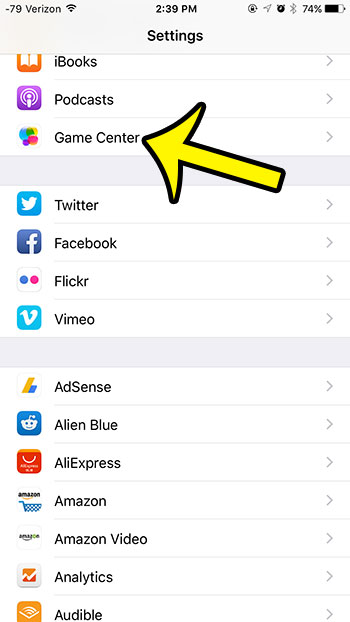
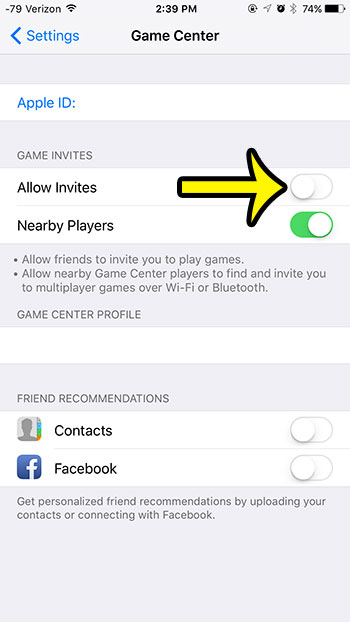
Very old versions of iOS, such as iOS 9, had a separate Game Center app and an Allow Invites switch in a Game Invites section. Later versions dropped the separate Game Center app, and that switch no longer exists. The screenshots below show the old layout, so you can recognize it on a phone that was never updated:
- Tap the Settings icon.

Older iOS version shown; current screens look different. - Scroll down and tap Game Center.
Older iOS version shown; current screens look different. - Turn off Allow Invites under Game Invites. The switch is off when it sits to the left with no green shading.
Older iOS version shown; current screens look different.
On older versions without Screen Time, the parental limits lived in Settings > General > Restrictions, with a Game Center section near the bottom.
Game Center questions
Why do I still get invites after turning off Nearby Players?
Nearby Players only covers people close to you in the same game. Friends on your list, Challenges in the Games app, SharePlay and a game’s own invite system are separate. Remove the friend, use the Screen Time Multiplayer Games limit, or check the game’s settings.
Will the other person know I removed them?
Apple’s documentation doesn’t say that a removed friend is notified. Turning off Help Friends Find You makes it harder for them to find you again.
Do the Screen Time limits affect games that don’t use Game Center?
The Game Center limits apply to Game Center features. A game that runs multiplayer through its own account may need its own parental settings as well.
How do I start getting invites again?
Reverse the change you made: turn Nearby Players back on, allow Multiplayer Games and Adding Friends in Screen Time, turn notifications back on, or sign back in to Game Center from Settings.
Start with Nearby Players and Friend Requests; most people never need to go further than that.

Kermit Matthews runs Live2Tech from just outside Philadelphia. He is an IT specialist with over 20 years of experience, from a university help desk to small-business IT, IT management and his own consulting practice, and has written tech guides full time since 2020. Steps are checked against the current software on a real device or the maker’s official documentation. More about Kermit.