AirDrop receiving on an iPhone is turned on from Control Center, where you pick Contacts Only or Everyone for 10 Minutes. When those 10 minutes end, the iPhone drops back to Contacts Only if you are signed in to your Apple Account, or to Receiving Off if you are not.
AirDrop works between Apple devices (iPhone, iPad and Mac). Wi-Fi and Bluetooth both need to be on.
What do you want AirDrop to do?
| You want to | Choose | Read |
|---|---|---|
| Receive from someone nearby who is not in your contacts | Everyone for 10 Minutes | People who are not in your contacts |
| Receive only from people you know | Contacts Only | What each choice lets people do |
| Stop receiving AirDrop requests | Receiving Off (if listed) | AirDrop on iPhone questions |
| Fix an iPhone that never shows up for the sender | Check the basics first | When AirDrop does not appear |
Open the AirDrop choices
Apple documents the receiving choices in Control Center. Before you start, turn on Wi-Fi and Bluetooth, and disconnect Personal Hotspot if it is on.
- Open Control Center. If you are not sure of the gesture on your model, opening Control Center on iPhone shows each one.
- Touch and hold the top-left group of controls (Apple calls them the connectivity controls).
- Tap the AirDrop button.
- Tap Contacts Only or Everyone for 10 Minutes.
Close Control Center and keep the iPhone near the sender. Apple says the two devices should be within 30 feet (10 meters) of each other. These steps follow Apple’s AirDrop page in the iPhone User Guide.
Apple adds a note that Contacts Only and Everyone for 10 Minutes are only available on devices that meet AirDrop’s minimum system requirements, so a very old iPhone may not show both.
What each choice lets people do
| Choice | Who can send to you | Good for |
|---|---|---|
| Receiving Off | No one | Crowded places, or when you never use AirDrop |
| Contacts Only | People in your contacts, as long as the contact card you saved for them includes their phone number or Apple Account email | Everyday use with family and friends |
| Everyone for 10 Minutes | Any nearby Apple device, for 10 minutes (with iOS 26.2 or later, people not in your contacts also need an AirDrop code) | A one-off transfer from a coworker or a stranger |
Contacts Only is the choice that most often seems “broken.” Apple’s rule: the sender must be in your contacts, and the card you saved for them must include the phone number or Apple Account email they use. If either is missing, your iPhone stays invisible to that person. Setting AirDrop to Contacts Only on iPhone goes deeper into the contact-card part.
What happens when the 10 minutes end
Everyone for 10 Minutes is temporary by design. Apple’s support article says that in iOS 16.2 and later the setting changes after 10 minutes:
- If you are signed in to your Apple Account, it reverts to Contacts Only.
- If you are not signed in, it reverts to Receiving Off.
If a sender is still waiting after the window closes, open the AirDrop choices again and pick Everyone for 10 Minutes once more. Apple’s AirDrop help for iPhone and iPad has the full wording.
Settings that sit next to AirDrop
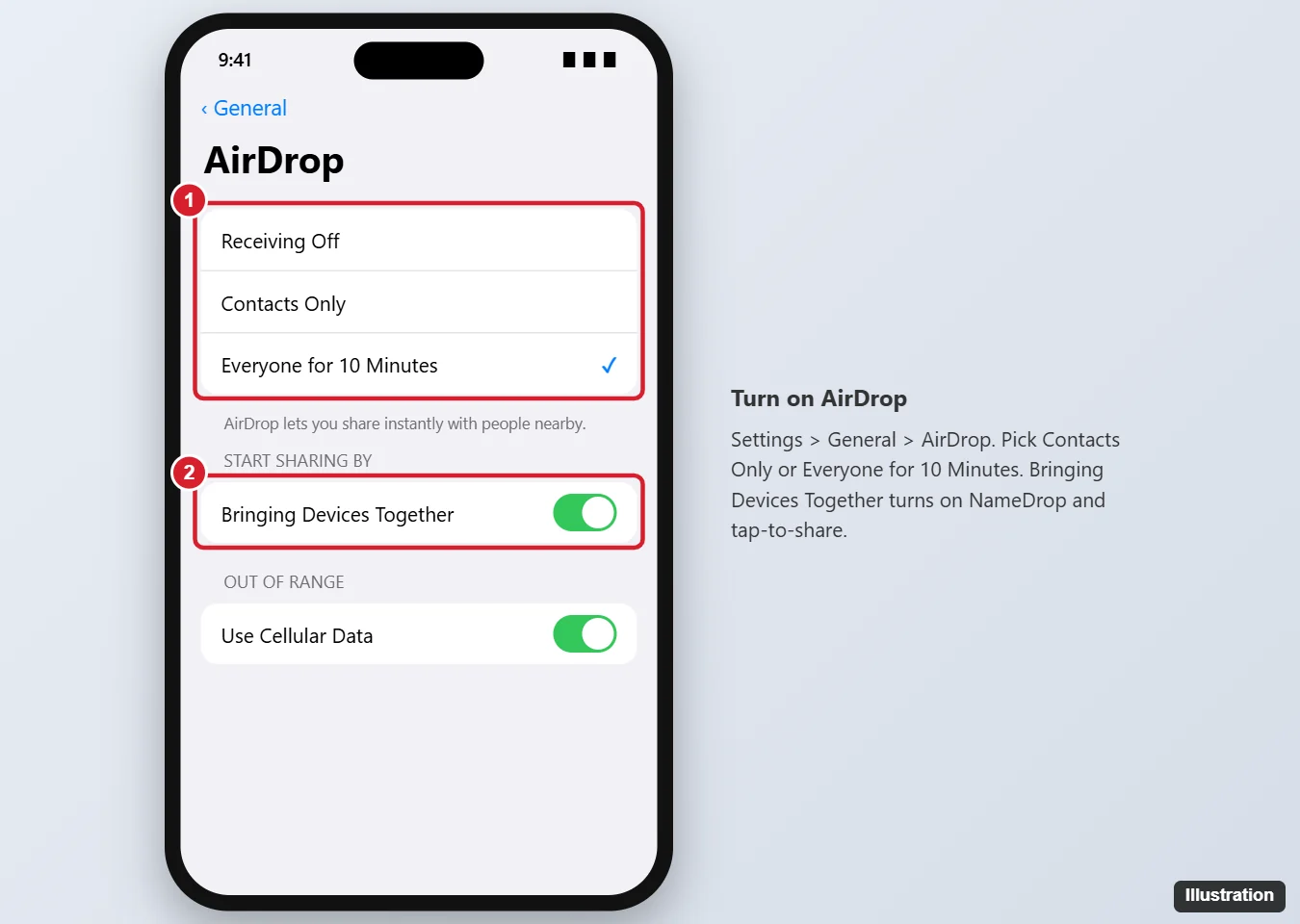
Settings > General > AirDrop holds a few related switches. Apple documents two of them:
- Use Cellular Data: if you move out of Bluetooth or Wi-Fi range after a transfer has started, Apple says the transfer continues over the internet. Turn this switch off if you would rather it did not use cellular data, since cellular data charges may apply.
- Bring Devices Together: controls NameDrop and the other hold-your-phones-together features. NameDrop is on by default; turning this switch off stops it. Sharing contact info with NameDrop covers how that works.
The illustration below is a drawing of that Settings screen, not a screenshot. Apple’s own pages describe choosing who can send to you in Control Center, and they spell the NameDrop switch Bring Devices Together.
Holding devices together also works for sharing files: Apple says that if both devices are on iOS 17 or later, you can try holding them together to share by AirDrop.
People who are not in your contacts
For someone who is not in your contacts, set your iPhone to Everyone for 10 Minutes and ask them to send. Newer versions add one more step. Apple says that with iOS 26.2, iPadOS 26.2, macOS 26.2 or later, a sender who is not in your contacts must use an AirDrop code:
- When the request arrives and you want the item, select Continue. An AirDrop code appears on your device.
- Tap Get AirDrop Code and share the code with the sender.
- After that, the two of you can keep sharing for 30 days without a new code. Apple adds the person to the Other Known list in your contacts for that period.
To end that early, open the Contacts app, find the sender in your Other Known list and select Forget This Person.
When AirDrop does not appear
Work through Apple’s checks:
- Wi-Fi and Bluetooth are on for both devices.
- Personal Hotspot is off on both. Turning off Personal Hotspot on iPhone shows where the switch is.
- Both devices are an iPhone, iPad or Mac, within about 30 feet (10 meters).
- The receiving device is set to Contacts Only or Everyone (and, for Contacts Only, the contact-card rule above is met).
- If a VPN is on, make sure its configuration does not block local networking; Apple notes a VPN may interfere with some Continuity features.
- Restart the device and try again.
If AirDrop is missing from Control Center altogether, check Screen Time. Apple’s path is Settings > Screen Time > Content & Privacy Restrictions > Other Features, where AirDrop can be allowed or blocked.
To send, open the item, tap the Share button, tap AirDrop, then tap the person under People; they tap Accept on their device.
Once a transfer arrives, tap Accept. Apple says most items are saved in the app they were sent from, and some are saved in the Files app. Items sent between your own devices signed in to the same Apple Account are accepted and saved automatically.
AirDrop on iPhone questions
How do I turn AirDrop off again?
Open the same AirDrop choices in Control Center and choose Receiving Off if it is listed. Apple’s pages name Receiving Off as the state AirDrop falls back to when you are not signed in.
Can I AirDrop between my iPhone and my Mac?
Yes, AirDrop covers iPhone, iPad and Mac. On the Mac side, adding AirDrop to Favorites in Finder keeps it one click away.
Related guides
- Turn off Handoff on iPhone, a separate Continuity setting from AirDrop.
- Rearrange controls in iPhone Control Center, if you want the connectivity group easier to reach.

Kermit Matthews runs Live2Tech from just outside Philadelphia. He is an IT specialist with over 20 years of experience, from a university help desk to small-business IT, IT management and his own consulting practice, and has written tech guides full time since 2020. Steps are checked against the current software on a real device or the maker’s official documentation. More about Kermit.