Seeing a Safari, Mail or Notes icon from your Mac or iPad pop up at the bottom of the iPhone App Switcher? That is Handoff offering to continue what you were doing on the other device. To stop it on the iPhone, go to Settings > General > AirPlay & Continuity and turn off Handoff, then repeat the change on any other device where you want it gone.
Turn off Handoff on your iPhone
Handoff is on by default, according to Apple. These steps are for current versions of iOS; older labels are listed further down.
- Open the Settings app.
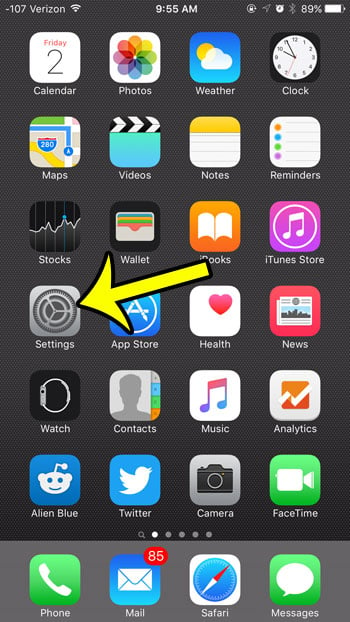
- Tap General.

- Tap AirPlay & Continuity. On some earlier versions this row is called AirPlay & Handoff.
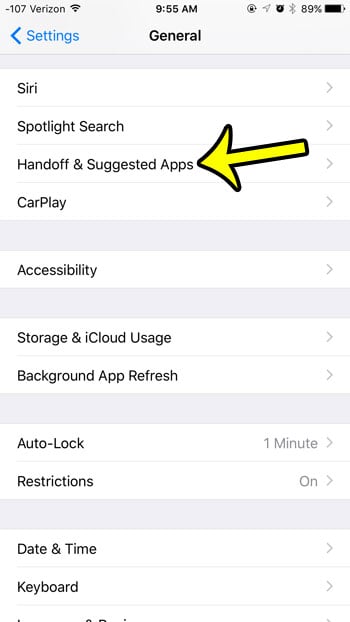
- Turn off the Handoff switch.

There is no confirmation message and no restart needed. To turn Handoff back on later, return to the same screen and turn the switch on again.
Stop it on your Mac, iPad and Apple Watch
Apple’s instructions say Handoff has to be turned on on each device you want to use it with. Turning it off on the iPhone is usually enough to stop the iPhone from offering or receiving activities, but if you want the feature gone everywhere, switch it off on each device:
- iPad: Settings > General > AirPlay & Continuity, then turn off Handoff.
- Mac (macOS Ventura and later): choose Apple menu > System Settings, click General in the sidebar, click AirDrop & Continuity (or AirDrop & Handoff on some versions), then turn off Allow Handoff between this Mac and your iCloud devices. You may need to scroll to find it.
- Mac (macOS 12.5 or earlier): Apple menu > System Preferences > General, then deselect Allow Handoff between this Mac and your iCloud devices.
- Apple Watch: on the iPhone, open the Apple Watch app, go to My Watch > General, and turn off Enable Handoff.
The Mac steps match Apple’s Mac User Guide page on handing off tasks between devices.
What turning Handoff off changes
Apple’s iPhone User Guide page on Handoff describes it as a way to start something on one device and pick it up on another nearby device signed in to the same Apple Account. It works with Mail, Safari, Maps, Calendar, Contacts, FaceTime, Reminders, Keynote, Pages, Numbers and many third-party apps. With Handoff off on the iPhone:
- Activities from your Mac or iPad no longer appear at the bottom of the iPhone App Switcher.
- Activities started on the iPhone are no longer offered in the Dock of your Mac or iPad.
- Universal Clipboard stops working. Apple says copy on one device and paste on another needs Handoff turned on on each device, so if you rely on copying text between your Mac and iPhone, you lose that as well.
A common reason to turn it off is a shared device: if a family Mac or iPad is signed in to the same Apple Account, others using it could see what you have open on your iPhone. Turning off Handoff on the shared device keeps those prompts from appearing there.
What stays on
Handoff is only one Continuity feature, and turning it off doesn’t touch the others:
- Phone calls on a Mac or iPad. These use a separate setting: Settings > Apps > Phone > Calls on Other Devices. To change it, see how to turn on Calls on Other Devices, or how to stop receiving iPhone calls on your Mac.
- AirDrop. AirDrop has its own controls, covered in how to turn on AirDrop on iPhone.
- Your Apple Account and iCloud. Handoff being off doesn’t sign you out or stop iCloud syncing. For account setup, see how to sign in and set up iCloud on iPhone or iPad.
Check that it worked
- Open Safari on your Mac or iPad and load any web page.
- On the iPhone, open the App Switcher (swipe up from the bottom and pause, or double-click the Home button on iPhones that have one).
- Look at the bottom of the screen. With Handoff off, the Safari banner from the other device should no longer appear there.
If an activity still appears, check the switch on the other device as well. When you later want Handoff back, Apple lists what it needs: Handoff on for each device, the same Apple Account on each, Wi-Fi and Bluetooth turned on, and (per Apple’s iPhone guide) no VPN setting that blocks local networking.
Older iOS versions and a different “iPhone Handoff”
On older iOS versions the switch sat under different names. Apple’s support article on Continuity requirements mentions AirPlay & Handoff as an alternative label, and very old versions such as iOS 9 listed the switch under General > Handoff & Suggested Apps, as the images above show. That iOS 9 screen also had an Installed Apps switch under Suggested Apps for app suggestions on the Lock Screen and in the App Switcher; Apple’s current Handoff instructions don’t mention it.
Don’t confuse Handoff with iPhone Handoff, a separate feature Apple describes for iOS 27 and later that lets two iPhones use one phone number through an eSIM from a supported carrier. It is set up through cellular settings, and Apple’s iPhone Handoff article explains the requirements. The Handoff switch in AirPlay & Continuity has nothing to do with it.
Handoff on/off questions
Does turning off Handoff on the iPhone also turn it off on my Mac?
No. Each device has its own switch, and changing one doesn’t change the others.
Will I lose anything I was working on?
No. Handoff only offers to open the same activity on another device. Your documents, web pages and messages stay where they were.
Does Handoff work without Bluetooth?
Apple lists both Wi-Fi and Bluetooth as requirements, so turning Bluetooth off on either device is another way to stop it, though that also disconnects headphones and other accessories.
Once Handoff is set the way you want, the App Switcher should only show apps from the iPhone itself. As a side note, if your iPhone is also your morning wake-up call, here is how to create and edit alarms on the iPhone.

Kermit Matthews runs Live2Tech from just outside Philadelphia. He is an IT specialist with over 20 years of experience, from a university help desk to small-business IT, IT management and his own consulting practice, and has written tech guides full time since 2020. Steps are checked against the current software on a real device or the maker’s official documentation. More about Kermit.