To turn on Stolen Device Protection, go to Settings > Face ID & Passcode (or Touch ID & Passcode on an iPhone with a Home button), enter your passcode, scroll down, tap Stolen Device Protection, and turn the switch on. Then choose when the extra protection applies under Require Security Delay: Away from Familiar Locations (the default) or Always. Your iPhone needs iOS 17.3 or later, a passcode, Face ID or Touch ID, two-factor authentication for your Apple Account, Find My, and Significant Locations turned on.
Stolen Device Protection is built for one specific situation: someone steals your iPhone after watching you type your passcode. Without it, that passcode is enough to change your Apple Account password, turn off Find My, and lock you out of your own account. With it, the most damaging actions need your face or fingerprint, and some also need a one-hour wait. Apple says the feature might already be on by default, so the steps below also show you how to check.
What you need and which versions this covers
This guide is written for the current iPhone software. Apple’s iPhone User Guide now defaults to iOS 27, and the Stolen Device Protection steps there are the same in the iOS 26, iOS 18, and iOS 17 versions of the guide. If your iPhone runs iOS 17.3 or any later version, the steps match. iOS 17.0, 17.1, and 17.2 do not have the feature.
Before the setting will work, set up or check each of these:
- iOS 17.3 or later. Go to Settings > General > Software Update to check. Any iPhone that cannot update to iOS 17.3 cannot use the feature.
- A device passcode. This is the code you type when you restart or unlock your iPhone. If you don’t have one, follow our guide on how to add a passcode to an iPhone.
- Face ID or Touch ID. Biometric authentication means unlocking with your face (Face ID) or fingerprint (Touch ID). Apple notes that the Stolen Device Protection setting may not appear until one of them is set up.
- Two-factor authentication for your Apple Account. This is the extra verification code Apple sends when you sign in on a new device. Most accounts already use it; our article on Apple Account two-factor authentication shows where to confirm it is on.
- Find My. Turn on Find My iPhone in Settings > [your name] > Find My. You can’t turn Find My off while Stolen Device Protection is on. See how to add a device to Find My if it isn’t set up.
- Location Services and Significant Locations. Your iPhone uses these to recognize familiar places such as home and work. The exact path is in the familiar locations section below.
Stolen Device Protection is an iPhone feature. Apple does not offer it for iPad, Mac, or Apple Watch.
What Stolen Device Protection protects
When the feature applies, it adds two kinds of safeguards. Which one you get depends on how risky the action is.
Actions that need Face ID or Touch ID, with no passcode fallback
Normally, if Face ID fails, your iPhone offers the passcode instead. For these actions, Stolen Device Protection removes that fallback, so a thief who only knows your passcode is stuck:
- Using passwords or passkeys saved in Keychain (your saved website and app passwords)
- Using payment methods saved in Safari AutoFill
- Turning off Lost Mode
- Opening a locked app
- Erasing all content and settings
- Applying for a new Apple Card
- Viewing your Apple Card or Apple Cash virtual card number
- Certain Apple Cash and Savings actions in Wallet, such as transfers
- Using your iPhone to set up a new device, such as with Quick Start
- Setting up or transferring an eSIM
Apple Pay purchases are an exception: you can still pay with your passcode.
Actions that need a Security Delay
A Security Delay is a one-hour wait between two biometric checks. You use Face ID or Touch ID, wait an hour, then use Face ID or Touch ID again before the change goes through. It applies to changes that could lock you out of your iPhone or account:
- Changing your Apple Account password
- Signing out of your Apple Account
- Changing Apple Account security settings, such as adding or removing a trusted device, Recovery Key, or Recovery Contact
- Adding or removing Face ID or Touch ID
- Changing your iPhone passcode
- Reset All Settings
- Enrolling in Mobile Device Management (MDM), the system companies and schools use to manage phones
- Turning off Stolen Device Protection
The hour gives you time to mark the iPhone as lost from another device before the thief can make permanent changes. Apple also says these same security settings can’t be changed on the web at account.apple.com while the protection applies, and a new device may have to wait before it can change them.
What it does not protect
Stolen Device Protection guards account and security changes, not everything on the phone. Someone who knows your passcode can still unlock the iPhone and see photos, messages, notes, and contacts, or make calls. That is why locking sensitive apps and marking a stolen phone as lost quickly still matter.
How to turn on Stolen Device Protection
These steps work on iOS 17.3 through the current iOS release. If you see the setting already on when you reach Step 4, you only need to choose your option in Step 5.
Step 1: Open Settings
Tap the gray gear Settings icon on your Home Screen. If you can’t find it, swipe down on the Home Screen and search for Settings.
Step 2: Open Face ID & Passcode and enter your passcode
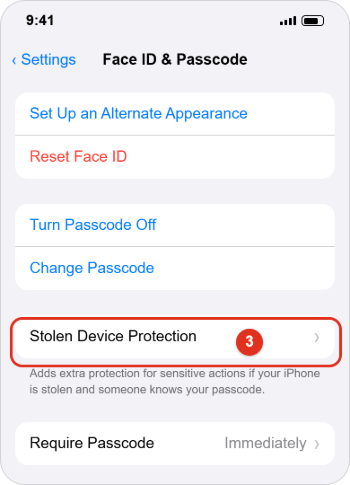
Scroll down and tap Face ID & Passcode. On an iPhone with a Home button, such as iPhone SE, tap Touch ID & Passcode. Type your device passcode when asked. You should now see options such as Turn Passcode Off and Change Passcode.
Step 3: Tap Stolen Device Protection
Scroll down past the passcode options and tap Stolen Device Protection. If the option isn’t there, set up Face ID or Touch ID first, then come back (see Troubleshooting).
Step 4: Turn on the Stolen Device Protection switch
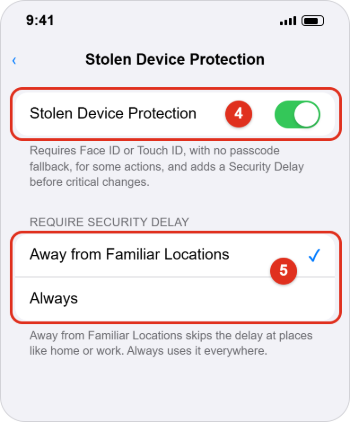
Tap the Stolen Device Protection switch so it turns green. If your iPhone asks for Face ID or Touch ID, complete it. The Require Security Delay options appear below the switch once it is on.
Step 5: Choose Away from Familiar Locations or Always
Under Require Security Delay, tap Away from Familiar Locations to use the extra checks only when you’re away from places like home and work, or tap Always to use them everywhere. A check mark shows your choice. Not sure which to pick? The comparison below explains the trade-off.
Step 6: Check that the protection is working
Go back one screen. The setting stays on, and there is nothing else to save. To see it in action safely, try a Face ID-only action while you’re away from home, such as viewing a saved password: your iPhone should ask for Face ID and not offer the passcode. Don’t test by starting a passcode change unless you actually want to change it.
Away from Familiar Locations or Always?
Both settings protect you when a thief takes your phone somewhere unfamiliar. The difference is what happens at home and work.
| Question | Away from Familiar Locations | Always |
|---|---|---|
| Where the extra checks apply | Only when your iPhone isn’t at a place it recognizes | Everywhere, including home and work |
| Passcode at home | Works as usual for protected actions | Not accepted for Face ID-only actions |
| Changing your passcode or Apple Account password at home | No delay | One-hour Security Delay |
| Depends on location recognition | Yes | No |
| Best for | Most people who want strong protection with little day-to-day friction | People who travel a lot, share a home with others, or worry a thief could reach a familiar place |
A simple way to decide: if your phone would most likely be stolen in a bar, on transit, or at an event, the default covers that. Choose Always if a familiar place isn’t truly safe for you, for example a busy shared office, or if you don’t want the protection to depend on your iPhone’s location history. The cost of Always is waiting an hour when you change your own passcode or password, even at home.
How your iPhone decides a location is familiar
Apple describes familiar locations as places like your home, work, and other locations where you regularly use your iPhone. Your iPhone learns them on the device using Significant Locations, a Location Services feature that keeps track of places you visit often. It is not the same as the home or work address saved in your contact card or in Maps.
To make sure Significant Locations is on:
- Open Settings and tap Privacy & Security.
- Tap Location Services and make sure the switch at the top is on.
- Scroll down and tap System Services.
- Tap Significant Locations & Routes, authenticate, and make sure it is on. On older iOS versions this item may be labeled Significant Locations.
A few things to know about familiar locations:
- You can’t add one by hand. There is no list of familiar places in the Stolen Device Protection settings. Your iPhone decides on its own.
- New places take time. After you move, change jobs, or set up a new iPhone, it may be a while before the new place counts as familiar. Apple says this also applies after you restore from an iCloud backup or transfer to a new iPhone.
- Arriving home can end a delay early. If you start a Security Delay while out and then get home, your iPhone may finish the delay early once it recognizes the location.
- Always ignores location. If you choose Always, familiar places make no difference.
What a Security Delay looks like
Here is a realistic example. Alex Rivera is at an airport, which their iPhone doesn’t recognize, and wants to change the iPhone passcode. Stolen Device Protection is set to Away from Familiar Locations.
| Time | What happens |
|---|---|
| 2:00 PM | Alex taps Change Passcode. The iPhone explains that a Security Delay is needed and shows Start Security Delay. |
| 2:00 PM | Alex taps Start Security Delay and confirms with Face ID. A countdown starts. The iPhone keeps working normally for everything else. |
| 3:00 PM | The one-hour delay ends. |
| 3:00 PM or later | Alex goes back to Face ID & Passcode, confirms with Face ID a second time, and changes the passcode. |
If Alex had landed and driven home at 2:30 PM, the iPhone could have ended the delay early. A thief, by contrast, would need Alex’s face twice, an hour apart, which is the point.
For more on this particular case, our guide on how to change the passcode on iPhone covers what to expect when Stolen Device Protection asks you to wait.
Using it with locked apps
On iOS 18 and later you can lock individual apps so they need Face ID, Touch ID, or your passcode to open. Stolen Device Protection makes that stronger: when it applies, a locked app opens only with Face ID or Touch ID, with no passcode option. Apple’s example is locking Mail, so someone with your passcode can’t read password-reset emails and verification codes.
To lock an app, touch and hold its icon on the Home Screen, then tap Require Face ID (or Require Touch ID). Stolen Device Protection doesn’t lock apps for you, so pick the ones that matter, such as Mail, banking apps, and Photos. Apple’s article on using locked apps with Stolen Device Protection has more detail.
How to turn off Stolen Device Protection
Before you start: turning it off removes protection against a thief who knows your passcode. The main good reason to turn it off is before you sell, trade in, or give away your iPhone, and Apple recommends doing that first. Do it at home: if you wait until you’re at the store, you will likely face a one-hour delay.
Step 1: Open the Stolen Device Protection screen
Go to Settings > Face ID & Passcode (or Touch ID & Passcode), enter your passcode, scroll down, and tap Stolen Device Protection.
Step 2: Turn off the switch
Tap the Stolen Device Protection switch. If you’re at a familiar location and the setting is Away from Familiar Locations, it turns off right away after you authenticate.
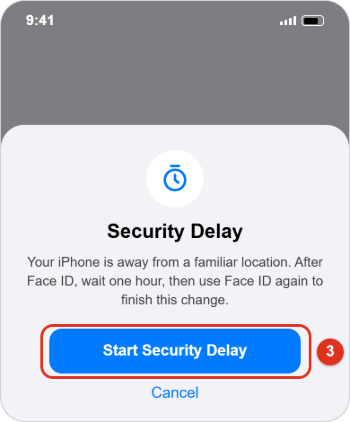
Step 3: Start the Security Delay if asked
If you’re away from a familiar location, or the setting is Always, your iPhone requires a Security Delay. Tap Start Security Delay, confirm with Face ID or Touch ID, wait for the hour to end, then return to this screen and confirm with Face ID or Touch ID again to finish turning it off.
To turn it back on later, repeat the steps above. Turning it on is not one of the actions Apple lists as needing a Security Delay.
Troubleshooting
Stolen Device Protection doesn’t appear in Settings
- Check your software version in Settings > General > About. It must be iOS 17.3 or later. Install any update in Software Update.
- Set up Face ID or Touch ID in Face ID & Passcode or Touch ID & Passcode. Apple says the option may not show without one.
- Make sure you have a device passcode. If the Face ID & Passcode screen shows Turn Passcode On instead of Change Passcode, you don’t have one yet.
- Make sure you opened the right screen. The setting is in Face ID & Passcode, not in Privacy & Security or your Apple Account screen.
- If everything above checks out, restart your iPhone and look again.
The switch won’t turn on
Confirm that two-factor authentication is on in Settings > [your name] > Sign-In & Security, that Find My iPhone is on, and that Location Services and Significant Locations are on. If your iPhone belongs to a work or school and is managed by MDM, ask your IT department whether it controls this setting.
It asks for a Security Delay at home
Either your setting is Always, or your iPhone doesn’t yet recognize your home as familiar. Check the setting first. If it’s Away from Familiar Locations, make sure Significant Locations is on and give your iPhone time, especially after a move or a new iPhone setup. You can also simply start the delay and wait the hour.
Face ID or Touch ID is broken
Try fixing it first with our guide to Face ID not working. You can still unlock the iPhone and use most apps with your passcode. With Away from Familiar Locations, Apple says the extra steps don’t apply at a familiar location and the passcode works as usual, so do any changes at home. With Always, protected actions keep requiring Face ID or Touch ID wherever you are, so if the sensor can’t be repaired, contact Apple Support for help.
You can’t turn off Find My
That’s expected. Find My stays on while Stolen Device Protection is on. Turn off Stolen Device Protection first (with a delay if required), then turn off Find My.
Your iPhone isn’t showing on the map at iCloud.com
Apple notes that after you change your Apple Account password from the iPhone, its location may not appear on iCloud.com/find for a while. You can still mark it as lost.
If your iPhone is stolen
Stolen Device Protection buys time; it doesn’t replace quick action. Its safeguards last only for a period of time, so Apple recommends marking the iPhone as lost right away, even with the feature on:
- On another device, go to iCloud.com/find and sign in. You don’t need a verification code here.
- Select your iPhone and choose Mark as Lost, then follow the instructions. If the phone was stolen rather than lost, Apple advises leaving out your contact details.
- Don’t remove the iPhone from Find My. That would remove Activation Lock and make it easier to resell.
- Report the theft to the police and your carrier, and review your Apple Account from a trusted device.
Apple’s full checklist is in If your iPhone or iPad was stolen.
Frequently Asked Questions
Is Stolen Device Protection on by default?
It might be. Apple says the feature may be turned on by default, so check Settings > Face ID & Passcode > Stolen Device Protection. If the switch is green, you’re protected, and you only need to choose between Away from Familiar Locations and Always.
Does Stolen Device Protection slow down my iPhone or drain the battery?
Apple doesn’t describe any effect on speed or battery life. You only notice the feature when you try a protected action, such as viewing a saved password or changing your passcode, away from a familiar place.
Can I turn it off without waiting an hour?
Yes, if your setting is Away from Familiar Locations and your iPhone is at a familiar location such as home. Otherwise, you have to complete the Security Delay: authenticate, wait an hour, and authenticate again.
What happens when I get a new iPhone?
If you restore from an iCloud backup or transfer directly from your old iPhone, the Stolen Device Protection setting comes with it and resumes on the new phone. It may take some time before the new iPhone recognizes your familiar locations.
Do I need to turn it off before selling my iPhone?
Yes, Apple recommends turning it off before you sell, give away, or trade in your iPhone. Do it at home before you go so you don’t hit a one-hour delay at the store. Apple’s guide on what to do before you sell or trade in your iPhone lists the other steps.
Does it stop someone who knows my passcode?
It stops them from the most damaging actions: changing your Apple Account password, turning off Find My, erasing the phone, or using your saved passwords and cards. It doesn’t stop them from unlocking the phone and looking at unlocked apps, so lock sensitive apps and avoid typing your passcode where others can see it.
Can I still use Apple Pay with my passcode?
Yes. Apple says you can still use your passcode for Apple Pay purchases with Stolen Device Protection on.
Is it available on iPad?
No. Stolen Device Protection is only available on iPhone.
Next step
Turn the feature on now, while your phone is in your hand; it has to be on before a theft to help. Then lock the apps that hold sensitive information, and if you want the full reference list of protected actions, read Apple’s About Stolen Device Protection for iPhone and the iPhone User Guide page on Stolen Device Protection.

Kermit Matthews is a freelance writer based in Philadelphia, Pennsylvania with more than a decade of experience writing technology guides. He has a Bachelor’s and Master’s degree in Computer Science and has spent much of his professional career in IT management.
He specializes in writing content about iPhones, Android devices, Microsoft Office, and many other popular applications and devices.