To use Writing Tools on iPhone, select the text you want to improve, tap the Writing Tools button (the pen-and-sparkle icon) in the menu that appears above your selection, then choose Proofread, Rewrite, Friendly, Professional, Concise, Summarize, Key Points, List or Table. Review the result and tap the Done (checkmark) button to keep it, or tap Revert to go back to what you wrote. Writing Tools is part of Apple Intelligence, so it only appears on an iPhone 15 Pro, iPhone 15 Pro Max, or an iPhone 16 model or later with Apple Intelligence turned on.
This guide covers every Writing Tools option, how to compose new text with the ChatGPT extension, which apps it works in, the language and region rules, and what to do when the button is missing.
What you need and which versions this covers
Writing Tools is a set of AI text features built into the iPhone’s system keyboard and text menus. Apple added it in iOS 18.1, and it is still part of Apple Intelligence in iOS 26 and iOS 27. The instructions below are written for iOS 27, the current release in October 2026, with separate notes for iOS 26 and iOS 18 where the labels differ.
Here is what your iPhone needs before the Writing Tools button will show up:
- A supported iPhone. Apple lists the iPhone 15 Pro, iPhone 15 Pro Max, and iPhone 16 models or later. That includes the iPhone 16, 16 Plus, 16 Pro, 16 Pro Max and 16e, the iPhone 17 lineup (including iPhone 17e and iPhone Air), and the iPhone 18 Pro models. The standard iPhone 15 and iPhone 15 Plus, and older models such as the iPhone 14, can run iOS 27 but cannot use Apple Intelligence.
- Current software. Install the latest iOS update in Settings > General > Software Update. Writing Tools needs at least iOS 18.1.
- Matching languages. Your iPhone language and your Siri language must be set to the same supported language (the full list is in the language and region section).
- Free storage. Apple says Apple Intelligence needs up to 8 GB of storage on most supported iPhones, and up to 14 GB on the iPhone 17 Pro, iPhone 17 Pro Max and iPhone Air. If you are short on space, here is how to check your iPhone storage and see what is using it.
- A supported region. Apple Intelligence works in most countries, but not on iPhones bought in China mainland, and some features roll out later in the European Union.
To confirm your model and iOS version, open Settings > General > About and look at Model Name and iOS Version.
Turn on Apple Intelligence
Writing Tools does not have its own switch. It appears when Apple Intelligence is on. With iOS 27, Apple says Apple Intelligence becomes available automatically on eligible iPhones after the update, as long as your device and Siri languages match a supported language. Most people do not need to do anything.
If you turned Apple Intelligence off in the past, or set up your iPhone without it, turn it back on:
- Open the Settings app.
- Find the Apple Intelligence settings. On iOS 26 and iOS 18 this section is called Apple Intelligence & Siri. On iOS 27, Apple documents most Apple Intelligence and Siri options under Siri, so look there if you do not see the older name.
- Turn on the Apple Intelligence switch, or tap Turn on Apple Intelligence if that button appears instead. Apple notes that the option you see depends on your iOS version and whether you set Apple Intelligence up before.
- Keep the iPhone connected to Wi-Fi and plugged in for a while. The language models download in the background, and Writing Tools will not appear until that finishes.
If there is no Apple Intelligence option anywhere in Settings, your iPhone model, language or region is the likely reason. The troubleshooting section walks through each one.
How to use Writing Tools on iPhone (step by step)
These steps work in Notes, Mail, Messages and most other apps where you type. The example uses Notes because it is easy to practice there without sending anything.
Step 1: Open an app and type or paste some text
Open Notes and create a new note, or open any email, message or document you are writing. Writing Tools works best with at least a full sentence. Very short text, such as a two-word reply, may not give the tools enough to work with, and some options like Concise can tell you the text is too short.
Step 2: Select the text you want to change
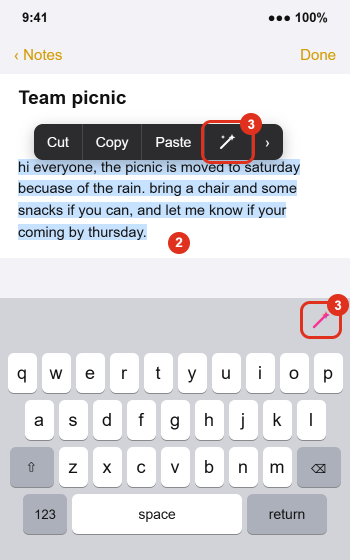
Double-tap a word to select it, triple-tap to select a whole paragraph, or double-tap and hold the first word and drag the blue grab points to cover a longer passage. You should see your text highlighted in blue with a small menu above it.
Step 3: Tap the Writing Tools button
In the menu above your selection, tap the Writing Tools button, which looks like a pen with a sparkle. If you don’t see it, tap the arrow at the end of the menu to show more options. While the keyboard is open, you can also tap the Writing Tools button in the top-right corner of the keyboard.
Step 4: Choose a tool
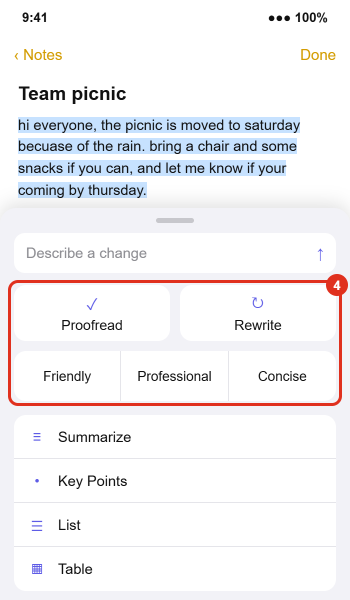
The Writing Tools panel slides up from the bottom of the screen. At the top is a Describe a change field where you can type your own instruction. Below it are the main tools:
- Proofread checks grammar and spelling and fixes errors in place.
- Rewrite produces a new version of the same text.
- Friendly, Professional and Concise rewrite the text in a specific tone.
- Summarize condenses the text into a short paragraph.
- Key Points pulls out the most important points as bullets.
- List reorganizes the original text as a list.
- Table reorganizes the original text into rows and columns.
Tap the option you want. The result appears after a moment, either in place in your text or in the Writing Tools panel.
Step 5: Review the result, then keep it or revert
Read the new text before you accept it. AI rewrites can change your meaning, drop a detail, or add something you did not say. When you are happy, tap the Done button (a checkmark) to keep the change. To go back to exactly what you wrote, tap the Revert button. You can also tap Original to flip between the new and original versions before deciding.
If you accept a change and regret it later, the app’s normal undo still works in most cases. Swipe left with three fingers, or tap the Undo button at the top of the screen in apps like Notes.
Proofread your text
Proofread is the most useful tool for everyday messages. Unlike the red-underline spell checker, it reviews the whole selection at once and fixes grammar, capitalization, punctuation and spelling together.
- Select the text and tap the Writing Tools button.
- Tap Proofread.
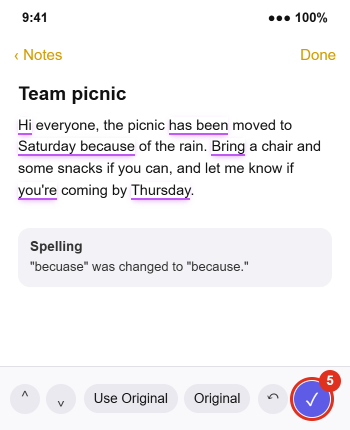
- Each change is underlined with a glowing line in your text. Tap the up and down arrow buttons at the bottom to move between changes. Apple Intelligence shows a short explanation for each one, such as a spelling fix or a grammar fix.
- To reject a single change, tap Use Original while that change is selected.
- To compare the whole passage, tap Original to see your version and tap it again to see the corrected version.
- To throw away every change, tap the Revert button.
- When you are finished, tap the checkmark button to accept the remaining changes.
Proofread does not replace your keyboard’s autocorrect or spell check, which keep working as you type. If autocorrect keeps changing a name or brand you use often, add the word to your iPhone dictionary so both the keyboard and your proofread text keep the right spelling.
Rewrite text or change the tone
Rewrite keeps your meaning but changes the wording. It is helpful when a message is correct but sounds blunt, rambling or stiff.
- Select the text and tap the Writing Tools button.
- Choose how to rewrite it:
- Tap Rewrite for a general cleanup with no particular tone.
- Tap Friendly for a warmer, more casual version.
- Tap Professional for a more formal version suited to work email.
- Tap Concise for a shorter version that cuts filler.
- Tap Describe a change and type an instruction, such as “make this sound more enthusiastic” or “turn this into a polite reminder,” then tap the send arrow.
- The rewritten text replaces your selection in the document. If you selected text you cannot edit, like a webpage or a PDF, the rewrite appears inside the Writing Tools panel instead, with a Copy button.
- Not happy? Tap Rewrite again for another version, tap the Undo button to step back to the previous version, or tap Original to compare.
- Tap the Done button to keep the version you like, or tap Revert to restore your text.
Tip: Rewrite output changes every time, even with the same text. If the first attempt misses, try one more time before rewriting by hand.
Summarize text or turn it into a list or table
These four tools help with text you are reading as well as text you wrote. You can select a long email, a webpage in Safari, meeting notes or an article and get a shorter version.
- Select the text and tap the Writing Tools button.
- Tap one of these options:
- Summarize gives a short paragraph with the main idea.
- Key Points gives a bulleted summary of the most important points.
- List keeps the original content but organizes it as a list.
- Table keeps the original content but arranges it in rows and columns.
- When the result appears, choose what to do with it:
- Tap Copy to copy it and paste it somewhere else.
- Tap Replace to swap your original text for the result. Replace only appears when the original text is editable.
- Tap Share to send it to another app or person.
- Tap the Done button when you are finished.
Table works best when the text contains repeated details, such as dates, names and amounts. If the text has nothing that fits into columns, the result may be thin or the tool may not produce a table. Tables also need an app that can display them. Notes can hold a table, but a Messages conversation cannot, so copy a table into Notes, Pages or an email instead. If you want to format the result further, see how to format and highlight text in iPhone Notes.
Compose new text with ChatGPT
The tools above edit text that already exists. To write something new from a short description, Writing Tools can hand the request to ChatGPT, an AI chatbot made by OpenAI. This is an optional extension that you turn on yourself, and it is only available in regions where the ChatGPT app and service are offered. You must be at least 13, or the minimum age required in your country, to use it.
Turn on the ChatGPT extension
- Open Settings and tap Siri.
- Tap ChatGPT, tap Set Up, then follow the onscreen instructions. If you use Siri AI (Beta), tap Set Up Extensions, tap ChatGPT, then turn on Use Extension.
- Choose whether to sign in with a ChatGPT account. You can use the extension without an account. Sign in only if you want your requests saved in your ChatGPT chat history.
Compose text
- Tap inside an empty or partly written text field, then tap the Writing Tools button.
- Swipe up on the Writing Tools panel, then tap Compose.
- Describe what you want, for example “a short thank-you note to a neighbor who watered my plants.” Choose Include All Text or Selected Text if you want ChatGPT to use what is already written, then tap the send button.
- If ChatGPT asks for more details, tap the field, type an answer and send it, or tap Ignore to continue without them.
- Read the draft. You can rewrite it, tap one of ChatGPT’s suggestions to refine it, or revert to your original text. Tap the Done button to keep it.
Before anything goes to ChatGPT, you choose what to send. Apple says your request and attachments are shared along with limited details such as your time zone, country, device type and language, and that your IP address is hidden from OpenAI. Check facts in anything ChatGPT writes, especially names, dates and figures. To turn the extension off, go to Settings > Siri > ChatGPT and turn off Use ChatGPT.
If you use Siri AI (Beta) on iOS 27
iOS 27 introduced Siri AI, a new conversational version of Siri that is in beta. It is available in English to start, on the same iPhones that support Apple Intelligence, and Apple says it will not initially be available in the EU. If you turn Siri AI on, Apple points you to Write with Siri for writing help instead of the classic Writing Tools panel.
With Siri AI on, select the text you want to refine, tap the Siri AI icon, then describe what you want or choose an option such as Proofread or Rewrite. After a rewrite, tap the Compare button to see your original and the new version side by side. You can also activate Siri and ask in plain words, such as “Proofread this” or “Condense these notes into key points,” and then swipe down on Siri’s answer to keep refining it.
If you would rather use the Writing Tools panel described in this guide, you can switch back. In Settings > Siri, turn off Siri, then tap Turn on Siri and choose Siri Classic. Apple’s Write with Siri guide has the full list of Siri AI writing requests.
Where Writing Tools works
Apple says Writing Tools is available in most places you write, including third-party apps and websites. In practice, that means anywhere the iPhone’s standard text system is used:
- Apple apps: Notes, Mail, Messages and text fields on websites in Safari.
- Read-only text: webpages and PDFs you are reading. You can summarize or rewrite selected text, but because the original cannot be changed, results appear in the Writing Tools panel where you can copy or share them.
- Third-party apps: email apps, note apps, social apps and browsers that use standard iOS text fields.
Some third-party apps draw their own text editors or menus. In those apps the Writing Tools button may be missing or behave differently. Early reviewers reported this with a few chat apps when the feature launched, and support depends on how each developer builds its app, so check for an app update if you do not see the button. A simple workaround is to write the text in Notes, polish it with Writing Tools, then copy and paste it into the other app.
Worked example: one message, every option
To see how the tools differ, here is a sample note run through each option. The results below are written to show the typical style of each tool. Apple Intelligence produces different wording every time, so yours will not match exactly.
Original text: “hi everyone, the picnic is moved to saturday becuase of the rain. bring a chair and some snacks if you can, and let me know if your coming by thursday.”
| Option | What it does | Typical result |
|---|---|---|
| Proofread | Fixes errors, keeps your wording | “Hi everyone, the picnic has been moved to Saturday because of the rain. Bring a chair and some snacks if you can, and let me know if you’re coming by Thursday.” |
| Friendly | Warmer and more casual | “Hey everyone! Because of the rain, we’re moving the picnic to Saturday. Grab a chair and a snack to share if you can, and give me a shout by Thursday if you’re coming.” |
| Professional | More formal | “Hello all, due to the forecast rain, the picnic has been rescheduled to Saturday. Please bring a chair and snacks if possible, and confirm your attendance by Thursday.” |
| Concise | Shorter | “Picnic moved to Saturday due to rain. Bring a chair and snacks. RSVP by Thursday.” |
| Key Points | Bulleted summary | New date: Saturday (rain) / Bring: chair and snacks / RSVP: by Thursday |
| Table | Rows and columns | A two-column table with Item and Detail, listing the new date, what to bring and the RSVP deadline |
For a short group message like this, Proofread or Friendly is usually the right choice. Save Summarize and Key Points for long emails or notes where you need the gist quickly.
Supported languages and regions
On iOS 27, Apple Intelligence (and Writing Tools) works when both your iPhone language and your Siri language are set to one of these: English, Chinese (Simplified), Chinese (Traditional), Danish, Dutch, French, German, Italian, Japanese, Korean, Norwegian, Portuguese, Spanish, Swedish, Turkish or Vietnamese.
A few region rules matter:
- China mainland. Apple Intelligence does not currently work on supported iPhones bought in China mainland. iPhones bought elsewhere also will not use it while you are in China mainland if your Apple Account country or region is set to China mainland.
- European Union. Writing Tools is available to EU users, but some newer features, including Siri AI, are not initially offered in the EU on iOS.
- Travel. Apple says Apple Intelligence keeps working when you travel to other regions.
- ChatGPT. The Compose feature depends on ChatGPT being available where you are.
To change languages, go to Settings > General > Language & Region for the iPhone language and Settings > Siri > Language for Siri. After you change the Siri language, Apple Intelligence can be unavailable until the new Siri language finishes downloading.
Differences in iOS 26 and iOS 18
If your iPhone has not been updated to iOS 27, the tools are the same but a few labels and buttons differ.
iOS 26
- Select the text and tap the Writing Tools button in the menu, or tap the button in the top-right corner of the keyboard.
- The custom instruction field is labeled Describe your change.
- Proofread uses an Accept All Recommended Changes button to finish.
- Apple Intelligence settings are in Settings > Apple Intelligence & Siri.
iOS 18
- Select the text, tap the Forward arrow in the menu, then tap Writing Tools. You can also tap the Apple Intelligence button at the top of the keyboard.
- Buttons are text labels: Revert and Done.
- Compose with ChatGPT arrived in iOS 18.2. Earlier iOS 18 versions have the editing tools but not Compose.
- Language support was narrower in early iOS 18 releases, starting with English and adding more languages in later updates.
Privacy and usage limits
Apple says many Apple Intelligence requests are handled entirely on your iPhone. For more complex requests, it can use Private Cloud Compute, which runs larger models on Apple servers. Apple says data processed this way is used only to complete your request, is not stored, and is not made available to Apple. If you want to see which requests left your device, go to Settings > Privacy & Security > Apple Intelligence Report and choose a time range.
Because some requests may use servers, do not assume every tool works without an internet connection. Simple tasks may work offline, but results vary by request, and Compose always needs a connection to ChatGPT.
Writing Tools is free with a supported iPhone. Apple notes that certain features that rely on server-side models have daily usage limits, and names Siri AI and Image Playground among them. If you hit a limit, wait and try again later.
Troubleshooting
The Writing Tools button is missing
- Check your model. Open Settings > General > About. If the model is an iPhone 15, iPhone 15 Plus or older, Apple Intelligence is not supported.
- Check that Apple Intelligence is on using the steps in the turn on section.
- Match your languages. Your iPhone language and Siri language must be the same supported language. A mismatch, such as English (US) for the iPhone and a different language for Siri, can hide the feature.
- Wait for the download. After turning on Apple Intelligence or changing Siri’s language, give the iPhone time on Wi-Fi to finish downloading models.
- Free up storage. Apple Intelligence needs several gigabytes. Delete unused apps or large videos and try again.
- Check Screen Time. Screen Time can block Apple Intelligence features. Review your restrictions, or ask whoever manages your Screen Time settings. Apple explains the options in Turn off and restrict access to Apple Intelligence features.
- Check Siri AI. If Siri AI (Beta) is on, use the Siri AI icon and Write with Siri instead, or switch back to Siri Classic.
- Try another app. If the button shows in Notes but not in a third-party app, that app may not support Writing Tools yet. Update the app or draft in Notes.
- Restart the iPhone and update to the latest iOS version.
An option is greyed out or gives an error
Select more text and try again. Concise and Summarize need enough text to shorten, and Table needs details that fit into columns. If Replace is missing after a summary, the original text is read-only, so use Copy instead.
Compose is missing
Compose only appears when the ChatGPT extension is turned on. Check Settings > Siri > ChatGPT, confirm you meet the age requirement, and make sure ChatGPT is available in your region. On iOS 18, update to iOS 18.2 or later.
The result changed my meaning
Tap Original to compare, tap Revert to restore your text, or tap Rewrite for another attempt. If you already tapped Done, use the app’s Undo. For important text, such as work email, contracts or medical details, always reread the result before sending.
You want to stop using Writing Tools
There is no separate switch for Writing Tools alone. You can simply ignore the button, turn off Apple Intelligence entirely in Settings, or use Screen Time to restrict Apple Intelligence features.
Frequently Asked Questions
Which iPhones have Writing Tools?
Writing Tools needs an iPhone that supports Apple Intelligence: iPhone 15 Pro, iPhone 15 Pro Max, and iPhone 16 models or later, including iPhone 16e, the iPhone 17 lineup, iPhone Air and iPhone 18 Pro models. The regular iPhone 15 and older models do not get it.
Is Writing Tools free?
Yes. Writing Tools comes with Apple Intelligence on supported iPhones at no extra cost. The optional ChatGPT extension also works without a paid ChatGPT account. Apple says some server-based Apple Intelligence features have daily usage limits.
Does Writing Tools work in Gmail, Outlook or WhatsApp?
It works in most third-party apps that use the standard iPhone text system. Some apps use custom text editors, and in those the button may not appear. If it is missing, update the app or write the text in Notes first and paste it in.
What is the difference between Summarize and Key Points?
Summarize gives you a short paragraph that captures the main idea. Key Points gives you the most important points as a bulleted list, which is easier to scan for action items.
Can I undo a Writing Tools change?
Yes. Before you finish, tap Revert to restore your original text or Original to compare versions. After you tap Done, use the app’s Undo, such as a three-finger swipe left.
Does Apple see the text I proofread?
Apple says many requests run entirely on your iPhone, and requests that use Private Cloud Compute are not stored or made accessible to Apple. Text only goes to ChatGPT when you use the ChatGPT extension and choose to send it.
Can I use Writing Tools on my iPad or Mac too?
Yes. Apple lists Writing Tools for Apple Intelligence-enabled iPads, Macs and Apple Vision Pro as well as iPhone. The tools are the same, but the way you open them differs by device, so check that device’s user guide for the exact steps.
Why does the Writing Tools button look different after updating to iOS 27?
If you turned on Siri AI (Beta), Apple routes writing help through Write with Siri, which uses a Siri AI icon and offers Proofread, Rewrite and a Compare button. Switch to Siri Classic in Settings if you prefer the original panel.
Next steps
Start with Proofread on your next email or long text, since it keeps your wording and only fixes mistakes. Once you are comfortable, try Friendly or Professional when the tone matters, and Key Points for long emails you need to skim. For Apple’s official instructions and any changes in future updates, see Apple’s Writing Tools guide for iPhone and how to get Apple Intelligence.

Kermit Matthews is a freelance writer based in Philadelphia, Pennsylvania with more than a decade of experience writing technology guides. He has a Bachelor’s and Master’s degree in Computer Science and has spent much of his professional career in IT management.
He specializes in writing content about iPhones, Android devices, Microsoft Office, and many other popular applications and devices.