Siri lets you set timers, send messages, make calls, get directions, and control your iPhone with your voice. On an iPhone 7, you can start Siri by pressing and holding the Home button or by saying "Hey Siri," but both need to be turned on first. This guide shows how to enable Siri on an iPhone 7, set up voice activation, use Siri from the Lock Screen, and fix Siri when it does not respond. It also notes where the settings are on newer iPhones.
Quick Answer
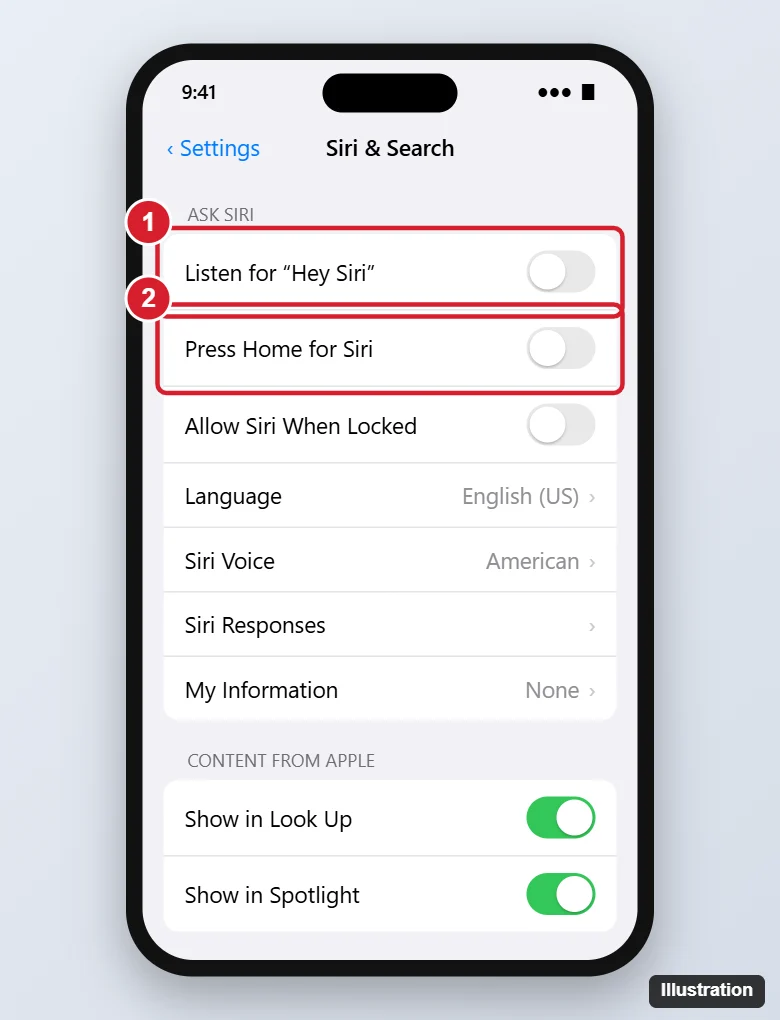
Open Settings > Siri & Search. Turn on Press Home for Siri to use the Home button, and turn on Listen for "Hey Siri" to use your voice, then follow the prompts to train Siri. Tap Enable Siri when asked.
Step-by-Step on iPhone 7
The iPhone 7 supports up to iOS 15, so these steps match iOS 15.
- Open Settings.
- Scroll down and tap Siri & Search.
- Turn on Press Home for Siri. Tap Enable Siri in the pop-up.
- Turn on Listen for "Hey Siri". Tap Continue and say each phrase shown on screen so Siri learns your voice, then tap Done.
- Optionally, turn on Allow Siri When Locked to use Siri without unlocking.
How to Use Siri
- With the Home button: press and hold the Home button until Siri appears, then speak.
- With your voice: say "Hey Siri" followed by your request, such as "Hey Siri, set a timer for 10 minutes."
- With headphones: press and hold the center or call button on wired EarPods, or use the touch control or voice command on supported wireless headphones.
- In a car: press and hold the voice command button on the steering wheel if your car supports CarPlay.
On the iPhone 7, "Hey Siri" works without the phone being plugged in, as it has the necessary hardware for hands-free use.
Customize Siri
| Setting | What it does |
|---|---|
| Language | The language Siri understands and speaks |
| Siri Voice | Choose the accent and voice |
| Siri Responses | Choose when Siri speaks aloud and whether to show captions and your request |
| My Information | Choose your contact card so Siri knows your name, home, and work |
| Siri & Dictation History | Delete Siri history stored by Apple |
| App settings | Scroll down to choose which apps Siri can use and learn from |
On Newer iPhones
If you later upgrade, the settings have moved and been renamed:
- Go to Settings > Siri (or Settings > Apple Intelligence & Siri on models that support Apple Intelligence).
- Listen for or Talk to Siri lets you choose "Siri" or "Hey Siri", "Hey Siri", or Off. Saying just "Siri" requires a newer iOS version and supported model.
- Press Side Button for Siri replaces Press Home on iPhones without a Home button.
- On newer iOS versions, you can also Type to Siri by double-tapping the bottom of the screen on supported models.
Troubleshooting
Siri does not respond to "Hey Siri"
- Make sure Listen for "Hey Siri" is on. Turn it off and on to retrain your voice.
- Siri does not respond when the iPhone is face down or covered, or when Low Power Mode is on (on some iOS versions).
- Check that the microphones are not blocked by a case or dirt.
Siri says it cannot connect
Siri needs an internet connection for most requests. Check Wi-Fi or cellular data, and make sure Siri is allowed to use cellular data in Settings > Cellular.
Siri option is missing
Check Settings > Screen Time > Content & Privacy Restrictions > Allowed Apps and make sure Siri & Dictation is allowed.
Siri activates by accident
Turn off Listen for "Hey Siri" or Allow Siri When Locked, and retrain your voice.
Frequently Asked Questions
Does Siri work on iPhone 7?
Yes. The iPhone 7 supports Siri, including hands-free "Hey Siri." Newer features, such as Apple Intelligence, require newer iPhones.
Is Siri free?
Yes. Siri is included with iOS at no charge, though it may use mobile data.
How do I turn Siri off?
Turn off both Press Home for Siri and Listen for "Hey Siri" in Settings > Siri & Search, then tap Turn Off Siri.
Summary
- Go to Settings > Siri & Search.
- Turn on Press Home for Siri and tap Enable Siri.
- Turn on Listen for "Hey Siri" and train your voice.
- Customize language, voice, and responses as you like.

Kermit Matthews is a freelance writer based in Philadelphia, Pennsylvania with more than a decade of experience writing technology guides. He has a Bachelor’s and Master’s degree in Computer Science and has spent much of his professional career in IT management.
He specializes in writing content about iPhones, Android devices, Microsoft Office, and many other popular applications and devices.