To make your iPhone screen stay on longer, go to Settings > Display & Brightness > Auto-Lock and choose a longer time, from 30 seconds up to 5 minutes, or Never to keep the screen on until you lock it yourself. If Auto-Lock is grayed out and stuck at 30 seconds, Low Power Mode is on. Turn it off in Settings > Battery to change the setting.
A longer Auto-Lock time is especially useful when you use your iPhone as a level and need the screen to stay lit while you adjust a shelf.
How to change the Auto-Lock time
- Open Settings.
- Tap Display & Brightness.
- Tap Auto-Lock.
- Choose 30 seconds, 1 to 5 minutes, or Never.
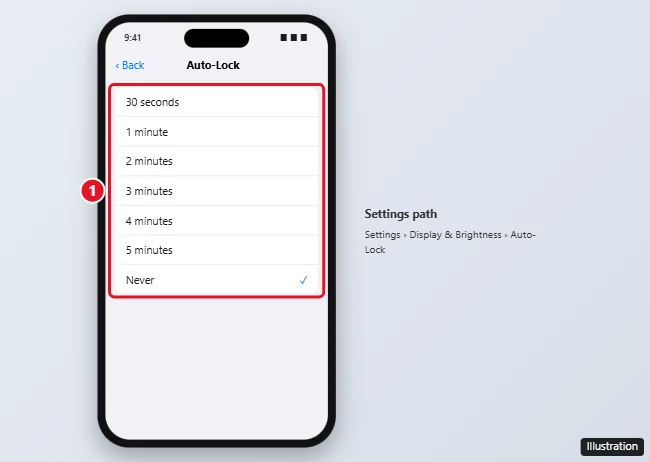
A longer Auto-Lock uses more battery, and Never leaves your iPhone unlocked if you set it down. For everyday use, 2 to 5 minutes is a good balance.
Does Auto-Lock affect the passcode?
Auto-Lock controls when the screen turns off. With a passcode, you’ll need Face ID, Touch ID, or your passcode when it turns back on.
How do I make my iPad screen stay on longer?
The same way: Settings > Display & Brightness > Auto-Lock. iPads offer times up to 15 minutes.
Auto-Lock grayed out?
- Low Power Mode is on. It locks Auto-Lock at 30 seconds. Turn it off in Settings > Battery, or tap the battery button in Control Center.
- A management profile controls it. On work or school iPhones, your organization may limit Auto-Lock. Check Settings > General > VPN & Device Management.
- Screen Time restrictions. Check Settings > Screen Time > Content & Privacy Restrictions for passcode or account change limits.
Keep the screen on while you’re looking at it
On iPhones with Face ID, turn on Attention Aware Features in Settings > Face ID & Passcode. Your iPhone checks whether you’re looking at the screen and won’t dim or lock it while you are, even with a short Auto-Lock time.
Use the Always-On display
On iPhone 14 Pro and later Pro models (and other models that support it), the Lock Screen can stay visible in a dimmed state. Go to Settings > Display & Brightness > Always On Display and turn it on. You can choose whether to show your wallpaper and notifications.
Keep the screen on in specific situations
- Videos and games usually keep the screen on automatically while they play.
- Guided Access (in Settings > Accessibility) has its own display auto-lock time, useful for kiosks or kids.
- StandBy (iOS 17 and later) shows a full-screen clock or widgets when your iPhone is charging on its side.
- Shortcuts automation: You can create a personal automation that changes settings when you open certain apps, like turning off Low Power Mode for a recipe app.
Screen still turns off too fast?
- Check that Auto-Brightness isn’t making the screen seem to dim early. It’s in Settings > Accessibility > Display & Text Size.
- Restart your iPhone.
- Update to the latest iOS in Settings > General > Software Update.

Kermit Matthews runs Live2Tech from just outside Philadelphia. He is an IT specialist with over 20 years of experience, from a university help desk to small-business IT, IT management and his own consulting practice, and has written tech guides full time since 2020. Steps are checked against the current software on a real device or the maker’s official documentation. More about Kermit.