To turn off the flashlight on an iPhone 11 or any newer iPhone, swipe down from the top-right corner of the screen to open Control Center and tap the Flashlight button so it’s no longer white. From the Lock Screen, just press the flashlight button in the bottom-left corner. You can also say “Hey Siri, turn off the flashlight.” If the flashlight button is missing, you can add it back to Control Center or the Lock Screen in a few taps.
How to turn off the flashlight
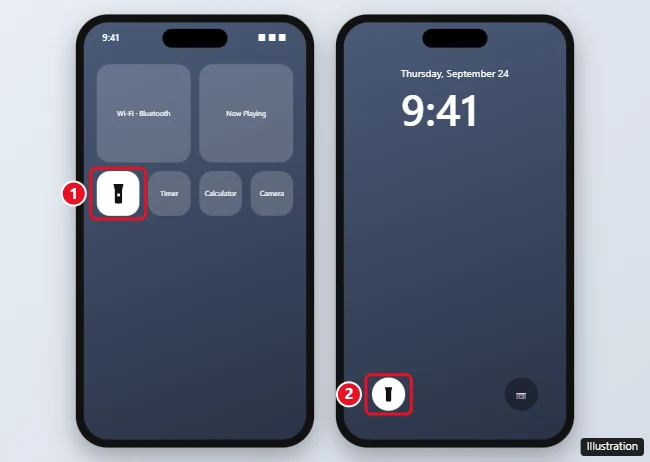
From Control Center
- Swipe down from the top-right corner of the screen. (On iPhones with a Home button, swipe up from the bottom.)
- Tap the Flashlight button. It turns from white to gray, and the light goes off.
From the Lock Screen
Press firmly or tap and hold the flashlight button in the bottom-left corner until the light turns off.
Other ways
- Siri: Say “Turn off the flashlight.”
- Dynamic Island: On iPhone 14 Pro and later Pro models running iOS 18, the flashlight shows in the Dynamic Island. Tap it and swipe to turn it off or adjust the beam.
- Action button: On iPhones with an Action button set to Flashlight, press it again.
Where did the flashlight go?
Missing from Control Center
In iOS 18 and later, Control Center is fully customizable, so the flashlight can be removed by accident.
- Open Control Center and tap + in the top-left corner (or touch and hold an empty area).
- Tap Add a Control.
- Search for Flashlight and tap it.
On iOS 17 and earlier, go to Settings > Control Center and tap the green + next to Flashlight.
Missing from the Lock Screen
- Touch and hold the Lock Screen, then tap Customize > Lock Screen.
- Tap the space in the bottom-left corner (or tap – to remove another control first).
- Choose Flashlight and tap Done.
Flashlight grayed out or not working?
- The camera is open. Close the Camera app or any app using the camera.
- Your iPhone is too hot or the battery is very low. Let it cool down or charge it.
- Restart your iPhone. This fixes most temporary glitches.
- Update iOS in Settings > General > Software Update.
- If the flash doesn’t work in the Camera app either, the LED may need repair. Contact Apple Support.
On a model with a Home button, see how to open Control Center on an iPhone 7.
For every way to switch it on, read where is the flashlight on my iPhone.
Frequently asked questions
How do I make the flashlight brighter or dimmer?
In Control Center, touch and hold the Flashlight button and drag the slider up or down.
Why does my flashlight turn on by itself?
It’s usually the Lock Screen button being pressed in your pocket, or Back Tap set to Flashlight. Check Settings > Accessibility > Touch > Back Tap.
Can I turn off the flashlight without unlocking my phone?
Yes. Use the Lock Screen button or open Control Center from the Lock Screen.
Does this work on iPhone 14 and newer?
Yes. The steps are the same on iPhone 11 through the latest models.

Matthew Burleigh is the head writer at solveyourtech.com, where he covers topics like the iPhone, Microsoft Office, and Google apps. He has a Bachelor’s and Master’s degree in Computer Science and has over 15 years of IT experience.
He has been writing online since 2008 and has published thousands of articles that have been read millions of times.