To use StandBy mode on an iPhone, check that it is turned on in Settings > StandBy, plug your iPhone into a charger, set it down on its side in landscape orientation so it stays still, and press the side button to lock it. After a moment the screen switches to StandBy, a full-screen view of clocks, widgets or photos you can read from across the room. Swipe left or right to change views, and swipe up or down to change the style within a view.
StandBy is on by default, so for most people the only real requirement is a charger that holds the phone sideways. This guide explains each requirement, how to customize the three views, how Night Mode and the display settings work, what changes on iPhones with an Always-On display, and what to check when StandBy will not start or keeps turning off.
What you need and which versions this covers
- iOS 17 or later. StandBy first appeared in iOS 17, so it works on any iPhone that can run iOS 17 or a later version. To check your version, go to Settings > General > About and look at iOS Version.
- A charger. StandBy only appears while the iPhone is charging. A MagSafe charger, another wireless charger, or a cable all work. If you use MagSafe, StandBy can also remember a different favorite view for each charger.
- A way to keep the phone on its side. The iPhone needs to sit in landscape orientation (the long edge horizontal) and stay still. A charging stand or a dock that props the phone up is the easiest option.
- A locked iPhone. StandBy is a Lock Screen feature. If you are still using an app, it will not take over the screen until you lock the phone.
The steps are written for iOS 27, which is the version Apple’s iPhone User Guide currently shows by default. Apple’s StandBy page lists the same steps for iOS 26, iOS 18 and iOS 17, so the main method works on all of them. The small differences are covered in Differences in iOS 26, iOS 18 and iOS 17. StandBy is an iPhone feature only. iPads do not have it.
Contents
- How to turn on and start StandBy
- The three StandBy views and how to customize them
- How Night Mode works
- StandBy with and without an Always-On display
- Notifications, Live Activities, alarms and Siri
- Worked examples: three useful setups
- Differences in iOS 26, iOS 18 and iOS 17
- StandBy not working? Fixes to try
- How to turn off StandBy
- Frequently Asked Questions
How to turn on and start StandBy
Steps 1 to 3 are a one-time check. After that, you only repeat steps 4 to 6 whenever you want to use StandBy.
Step 1: Open Settings and find StandBy
Open the Settings app and scroll down to StandBy, which is listed near Display & Brightness. If you cannot find it, use the search field in Settings and type “StandBy”. If nothing comes up, your iPhone is running a version older than iOS 17 or cannot be updated to it.
Step 2: Make sure StandBy is turned on
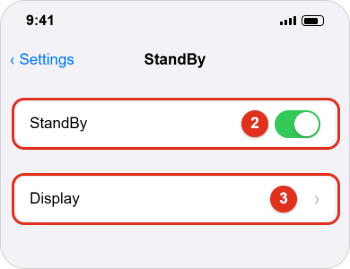
At the top of the StandBy screen is a StandBy switch. It should be green. If it is gray, tap it to turn it on. You do not need to restart anything; the change applies the next time the phone is charging on its side.
Step 3: Choose how long the display stays on (optional)
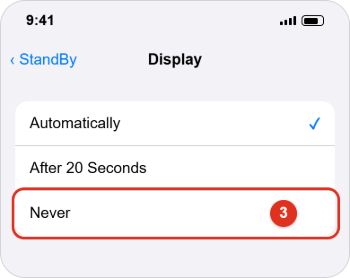
On the same screen, tap Display. Apple lists three choices:
- Automatically: the display turns off when the iPhone is not being used and the room is dark. This is a good choice for a bedroom.
- After 20 Seconds: the display turns off after 20 seconds.
- Never: the display stays on for as long as StandBy is on. This is useful on a desk or kitchen counter, but it keeps the screen lit all night if you use it next to your bed.
Tap the option you want. A checkmark shows which one is selected. Then go back to the Home Screen. Keep in mind that the screen can only stay on continuously on an iPhone that has an Always-On display, which is explained in StandBy with and without an Always-On display.
Step 4: Connect a charger and set the iPhone on its side
Plug in the cable or place the iPhone on a wireless or MagSafe charger. Then turn the phone so it is in landscape orientation and leave it still. On a stand, the screen should face you at a slight upward angle, like a small bedside clock. If you are holding the phone or it is sliding around, StandBy will not start.
Step 5: Lock the iPhone
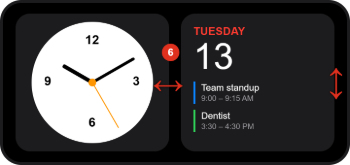
Press the side button once to lock the screen. Within a few seconds the Lock Screen is replaced by StandBy. The first time you use it, you may see a short introduction screen before StandBy appears. The default view usually shows a clock on the left and a calendar or other widget on the right.
Step 6: Swipe to switch views and styles
Swipe left or right to move between the three views: widgets, photos and clocks. Swipe up or down on a view to scroll through its options, such as a different widget in a stack, a different photo album, or a different clock style. Your iPhone keeps your choice, and with MagSafe it remembers a preferred view for each charger location.
The three StandBy views and how to customize them
All three views are customized the same basic way: touch and hold the view while StandBy is showing. Your iPhone asks you to unlock it with Face ID, Touch ID or your passcode before it lets you make changes, which stops someone else from editing your display. When you are finished, tap Done.
Widgets view
The widgets view shows two widget stacks side by side. A stack is a group of widgets in the same spot that you flip through by swiping up or down. You can change the left and right stacks separately.
- To change what you see, swipe up or down on one side.
- To add a widget, touch and hold a stack, unlock, then tap the + button and pick from the widget gallery.
- To remove a widget, touch and hold the stack, then tap the minus button on the widget you want to remove.
- In edit mode you can also turn off automatic rotation and widget suggestions. Look for options named Smart Rotate and Widget Suggestions. With them off, the stack stays on the widget you picked instead of changing during the day.
Many widgets are interactive. Apple notes that you can perform tasks by tapping widgets in StandBy, such as checking off an item in Reminders or starting an episode in Podcasts. Tapping a widget that is not interactive opens its app, which needs your iPhone to be unlocked first. If a clock widget shows the wrong city, see how to change the World Clock widget city on an iPhone; StandBy uses the same Clock app settings.
Photos view
The photos view turns your iPhone into a small photo frame. By default it shows featured photos and memories chosen from your library. Swipe up or down to switch between the collections that are available. To choose your own, touch and hold the photo, unlock, then tap + to add an album. You can also hide a collection you do not want to see using the eye icon. Tapping the date or location of a photo lets you open it in the Photos app after you unlock.
A tip for privacy: make a dedicated album, such as “StandBy Kitchen,” and add only the photos you are happy for guests to see. Then pick that album and hide the featured collections.
Clocks view
The clocks view shows the time in large type. Swipe up or down to switch styles, which include digital and analog designs as well as a world map style. Some styles also show extra details, such as the temperature or your next alarm. To change colors, touch and hold the clock, unlock, then tap the small round color button on a style that supports it and choose a color. Not every style can be recolored.
How Night Mode works
Night Mode is a StandBy feature for dark rooms. When it is turned on, the screen adapts to low light and shows everything with a deep red tint, so it is readable at night without lighting up the bedroom. It starts on its own when the iPhone’s light sensor detects a dark room, and switches back to normal colors when the room gets brighter.

To turn Night Mode off or back on, open Settings > StandBy and look for the Night Mode switch. On many iPhones it is inside the Display screen rather than on the main StandBy screen. If you set Display to Never, Night Mode may not be offered, because the screen is meant to stay at normal brightness. Some models also show a Motion to Wake switch, which brings the dark screen back on when the iPhone detects movement nearby. These two options can vary by model and iOS version, so if you do not see them, your iPhone does not offer them.
Night Mode is different from Night Shift. Night Shift, in Display & Brightness, makes the whole screen warmer in the evening. Night Mode only affects StandBy. If you have an Apple Watch, Nightstand Mode is the watch’s own version of the same idea; see how to enable Nightstand Mode on an Apple Watch.
StandBy with and without an Always-On display
How long StandBy stays visible depends on your iPhone model.
| Your iPhone | What StandBy does | How to see it again |
|---|---|---|
| Has an Always-On display (for example iPhone 14 Pro and later models that support it) | StandBy stays on and shows information continuously, following your Display setting. | It is already visible. With Automatically, it turns off in a dark room when you are not using it. |
| Does not have an Always-On display | StandBy appears, then the screen turns off after a short time like a normal Lock Screen. | Tap the screen, gently nudge the table the iPhone is on, or use Siri. |
To find out whether your iPhone has an Always-On display, open Settings > Display & Brightness. If you see an Always On Display option, your model supports it. Apple’s iOS 17 guide named iPhone 14 Pro, iPhone 14 Pro Max, iPhone 15 Pro and iPhone 15 Pro Max as the supported models at the time; newer models that support it show the same setting. If you turn Always On Display off, StandBy behaves like it does on other models.
Even on a supported model, the Always-On display turns itself off in some situations. Apple lists these: when the iPhone is face down or covered, when you are away from a paired Apple Watch, during CarPlay, while Continuity Camera is in use, while Low Power Mode is on, while the Sleep Focus is on, and at your usual bedtime. If StandBy goes dark every night at the same time, the Sleep Focus or your bedtime is the likely reason. Choosing Never in Settings > StandBy > Display is the setting that keeps StandBy on as long as it is active. For more ways to keep the screen awake outside StandBy, see how to make your iPhone screen stay on longer.
Notifications, Live Activities, alarms and Siri
StandBy is more than a clock. When it was introduced, Apple described support for larger notifications, Live Activities, Siri and incoming calls, all shown in a full-screen style that is easy to read from a distance.
- Notifications: new notifications appear in large type. Message content that would normally be hidden on your Lock Screen stays hidden until you unlock with Face ID or Touch ID. To control this, look in Settings > StandBy for Show Notifications (turns them off in StandBy) and Show Preview on Tap Only (hides the message text until you tap). If you share a room or an office desk, turning on the preview option is a sensible middle ground.
- Live Activities: a Live Activity is a live-updating panel from an app, such as a timer, a sports score, a delivery tracker or music playback. In StandBy they can fill the screen. If one is missing, check that the app is allowed to show Live Activities. On iPhones with a Dynamic Island, the same activities appear at the top of the screen when you use the phone; see how to use the Dynamic Island.
- Alarms and timers: when an alarm goes off in StandBy, it fills the screen with large buttons, which makes snoozing or stopping it easier when you are half awake.
- Calls: incoming calls are shown full screen so you can see who is calling from across the room.
- Siri: Siri responses are shown in large type in StandBy. In iOS 26 and iOS 27, Apple also documents that you can ask Siri to turn StandBy on or off.
Worked examples: three useful setups
These examples show how the settings fit together for common places. Use them as a starting point and adjust to your room.
| Where | View to choose | Display setting | Night Mode | Notifications |
|---|---|---|---|---|
| Bedside table | Clocks view, a large digital style | Automatically | On | Show Preview on Tap Only |
| Kitchen counter | Photos view with a family album | Never (Always-On models) or Automatically | Off if the kitchen is often dim | Show Notifications on |
| Office desk | Widgets view: Calendar on one side, Reminders on the other | Never (Always-On models) | Off | Show Preview on Tap Only |
Bedside setup. Alex charges an iPhone on a MagSafe stand next to the bed. In StandBy, Alex swipes to the clocks view and picks a large digital style. Display is set to Automatically, so the screen turns off once the lights are out, and Night Mode keeps any wake-up glance red and dim. Because StandBy remembers the view for that MagSafe charger, the clock appears every night without any swiping.
Kitchen photo frame. On a second MagSafe charger in the kitchen, Alex chooses the photos view and a “Kitchen” album with family photos. Since StandBy remembers a separate view for each MagSafe charger, the iPhone shows photos in the kitchen and the clock in the bedroom automatically.
Desk dashboard. At work, Alex uses a wired charging stand. The left stack shows Calendar with the next meeting (“Team standup, 9:00 AM”) and the right stack shows a Reminders list that can be checked off with a tap. Smart Rotate is turned off on both stacks so they do not change on their own. Apple describes the per-location memory only for MagSafe chargers, so on a wired stand expect StandBy to use the same view wherever you charge.
Differences in iOS 26, iOS 18 and iOS 17
Apple’s iPhone User Guide describes StandBy the same way for iOS 17, iOS 18, iOS 26 and iOS 27: turn it on in Settings, charge on its side, press the side button, and swipe between widgets, photos and clocks. The documented differences are small:
- iOS 26 and iOS 27: Apple’s guide adds a Siri option for turning StandBy on or off.
- iOS 17: Apple’s guide names the iPhone 14 Pro, iPhone 14 Pro Max, iPhone 15 Pro and iPhone 15 Pro Max as the Always-On models where StandBy stays on. Later guides say “supported models” instead, because more iPhones have the feature now.
- All four versions: the Settings > StandBy > Display choices are Automatically, After 20 Seconds and Never.
Settings labels outside the main StandBy switch and Display screen, such as Night Mode, Motion to Wake and the notification switches, can move between updates. If one is not where this guide says, open Settings > StandBy and check the Display screen as well as the main screen.
StandBy not working? Fixes to try
StandBy does not start at all
- Check the switch. Go to Settings > StandBy and make sure StandBy is green.
- Check charging. Look for the charging icon on the Lock Screen. If the battery icon does not show a lightning bolt, StandBy will not start. Try another cable or charger, and remove a thick case if you use a wireless charger.
- Check the position. The iPhone must be in landscape orientation and stationary. Lying completely flat on a table does not reliably count as “on its side.” Use a stand or prop the phone up at an angle.
- Lock the phone. Press the side button. StandBy does not appear while an app is open.
- Try with Portrait Orientation Lock off. If StandBy still will not start, open Control Center, turn off Portrait Orientation Lock, and set the phone down on its side again.
- Update and restart. Install any update in Settings > General > Software Update, then restart the iPhone.
StandBy keeps turning off
- If your iPhone does not have an Always-On display, this is normal. Tap the screen or nudge the table to wake it.
- On an Always-On model, set Settings > StandBy > Display to Never.
- Turn off Low Power Mode in Settings > Battery. It turns off the Always-On display and makes the screen sleep sooner. See how to turn Low Power Mode on or off.
- Check whether the Sleep Focus or a sleep schedule is starting at bedtime. Apple says the Always-On display turns off while Sleep Focus is on.
- Check that nothing is covering the top of the screen, where the sensors are.
The screen is red or very dim
That is Night Mode reacting to a dark room. Turn on a light and it returns to normal colors, or turn Night Mode off in the StandBy settings as described in How Night Mode works.
Widgets change on their own
Smart Rotate and Widget Suggestions are probably on. Touch and hold the stack, unlock, turn both off, and tap Done. If you charge on more than one MagSafe charger, make sure you are editing the view at the charger where you want the change.
Notifications show more than you want
Turn on Show Preview on Tap Only or turn off Show Notifications in Settings > StandBy. You can also limit what shows on the Lock Screen for each app in Settings > Notifications.
How to turn off StandBy
If you prefer a plain Lock Screen while charging, open Settings > StandBy and turn off the StandBy switch. Your iPhone then shows the normal Lock Screen when it is charging on its side. You can also ask Siri to turn StandBy off on iOS 26 and later.
Frequently Asked Questions
Which iPhones support StandBy?
Any iPhone that runs iOS 17 or later has StandBy. Only models with an Always-On display can keep StandBy visible continuously. On other models it turns off after a short time and comes back when you tap the screen or nudge the table.
Can I use StandBy without charging?
No. StandBy only starts while the iPhone is connected to power. If you unplug it or lift it off the charger, it returns to the normal Lock Screen.
Does StandBy work with a cable, or only with MagSafe?
Both work. A charging cable, a wireless charger and a MagSafe charger can all be used with StandBy. MagSafe adds one extra: StandBy remembers your preferred view for each MagSafe charger location.
Does StandBy drain the battery?
The iPhone is charging while StandBy is on, so you will not lose charge. If you want the screen dark when nobody is looking, choose Automatically so it turns off in a dark room when not in use.
Can someone use my iPhone while it is in StandBy?
Your iPhone stays locked. Anyone nearby can see what StandBy is showing and may be able to tap interactive widgets, but editing StandBy, opening the photo in the Photos app, or opening most apps requires Face ID, Touch ID or your passcode.
Why does StandBy not appear when my phone is upright in portrait?
StandBy requires landscape orientation. In portrait, your iPhone shows the regular Lock Screen while it charges.
Is StandBy available on iPad?
No. StandBy is only available on iPhone.
Next step
Set StandBy up once at the charger you use most, pick the view that suits that spot, and decide on the Display setting. If you use more than one MagSafe charger, repeat the view choice at each one. For the full list of options, see Apple’s guide to using StandBy on iPhone and its page on the Always-On display.

Kermit Matthews is a freelance writer based in Philadelphia, Pennsylvania with more than a decade of experience writing technology guides. He has a Bachelor’s and Master’s degree in Computer Science and has spent much of his professional career in IT management.
He specializes in writing content about iPhones, Android devices, Microsoft Office, and many other popular applications and devices.