To customize the Action button on an iPhone, open Settings > Action Button, swipe left or right until the action you want is showing, and then leave Settings. If the action has extra choices (for example which Focus to turn on, or which shortcut to run), tap the button under the action name and pick one. After that, press and hold the Action button on the upper left side of the iPhone to run it. A quick press is not enough.
The Action button is the small button above the volume buttons that replaced the old Ring/Silent switch. Out of the box it turns Silent mode on and off, but it can also open the camera, turn on the flashlight, record a voice memo, identify a song, run a shortcut and more. This guide covers every built-in action, the extra settings each one has, what changed between iOS versions, and what to do when the button does nothing.
What you need and which versions this covers
You need an iPhone that has an Action button. According to Apple’s Identify your iPhone model page, these models have one:
- iPhone 15 Pro and iPhone 15 Pro Max
- iPhone 16, iPhone 16 Plus, iPhone 16 Pro, iPhone 16 Pro Max and iPhone 16e
- iPhone 17, iPhone 17 Pro, iPhone 17 Pro Max, iPhone Air and iPhone 17e
- iPhone 18 Pro and iPhone 18 Pro Max
The standard iPhone 15 and iPhone 15 Plus, and every earlier iPhone, still have the Ring/Silent switch and do not show an Action Button option in Settings. If you are not sure which iPhone you have, go to Settings > General > About and look at Model Name.
The main steps below are written for iOS 26. Apple’s iPhone User Guide shows the same steps and the same list of actions for iOS 27, so they apply there too. iOS 17 and iOS 18 have a shorter list of actions, which is explained in How the Action button differs in iOS 17 and iOS 18.
Contents
- How to customize the Action button (iOS 26 and later)
- Every Action button option and its extra settings
- Worked examples: four useful setups
- How to use Silent mode after you reassign the button
- How the Action button differs in iOS 17 and iOS 18
- Which action should you pick?
- Troubleshooting
- How to reset the Action button to Silent mode
- Frequently Asked Questions
How to customize the Action button (iOS 26 and later)
These steps change what happens when you press and hold the Action button. You can change it again at any time, and nothing is deleted when you switch actions.
Step 1: Open the Settings app
Tap the gray gear icon on your Home Screen. If you can’t find it, swipe down on the middle of the Home Screen and type Settings in the search field.
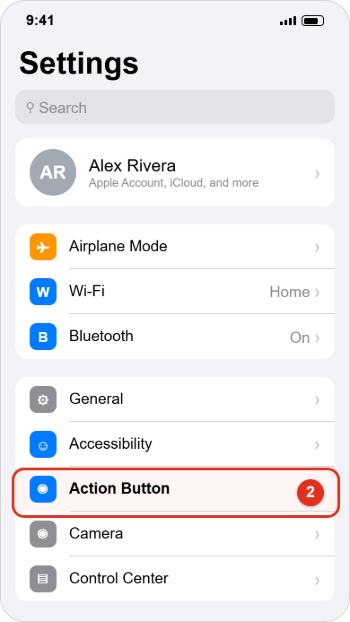
Step 2: Tap Action Button
Scroll down the main Settings list and tap Action Button. It sits in the same group as settings such as General and Accessibility, although the exact row order can shift between iOS updates. You can also type “Action Button” into the search field at the top of Settings. If there is no Action Button row at all, your iPhone model doesn’t have the button.
Step 3: Swipe to the action you want
You’ll see a picture of the side of the iPhone with an animated icon for the current action. Swipe left or right across the screen to move through the actions. The name of each action appears below a row of small dots, and the dots show where you are in the list. Stop when the action you want is showing.
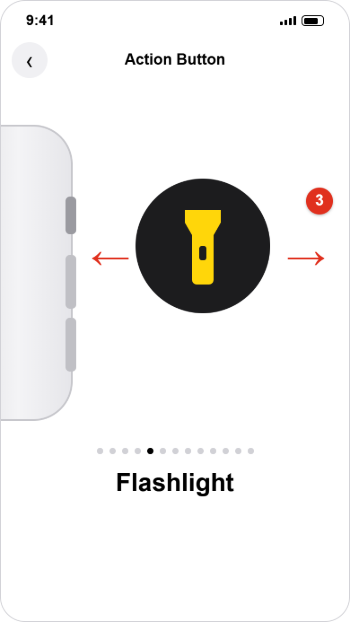
Step 4: Choose the extra option, if there is one
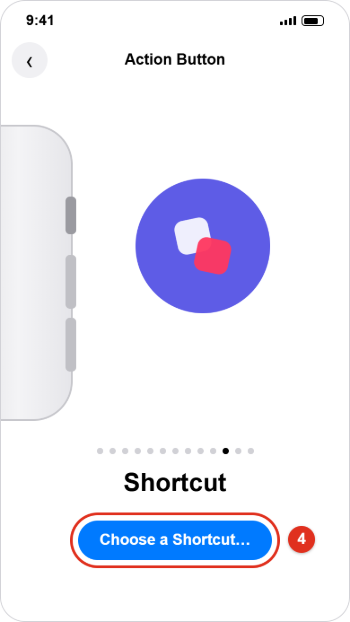
Some actions have a button under the name, such as a Focus name, a camera mode, Choose a Control, or Choose a Shortcut. Tap it to see the list and pick one.
Important: for Controls, Shortcut and Accessibility, you must pick a specific item. Apple notes that if you skip this, the Action button does nothing when you press it.
Step 5: Leave Settings
There is no Save button. Apple’s steps end once the action is showing on screen, so the action you stop on is the one assigned. Swipe up from the bottom of the screen to go home, or tap the back arrow to return to the main Settings list.
Step 6: Press and hold the Action button to test it
Press and hold the Action button on the upper left side of the iPhone for about a second. You should feel a haptic tap (a small vibration) and see the action start. On models with the Dynamic Island (the pill-shaped area at the top of the screen), a small indicator often appears there too. Many actions are toggles: press and hold again to turn the flashlight off, stop a voice memo, or turn a Focus off.
Every Action button option and its extra settings
This is the full list of actions in iOS 26 and iOS 27, in the order Apple lists them. The “Extra choice” column tells you what the button under the action name lets you change.
| Action | What press and hold does | Extra choice |
|---|---|---|
| Silent Mode (default) | Switches between Silent and Ring for calls and alerts | None |
| Focus | Turns a Focus on or off to silence notifications | Which Focus, such as Do Not Disturb, Sleep or Work |
| Camera | Opens the Camera app | Starting mode: Photo, Selfie, Video, Portrait or Portrait Selfie |
| Visual Intelligence | Opens visual intelligence to learn about objects and places in front of the camera | None; requires Apple Intelligence |
| Flashlight | Turns the flashlight on or off | None |
| Voice Memo | Starts or stops a voice memo recording | None |
| Recognize Music | Identifies the song playing nearby or on your iPhone with Shazam | None |
| Translate | Translates phrases or a conversation in another language | None |
| Magnifier | Turns the iPhone into a magnifying glass | None |
| Controls | Runs a Control Center control, such as Dark Mode | Required: Choose a Control |
| Shortcut | Opens an app or runs a shortcut from the Shortcuts app | Required: Choose a Shortcut |
| Accessibility | Turns on an accessibility feature | Required: pick a feature |
| No Action | Does nothing | None |
A few of these need extra explanation:
- Focus: a Focus is a mode that filters notifications, such as Do Not Disturb. Set up the Focus first in Settings > Focus if you want custom rules, then pick it under the Focus action.
- Visual Intelligence: Apple’s guide says this action needs Apple Intelligence turned on. Apple lists the Action button as the way to reach visual intelligence on iPhone 17e, iPhone 16e, iPhone 15 Pro and iPhone 15 Pro Max. Models with the Camera Control (the button on the lower right side) open visual intelligence by clicking and holding the Camera Control instead.
- Controls: this uses the same controls you can add to Control Center. Apple’s iOS 18 guide explains that you can scroll the list or type in the search field above the controls to find one quickly.
- Shortcut: this is the most flexible option. Anything you can build in the Apple Shortcuts app, from opening an app to a multi-step routine, can run from the button. Apple explains this in Run shortcuts with the Action button.
- Accessibility: the list is grouped by need (for example vision, hearing and motor features) and includes features such as Zoom, VoiceOver and Guided Access. Pick one feature.
Worked examples: four useful setups
Example 1: Make the button a flashlight switch
Go to Settings > Action Button and swipe to Flashlight. There is nothing else to choose. Press and hold the button to turn the light on and again to turn it off. If you want other ways to reach the light, see every quick way to use the flashlight on iPhone.
Example 2: Open the camera straight to video
Swipe to Camera, tap the mode button under it, and choose Video. Now a press and hold opens the Camera app already in Video mode, which saves a swipe when something is happening quickly. This is most useful on iPhone 15 Pro, iPhone 15 Pro Max, iPhone 16e and iPhone 17e, which have no Camera Control button.
Example 3: Toggle Dark Mode with Controls
Swipe to Controls, tap Choose a Control, type “Dark” in the search field, and tap Dark Mode. Apple uses this as its own example: each press and hold switches Dark Mode on or off. The same method works for other controls, such as the Low Power Mode or code scanner controls, as long as they appear in the list.
Example 4: Open a favorite app or show a small menu with Shortcut
Swipe to Shortcut and tap Choose a Shortcut. The list shows starter shortcuts, your own shortcuts from the Shortcuts app, and actions that apps provide. To open one app, look for an “Open App” shortcut, tap it, and pick the app. To get several options from one button, build a shortcut in the Shortcuts app that uses the Choose from Menu action, add an item for each task (for example Start Timer, Open Notes and Call Alex Rivera), and then assign that shortcut here. Each press and hold then shows your menu.
How to use Silent mode after you reassign the button
When you move the Action button off Silent Mode, you lose the quick way to silence calls, but Silent mode still exists. Apple’s Silence iPhone guide gives this route for models with an Action button:
- Open Settings > Sounds & Haptics.
- Turn Silent Mode on or off.
You can also swipe to the Focus action and choose Do Not Disturb, which silences calls and notifications from people not on your allowed list. Keep in mind that Silent mode does not silence everything. Apple notes that Clock alarms, audio apps like Music, and many games still play sound. If you want to adjust how the phone vibrates in Silent mode, see what haptics are on iPhone and how to change them.
How the Action button differs in iOS 17 and iOS 18
The steps are the same on every version: Settings > Action Button, swipe, choose. What changes is the list of actions.
iOS 17 (iPhone 15 Pro and iPhone 15 Pro Max only)
Apple’s iOS 17 guide lists Silent mode, Focus, Camera, Flashlight, Voice Memo, Magnifier, Translate, Shortcut, Accessibility and No Action. There is no Controls, Recognize Music or Visual Intelligence option. On iOS 17 only the Shortcut and Accessibility actions need a second choice.
iOS 18
iOS 18 adds Recognize Music and Controls, which lets you assign any Control Center control. It also adds Visual Intelligence, but only on certain models: Apple lists iPhone 16e with iOS 18.3 or later, and iPhone 15 Pro and iPhone 15 Pro Max with iOS 18.4 or later, with Apple Intelligence turned on. If an action from this guide is missing, update your iPhone in Settings > General > Software Update.
iOS 26 and iOS 27
The list is the same as in the table above. Apple’s guide for both versions shows the Visual Intelligence action with a note that it requires Apple Intelligence, which is not available in every language or region.
Which action should you pick?
- You often silence your phone in meetings or at night: keep Silent Mode, or choose Focus with Do Not Disturb or Sleep for a stronger filter.
- Your iPhone has a Camera Control button: skip the Camera action, since you already have a camera button. Flashlight, Voice Memo or a Shortcut is a better use.
- Your iPhone has no Camera Control (iPhone 15 Pro, 15 Pro Max, 16e, 17e): Camera or Visual Intelligence makes good use of the button.
- You want one button for many jobs: use a Shortcut with a menu, as in Example 4.
- You keep pressing it by accident: choose No Action.
If you like hidden gestures, Back Tap can run a second shortcut when you double-tap or triple-tap the back of the phone. That feature is in Settings > Accessibility > Touch > Back Tap; our guide on turning off double tap on iPhone explains how it works if it starts firing by mistake.
Troubleshooting
There is no Action Button option in Settings
Your iPhone doesn’t have the button. Check Settings > General > About > Model Name against the list at the top of this guide. The iPhone 15 and iPhone 15 Plus are a common mix-up because only the Pro models of that year got the button.
Pressing the button does nothing
- Press and hold rather than tapping. Apple’s instructions say to press and hold to run the action.
- If the action is Controls, Shortcut or Accessibility, go back to Settings > Action Button and make sure a specific control, shortcut or feature is chosen under the action name.
- Check that the action isn’t set to No Action.
- Take off a thick or tight case and try again, in case it is blocking the button.
- Restart the iPhone if the button stopped working after an update.
An action from this guide is missing
Controls and Recognize Music need iOS 18 or later. Visual Intelligence needs Apple Intelligence and a supported model and region. Install the latest iOS update, then check again. On models with the Camera Control, use that button for visual intelligence.
My shortcut asks for permission or stops partway
The first time a shortcut uses something like your location, contacts or another app, iOS may ask for permission. Open the Shortcuts app and run the shortcut once from there to approve any prompts, then try the Action button again. If the shortcut was deleted or renamed, choose it again in Settings > Action Button.
The Focus action turns on the wrong Focus
Swipe to Focus in Settings > Action Button and tap the Focus name under the action to choose a different one.
My phone still rings after I pressed the button
The button only silences the phone when Silent Mode is the assigned action. If you chose something else, use Settings > Sounds & Haptics > Silent Mode instead.
How to reset the Action button to Silent mode
There is no separate reset button. Go to Settings > Action Button and swipe back to Silent Mode, the first action in the list and the factory default. Leave Settings, and pressing and holding the button will once again switch between Silent and Ring.
Frequently Asked Questions
Can the Action button do two things at once?
Not directly. It holds one action at a time, and choosing a new one replaces the old one. To get more choices, assign a shortcut that uses the Choose from Menu action so each press and hold shows a list of tasks.
Does the iPhone 15 have an Action button?
Only the iPhone 15 Pro and iPhone 15 Pro Max do. The standard iPhone 15 and iPhone 15 Plus have the Ring/Silent switch. Every iPhone 16, iPhone 17 and iPhone 18 Pro model, including iPhone 16e, iPhone 17e and iPhone Air, has the Action button.
Where is the Action button?
It is on the upper left side of the iPhone, above the volume buttons, in the spot where the Ring/Silent switch used to be.
Can I use the Action button to open any app?
Yes. Choose the Shortcut action, tap Choose a Shortcut, and select a shortcut that opens the app you want. Some apps also add their own shortcuts or controls, which then appear in the Shortcut and Controls lists.
Will alarms still go off if I use the Action button to turn on Silent mode?
Yes. Apple says Clock alarms still play through the speaker when Silent mode is on, so you won’t miss a wake-up alarm by silencing the phone.
How do I turn the Action button off completely?
Go to Settings > Action Button, swipe to the end of the list, and stop on No Action. Pressing the button then does nothing until you choose another action.
Can I record a voice memo with the Action button?
Yes. Choose Voice Memo, then press and hold the button to start recording and again to stop. The recording is saved in the Voice Memos app. Our guide to recording a voice memo on iPhone covers editing and sharing it afterward.
Next step
Pick the one task you reach for most often, assign it in Settings > Action Button, and live with it for a few days. If it doesn’t stick, try a Shortcut menu so the button covers several tasks. Apple’s Use and customize the Action button guide is the best place to check for new actions after each iOS update.

Kermit Matthews is a freelance writer based in Philadelphia, Pennsylvania with more than a decade of experience writing technology guides. He has a Bachelor’s and Master’s degree in Computer Science and has spent much of his professional career in IT management.
He specializes in writing content about iPhones, Android devices, Microsoft Office, and many other popular applications and devices.