Every iPhone has a flashlight built in. It uses the camera flash LED, so there is no separate app to find. You can turn it on from Control Center, from the Lock Screen on most recent models, with Siri, or with the Action button on newer Pro models.
Quick Answer
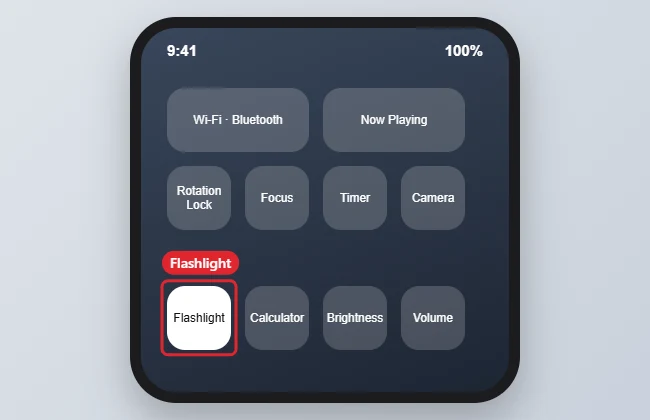
Open Control Center and tap the Flashlight button. On an iPhone with Face ID, swipe down from the top-right corner. On an iPhone with a Home button, swipe up from the bottom edge. Tap the button again to turn it off.
How to Turn On the iPhone Flashlight
- Open Control Center: swipe down from the top-right corner (Face ID models) or up from the bottom of the screen (Home button models).
- Tap the Flashlight button. The LED on the back of the phone turns on.
- To change the brightness, touch and hold the Flashlight button and drag the level up or down. On recent Pro models, the Dynamic Island also shows controls for brightness and beam width.
- Tap the Flashlight button again to turn it off.
- From the Lock Screen on Face ID models, press and hold the flashlight icon in the lower-left corner.
- Or say Hey Siri, turn on the flashlight (or just Siri on newer iOS versions).
Ways to Turn On the Flashlight
| Method | Works on |
|---|---|
| Control Center button | All iPhones that support current iOS |
| Lock Screen button (press and hold) | iPhone X and later |
| Siri voice command | All models with Siri turned on |
| Action button | iPhone 15 Pro and later, and newer models with an Action button |
| Back Tap shortcut | iPhone 8 and later, via Accessibility, Touch, Back Tap |
Troubleshooting
- If there is no Flashlight button in Control Center, add it back. On iOS 18 or later, open Control Center, tap the plus sign, then Add a Control and choose Flashlight. On older versions, use Settings, Control Center.
- If the button is greyed out, close the Camera app. The camera and flashlight share the same LED.
- A phone that is too hot or very low on battery may disable the flashlight until it cools down or charges.
- To lower the beam, see how to change the flashlight brightness. If it will not switch off, read how to turn off the iPhone flashlight.
Frequently Asked Questions
Is there a flashlight app on the iPhone?
No separate app is needed. The flashlight is a control in Control Center, on the Lock Screen and in Siri.
Can I use the flashlight without unlocking my iPhone?
Yes. Use the Lock Screen button or Control Center from the Lock Screen, unless you turned off Control Center access on the Lock Screen. See what to do if you cannot open it while locked.
Does the flashlight drain the battery?
It uses some power, so leaving it on for hours will noticeably reduce battery life. Turn it off when you finish.
Can I set the Action button to the flashlight?
Yes, on models that have one. Open Settings, Action Button, and swipe to Flashlight.
Summary
- Open Control Center.
- Tap Flashlight.
- Touch and hold to change brightness.
- Use the Lock Screen button, Siri or the Action button as shortcuts.
- Add the control back if it is missing.

Kermit Matthews is a freelance writer based in Philadelphia, Pennsylvania with more than a decade of experience writing technology guides. He has a Bachelor’s and Master’s degree in Computer Science and has spent much of his professional career in IT management.
He specializes in writing content about iPhones, Android devices, Microsoft Office, and many other popular applications and devices.