If Auto-Lock is grayed out on your iPhone, Low Power Mode is almost always the reason. Low Power Mode locks Auto-Lock at 30 seconds to save battery. Turn it off in Settings > Battery > Low Power Mode, or tap the battery icon in Control Center. Then go to Settings > Display & Brightness > Auto-Lock and choose a longer time, like 2 minutes or Never.
If Low Power Mode is already off, a work or school management profile may be controlling the setting. Here’s how to check each cause.
Fix 1: Turn off Low Power Mode
- Open Settings and tap Battery.
- Turn off Low Power Mode. The battery icon in the status bar changes from yellow back to white or green.
- Go to Settings > Display & Brightness > Auto-Lock and choose a new time.
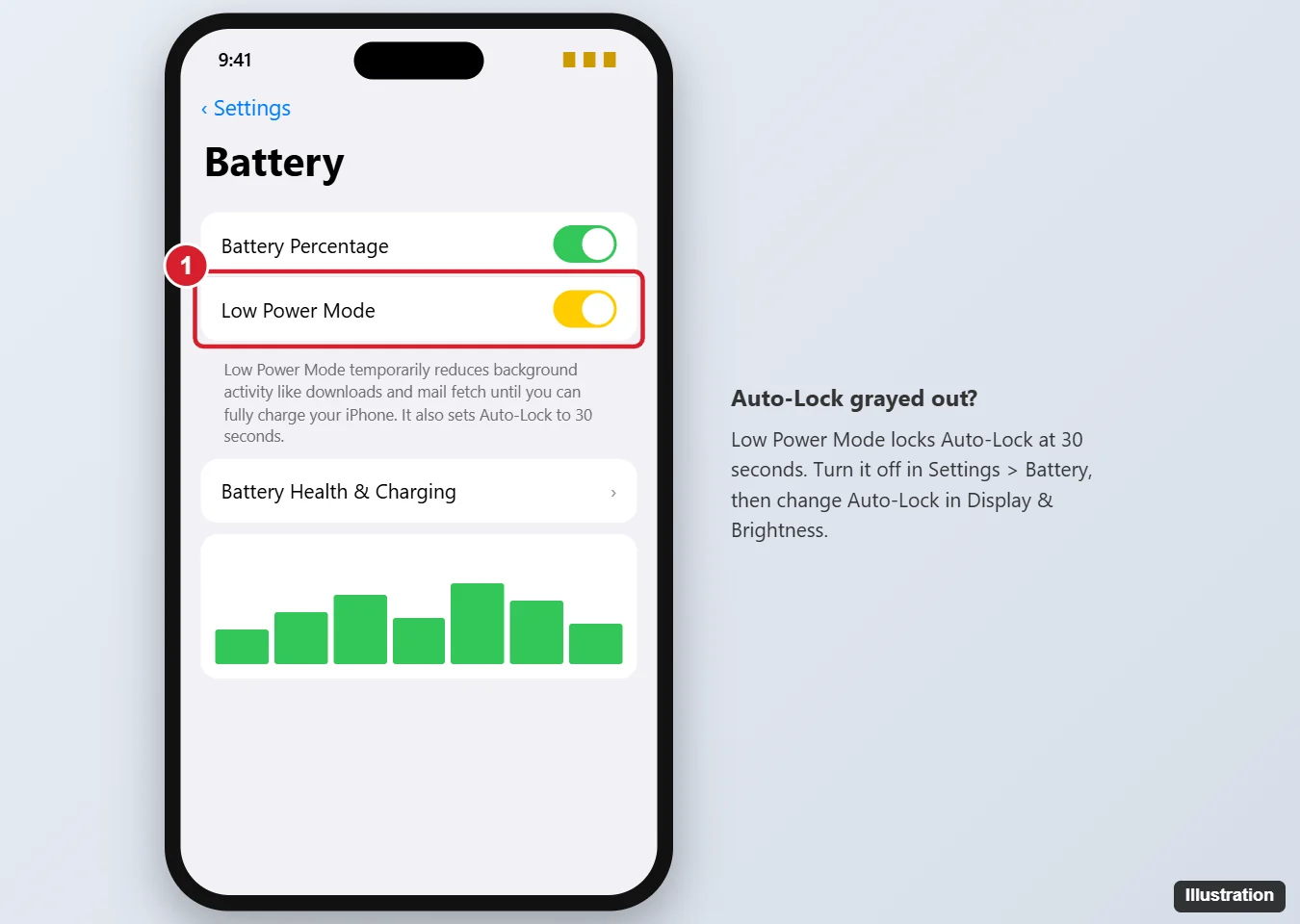
Low Power Mode turns off automatically when your iPhone charges past 80%, and Auto-Lock returns to your previous setting.
Keep Low Power Mode from turning on by itself
Check Settings > Shortcuts > Automation for automations that turn on Low Power Mode, such as when the battery drops below a certain level, and delete or change them.
Fix 2: Check for a device management profile
Work, school, or family-managed iPhones can have Auto-Lock set by an administrator.
- Go to Settings > General > VPN & Device Management.
- If you see a management profile, your organization may control Auto-Lock. Contact your IT department.
Fix 3: Check Screen Time and other settings
- Screen Time: Go to Settings > Screen Time > Content & Privacy Restrictions and check whether passcode or account changes are restricted.
- Restart your iPhone and try again.
- Update iOS in Settings > General > Software Update.
Auto-Lock options explained
| Setting | Good for |
|---|---|
| 30 seconds | Maximum battery savings |
| 1 to 5 minutes | Everyday use |
| Never | Recipes, presentations, or navigation. Uses more battery and leaves your phone unlocked. |
Frequently asked questions
Why does my iPhone lock after 30 seconds?
Low Power Mode is on, or Auto-Lock is set to 30 seconds in Display & Brightness.
Can I use Low Power Mode and a longer Auto-Lock?
No. Low Power Mode always forces Auto-Lock to 30 seconds.
Does Attention Aware affect Auto-Lock?
On iPhones with Face ID, Attention Aware Features keep the screen on while you’re looking at it. Turn it on in Settings > Face ID & Passcode.
Is it safe to set Auto-Lock to Never?
It’s fine for short periods, but your iPhone stays unlocked if you leave it. Set it back when you’re done.

Kermit Matthews is a freelance writer based in Philadelphia, Pennsylvania with more than a decade of experience writing technology guides. He has a Bachelor’s and Master’s degree in Computer Science and has spent much of his professional career in IT management.
He specializes in writing content about iPhones, Android devices, Microsoft Office, and many other popular applications and devices.