To use NameDrop, unlock your iPhone, hold its top a few centimeters from the top of another person’s unlocked iPhone (or near their Apple Watch), and wait for the glow. When NameDrop opens on both screens, tap Share to swap contact cards or Receive Only to get their card without sending yours. NameDrop is on by default. If nothing happens, check Settings > General > AirDrop > Bringing Devices Together on both iPhones.
This guide covers the exact steps, what each button does, which details actually leave your phone, how to use NameDrop with an Apple Watch, how to turn it off, and what to check when it won’t start.
What you need and which versions this covers
NameDrop is a contact-sharing feature that Apple built into AirDrop, the wireless sharing system on iPhone. It swaps “contact cards” (the name, phone number, email, and photo you’d normally type into the Contacts app) by bringing two devices close together. These instructions are written for iOS 27, the current iPhone release, and they also match iOS 26, iOS 18, and iOS 17.1 or later, because the NameDrop steps have not changed between those versions.
- Software on both devices: iOS 17.1 or later on each iPhone. For an Apple Watch, watchOS 10.1 or later. Both sides need a supported version, not only yours.
- A supported iPhone: any iPhone that runs iOS 17.1 or later. iOS 27 runs on iPhone 11 and later and on iPhone SE (2nd and 3rd generation); see Apple’s list of iPhone models compatible with iOS 27. iPhone XS and XR can still use NameDrop on iOS 17 or iOS 18. iPhone X and earlier never received iOS 17, so they can’t use it.
- A supported Apple Watch (optional): Apple Watch SE (2nd generation), Apple Watch Series 7 or later, or any Apple Watch Ultra.
- Wi-Fi and Bluetooth turned on on both iPhones, because NameDrop runs on AirDrop and AirDrop needs both radios. You don’t have to join a Wi-Fi network; the switch just needs to be on.
- Both devices unlocked and close enough to touch.
Apple documents NameDrop only for iPhone and Apple Watch. It does not work with Android phones, and you shouldn’t expect it to start from an iPad or Mac. To share with those devices, send a contact card through Messages or AirDrop instead.
NameDrop sends information from My Card, your own entry at the top of the Contacts app. It’s worth a 30-second check before you use it with a stranger, because whatever name and photo are on that card are what the other person sees and saves.
Step 1: Open your contact card
Open the Contacts app (or the Contacts tab in the Phone app), tap My Card at the top, then tap Edit. If you don’t see My Card, create a contact for yourself, then touch and hold it in the list and choose Make this My Card.
Step 2: Review your name, numbers, and emails
Fix any typos and remove old phone numbers or email addresses you no longer use. If you only want strangers to see a first name or your initials, change the name here. Each phone number and email you keep becomes something you can choose to share, or leave out, during a NameDrop.
Step 3: Set your photo and Contact Poster
A Contact Poster is the full-screen picture-and-name design that appears on other people’s iPhones when you call them, and it’s also what shows on the NameDrop screen. While editing My Card, tap your contact photo, choose a style, and tap Customize to change the photo or poster. Tap Done when you’re finished.
On the same screen you’ll see Name & Photo Sharing. That setting controls whether your updated name and poster are pushed automatically to people when you call or message them (choose Contacts Only or Always Ask). Apple’s NameDrop instructions don’t list it as a requirement, so you don’t need to turn it on just to use NameDrop.
How to use NameDrop between two iPhones
Both people do the same thing at the same time. The order of who “starts” doesn’t matter.
Step 1: Unlock both iPhones
Wake each iPhone and unlock it with Face ID, Touch ID, or the passcode. Go to the Home Screen. If one phone is showing a photo, a web page, or playing music, the same gesture may open AirDrop or SharePlay instead of NameDrop, so close those apps first.
Step 2: Hold the tops of the iPhones close together
Hold your iPhone a few centimeters (about an inch) from the top of the other person’s iPhone. Keep the screens facing up, with the top edges near each other, roughly where the front cameras are. Phones in ordinary cases usually work; you don’t need to remove them.
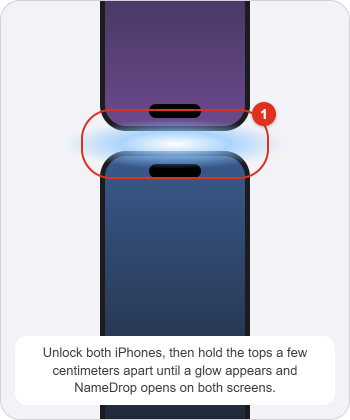
Step 3: Wait for the glow and the NameDrop screen
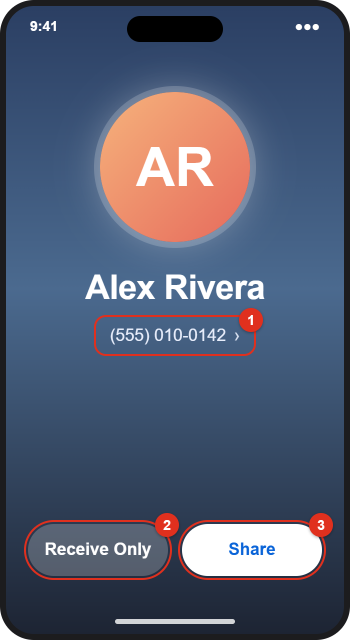
A glow spreads from the top of both screens and you feel a short vibration. Keep holding the phones near each other until NameDrop fully appears on both screens, showing your Contact Poster, your name, and a phone number or email address. Once that screen is up, you can move the phones apart a little to tap the buttons.
Step 4: Choose which details to send (optional)
Under your name, tap the phone number or email with the small arrow next to it. A list of the numbers and emails on your card opens. Check the ones you want to send, uncheck the rest, then tap Save. Your iPhone remembers these choices as the default for your next NameDrop.
Step 5: Tap Share or Receive Only
Tap Share to send your card and receive theirs, or tap Receive Only to get their card without sending yours. The other person makes their own choice on their phone. The section below explains every combination.
Step 6: Review and save the new contact
When the transfer finishes, the other person’s contact card opens on your iPhone. Check the name and number, tap Edit if you want to add a company or note, and save it. You’ll then find the person in the Contacts app and in the Phone app’s contacts list.
Each person decides separately. Nothing is sent from your phone unless you tap Share.
| You tap | They tap | What happens |
|---|---|---|
| Share | Share | You both get each other’s contact card. |
| Receive Only | Share | You get their card. They get nothing from you. |
| Share | Receive Only | They get your card. You get nothing from them. |
| Receive Only | Receive Only | No contact information moves in either direction. |
Use Receive Only when you want someone’s details (a contractor, a seller, a new colleague) but don’t want to give out your personal number. Use Share when you’re happy to swap, such as with a new friend or at a networking event.
According to Apple’s Secure NameDrop guide, NameDrop sends only three things: your name, the phone number or email address you choose, and the Contact Poster linked to your card. Everything else on My Card stays on your iPhone.
| Sent with NameDrop | Not sent with NameDrop |
|---|---|
| Your name as it appears on My Card | Home or work address |
| The phone number(s) or email address(es) you selected | Birthday |
| Your Contact Poster and photo | Pronouns (not shared by default) |
| Your other contacts, photos, messages, or files |
NameDrop is meant for adding new contacts. It can’t update a contact the other person already has saved for you. If your number changed, send them your updated card through Messages, or ask them to edit your entry by hand.
How to use NameDrop with an Apple Watch
NameDrop works between an iPhone and an Apple Watch, and between two Apple Watches. The watch needs watchOS 10.1 or later and must be an Apple Watch SE (2nd generation), Series 7 or later, or Ultra model. Apple covers this in its Apple Watch NameDrop guide.
iPhone to Apple Watch (or Apple Watch to iPhone)
- Unlock the iPhone and make sure the watch is awake and unlocked on the wrist.
- Hold the watch face a few centimeters from the top of the iPhone.
- Wait for the glow on both screens and a vibration on the watch, and keep the devices close until NameDrop appears on both.
- On each device, choose to share your card and receive the other person’s, or to receive only. The watch has a smaller screen, so the option names and the preview look simpler than on iPhone; pick the share option or Receive Only.
- Keep the devices near each other until the transfer finishes.
Apple Watch to Apple Watch
- On your watch, open the Contacts app.
- Tap your picture in the top-right corner, then tap Share.
- Bring your watch face close to the other person’s watch face.
- When NameDrop appears on both watches, each person chooses to share or receive only, then you hold the watches together until it completes.
How to cancel or undo a NameDrop
To stop a NameDrop before it finishes, pull the two devices apart or press the side button to lock your iPhone. Nothing is sent if you cancel before the transfer completes.
You can’t recall a card once it has arrived on someone else’s phone. If you received a card you don’t want, open it in Contacts, tap Edit, scroll down, and tap Delete Contact. If you sent the wrong number, ask the other person to delete or edit your entry, then review your selections in Step 4 before the next NameDrop.
How to turn NameDrop off or back on
NameDrop has no switch of its own. It’s controlled by the AirDrop setting that also handles “hold phones together” sharing. Turning that setting off stops NameDrop without turning off regular AirDrop.
Step 1: Open AirDrop settings
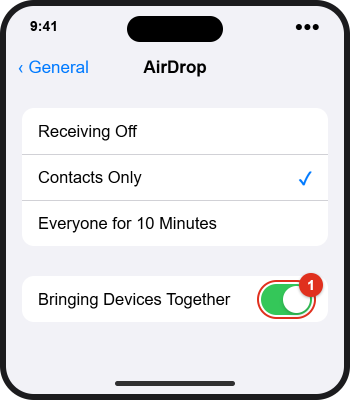
Open Settings, tap General, then tap AirDrop.
Step 2: Switch Bringing Devices Together off or on
Turn off Bringing Devices Together to disable NameDrop, or turn it on (green) to use it again. Apple’s iPhone User Guide calls this setting “Bring Devices Together,” while its Personal Safety guide says “Bringing Devices Together.” It’s the same switch, so look for either name on your screen. The choices above it (Receiving Off, Contacts Only, Everyone for 10 Minutes) only decide who can send you regular AirDrop files. You don’t need Everyone for 10 Minutes for NameDrop.
For more on the receiving choices on that screen, see how to set AirDrop to Contacts Only, and our guide to turning on AirDrop on iPhone.
Worked example: swapping only a work number
Say Alex Rivera has two numbers on My Card, a personal mobile ending in 0142 and a work line ending in 0188, plus [email protected]. At a conference, Alex meets Jordan and wants to share only work details.
- Before the event, Alex opens Contacts > My Card and confirms both numbers are labeled correctly (“mobile” and “work”).
- Alex and Jordan unlock their iPhones and hold the tops together.
- On the NameDrop screen, Alex taps the phone number under the name, unchecks the mobile number, keeps the work number and email checked, and taps Save.
- Both tap Share. Jordan receives Alex’s name, poster, work number, and email. Alex receives Jordan’s card.
- At the next NameDrop, the work number and email are already selected, so Alex can tap Share right away.
If Alex only wanted Jordan’s details, Alex would tap Receive Only in step 4 and nothing from Alex’s card would be sent.
NameDrop not working? Fixes to try
Work through these on both devices, since a problem on either side stops the exchange.
- Nothing happens when the phones touch: check that Bringing Devices Together is on in Settings > General > AirDrop, and that both phones are unlocked.
- Older software: go to Settings > General > Software Update. Both iPhones need iOS 17.1 or later (watchOS 10.1 or later on a watch).
- Wi-Fi or Bluetooth off: open Control Center and make sure both icons are on. If they’re on but NameDrop still fails, turn Airplane Mode on for a few seconds, then off.
- Personal Hotspot is on: Apple’s AirDrop instructions say to disconnect Personal Hotspot. Turn it off in Settings > Personal Hotspot and try again.
- AirDrop or SharePlay opens instead: the same gesture shares whatever is on screen. Go to the Home Screen or Lock Screen on both phones, stop any music or video, and try again.
- The glow appears but the NameDrop screen never loads: keep holding the phones together a little longer, align the top edges, and avoid laying them side by side. Move them apart, lock and unlock both, then retry.
- The other person has an Android phone, iPad, or older iPhone: NameDrop won’t appear. Share your card from Contacts > My Card > Share Contact instead, or use regular AirDrop with a supported Apple device.
- Bringing Devices Together is missing or can’t be changed: a work or school iPhone may have AirDrop restricted by a management profile, and Screen Time can block AirDrop in Content & Privacy Restrictions. Ask your IT administrator or the person who manages Screen Time.
- Still stuck: restart both iPhones. As a last resort, Settings > General > Transfer or Reset iPhone > Reset > Reset Network Settings can clear Bluetooth and Wi-Fi problems. Warning: this erases saved Wi-Fi passwords and Bluetooth pairings, so only use it after the other steps.
Is NameDrop safe?
NameDrop can’t pull your details from your phone without you knowing. For anything to be sent, your iPhone has to be unlocked, held right next to the other device, and you have to tap Share yourself. A phone in your pocket or bag that’s locked won’t start a NameDrop, and someone walking past can’t grab your card. You also see a large on-screen preview and feel a vibration before any choice is made.
To limit exposure further, keep only the details you’re comfortable sharing on My Card, use Receive Only with people you don’t know, and turn off Bringing Devices Together if you never use the feature. Because NameDrop shows your Contact Poster, also pick a photo you’re fine with strangers seeing. Your iPhone’s device name, which appears in regular AirDrop, is separate; you can change your iPhone’s name if it shows your full name.
Frequently Asked Questions
Is NameDrop on by default?
Yes. On iOS 17.1 and later, NameDrop works out of the box because Bringing Devices Together is turned on by default. You only need to visit Settings > General > AirDrop if someone has turned it off.
Do I need to set AirDrop to Everyone for 10 Minutes?
No. Apple’s NameDrop steps don’t require it. The Everyone for 10 Minutes option affects who can send you regular AirDrop files. NameDrop depends on the Bringing Devices Together switch instead.
Can NameDrop share my contact without my permission?
No. Both devices must be unlocked and held close together, and nothing leaves your iPhone until you tap Share. Tapping Receive Only, locking your phone, or pulling the devices apart prevents your card from being sent.
Does NameDrop work with Android phones?
No. Apple supports NameDrop only between iPhones and compatible Apple Watch models. To give your details to an Android user, share your contact card by text message or email from Contacts > My Card.
Why can’t I choose which number to send?
The choice appears only if your card has more than one phone number or email. Tap the number shown under your name on the NameDrop screen, select the fields you want, and tap Save. If only one number is on My Card, add others in Contacts first.
Can I use NameDrop to update a contact someone already has?
No. NameDrop only sends new contact information. It won’t update an existing entry, so if your number changed, send the updated card through Messages or ask the person to edit your contact.
Does NameDrop need an internet connection?
No internet connection is needed. NameDrop uses AirDrop, which works directly between nearby devices over Wi-Fi and Bluetooth. Both switches must be on, but you don’t need to be connected to a Wi-Fi network or have cellular data.
Does NameDrop work with a case on?
Usually, yes. Most standard cases don’t block it. If you have a very thick or metal case and the glow never appears, try removing it and test again.
Next step
Open Contacts > My Card now and make sure your name, numbers, and Contact Poster are what you’d want a stranger to see. Then the next time someone asks for your number, unlock your iPhone, hold it near theirs, and tap Share. For the full details from Apple, see Use NameDrop on iPhone to share your contact info.

Kermit Matthews is a freelance writer based in Philadelphia, Pennsylvania with more than a decade of experience writing technology guides. He has a Bachelor’s and Master’s degree in Computer Science and has spent much of his professional career in IT management.
He specializes in writing content about iPhones, Android devices, Microsoft Office, and many other popular applications and devices.