You glance at your iPhone and see the Personal Hotspot indicator, or you notice a laptop across the room is still browsing on your cellular data. To stop sharing right now, open Settings, tap Personal Hotspot (or Cellular, then Personal Hotspot), and turn off Allow Others to Join. One catch: your own Apple devices and Family Sharing members can still connect after that, so the sections below also cover how to stop them and how to check that nothing is connected.
Turn off Allow Others to Join
These steps apply to current versions of iOS. Make the change on the iPhone that is sharing its connection, not on the laptop or tablet using it.
- Open the Settings app.
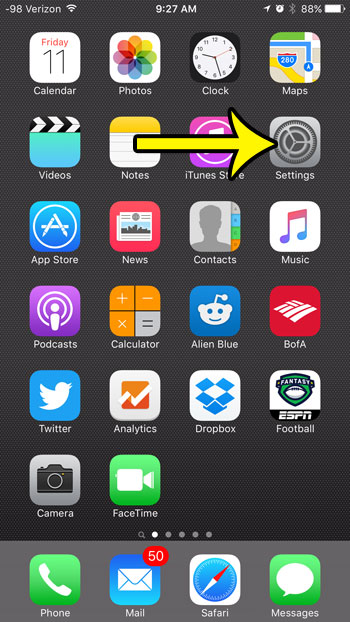
- Tap Personal Hotspot. If you don’t see it near the top of Settings, tap Cellular and then Personal Hotspot. Apple documents both routes.
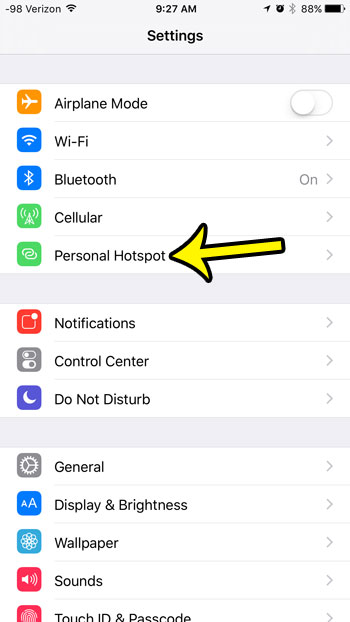
- Turn off Allow Others to Join. Older versions of iOS labeled this switch just “Personal Hotspot,” which is what the screenshot below shows.
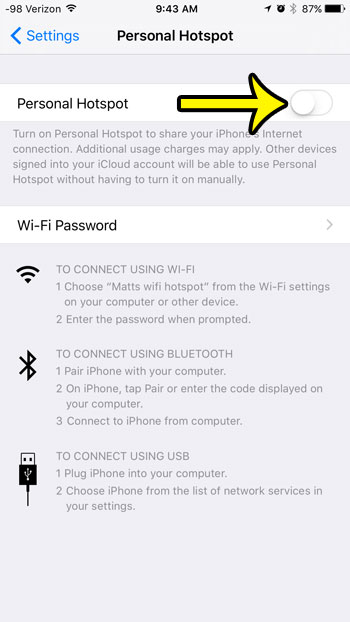
Apple lists turning off Allow Others to Join on the sharing device as one way to disconnect devices from the hotspot, whether they joined over Wi-Fi, Bluetooth or USB. A laptop or tablet that was browsing through your iPhone loses that connection and has to find another network. The rules for this switch are in Apple’s Personal Hotspot setup article.
Turning the switch off does not change the hotspot’s Wi-Fi password. If you shared the password with someone and don’t want them back on later, set a new hotspot password before you turn sharing on again.
Stop your own devices and family members from joining
Apple’s Instant Hotspot feature lets devices signed in to your Apple Account, and members of your Family Sharing group, connect to your Personal Hotspot without the password. According to Apple, Allow Others to Join “doesn’t need to be turned on” for those connections. So a Mac or iPad on your account can still pick up your hotspot after you flip the switch above.
Your own iPad, iPhone or Mac
Each of your other devices decides whether it joins your hotspot by itself. On another iPhone or an iPad:
- Open Settings on that device and tap Wi-Fi.
- Tap Auto-Join Hotspot.
- Choose Ask to Join instead of Automatic.
With Ask to Join selected, the device asks before using your hotspot instead of connecting on its own. On a Mac, Apple calls the matching option “Ask to join hotspots.” If an iPad is connected right now, you can also disconnect it by joining a different Wi-Fi network on the iPad.
Family Sharing members
- On your iPhone, open Settings and tap Personal Hotspot.
- Tap Family Sharing.
- Tap a family member’s name and choose Ask for Approval. With this setting, you get a prompt on your iPhone each time their device tries to join, and you can decline it.
- To stop all family members from joining on their own, set each one to Ask for Approval.
A practical example: a parent turns off Allow Others to Join before a long drive, but a teenager’s iPad in the back seat keeps using the parent’s data because it is in the same family group set to Automatic. Switching that member to Ask for Approval fixes it without affecting anything else. Apple explains these options in its Instant Hotspot and Family Sharing article.
Check that nothing is still connected
- Look at the status bar. Apple’s list of iPhone status icons includes a Personal Hotspot icon that means “iPhone is providing a Personal Hotspot.” If it no longer appears, your iPhone is not providing a hotspot. Apple’s status icons page shows what each one looks like.
- Unplug USB cables. Apple notes that Personal Hotspot stays active while the iPhone is connected to a computer by USB. It also warns that a computer you plug the iPhone into just to charge might connect to the hotspot, which can lead to unexpected data charges.
- Check the other device. On the laptop or tablet, the Wi-Fi menu should show a different network or no connection.
Watch how much data the hotspot used
Everything a connected device does runs on your iPhone’s cellular data. Apple points to Settings > Cellular for monitoring that usage, where you can see how much cellular data has been used and which apps used it. If you are near your plan’s limit, you can also turn off Cellular Data on that screen, which stops all cellular internet on the iPhone, hotspot included, until you turn it back on. To start counting fresh at the beginning of a billing cycle, see how to reset your cellular data statistics, and to see what background features use, check cellular data used by System Services.
If the Personal Hotspot option is dimmed or missing
A dimmed Personal Hotspot row is not the same as having the hotspot off. Apple’s guidance for this situation:
- Go to Settings > Cellular and make sure Cellular Data is on.
- Confirm that your carrier supports Personal Hotspot on your plan. Apple notes that the feature requires carrier support and that some carriers charge extra for it.
- If Cellular Data is on but you never see the option to set up Personal Hotspot, Apple suggests contacting your carrier about adding it to your plan.
If your carrier asked you to enter APN settings, the steps in fix missing APN settings on an iPhone may help.
Personal Hotspot FAQ
Can I turn off Personal Hotspot from Control Center?
Apple’s Control Center documentation covers the Wi-Fi, Bluetooth and AirDrop controls but does not describe a Personal Hotspot control. The reliable way to stop sharing is the Allow Others to Join switch in Settings.
Why does my hotspot seem to turn on by itself?
Usually it is Instant Hotspot. A Mac or iPad on your Apple Account, or a family member’s device set to Automatic, can connect even while Allow Others to Join is off. Switch those devices to Ask to Join, or set family members to Ask for Approval.
What name do other devices see for my hotspot?
Apple says the hotspot uses your iPhone’s name, which you can find in Settings > General > About > Name. Changing the name does not stop anyone from joining; the switch and the password do that.
How do I turn it back on later?
Return to the same screen and turn on Allow Others to Join. For connecting laptops, tablets and other phones, including the Maximize Compatibility option, see how to share your iPhone’s internet connection.
Once sharing is off and your other devices are set to ask first, your cellular data goes only to your iPhone. If you are trying to stretch a small plan, you may also want to check your Low Data Mode setting so you know how it is affecting your apps.
Apple asks you to disconnect Personal Hotspot before using AirDrop, and turning on AirDrop on iPhone lists the other checks.

Kermit Matthews runs Live2Tech from just outside Philadelphia. He is an IT specialist with over 20 years of experience, from a university help desk to small-business IT, IT management and his own consulting practice, and has written tech guides full time since 2020. Steps are checked against the current software on a real device or the maker’s official documentation. More about Kermit.