Siri on AirPods listens only when the AirPods model supports hands-free Siri and the iPhone they are paired with has Siri listening turned on. So before you clean or reset anything, check which AirPods you have, then open Settings > Siri > Requests on the iPhone and choose “Siri” or “Hey Siri”. Most failures trace back to one of those two checks.
Which AirPods answer to “Siri” or “Hey Siri”
Apple says you can activate Siri with your voice on AirPods 2, AirPods 3, AirPods 4, AirPods 5, AirPods Pro and AirPods Max. The newest models also accept the shorter wake word “Siri”, while the others need the full “Hey Siri”. The original AirPods have no voice activation at all, so on those Siri starts only from a tap.
| Model | Wake phrase Apple lists | Other way to start Siri |
|---|---|---|
| AirPods (first generation) | None | Double-tap an AirPod |
| AirPods 2 | “Hey Siri” | Double-tap an AirPod |
| AirPods 3 | “Hey Siri” | Press and hold the stem |
| AirPods 4 and AirPods 5 | “Siri” or “Hey Siri” | Press and hold the stem |
| AirPods Pro (first generation) | “Hey Siri” | Press and hold the stem |
| AirPods Pro 2 and AirPods Pro 3 | “Siri” or “Hey Siri” | Press and hold the stem |
| AirPods Max | “Hey Siri” | Press and hold the Digital Crown |
| AirPods Max 2 | “Siri” or “Hey Siri” | Press and hold the Digital Crown |
Two details catch people out. First, Apple notes that in some countries and regions you may only have an option for “Hey Siri”, even on a model that supports the shorter phrase. Second, saying just “Siri” also depends on the iPhone: Apple says that option is available on supported iPhone models in some languages and regions. If you only see “Hey Siri” in Settings, use the full phrase. The model list and wake phrases come from Apple’s AirPods guide on using Siri.
Check which AirPods you have
With the AirPods connected, open Settings, tap Bluetooth, then tap the Info button next to the name of your AirPods. The screen that opens lists details about the AirPods, including a model number you can match against Apple’s list of AirPods models. If the AirPods are first generation, voice activation is not available, and the fix is to use the double-tap control instead.
Narrow down the problem in one minute
Before you change settings, try Siri two ways: say the wake phrase with the iPhone on a table and the AirPods out of your ears, then say it again while wearing the AirPods. The result points you to the right section.
| What happens | Most likely cause | Where to look |
|---|---|---|
| Siri doesn’t answer on the iPhone or the AirPods | The wake phrase is off, or Siri itself is off or restricted | Turning on the wake phrase; Screen Time and VPN profiles |
| Siri answers on the iPhone but not through the AirPods | AirPods settings, a blocked microphone, or older firmware | AirPods settings; cleaning; updates |
| Press and hold works, but voice doesn’t | A model without voice activation, or the wake phrase is off | The model table above; turning on the wake phrase |
| Siri starts, then says “I’m having trouble with the connection” | No internet connection | Internet, language and region |
| Siri works, but you can’t hear the answers | Response settings | Hearing Siri’s answers |
Turn on “Siri” or “Hey Siri” on the iPhone or iPad
The wake phrase is turned on in the settings of the iPhone or iPad your AirPods are connected to, not on the AirPods themselves, so that device’s setting decides whether a spoken “Hey Siri” does anything. On current iOS the setting is called Requests:
- Open the Settings app and tap Siri.
- Tap Requests. If you don’t see Requests, turn on Siri first.
- Tap “Siri” or “Hey Siri”, or tap “Hey Siri” if that is the only option shown.
- If a setup screen appears, tap Continue, say each phrase shown on screen, then tap Done.
On some iPhones the same switch sits under a different heading. Apple’s Siri troubleshooting page says to tap Siri, then Requests, or to tap Apple Intelligence & Siri, then Talk & Type to Siri, and make sure “Siri” or “Hey Siri” is turned on. If Siri has never been set up on this phone, turning on Siri and Hey Siri walks through the first-time setup.
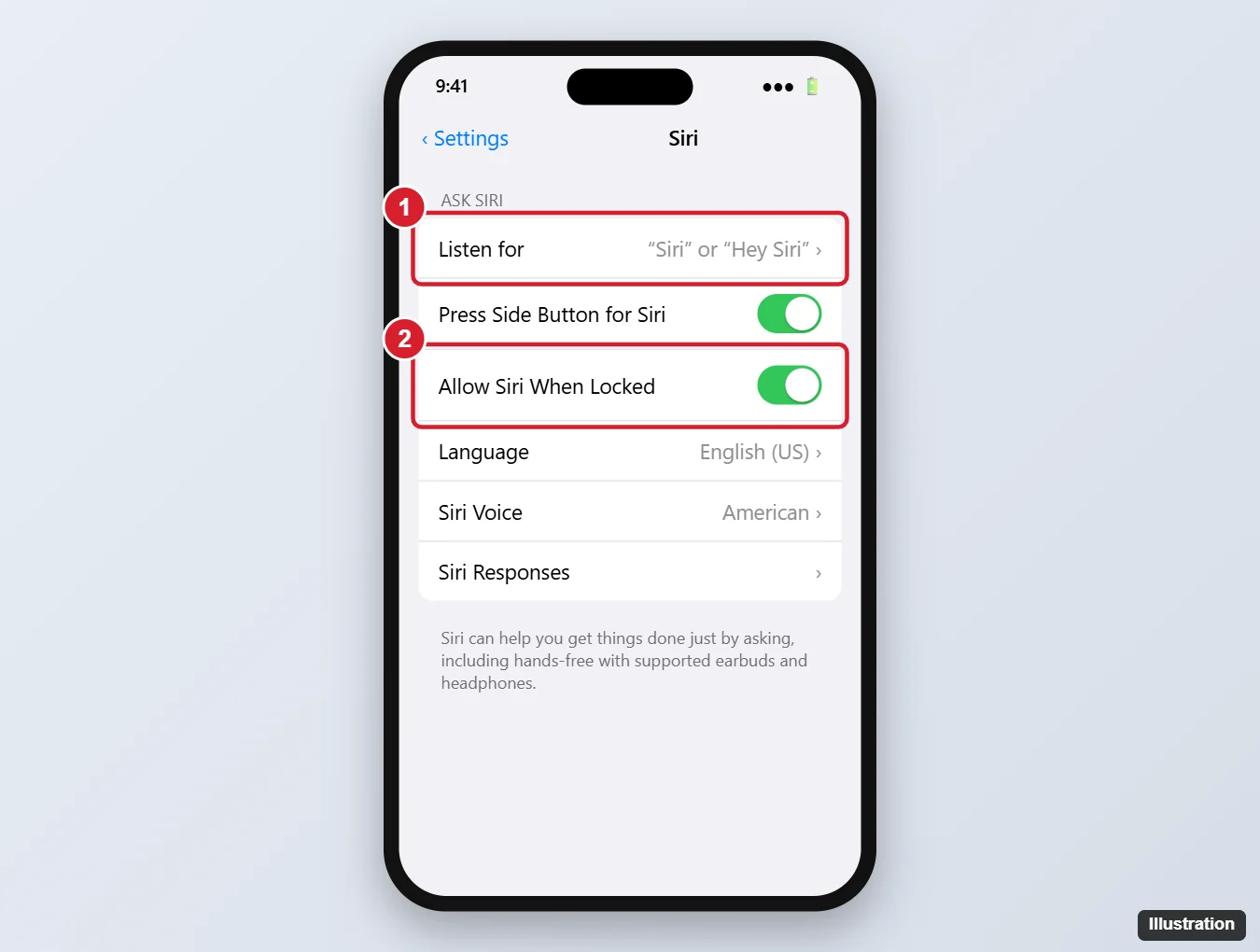
The illustration below was made for an older version of this screen. Current iOS uses the Requests label described in the steps, and the second switch shown in it is not on Apple’s current Siri settings page, so follow the steps rather than the picture.
Retrain the voice setup
If the wake phrase is already on but Siri rarely responds, Apple’s fix is to turn the setting off and on again, which repeats the voice setup:
- Go to Settings > Siri > Requests and tap Off.
- Tap “Siri” or “Hey Siri” (or “Hey Siri”) again.
- When the setup screen appears, tap Continue, say each command in your normal speaking voice, then tap Done.
Do the setup somewhere quiet and speak in your normal voice. If you’d rather Siri didn’t listen at all once you’re done testing, the same Requests screen is where you turn Siri listening off.
Check the internet connection, language and region
Siri needs the internet for most requests. If Siri starts and then says “I’m having trouble with the connection” or asks you to try again in a moment, the problem is the network, not the AirPods. Switch from Wi-Fi to cellular data (or the other way round) and try again.
Language matters too. Siri’s language is set in Settings > Siri > Language. Apple notes that the language you choose there is used for Siri, Maps, turn-by-turn directions and Listen to Page in Safari, and that Siri features vary by language, country and region. That means the shorter “Siri” wake word may be missing in one language and present in another. After changing the language, go back to Requests and confirm the wake phrase is still turned on.
The language is a separate setting from the voice Siri answers with. If the replies sound odd rather than missing, see how to change Siri’s voice on iPhone.
Look for Screen Time limits and VPN profiles
Siri can be blocked on purpose. This often happens on an iPhone handed down to a child, a phone set up by a workplace, or a phone where someone tested parental controls and forgot about them. In that case Siri may be missing from Settings or refuse to start, with the AirPods doing nothing wrong.
- Open Settings and tap Screen Time.
- Tap Content & Privacy Restrictions, then tap Siri.
- If Don’t Allow Siri is selected, choose one of the other options. On iPhones that offer it, Apple lists Siri (Classic Version) for Siri without AI capabilities and Siri AI (Beta) for Siri with them.
You may need the Screen Time passcode to change these settings. Apple’s Screen Time guide has the full list of restrictions.
VPNs are the other quiet cause. Apple’s troubleshooting page says some VPN profiles might not allow use of Siri. If a VPN app or a work profile is installed, turn the VPN off briefly and test the wake phrase. If Siri works with the VPN off and the profile came from an employer or school, ask whoever manages it, because you may not be allowed to change it yourself.
Check the AirPods settings that affect Siri
A few AirPods settings change how and when Siri hears you. To reach them, open Settings, tap Bluetooth, then tap the Info button next to your AirPods (when they are connected, their name may also appear near the top of Settings). Apple’s page on changing AirPods settings describes each option.
- Automatic Ear Detection: lets the AirPods sense when they are in your ears and route audio to them. If you don’t see it, tap Audio & Routing first. Leave it on while you troubleshoot, then try the wake phrase with the AirPods fully seated in your ears.
- Press and Hold AirPods: if you also want a button route to Siri, tap Left or Right under Press and Hold AirPods and choose Siri. If Press and Hold AirPods isn’t displayed, tap Controls & Gestures first. On AirPods 2 and first-generation AirPods the matching control is the double-tap.
- Microphone: Apple lets you choose Automatically Switch AirPods, Always Left AirPod or Always Right AirPod. If it is fixed to one side and you usually wear only the other AirPod, switch it back to Automatically Switch AirPods and test again.
Also make sure the AirPods are the device the iPhone is actually using. If they connected to a Mac or iPad nearby, the iPhone’s Siri will not hear you through them until they switch back.
Make sure you can hear Siri’s answers
Sometimes Siri does hear you, but the answer appears only as text on the iPhone screen, which feels like Siri ignored you. Apple’s fix is in Settings > Siri > Responses: tap Prefer Spoken Responses so Siri talks back even when the phone is in your pocket. Check the media volume too, because a spoken reply at very low volume is easy to miss.
With spoken responses working, AirPods can do more than answer questions. You can have the iPhone announce incoming calls in your AirPods, and on AirPods 4, AirPods 5, AirPods Pro 2, AirPods Pro 3 and AirPods Max 2, Apple’s AirPods guide describes answering Siri announcements with head gestures.
Update the iPhone and the AirPods firmware
Siri features arrive with iOS updates, and AirPods get their own firmware updates. Older software on either side can stop features from showing up.
- iPhone or iPad: go to Settings > General > Software Update and install anything offered.
- AirPods firmware: there is no button to update AirPods. Apple’s AirPods firmware page explains that updates are delivered automatically while the AirPods are charging and within Bluetooth range of an iPhone, iPad or Mac that is connected to Wi-Fi. The simplest way to give them that chance is to leave them in the charging case, plugged in, next to the iPhone with the lid closed for at least 30 minutes, as Apple’s firmware page suggests.
- Check the version: open Settings, tap Bluetooth, tap the Info button next to your AirPods, and scroll to the About section. Apple’s firmware page lists the latest version for each model, so you can compare without guessing.
Clean the microphone mesh the way Apple describes
AirPods pick up your voice through small microphone openings covered with mesh. If the microphone mesh is dirty, your voice may not reach the microphones clearly.
Apple publishes a specific cleaning method for the microphone and speaker mesh, with separate pages for AirPods 3, AirPods 4 and AirPods 5 and for AirPods Pro 2 and AirPods Pro 3. It calls for particular materials, a set number of passes and a long drying time, so follow Apple’s page step by step rather than improvising. Apple’s warnings are worth reading before you start: don’t run AirPods under water, don’t use sharp objects or abrasive materials, and don’t get any liquid in the charging ports. Apple also says to let them dry completely, for at least two hours, before you put them in the case or use them.
If an AirPod has been dropped in water rather than simply getting dirty, the steps are different; see what to do when AirPods fall in water before you test Siri again.
Reset your AirPods as the last step
A reset removes the AirPods from the iPhone and sets them up fresh. Try it only after the checks above, because you will need to reconnect the AirPods to each device that uses them. Apple’s reset page gives the steps per model.
AirPods 1, 2 and 3, and AirPods Pro (first and second generation)
- Put the AirPods in their charging case, close the lid, and wait 30 seconds.
- Open the lid. On the iPhone, go to Settings > Bluetooth, tap the More Info button next to your AirPods, tap Forget This Device, then tap again to confirm.
- With the lid open, press and hold the setup button on the back of the case for about 15 seconds, until the status light on the front of the case flashes amber, then flashes white.
- Reconnect: with the lid open, hold the case next to the iPhone and follow the steps on the screen.
AirPods 4, AirPods 5 and AirPods Pro 3
These cases have no setup button on the back. After forgetting the AirPods in Bluetooth settings (steps 1 and 2 above), Apple’s sequence is:
- Double-tap the front of the case while the status light is on.
- Double-tap again when the status light flashes white.
- Double-tap a third time when the status light flashes faster.
- When the status light flashes amber, then flashes white, the AirPods are reset. Reconnect them as above.
AirPods Max
AirPods Max reset with a button combination on the headphones instead of the case: Apple’s guide describes holding the Digital Crown and the listening mode button together for around 15 seconds until the light flashes amber, then white. Check Apple’s restart and reset steps for AirPods for your exact model before you start.
If one AirPod is missing when you want to reset, Find My can play a sound on it; what a Sound Pending message means helps if the sound doesn’t play right away. If Siri still doesn’t respond through either AirPod after a reset, while it works fine on the iPhone’s own microphone, contact Apple Support.
Siri on a Mac, an Apple Watch or a non-Apple device
The wake phrase is set on each Apple device separately, so AirPods that answer on your iPhone may stay silent on your Mac until you change the Mac’s setting too.
- iPad: the same Settings > Siri > Requests steps as on the iPhone.
- Mac: open System Settings, click Siri in the sidebar, turn on Siri, click Requests, then click “Siri” or “Hey Siri”.
- Apple Watch: open Settings, tap Siri, tap Listen for, then tap “Siri” or “Hey Siri”.
- Android phones and other non-Apple devices: Apple’s page on using AirPods with other devices says you can use AirPods as a Bluetooth headset, but you can’t use Siri; you can still listen and talk. The same applies on a PC; connecting AirPods to Windows covers what does work there.
Hands-free Siri on Apple devices is one of the things that set AirPods apart from ordinary wireless earbuds, which the difference between earbuds and AirPods explains in more detail.
AirPods Siri answers
Why does pressing the stem start Siri when my voice doesn’t?
The press-and-hold control and the wake phrase are separate routes. Pressing the stem works on any AirPods set to Siri under Press and Hold AirPods, while the voice route needs a model with voice activation and the wake phrase turned on under Requests. If the button works and your voice doesn’t, check the model table, then the Requests setting.
Do I have to set this up again after a reset?
Apple’s reset steps don’t include any Siri setting, but check Settings > Siri > Requests after you reconnect, along with AirPods settings such as Press and Hold AirPods and the microphone choice.
Once Siri answers reliably, you can spend a few minutes on sound instead: Spotify equalizer settings for AirPods is a good next stop if you stream music.

Kermit Matthews runs Live2Tech from just outside Philadelphia. He is an IT specialist with over 20 years of experience, from a university help desk to small-business IT, IT management and his own consulting practice, and has written tech guides full time since 2020. Steps are checked against the current software on a real device or the maker’s official documentation. More about Kermit.